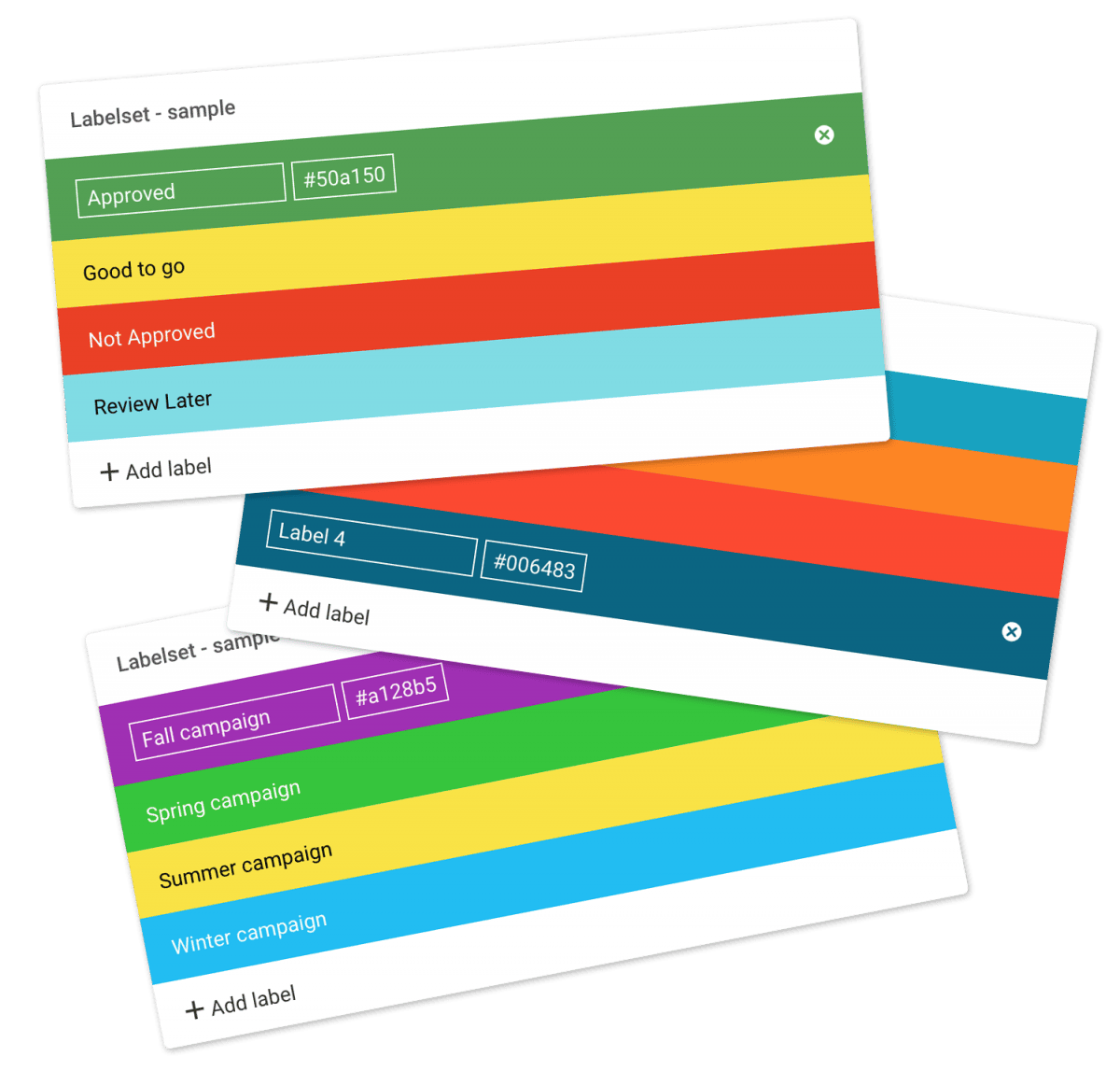
…URL Custom Terms Custom Thumbnails Sorting & viewing options White Label Notice: Labels offer a powerful and flexible way to index and categorize your files in ways that make sense for you and your workflow. Labels can be used in numerous tasks like file approvals, workflow messages, etc. You can search for labels using the advanced search option. Notice: Only users with the user permission “Change label on files & folders” are allowed to change labels on files and folders. …
Trash
…see and access the Trash. Only users with Full access to Home (all folders) can restore items from the Trash. This article reviews the following topics: Empty Trash Recover files from Trash Related articles Files Uploading files Downloading files Copy or move Delete Edit files Share file links Folders Create folder Edit folder Copy or move Delete Folder upload Share folder links Request files links Custom thumbnails Search Search for files & folders Admin Account General Domain Users Log Themes…
Auto tags
Rocks Clouds Auto tags Valley Outdoor Mountains No people Let Filecamp automatically analyse and tag your images to improve search and discovery. The future is now Auto Tags utilizes artificial intelligence to scan your image and return a set of recommended words to use as tags for the image. Use this feature to expedite tagging in Filecamp and help standardize the tags and keywords used across your organization. Find your files – faster Allow everyone to find what they need…
Tags
Tags Tags or keywords are used to describe an asset and is one of the primary drivers of search. Learn here how to add tags to an image in Filecamp. Adding Tags To add tags to a file, double-click on it and click on the Info icon in the Toolbar. This will open the Infobar. Now click inside the Tags field and enter the tags that describe the image. Press the ENTER key to confirm, then click the SAVE button…
Acceptable Use Policy
…provide the Services. Access, tamper with, or use non-public areas of the Services or shared areas that you have not been invited or authorized to access. Interfere with or disrupt any user, host, or network, including by overloading, flooding, spamming, mail-bombing, or transmitting malicious code through any part of the Services. Access, search, or create accounts using any method other than Filecamp’s publicly supported interfaces, including scraping or creating accounts in bulk. Send unsolicited communications, promotions, advertisements, or spam. Circumvent…
Remember me
Remember me Tired of entering your username and password every time you need to access your Filecamp account? Don’t worry, help is just a checkbox away! Remember me (Automatic login) Checking the Stay signed in checkbox on your Filecamp login page will automatically log you in each time you visit your Filecamp account from a specific computer. When you have checked this checkbox, you are automatically logged in the next time you visit Filecamp. Disable Remember me (Automatic login) To…
Pages
…even attach pages to specific themes making them a powerful way to communicate to specific audiences in your Filecamp. Use Custom Pages to create Online Brand Guidelines with instructions on how to use your Brand assets. Link from your Brand Guidelines into specific folders in your Filecamp for easy access and download. Read more. Use Custom Pages to create your own help guides where you can instruct your users on how to use your Filecamp. You can easily link to…
Request Files Links
Collect files from people with file requests Upload links can be used to receive files to your Filecamp without requesting the sender to log in. The possibilities are endless Add a Request Files link in your email signature and receive files directly in your Filecamp, without having to deal with mailserver file size limits. Add a Request Files link to your company website, and give your stakeholders a easy way to send you large files. Send out a business proposal…
Filecamp status
…some customers We’ve had some issues with our email-sending service (mandrillapp.com) over the last few days. Our team has identified and resolved the root cause but some email notifications and invites might have to be resent. The incident has been resolved. February 14, 2023 Unexpected downtime for certain US-based customers We have resolved an issue impacting one of our US-based servers. We apologize for the downtime this incident caused specific customers. The incident has been resolved and we have taken…
Banners
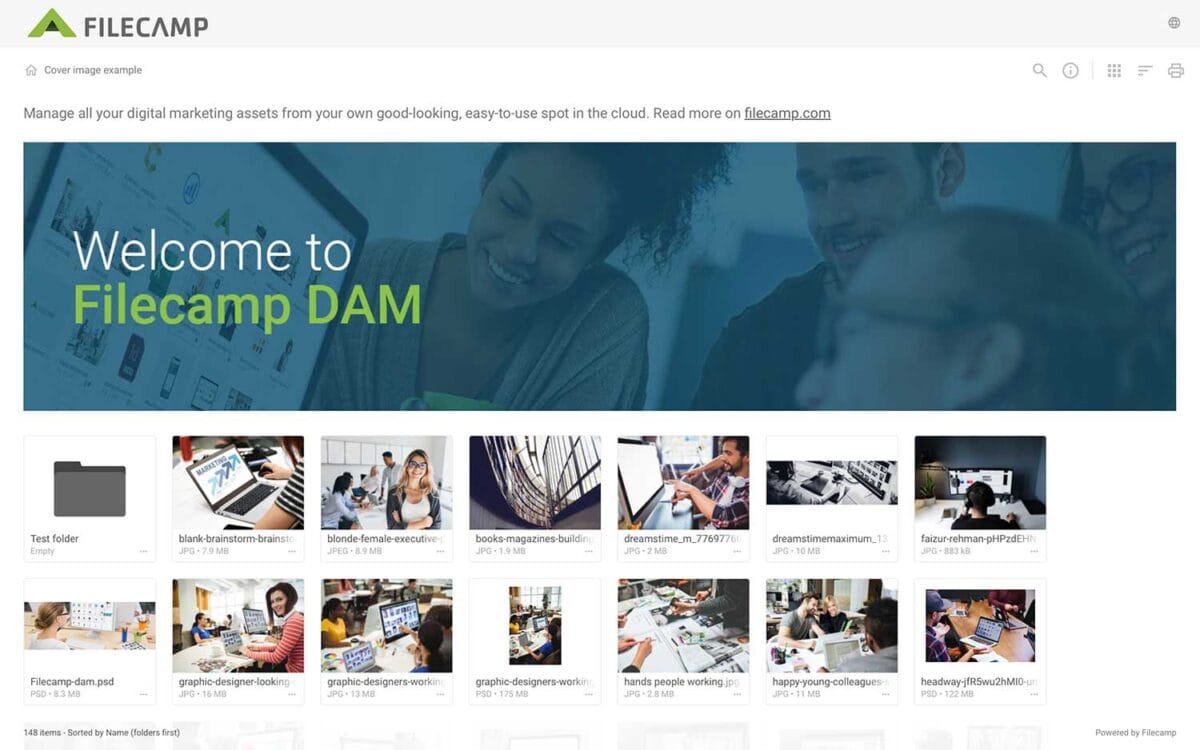
Banners Elevate your custom branding to new heights by adding personalized banners to your folders and collections. Add a banner To upload a banner, open the folder or collection and click the Info icon in the toolbar. Or select Info from the Three Dots Menu below a folder. This action opens the Infobar . Scroll down to the Advanced section, then click on the Banner image field to upload your banner image. We recommend using a well-compressed .jpg file with…
Case Studies
Share your story Help us expand this resource by sharing your work and telling your story and how you benefit from Filecamp. Contact us! Case Studies Whether you’re looking for inspiration or precedents, Filecamp´s Case Studies are a perfect place to start. TRUE “… for a design agency to succeed it not only has to do good work, it has to look good doing it.” Mark Christensen, Partner at TRUE™, truecph.com In today’s world, a brand needs to represent itself…
Supported file types
…might be too large to preview. You can upload all file types to Filecamp, but image previews are not available for files larger than 400 MB or 150 megapixels. A file’s megapixel count is calculated by multiplying its width and height in pixels. For example, an image that is 4000 × 6000 pixels equals 24 megapixels. Note on upload limits: Files can be uploaded up to 20 GB or 25 minutes in duration (whichever comes first). For uploading files larger…