
…might be too large to preview. You can upload all file types to Filecamp, but image previews are not available for files larger than 400 MB or 150 megapixels. A file’s megapixel count is calculated by multiplying its width and height in pixels. For example, an image that is 4000 × 6000 pixels equals 24 megapixels. Note on upload limits: Files can be uploaded up to 20 GB or 25 minutes in duration (whichever comes first). For uploading files larger…
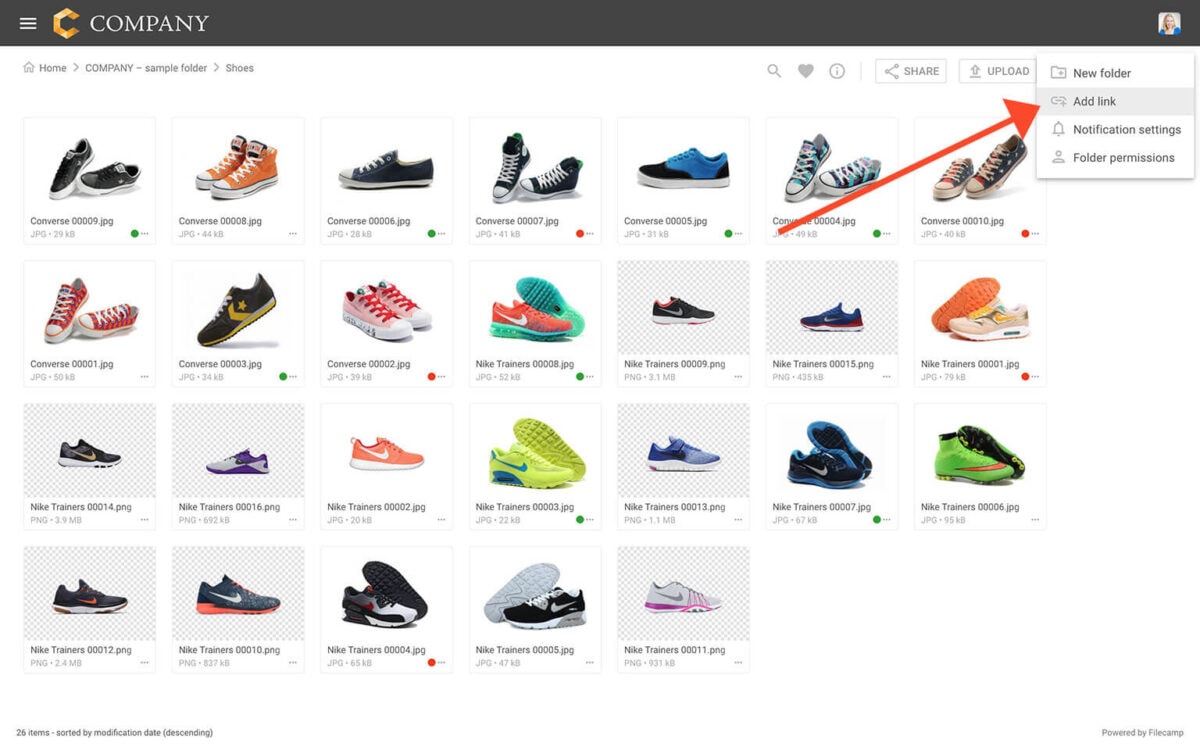
Add link
Add link Create links to other sites for easy navigation. These links can be to other folders as well as to external sites. Add link Administrators and users with permission to “Create folders & links” can create links. To create a link file, click the Extra options icon in the Toolbar. Then select the Add link option: Enter a name for the link file and the URL you want the file to point to. Then click SAVE. Now, a special…
Edit files
…actual changes for each file. This is because we use embedded metadata (where the information and tags are written into the files). This article reviews the following topics: Editing a single file Editing multiple files Related articles Files Uploading files Downloading files Copy or move Delete Edit files Share file links Supported file types Version control Expiration Metadata Tags Auto tags Custom thumbnails Notice: Only Administrators or users with permission to “Edit files & folders” are able to edit files….
Copy or Move
…drag and drop Related articles Files Uploading files Downloading files Copy or move Delete Edit files Share file links Supported file types Version control Expiration Metadata Tags Auto tags Custom thumbnails Folders Create folder Edit folder Permissions Copy or move Delete Folder upload Share folder links Request files links Custom thumbnails Notice: Only administrators and users with permission to “Move/copy files & folders” can move files and folders. (You can ask your Filecamp admin if you’re unsure about your permissions.) …
Testimonials
Testimonials Don’t just take our word for it, see what our customers are saying! But hey … who says they are right? Start your own trial account and see for your self. Start my free trial No credit card required! Awards & Recognition We’ve won awards too. People like us 😃 Filecamp Reviews Filecamp Reviews We love our customers, and the feeling’s mutual! 😃 Most Recent Video User Review for Filecamp POSTED BY: Michael S. – Director of Research /…
Custom Thumbnails
Custom Thumbnails We’ve worked hard to give Filecamp a slick and user-friendly interface. However, it may be useful to add visual cues for your files and folders. Add a custom thumbnail to a file or folder To upload a custom thumbnail to a file or folder, you can either open the folder and click the Info icon in the Toolbar, or select Info from the Three Dots Menu below the file or folder. This will open the Infobar where you…
Metadata
…FEATURE HIGHLIGHT Metadata All modern corporations are dealing with large, and ever-growing, number of media files and other brand related assets. Metadata is a key component because it facilitates the ability to easily tag and find these assets. Keywords and tagsFiles are only assets if you can locate and use them. With Filecamp it is easy to tag your images with the right keywords so that they can be found and used by your stakeholders. Embedding Metadata Filecamp can embed…
Downloading files
…last item. To select multiple non-consecutive files or folders using keyboard shortcuts: Press and hold Ctrl (control on Windows) or ⌘ (command on Mac). Click to select all the files or folders you want. When you have selected the files and folders you want to download click the Download button in the Bulk Action Bar. A .zip archive will then be created and the download process will begin. Download optimised image When downloading an image file, you can choose between…
How to take screenshots on PC and Mac
…importantly, you can save the screenshot and any edits using the 3.5-inch floppy disk icon (some visual metaphors never die). And you can now use the screenshot as a custom thumbnail to a file or folder in Filecamp 😃 How to Take a Screenshot on a Mac To capture a specific part of your screen, press Shift+Command+4 and your pointer will change to a cross-hair. Click and drag the cross-hair so that it covers the area you wish to capture….
Create Folder
Create folder Organize your files in folders just as you would on your local computer. Create all the folders you like and manage access to each folder. Create new folder To create a new folder, click the Extra options icon in the Toolbar. Then select the Add Folder option: A pop-up window will appear prompting you to enter the name of the new folder. Enter a name for the new folder. Then click CREATE. Notice: Folder names have a limit…
Metadata
Metadata Metadata provides structured information about your files. It helps you organise assets consistently and makes them easier to search and find. Filecamp automatically extracts metadata from files when they are uploaded. This allows you to benefit from information already created in your existing creative workflow. Metadata embedded in files, including XMP data from applications such as Adobe Bridge and Adobe Lightroom, is read and indexed by Filecamp. When assets are uploaded, Filecamp can extract common metadata fields such as:…
Auto tags
Auto tags Use artificial intelligence to automatically fill keywords for you. This feature will check the image, find relevant keywords, and assign them to the image. Auto tag To auto-tag an image, double-click on the image to view a larger preview and click the Info icon in the Toolbar. Now click inside the Tags field, and click the Auto generate button. Filecamp will now analyse the image and come up with a range of suggested keywords. You can remove suggested…