
Using labels

…folders Select all files or folders you want. Then click the Label change icon in the Bulk Action Bar. Choose the label you want to assign to the items selected in the pop-up window. OBS: Administrators and users with permission to “Manage labels” can edit and create new Label sets in Admin > Labels. And the same users can turn Labels and Label changes on and off on folder level in the Edit Folder menu. Tip: Remember to turn on…
Messages

…will see a list of all your messages sorted by date. The following notifications are displayed in your Outbox: Messages you have entered when sending shared links to files or folders. Notice: If you have unread messages the number of unread messages will be displayed in a round box over your avatar. Related articles User Edit My Profile Forgot password Remember me Notifications Log in Log out Language Admin Users Notice: You can disable notifications/messages for specific users. Read more. …

Share Collection

…& download If you select the View & download option the recipients will be directed to a branded preview page where the files in the Collection can be previewed, commented on, and downloaded. Notice: You always have two options for distributing share links: you can email the link directly from this window and specify specific link recipients in the “Add email” field, or you can copy and paste the link into your email application, social media, your company’s website, etc….

Contact Filecamp

Contact Filecamp Explore our Knowledge Base or contact our team with the information below. About Filecamp Why Filecamp Contact Filecamp Reach us by email any time! We’ll do our best to respond as quickly as possible. General Inquiries:hello@filecamp.com Sales sales@filecamp.com Billing billing@filecamp.com Support support@filecamp.com We don’t offer phone support and one2one demos. Learn why. Address: Filecamp AG Zugerstrasse 6 6330 Cham ZG Switzerland VAT NO: CHE-304.547.670 MWST Bank information: For international transfers: Beneficiary: Filecamp AG IBAN: GB36 REVO 0099 6964…

Architects and Engineers

Industries Architects and Engineers A professional platform for easy sharing and collaborating on large files. Architects and engineers who work with large CAD, BIM and 3D visualization projects have a daily need to share large files in a simple, fast and secure way. With Filecamp, your company files are available in your very own cloud based Digital Asset Management portal, making it easy to work globally 24/7. Everyone has access to the same files from anywhere in the world. With…

Search

Advanced Search Filters With Boolean search, you can combine several metadata fields with custom filters in order to search through your digital assets based on specific labels, keyword combinations, changed date, expiry status, and more. File previews Preview your files directly from the search results. Filecamp automatically creates a preview of most media files, including video, audio, and PDFs, so that you can preview your files before you download them. Relevant metadata is presented next to the preview. Advanced download…

Phone support

…This ensures nothing gets lost if we need to escalate your issue, and you won’t have to repeat previous questions. We can route complex questions to the right team member. It’s faster. We can investigate complex questions properly without keeping you on hold. In the future, we hope to offer more ways to communicate with the Filecamp team. For now, please email us, and we’ll respond as quickly as we can. Related articles Knowledge Base Contact Filecamp FAQ Video tutorials…

Non Profit and Charity Organizations

…platform. Nonprofits rely heavily on visuals to generate support for their cause – photos and videos evoke emotional connections that help motivate donors and supporters. With Filecamp, you can allow stakeholders to easily search, find, and share approved brand assets. Communications and marketing teams save hours of time each week, reduce the risk of copyright infringement and source better images and videos when their files are tagged with descriptive keywords and protected with copyright information. Controlling access to visual content…

Filecamp heart - we love files

Billing

…of the current Administrators of your account aren’t available. This article reviews the following topics: Plan & Storage Billing Portal Cancel account Related articles Payment options Signup & secure Trial Billing information & plan upgrades Credit Card Management for recurring transactions Filecamp uses stripe, a Level 1 PCI Compliant service provider, to manage credit card data and PCI compliance. Filecamp only stores the absolute minimum card details such as the last four digits and the expiration date for identification purposes….

Storage

…count towards your total storage usage. Thumbnails and preview files are generated and removed automatically based on your file activity. They cannot be manually deleted or excluded from storage calculations. Notice: The used storage amount is calculated daily and also whenever you empty your Trash (maximum one time every 15 minutes). Related articles Billing General Domain Users Log Themes Labels Shares WebDAV Pages Tags Storage Important: Only Administrators and users with “Storage Access” permission can access the Storage overview page. …

Labels

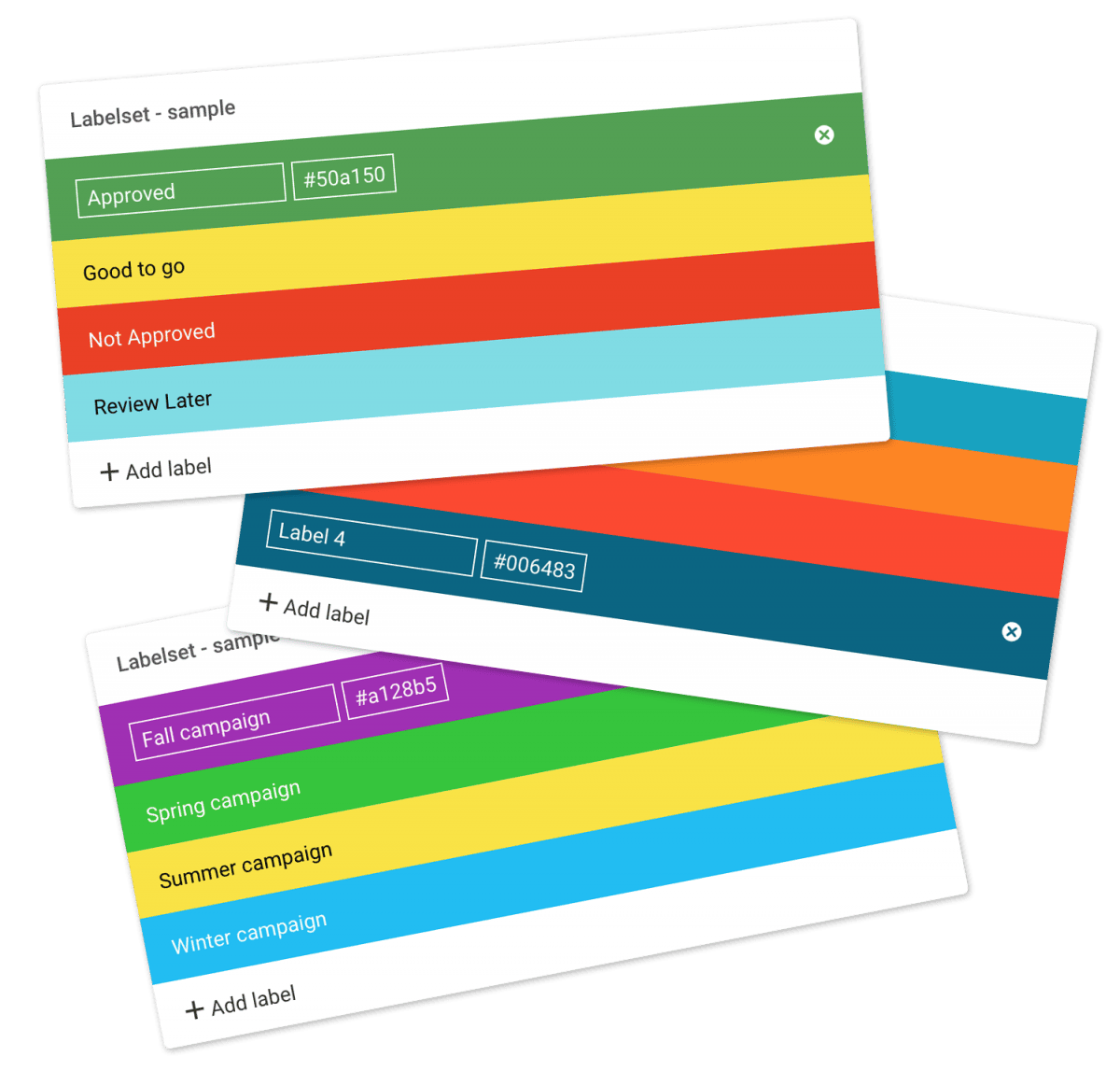
Create your own Labelsets For maximum flexibility your Admin level users can customize the labels by changing the text and color associated with each label and create new Labelsets. You can operate with unlimited Labelsets in all Filecamp plans. Read more. FEATURE HIGHLIGHT Labels Use colored labels for files and folders for easier indexing. Admin level users can customize the labels by changing the text and color associated with each label.   Mark your files and folders  with Labels.Using Labels…

Sorting options

Sorting and viewing options All users can easily change the way files and folders are presented to them. Sorting options To change how items are sorted, click the Sort icon in the top-right corner. Then select one of the following sorting options: Name (folders first) – Sort alphabetically by name, with folders listed before files. Name (A–Z) – Sort alphabetically from A to Z. Name (Z–A) – Sort alphabetically from Z to A. Size (smallest first) – Sort by file…