
…Filecamp for free. All features included. No obligation! Start my free trial No credit card required! Designed with your brand in mind Filecamp comes with some unique branding possibilities, and you can brand as many separate “sub-accounts” for your Filecamp as you’d like. You can customize the login page and overall logo and colors for each client to give them a unique experience that is centered on their brand. IMAGES Create an image gallery for your company images. Customize it…
Marketing Departments and Firms
…on Filecamp to deliver consistent brand messaging for their internal and external teams. Filecamp gives you all the benefits of marketing asset management software in a software as a service – SaaS platform. With Filecamp, your company images and other marketing materials are available in your very own Marketing Asset Management portal, online, anytime, 24/7 from your web browser. Your internal and external teams get secure access to the same marketing assets and media files from anywhere in the world….
Managed Users vs. External Users
…so that we can log what they are doing and assign their comments and label changes with their usernames. External users need to register when trying to comment on a file they have received a link to. Notice: Only Users with permission to Manage users can access Admin > Users. Your account admins have control over these settings. Notice: External users are typical short-term partners are contacts who’ve been invited to comment and approve on one or more of your…
Uploading files
…or Choose folder, depending on which method you prefer. Note: You can select multiple files for upload by holding the Command or Control key (Mac or Windows, respectively) while selecting files and folders. You can also drag and drop files and folders directly into the desired folder within your Filecamp. Afterward, you’ll see a complete list of all the files and folders you’ve selected to upload. When you’re ready to start the upload, click UPLOAD. Once the upload is complete,…
Uploading folders
…the files. Click Upload to begin the process. Once the upload is complete, click OK, GOT IT to confirm. Related articles Folders Create folder Edit folder Permissions Copy or move Delete Upload folder Share folder links Request files links Custom thumbnails Banners Embed via iFrame Notice: When uploading large and complex folder structures, you might have to adjust your computer’s Energy Saver settings to prevent your computer from going to sleep in the middle of an upload. Guide for Mac…
Browsers
…version? Click on the button below to see which browser you are using. Also learn how to share this information with your Filecamp support team. What is my browser Notice: As we add new features and enhancements, older browser versions may not support these new standards. Keeping your browser updated to the newest version will enhance your security and provide the best Filecamp experience. Related articles Hard refresh Clear cache Incognito or private mode Turn off extensions Browsers Email delivery…
Label set
…Go to Admin > Labels. Next, click on the specific labels to edit color and names on the labels. Assign Labelset to a folder You can always choose another Labelset if you do not want to use the inherited Labelset from a parent folder. To do so just navigate to the folder you want to assign a Label set to, press the Info icon in the Toolbar. Then open the Advanced settings in the Infobar, and select another Labelset from…
Trash
Trash Items deleted from your Filecamp account aren’t really deleted … they are just moved to the Trash. This two-step process adds an extra precaution to keep you from accidentally deleting a file or folder. Empty Trash To access the Trash, click on the Main menu and select Trash. Then, click the Empty Trash button in the Toolbar. You will see how much storage space can be freed by emptying your Trash. Click YES, DELETE to confirm and permanently empty…
Troubleshooting email delivery issues
…is generally always because the user’s spam filters have caught messages from either filecamp.com, mandrill.com, or mandrillapp.com. Given that Mandrill is a popular email service provider, it is possible that Filecamp-associated Mandrill-originated emails may get caught in spam filters if the filter has previously blocked Mandrill-originated emails from other companies. This article is an explanation of the problem from the Mandrill perspective. In summary, if you don’t receive the Filecamp system-generated emails you are expecting, please check your spam filters…
Brand Asset Management
… Designed with your brand in mind Put your logo, colors and login screen on Filecamp. On the Advanced and Professional plans, create as many themes as you like and give each client, brand or product its own folders with its own look, all in one account. Easy to manage from any device Filecamp is 100% cloud-based and fully responsive, giving your team easy access from a computer, tablet, or phone. Every plan includes unlimited users, flexible Roles and…
Quick Start Guide for new Admins
…from Collection Share Collection links Delete Collection Labels Using Labels Commenting Start Commenting Invite users to comment Trash Trash Admin Account General Domain Users Log Themes Labels Tags Shares WebDAV Pages Templates Storage Tech stuff Problem solving Browsers Filecamp Status Subscription Payment options Signup & secure Trial Billing information & plan upgrades VIDEO … or simply watch this! View a 4 minutes video that will take you through some of the basic tasks in Filecamp. See more Filecamp feature videos….
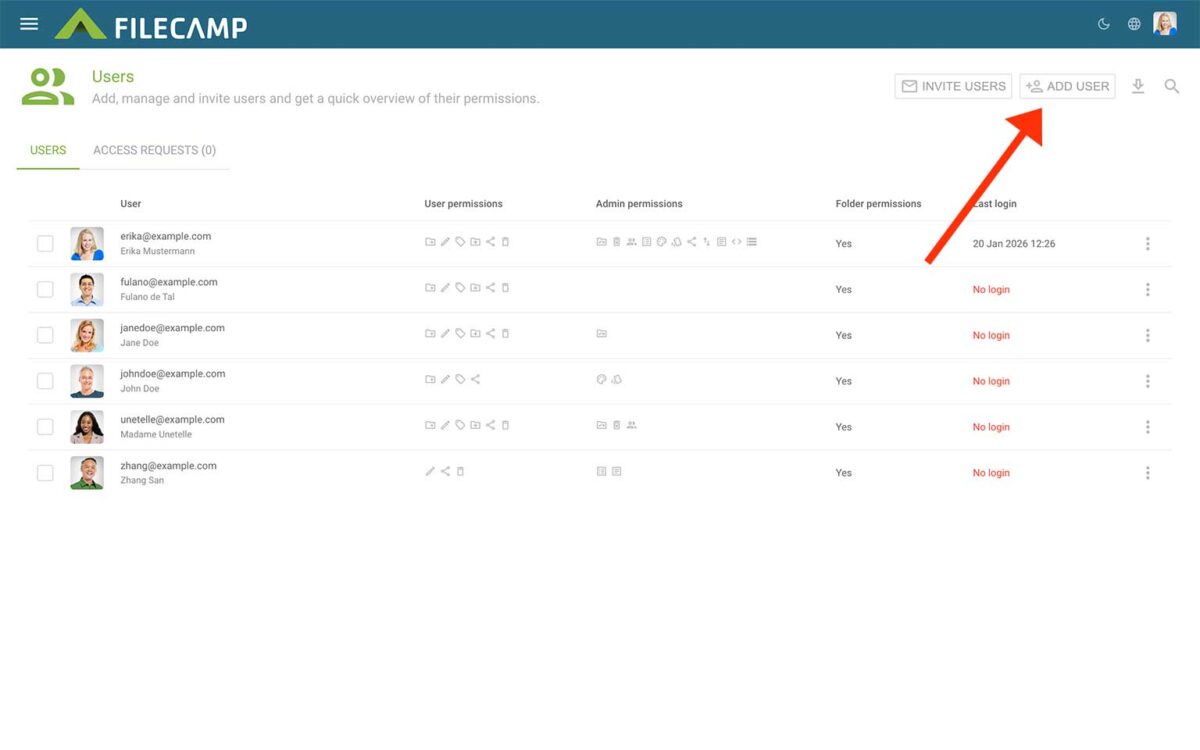
Users
…Roles – assign or remove Roles from the user. Folder access – review access inherited from Roles and give the user direct access to additional folders. Folder access received through a Role is shown together with any direct folder access assigned specifically to the user. User settings Roles and Permission sets are managed from User settings. Navigate to Admin > Users and click the User settings icon in the upper-right corner. User settings contains two sections: Roles – group users…