
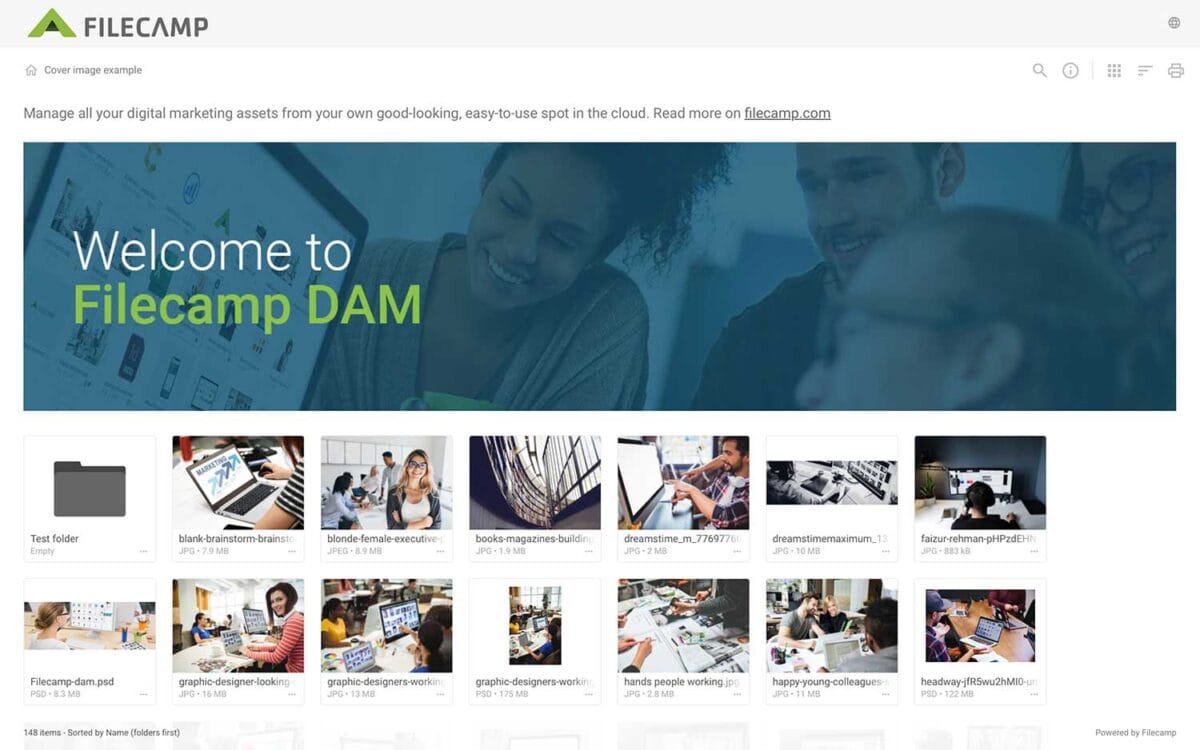
Banners Elevate your custom branding to new heights by adding personalized banners to your folders and collections. Add a banner To upload a banner, open the folder or collection and click the Info icon in the toolbar. Or select Info from the Three Dots Menu below a folder. This action opens the Infobar . Scroll down to the Advanced section, then click on the Banner image field to upload your banner image. We recommend using a well-compressed .jpg file with…
Acceptable Use Policy
…of, the Services, and the technology and software used to provide them, and all intellectual property and proprietary rights therein. Access, tamper with, or use non-public areas or parts of the Services, or shared areas of the Services you haven’t been invited to. Interfere with or disrupt any user, host, or network, for example by sending a virus, overloading, flooding, spamming, or mail-bombing any part of the Services. Access, search or create accounts for the Services by any means other…
Case Studies
…“Filecamp gets the connection between accessibility and credibility. The design works because it’s simple and logical. When you’ve got people will all levels of technical skill using a system, it’s got to make sense.“ Deirdre Wilson, Director Hothouse Design Pty Ltd The best engineers are truly artists, yet when it comes to expressing themselves visually, […] Read more. Share your storyHelp us expand this resource by sharing your work and telling your story and how you benefit from Filecamp.Contact us!…
Pages
…Custom pages are flexible and easy to use! Use them to communicate all types of information that will help your users such as: Brand Guidelines [?] Getting started tips Best practice guides Usage terms Welcome message Contact us page Or? Read more about Pages. Notice: If you are using Filecamp with a custom domain and need to edit Pages while staying on your own domain (white label), please contact us. We will then add your custom domain to the list…
Multiple themes
…sub-accounts to their clients.Large corporations with multiple brands can create branded folders for each brand. This will make it very clear for all stakeholders which brand you entering.Architects can create a new theme for each project they are working on.More use case? Please let us know. Your brand, your DAM!The following examples show how easy it is to create custom branded experiences for different clients using Filecamp’s multiple themes feature. All the screenshots are from the same Filecamp account,…
Custom Branding
Custom Branding Customize Filecamp with your company’s logo, colors, and other brand elements, so it feels like your own. Related articles Look and feel Custom Branding Own URL Custom Terms Custom Thumbnails Sorting & viewing options White Label At account level Own URL. Read more. Own SSL certificate. Read more. Language for auto-tagging. Read more. Email sending domain. Read more. White label. Read more. At folder level Banners. Read more. Default sorting method. Read more. Layout. Read more. Labels (on/off)….
Create Collection
…a Collection and shares a download link with an agency. A graphic designer selects a few images for a new product brochure and requests feedback from the art director by inviting them to collaborate and comment. A salesperson creates a Collection of frequently used customer logos for quick access. A marketing team collaborates on a set of images, commenting and deciding which assets to use for a project. Related articles Collections Create Collection Edit Collection Share Collection links Delete Collection…
Log in to Filecamp
Log in to Filecamp Access the login page for your Filecamp by typing the account URL into your browser. Log in Normally, the URL is : [YourCompanyName].filecamp.com. However, your company may use a custom URL. In this case you need to contact your system Administrators for the URL. On the login page, enter your username and your personal password. If you have forgotten the password, see Reset your password. Click Login or press ENTER. When you try to log in…
Notifications
Notifications Stay informed about new activity in your Filecamp account with notifications. Notifications and in-app messages Get notified when specific actions take place in the folder or folders you have access to. Navigate to the relevant folder and select Folder notifications from the Toolbar. Related articles User My Profile Forgot password Remember me Log in Log out Language Dark and Light mode Admin Users Administrators can set up notifications for other users by using the Log in as another user…
Hard refresh your browser
…browser will load old content that was cached (saved) rather than the new files you want to view. Clearing your cache improves your browser function and allows sites to display content from the ground up. If a hard refresh doesn’t solve your problem, please try to clear your browser’s cache. THIS ARTICLE REVIEWS THE FOLLOWING TOPICS: Chrome Firefox Safari Microsoft Edge Related articles Hard refresh Clear cache Incognito or private mode Turn off extensions Browsers Email delivery issues Filecamp Status…
Keyboard shortcuts
…the previous item: ← Open/close the Infobar: i Open in full-screen mode: f Open/close Commenting: c Close preview: esc Save actions: ctrl (or cmd) + enter Drag actions: Drag files or folders to a different folder to move them. Hold the Alt (Option on Mac) key while dragging to copy instead of move. Drag files or folders from your computer into a folder to upload them. Tip: Press ? anywhere in Filecamp to open the keyboard shortcuts guide. …
Brand Guidelines
Brand Guidelines Creating & maintaining your brand guidelines should be simple, fast and fun. Filecamp helps businesses manage their digital assets and maintain brand consistency. Start my free trial! Start my free trial! Your own online brand portal An online Brand Guide ensures brand consistency and transparency with the public. No more emailing company logos, typeface and color codes. Filecamp’s Brand Manual allows you to manage, store and share your guidelines. Make sure your colleagues and partners…
