
…files to Collection Remove files from Collection Share Collection links Delete Collection Labels Using Labels Commenting Start Commenting Invite users to comment Trash Trash Admin Account General Domain Users Log Themes Labels Tags Shares WebDAV Pages Templates Storage Tech stuff Problem solving Browsers Filecamp Status Subscription Payment options Signup & secure Trial Billing information & plan upgrades Quick Navigation with Keyboard Shortcuts Speed up your workflow in Filecamp! Discover the available keyboard shortcuts to enhance your productivity. Learn more about…
Share Collection
…& download If you select the View & download option the recipients will be directed to a branded preview page where the files in the Collection can be previewed, commented on, and downloaded. Notice: You always have two options for distributing share links: you can email the link directly from this window and specify specific link recipients in the “Add email” field, or you can copy and paste the link into your email application, social media, your company’s website, etc….
Message templates
…the e-mail that is sent to users that are subscribing to receive Download notifications. Upload notification – this is the e-mail that is sent to users that are subscribing to receive Upload notifications. Label change notification –this is the e-mail that is sent to users that are subscribing to receive Label change notifications. Comment notification –this is the e-mail that is sent to users that are subscribing to receive New Comments notifications. Invite user email – this is the e-mail…
Embed folder
…adding parameters to the src URL. Parameter Description Example theme Controls the colour theme of the embedded view. Default is light if no parameter is set. ?theme=dark hidetop Hides the top navigation bar in the embedded view. ?hidetop=true Theme options No parameter → Light theme (default) ?theme=dark → Forces dark theme ?theme=auto → Follows the visitor’s operating system theme Example: <iframe src=”https://files.filecamp.com/s/o/0rl2C3FMhz2IJ6NH?theme=dark”></iframe> Combining parameters If you want to use more than one parameter, separate them with &. Example: <iframe src=”https://files.filecamp.com/s/o/0rl2C3FMhz2IJ6NH?theme=dark&hidetop=true”></iframe>…
Fashion Industry
…files are uploaded to your Filecamp. Extensive Logging. Keep track of everything that happens in your Filecamp. Bonus. Filecamp was built from the ground up with features for creative businesses. All Industries Advertising / Design Architects Fashion Industry Freelancers Marketing Departments Media / Publishing Non-Profit Organizations Photographers Printers Public offices Remote working Web agencies … and all other Businesses Questions? Contact us Centralize and Share Your Images and Media Files. Simply. Start my free trial No credit card required!…
Create Collection
…to receive feedback from the art director. Once the images are added to the Collection, the graphic designer invites the art director to collaborate and comment on the selections. A sales person creates a Collection of frequently used customer logos for easy access. A marketing team can collaborate on a batch of images where they can comment and decide which assets are to be used for a project. Related articles Collections Create Collection Edit Collection Share Collection links Delete Collection…
Filecamp Guest Article Guidelines
FILECAMP Guest Article Guidelines Our goal is to provide insightful and well-researched articles. We are open to high-quality Guest Articles on our blog. Filecamp.com currently has a Domain Rating of 76 according to Ahrefs! Getting Started These guidelines will provide you with everything you need to know to get started with your article. What kind of articles does Filecamp publish? Topics are loosely based on design, branding, and marketing. Topics include branding, marketing, freelancing, remote working, social media, content marketing, logo…
Request Files Links
…request and add an expiry date and time to the submission process. Quickly receive documents from clients and coworkers. Remember: People who upload files to your file request cannot access your Filecamp, and cannot view files uploaded by others. Automatic email notificationsNotifications allow you to stay up to date whenever someone uploads files you. Choose between emails, in-app messages – or both. All accounts start with a 30-day free Filecamp Pro trial. Start my free trial No credit card required!…
Remember me
Remember me Tired of entering your username and password every time you need to access your Filecamp account? Don’t worry, help is just a checkbox away! Remember me (Automatic login) Checking the Stay signed in checkbox on your Filecamp login page will automatically log you in each time you visit your Filecamp account from a specific computer. When you have checked this checkbox, you are automatically logged in the next time you visit Filecamp. Disable Remember me (Automatic login) To…
Notifications
…changes notifications Get notified when other users change the Label for files in the folder (or a subfolder). Choose between No notification (default), Message notification, or Message & Email notifications. Comments notifications Get notified whenever someone adds new comments to files in the folder (or a subfolder). Choose between No notification (default), Message notification, or Message & Email notifications. Notification email example: No notification = You will not be notified (default). Message notification = You will be notified via an…
Pages
…specific areas or folders inside your account. Pages are created in a easy-to-use text editor know from Microsoft Word etc. Filecamp in your pocket Filecamp is 100% responsive and extends the full capabilities of Filecamp to your phone or tablet. Make sure that all of your favorite, most used brand collateral is always at hand and that you can access them anytime. Try Filecamp for free. All features included. Start my free trial No credit card required! FEATURE HIGHLIGHT…
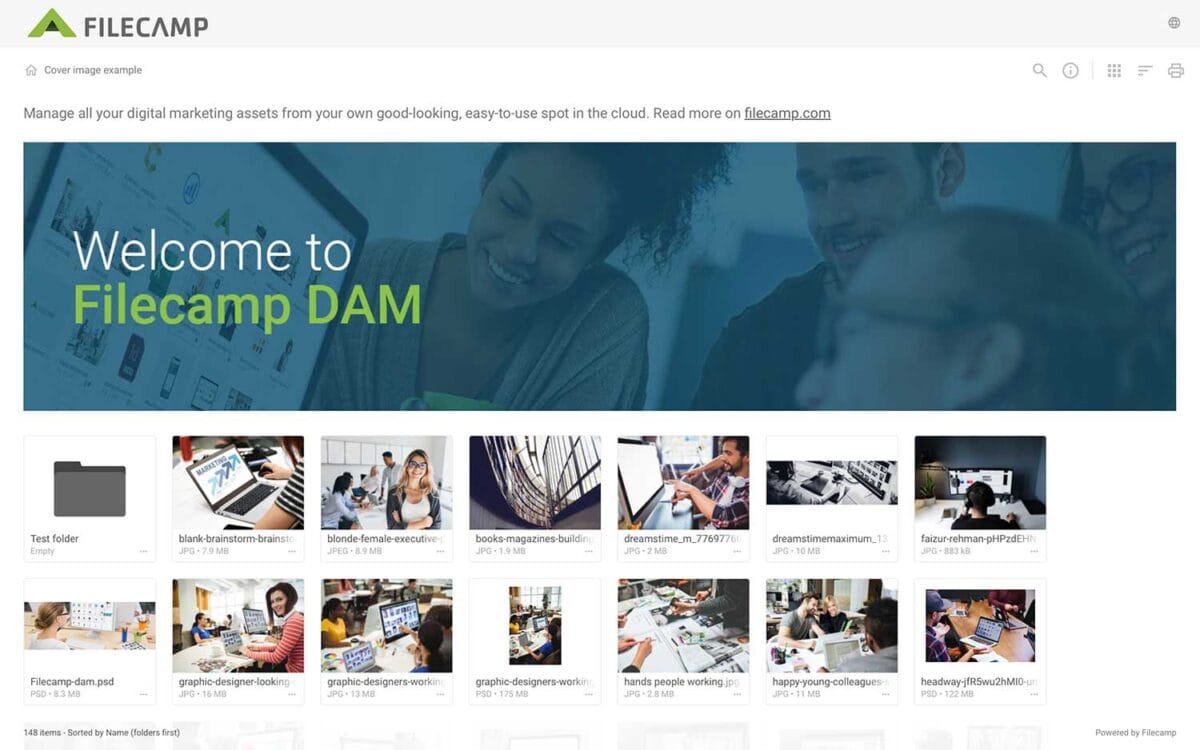
Banners
Banners Elevate your custom branding to new heights by adding personalized banners to your folders and collections. Add a banner To upload a banner, open the folder or collection and click the Info icon in the toolbar. Or select Info from the Three Dots Menu below a folder. This action opens the Infobar . Scroll down to the Advanced section, then click on the Banner image field to upload your banner image. We recommend using a well-compressed .jpg file with…