
…& download If you select the View & download option the recipients will be directed to a branded preview page where the files in the Collection can be previewed, commented on, and downloaded. Notice: You always have two options for distributing share links: you can email the link directly from this window and specify specific link recipients in the “Add email” field, or you can copy and paste the link into your email application, social media, your company’s website, etc….
Government and Public Offices
…organization’s logo to your Filecamp. Government and other public offices have important work to do and Filecamp is there to keep everyone working together towards a common goal. Government and Public Offices especially benefits from: Custom branding. Share files while reinforcing your brand. Easy to Use. Your clients and your team will love Filecamp´s simple, yet powerful interface. Email notifications. Receive notifications when new files are uploaded to your Filecamp. Extensive Logging. Keep track of everything that happens in your…
Request Files Links
Collect files from people with file requests Upload links can be used to receive files to your Filecamp without requesting the sender to log in. The possibilities are endless Add a Request Files link in your email signature and receive files directly in your Filecamp, without having to deal with mailserver file size limits. Add a Request Files link to your company website, and give your stakeholders a easy way to send you large files. Send out a business proposal…
Remember me
Remember me Tired of entering your username and password every time you need to access your Filecamp account? Don’t worry, help is just a checkbox away! Remember me (Automatic login) Checking the Stay signed in checkbox on your Filecamp login page will automatically log you in each time you visit your Filecamp account from a specific computer. When you have checked this checkbox, you are automatically logged in the next time you visit Filecamp. Disable Remember me (Automatic login) To…
Pages
…even attach pages to specific themes making them a powerful way to communicate to specific audiences in your Filecamp. Use Custom Pages to create Online Brand Guidelines with instructions on how to use your Brand assets. Link from your Brand Guidelines into specific folders in your Filecamp for easy access and download. Read more. Use Custom Pages to create your own help guides where you can instruct your users on how to use your Filecamp. You can easily link to…
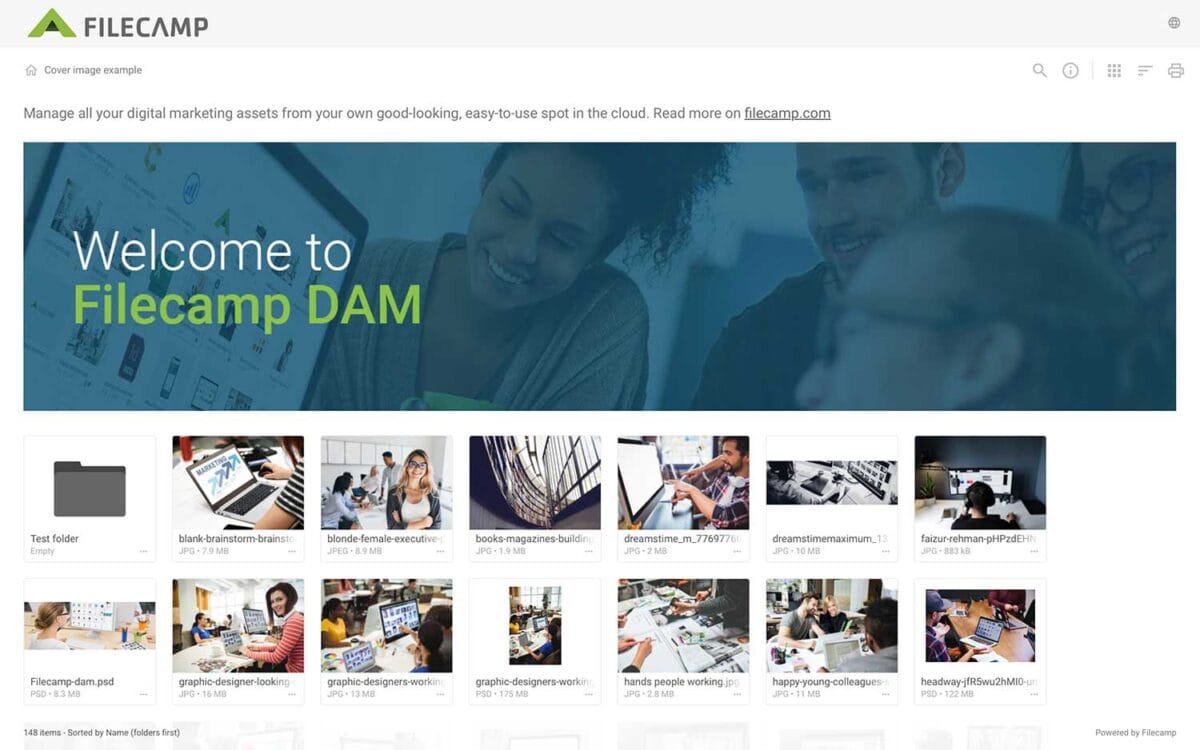
Banners
Banners Elevate your custom branding to new heights by adding personalized banners to your folders and collections. Add a banner To upload a banner, open the folder or collection and click the Info icon in the toolbar. Or select Info from the Three Dots Menu below a folder. This action opens the Infobar . Scroll down to the Advanced section, then click on the Banner image field to upload your banner image. We recommend using a well-compressed .jpg file with…
Acceptable Use Policy
…harm any software, program, data, device, system, or service; or (2) intended to provide unauthorized access or produce unauthorized modifications. Distribute content that harms or interferes with the operation of the Services or third-party networks, servers, or other infrastructure. Use the Services for phishing scams. Access or use portions of the Services you are not authorized to access or use. Reverse engineer, decompile, disassemble, attempt to gain unauthorized access to, or attempt to discover the underlying source code or structure…
Pages
…Admin > Pages. Then click on the Share icon. You have now two options for dispatching the link: you can email the link directly from this window and specify specific link recipients in the “to:” field, or you can copy and paste the link into another place (your email application, social media, your company’s website, etc.) If you only need to specify a handful of link recipients, go with the first option. Enter the email addresses of the recipients, enter…
Multiple themes
…feels just like home with their logo and colors. Custom Branding with Filecamp Apply your own (and your customers) colors, logos and titles and assign these settings to specific folders. When managing and sharing brand files, it only makes sense to have a platform that reflects that same branding. Filecamp comes with some unique branding possibilities for sharing files and collaborating with your clients and partners. You can brand your Filecamp with your company logo and colors so it feels…
Custom Branding
Custom Branding Customize Filecamp with your company’s logo, colors, and other brand elements, so it feels like your own. Related articles Look and feel Custom Branding Own URL Custom Terms Custom Thumbnails Sorting & viewing options White Label At account level Own URL. Read more. Own SSL certificate. Read more. Language for auto-tagging. Read more. Email sending domain. Read more. White label. Read more. At folder level Banners. Read more. Default sorting method. Read more. Layout. Read more. Labels (on/off)….
Log in to Filecamp
Log in to Filecamp Access the login page for your Filecamp by typing the account URL into your browser. Log in Normally, the URL is : [YourCompanyName].filecamp.com. However, your company may use a custom URL. In this case you need to contact your system Administrators for the URL. On the login page, enter your username and your personal password. If you have forgotten the password, see Reset your password. Click Login or press ENTER. When you try to log in…
Notifications
…users change labels for files in the folder or any subfolder. Choose between No notification (default), Message notification, or Message & Email notifications. Comment notifications Get notified when someone adds comments to files in the folder or any subfolder. Choose between No notification (default), Message notification, or Message & Email notifications. Notification email example: No notification = You will not be notified (default). In-app notification = You will receive an in-app message. In-app & email notifications = You…