
User Interface Overview A quick overview of the menus and terminology used in Filecamp Main window Filecamp’s main window can include folders and/or file thumbnails. Grid View: Grid View displays your files and folders as a grid of thumbnails, offering a visual overview of your content. This layout is particularly useful for quickly identifying images and videos. List View: List View shows your files and folders in a row format with details like name, type, label, date, and size, making…
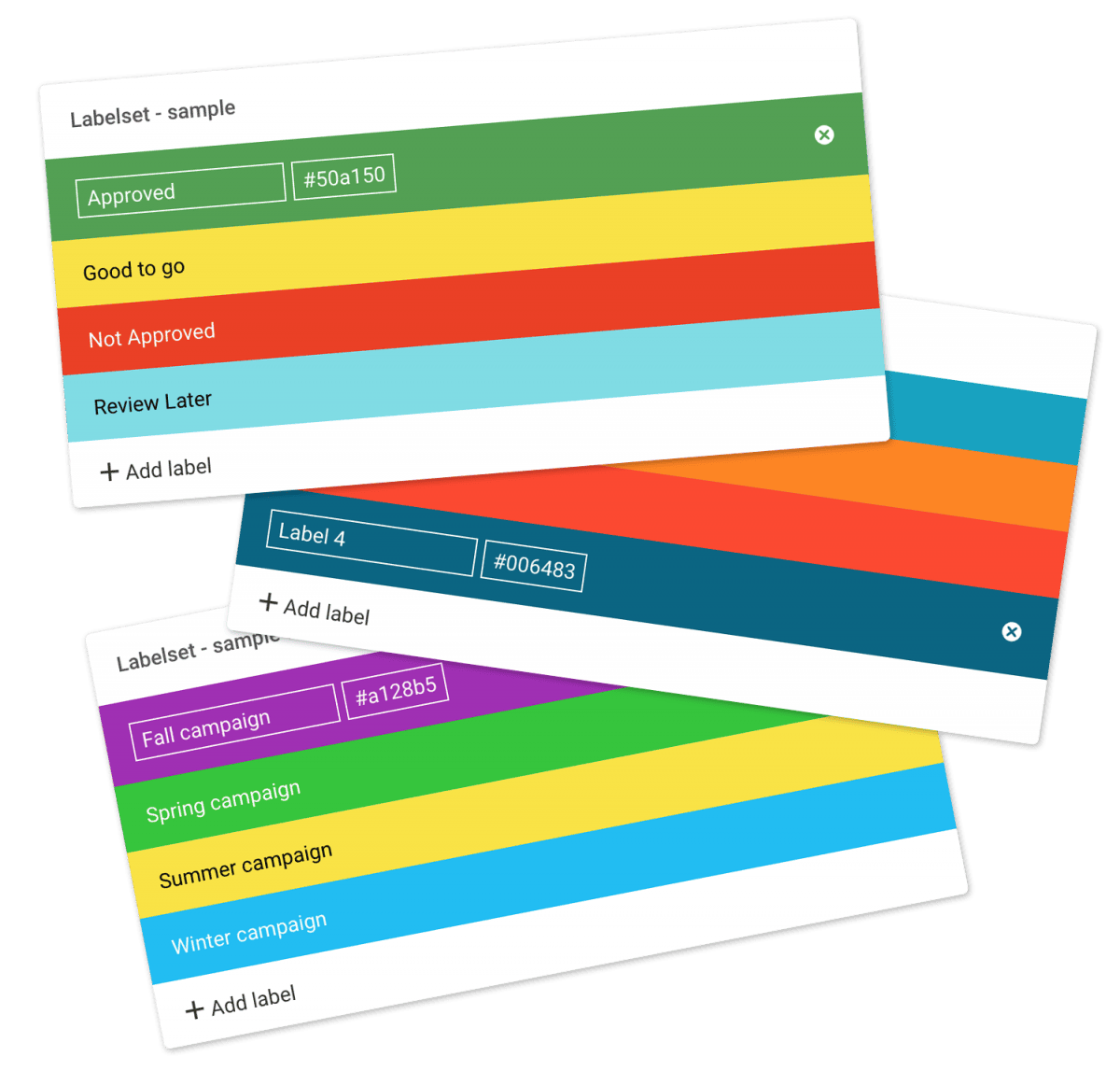
Using labels
…large preview view. Double-click on the file to open the file in the preview mode, then click on the Label next to the filename. You can also change the label on a file from the Infobar. Notice: if you hold your mouse over the Label you can see who has previously changed the label. More information can be found in the Log. Choose the label you want to use in the pop-up window. Assign a label to multiple files and…
Label set
…the Labelset drop-down menu. Enable/disable label change on folder level You can easily enable or disable label changes on the folder level. Enter the folder you want to modify, open the Infobar and click on Advanced settings in the, and you can now enable/disable label changes for this folder (and subfolders) from the Label Change drop-down menu. Notice: Only Administrators or users with permission to “Edit files and folders” and “Manage labels” can assign a Labelset to a folder. Read…
Edit files
…tags/keywords that describe the selected files (remember to press enter after each keyword). Read more about Metadata. Auto tag selected images – check this checkbox if you want to have the selected images tagged automatically using artificial intelligence. (Pro plan only). Read more about Auto-tagging. Simply make the desired changes and click UPDATE FILES to save the changes. Notice: When editing a lot of files, there can be a delay of up to 15 minutes before you can see the…
Trash
…your Trash. When you empty the Trash the files are permanently deleted and the used storage space will be released. Notice: When you have emptied your trash, it can take up to 15 minutes before your storage level is updated. It may also be necessary to refresh your browser or to re-login. Recover files from Trash If files or folders are accidentally deleted, users with Trash access can view them in the Trash. However, only users with Full access to…
Storage
Storage Admin level users can access and monitor storage usage through the Storage control panel. Monitoring Storage Navigate to Admin > Storage from the Main menu in the top left corner. On the Storage overview page, you can see how much storage you have used. Notice: All Administrators will receive an email notification when your account reaches 70%, 80%, and 90% of your storage limit. More details Storage usage Below the Storage progress bar you can see how your total…
Log out
Log out Finished using your Filecamp? To maintain security we recommend logging out. Log out To log out of Filecamp, click on your Avatar/Profile in the top-right and select Log Out. After logging out you will be directed back to the login screen, where you can log back in. NOTICE: The login page you Log in from will be cached so next time you log in you will be directed to the same login page. To reset this go to…
Delete files or folders
…types Version control Expiration Metadata Tags Auto tags Custom thumbnails Folders Create folder Edit folder Permissions Copy or move Delete Folder upload Share folder links Request files links Custom thumbnails Notice: Administrators and users with the “Move files & folders to trash” permission can delete files and folders. (If you’re unsure about your permissions, please contact your Filecamp admin.) Notice: When you “delete” items, they’re not actually deleted; they are moved to the Trash, from where you can recover them. …
Government and Public Offices
…easy file sharing and collaboration for everyone on your staff. Public offices are getting savvier at expressing themselves to their stakeholders and using graphics and rich media to express their message. Filecamp keeps all the important photos in an Image Library, where you can easily build collections of images to share with members of the press or people who sit on the board of our office. The custom branding features included in every Filecamp plan allow you to add your…
Problem solving
Problem Solving If you experience problems with your Filecamp account, there are a few things you can try. 1. Refresh your browser A hard refresh clears your browser’s cache for a specific page and loads the latest version. This can fix some site errors, such as pages that do not fully load. A hard refresh will usually fix this, but occasionally you may need to clear your browser cache completely. 2. Clear browser cache In rare cases, your browser may…
Clear browser cache
…iOS From the Home screen, open the Settings App. Open Safari settings. Swipe to the bottom of the menu and tap Advanced. Tap Website Data. Swipe to the bottom of the menu and tap Remove All Website Data. Chrome for iOS From the Chrome app, tap the Menu icon Tap Settings. Tap Privacy. Tap Clear Cache and Clear Cookies, Site Data. Chrome for Android From the Chrome app, tap the device’s Menu button Tap Settings. Tap Privacy. Tap Clear Browsing…
Downloading files
…last item. To select multiple non-consecutive files or folders using keyboard shortcuts: Press and hold Ctrl (control on Windows) or ⌘ (command on Mac). Click to select all the files or folders you want. When you have selected the files and folders you want to download click the Download button in the Bulk Action Bar. A .zip archive will then be created and the download process will begin. Download optimised image When downloading an image file, you can choose between…