
…last item. To select multiple non-consecutive files or folders using keyboard shortcuts: Press and hold Ctrl (control on Windows) or ⌘ (command on Mac). Click to select all the files or folders you want. When you have selected the files and folders you want to download click the Download button in the Bulk Action Bar. A .zip archive will then be created and the download process will begin. Download optimised image When downloading an image file, you can choose between…
Create Folder
Create folder Organize your files in folders just as you would on your local computer. Create all the folders you like and manage access to each folder. Create new folder To create a new folder, click the Extra options icon in the Toolbar. Then select the Add Folder option: A pop-up window will appear prompting you to enter the name of the new folder. Enter a name for the new folder. Then click CREATE. Notice: Folder names have a limit…
Embed folder
…adding parameters to the src URL. Parameter Description Example theme Controls the colour theme of the embedded view. Default is light if no parameter is set. ?theme=dark hidetop Hides the top navigation bar in the embedded view. ?hidetop=true Theme options No parameter → Light theme (default) ?theme=dark → Forces dark theme ?theme=auto → Follows the visitor’s operating system theme Example: <iframe src=”https://files.filecamp.com/s/o/0rl2C3FMhz2IJ6NH?theme=dark”></iframe> Combining parameters If you want to use more than one parameter, separate them with &. Example: <iframe src=”https://files.filecamp.com/s/o/0rl2C3FMhz2IJ6NH?theme=dark&hidetop=true”></iframe>…
How to take screenshots on PC and Mac
How to take screenshots on PC and Mac Capturing a screenshot is a simple way to share whatever it is you’re seeing on the screen. Here’s a quick guide on how to take a screenshot on Windows and macOS. How to Take a Screenshot on a PC The easiest way to get to the Snipping Tool is by pressing Windows Key+Shift+S. That keyboard shortcut gives you a choice to take a screenshot using a rectangular selection, freehand selection, window, or…
Dark and Light mode
Dark and Light mode Switch between dark and light mode in Filecamp to match your workspace and reduce eye strain. How to switch between dark and light mode In the top-right corner, click the sun or moon icon. Select Switch to dark mode or Switch to light mode. The change is applied immediately. Your browser will remember your choice for 24 hours. Light mode example: Dark mode example: Note: Filecamp follows your operating system’s mode by default. If your device…
Pages
…even attach pages to specific themes making them a powerful way to communicate to specific audiences in your Filecamp. Use Custom Pages to create Online Brand Guidelines with instructions on how to use your Brand assets. Link from your Brand Guidelines into specific folders in your Filecamp for easy access and download. Read more. Use Custom Pages to create your own help guides where you can instruct your users on how to use your Filecamp. You can easily link to…
Request Files Links
Collect files from people with file requests Upload links can be used to receive files to your Filecamp without requesting the sender to log in. The possibilities are endless Add a Request Files link in your email signature and receive files directly in your Filecamp, without having to deal with mailserver file size limits. Add a Request Files link to your company website, and give your stakeholders a easy way to send you large files. Send out a business proposal…
Banners
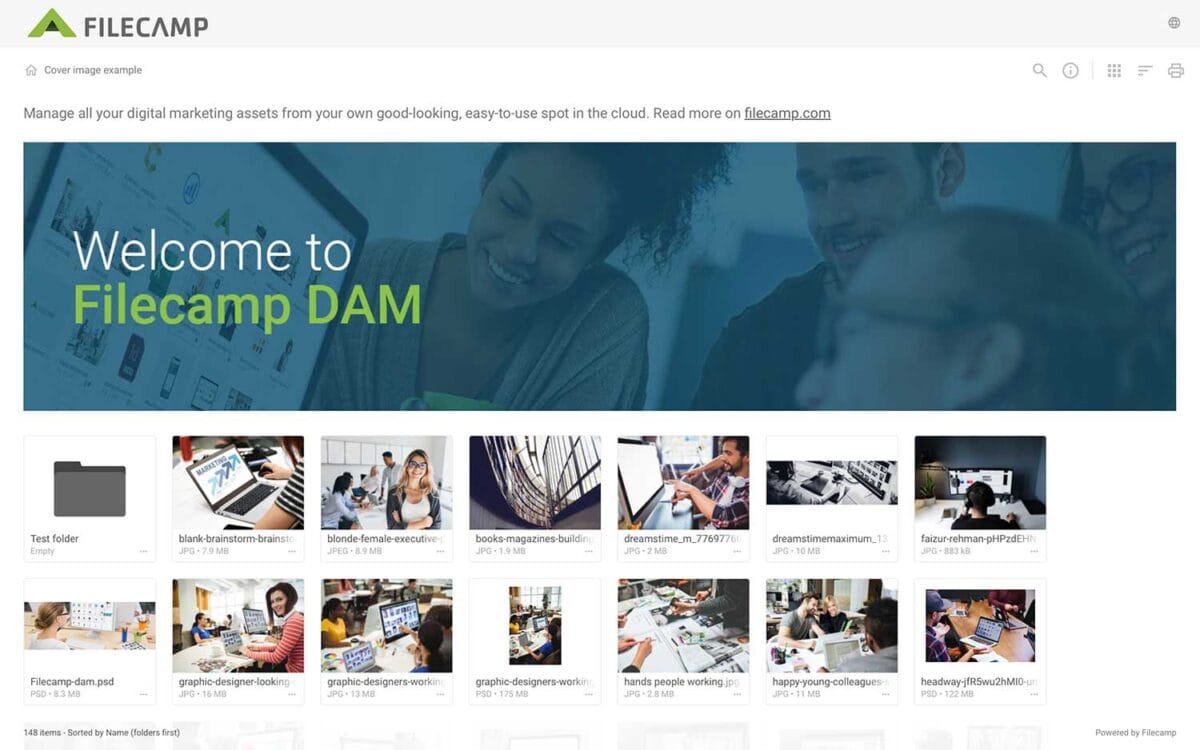
…on an image to view it in a larger size. TIPS: Enhanced Visual Impact: Banners can add a personalized touch to your folders and collections, boosting their visual appeal while creating a memorable first impression and strengthening your brand identity. Distinctive Representation: Choose a striking photo, graphic, or design to serve as your banner and set your folder or collection apart. Optimal Display: For the best visual impact, use a well-compressed .jpg image at 3000 x 600 px. …
Custom Branding
…https URL Login logo Login body background color Login page background image Your own custom Terms or copyright notice Secondary color (buttons etc.) White Label text Login description Login logo background color Your own custom fields for access requests. Interface You can see which aspects of the interface are customizable below: Favicon and page title Own secure https URL Logo Custom thumbnails on folders and files Folder description text Labels and Labelset Secondary color (buttons etc.) White Label text Default…
Create Collection
…a Collection and shares a download link with an agency. A graphic designer selects a few images for a new product brochure and requests feedback from the art director by inviting them to collaborate and comment. A salesperson creates a Collection of frequently used customer logos for quick access. A marketing team collaborates on a set of images, commenting and deciding which assets to use for a project. Related articles Collections Create Collection Edit Collection Share Collection links Delete Collection…
Brand Guidelines
Brand Guidelines Creating & maintaining your brand guidelines should be simple, fast and fun. Filecamp helps businesses manage their digital assets and maintain brand consistency. Start my free trial! Start my free trial! Your own online brand portal An online Brand Guide ensures brand consistency and transparency with the public. No more emailing company logos, typeface and color codes. Filecamp’s Brand Manual allows you to manage, store and share your guidelines. Make sure your colleagues and partners…
Log in to Filecamp
Log in to Filecamp Access the login page for your Filecamp by typing the account URL into your browser. Log in Normally, the URL is : [YourCompanyName].filecamp.com. However, your company may use a custom URL. In this case you need to contact your system Administrators for the URL. On the login page, enter your username and your personal password. If you have forgotten the password, see Reset your password. Click Login or press ENTER. When you try to log in…