
…the previous item: ← Open/close the Infobar: i Open in full-screen mode: f Open/close Commenting: c Close preview: esc Save actions: ctrl (or cmd) + enter Drag actions: Drag files or folders to a different folder to move them. Hold the Alt (Option on Mac) key while dragging to copy instead of move. Drag files or folders from your computer into a folder to upload them. Tip: Press ? anywhere in Filecamp to open the keyboard shortcuts guide. …
Browsers
…version? Click on the button below to see which browser you are using. Also learn how to share this information with your Filecamp support team. What is my browser Notice: As we add new features and enhancements, older browser versions may not support these new standards. Keeping your browser updated to the newest version will enhance your security and provide the best Filecamp experience. Related articles Hard refresh Clear cache Incognito or private mode Turn off extensions Browsers Email delivery…
Custom Thumbnails
…List view, your original files remains untouched. Choosing a still for video files is an excellent way to make a custom thumbnail. When you update a version of a file that has a custom thumbnail, you need to update the thumbnail as well. Upload your thumbnails at exactly 336 × 240 px to avoid scaling or cropping. Screenshots are a simple way to create your own custom thumbnails. See how to take screenshots on PC and Mac. Notice: Custom Thumbnails…
Version control
…versions are stored with the file. You can always view and download previous versions of the file just by selecting the version from the dropdown list. Notice: When uploading a new version the original shared link will be updated (within 5 minutes), so that shared links always points to the newest file. Related articles Files Uploading files Downloading files Copy or move Delete Edit files Share file links Supported file types Version control Expiration Metadata Tags Auto tags Custom thumbnails…
Copy or Move
…drag and drop Related articles Files Uploading files Downloading files Copy or move Delete Edit files Share file links Supported file types Version control Expiration Metadata Tags Auto tags Custom thumbnails Folders Create folder Edit folder Permissions Copy or move Delete Folder upload Share folder links Request files links Custom thumbnails Notice: Only administrators and users with permission to “Move/copy files & folders” can move files and folders. (You can ask your Filecamp admin if you’re unsure about your permissions.) …
Expiration
…for the file on the calendar itself, or type the date into the field. Click Update files to save the changes. Notice: If you check the “Automatically move expired items to the Trash” checkbox in Admin > General expired files will be moved to the Trash automatically. Related articles Files Uploading files Downloading files Copy or move Delete Edit files Share file links Supported file types Version control Expiration Metadata Tags Auto tags Custom thumbnails Expiration markers: Expiration date set…
Edit Collection
…the Remove button in the Bulk Action Bar. The files will then be removed from the Collection. Notice: When you remove files from a Collection, only references to the files are removed. The original files remains untouched. Edit Collection settings To edit the name and settings of an existing Collection, enter the Collection and click the Info icon in the Toolbar. You can now edit the following settings in the Infobar: Name – Collection name. Description – Collection description (will…
Sorting options
…number of items in the folder. Tip: All files and folders in a folder are sorted alphabetically as default. If you want to set a specific sorting order you could choose to name your folders e.g. 01. folder name 02. folder name 03. folder name etc. Layout options All users can choose between Grid, Large Grid, List, Large List, and Flexible Grid layout from the Change layout menu in the Main Window. See the differences between the layout options below….
Direct file links
…social media outlets, and more. Related articles Files Uploading files Downloading files Copy or move Delete Edit files Share file links Supported file types Version control Expiration Metadata Tags Auto tags Custom thumbnails Notice: When uploading a new version or replacement of a file you will have to update the link manually on the platforms where you have embedded the link. This is to avoid browser cache issues. The Direct file link will NOT automatically point to the new version/file. …
Add a Home Screen shortcut to your iPhone or Android
How to add a Home Screen shortcut to your iPhone or Android Here’s how to create an “app” for your Filecamp on your device, allowing you to access shortcuts directly from your home screen. Phones & iPads Open the Safari app on your iPhone or iPad. Navigate to the website that you want to add to your Home Screen. Tap the Share icon in the bottom toolbar. Scroll down until you reach the list of actions. Tap Add to Home…
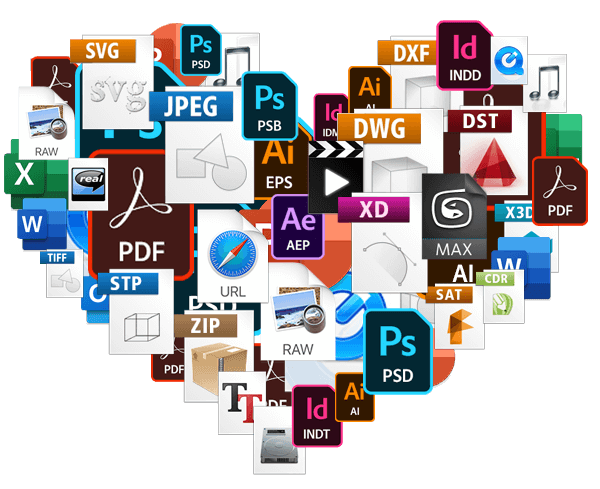
Language settings
Change Filecamp’s language settings Each user can change the language of the user interface. How to change the language of your UI To change your language settings, simply click on the globe icon and select your preferred language from the drop-down menu. The page will automatically reload, and Filecamp will be displayed in your selected language. Notice: Filecamp’s UI language is user-based and does not apply globally. This way, each user can select a different language when working with Filecamp. …
Metadata
Metadata Metadata provides structured information about your files. It helps you organise assets consistently and makes them easier to search and find. Filecamp automatically extracts metadata from files when they are uploaded. This allows you to benefit from information already created in your existing creative workflow. Metadata embedded in files, including XMP data from applications such as Adobe Bridge and Adobe Lightroom, is read and indexed by Filecamp. When assets are uploaded, Filecamp can extract common metadata fields such as:…