
…& download If you select the View & download option the recipients will be directed to a branded preview page where the files in the Collection can be previewed, commented on, and downloaded. Notice: You always have two options for distributing share links: you can email the link directly from this window and specify specific link recipients in the “Add email” field, or you can copy and paste the link into your email application, social media, your company’s website, etc….
Government and Public Offices
…organization’s logo to your Filecamp. Government and other public offices have important work to do and Filecamp is there to keep everyone working together towards a common goal. Government and Public Offices especially benefits from: Custom branding. Share files while reinforcing your brand. Easy to Use. Your clients and your team will love Filecamp´s simple, yet powerful interface. Email notifications. Receive notifications when new files are uploaded to your Filecamp. Extensive Logging. Keep track of everything that happens in your…
Granular Access Control
FEATURE HIGHLIGHT Granular Access Control Control access to your folders with custom Roles and flexible Viewer or Editor permissions. Manage access with custom Roles Quick caption here Create Roles that reflect how your organization works, such as Marketing Editors, Sales Viewers, or External Partners. Assign each Role access to the relevant folders, then add as many users as needed. When you update a Role, the changes automatically apply to everyone assigned to it. Users can belong to multiple Roles, making it…
Remember me
Remember me Tired of entering your username and password every time you need to access your Filecamp account? Don’t worry, help is just a checkbox away! Remember me (Automatic login) Checking the Stay signed in checkbox on your Filecamp login page will automatically log you in each time you visit your Filecamp account from a specific computer. When you have checked this checkbox, you are automatically logged in the next time you visit Filecamp. Disable Remember me (Automatic login) To…
Request Files Links
Collect files from people with file requests Upload links can be used to receive files to your Filecamp without requesting the sender to log in. The possibilities are endless Add a Request Files link in your email signature and receive files directly in your Filecamp, without having to deal with mailserver file size limits. Add a Request Files link to your company website, and give your stakeholders a easy way to send you large files. Send out a business proposal…
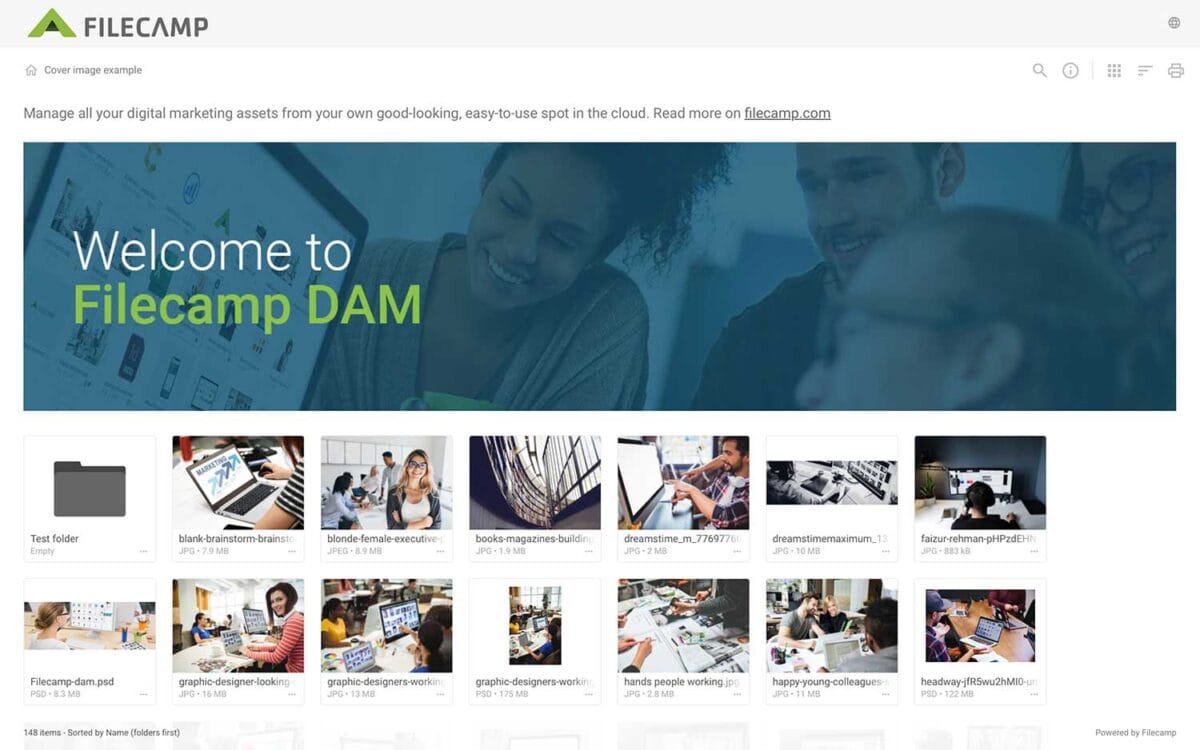
Banners
Banners Elevate your custom branding to new heights by adding personalized banners to your folders and collections. Add a banner To upload a banner, open the folder or collection and click the Info icon in the toolbar. Or select Info from the Three Dots Menu below a folder. This action opens the Infobar . Scroll down to the Advanced section, then click on the Banner image field to upload your banner image. We recommend using a well-compressed .jpg file with…
Supported file types
Supported file types You can upload any file type to your Filecamp account … and preview most file types directly in your browser! File types All file types can be uploaded and stored in your Filecamp, and you can preview almost any file format, including .pdf, .psd, .ai, .eps, .jpg, .tif, .mov, .avi, .mp4, .svg, .doc, docx, xls, xlsx, ppt, pptx, etc. Notice: If you’re having trouble previewing a file, Filecamp may not support the file type, or the file…
Custom Branding
…https URL Login logo Login body background color Login page background image Your own custom Terms or copyright notice Secondary color (buttons etc.) White Label text Login description Login logo background color Your own custom fields for access requests. Interface You can see which aspects of the interface are customizable below: Favicon and page title Own secure https URL Logo Custom thumbnails on folders and files Folder description text Labels and Labelset Secondary color (buttons etc.) White Label text Default…
Notifications
…users change labels for files in the folder or any subfolder. Choose between No notification (default), Message notification, or Message & Email notifications. Comment notifications Get notified when someone adds comments to files in the folder or any subfolder. Choose between No notification (default), Message notification, or Message & Email notifications. Notification email example: No notification = You will not be notified (default). In-app notification = You will receive an in-app message. In-app & email notifications = You…
Receive files (without login)
…clicking the pencil icon next to the link. Share the link You have two options for sharing the link: Copy link: Click Copy link and paste the link into an email, a message, your company’s website, or wherever you want to share it. Send by email: Enter the recipients’ email addresses, pressing Enter after each address. Add an optional message, then click Send. To preview the upload page, click the Open in new window icon. Advanced settings Expand Advanced settings…
Pages
…Admin > Pages. Then click on the Share icon. You have now two options for dispatching the link: you can email the link directly from this window and specify specific link recipients in the “to:” field, or you can copy and paste the link into another place (your email application, social media, your company’s website, etc.) If you only need to specify a handful of link recipients, go with the first option. Enter the email addresses of the recipients, enter…
Multiple themes
…feels just like home with their logo and colors. Custom Branding with Filecamp Apply your own (and your customers) colors, logos and titles and assign these settings to specific folders. When managing and sharing brand files, it only makes sense to have a platform that reflects that same branding. Filecamp comes with some unique branding possibilities for sharing files and collaborating with your clients and partners. You can brand your Filecamp with your company logo and colors so it feels…