
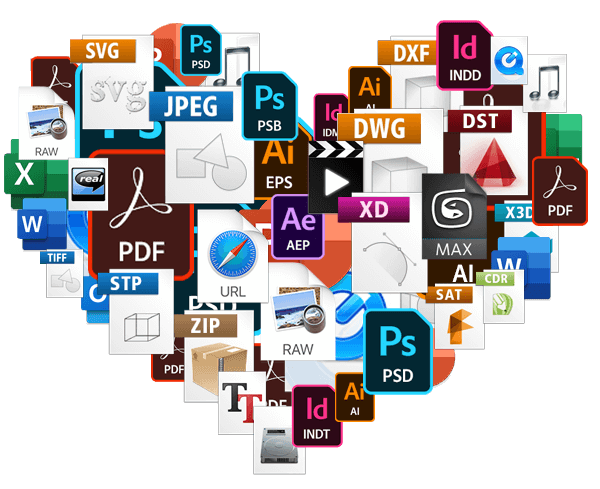
…might be too large to preview. You can upload all file types to Filecamp, but image previews are not available for files larger than 400 MB or 150 megapixels. A file’s megapixel count is calculated by multiplying its width and height in pixels. For example, an image that is 4000 × 6000 pixels equals 24 megapixels. Note on upload limits: Files can be uploaded up to 20 GB or 25 minutes in duration (whichever comes first). For uploading files larger…
Custom Branding
…https URL Login logo Login body background color Login page background image Your own custom Terms or copyright notice Secondary color (buttons etc.) White Label text Login description Login logo background color Your own custom fields for access requests. Interface You can see which aspects of the interface are customizable below: Favicon and page title Own secure https URL Logo Custom thumbnails on folders and files Folder description text Labels and Labelset Secondary color (buttons etc.) White Label text Default…
Multiple themes
…feels just like home with their logo and colors. Custom Branding with Filecamp Apply your own (and your customers) colors, logos and titles and assign these settings to specific folders. When managing and sharing brand files, it only makes sense to have a platform that reflects that same branding. Filecamp comes with some unique branding possibilities for sharing files and collaborating with your clients and partners. You can brand your Filecamp with your company logo and colors so it feels…
Brand Guidelines
Brand Guidelines Creating & maintaining your brand guidelines should be simple, fast and fun. Filecamp helps businesses manage their digital assets and maintain brand consistency. Start my free trial! Start my free trial! Your own online brand portal An online Brand Guide ensures brand consistency and transparency with the public. No more emailing company logos, typeface and color codes. Filecamp’s Brand Manual allows you to manage, store and share your guidelines. Make sure your colleagues and partners…
Hard refresh your browser
How to hard refresh your browser A hard refresh is a way of clearing the browser’s cache for a specific page, to force it to load the most recent version of a page. Although storing pages to the browsers cache makes your Filecamp loading faster, it can mean that Filecamp updates aren’t always visible until you perform a hard refresh. Performing a hard refresh is easy and the commands vary depending on what browser and operating system you are using….
Keyboard shortcuts
…the previous item: ← Open/close the Infobar: i Open in full-screen mode: f Open/close Commenting: c Close preview: esc Save actions: ctrl (or cmd) + enter Drag actions: Drag files or folders to a different folder to move them. Hold the Alt (Option on Mac) key while dragging to copy instead of move. Drag files or folders from your computer into a folder to upload them. Tip: Press ? anywhere in Filecamp to open the keyboard shortcuts guide. …
Collections
FEATURE HIGHLIGHT Collections Each user can create and manage their own collections of files to quickly share without having to grant a username and password. Collections With Collections you can add assets from multiple folders to one central location from where you fine-tune and can share your Collection of files. Your users can easily share their Collections with direct links for download or preview. Shared Collections – link options When sharing a Collection you can choose between directing the recipients…
Edit files
…actual changes for each file. This is because we use embedded metadata (where the information and tags are written into the files). This article reviews the following topics: Editing a single file Editing multiple files Related articles Files Uploading files Downloading files Copy or move Delete Edit files Share file links Supported file types Version control Expiration Metadata Tags Auto tags Custom thumbnails Notice: Only Administrators or users with permission to “Edit files & folders” are able to edit files….
Copy or Move
…drag and drop Related articles Files Uploading files Downloading files Copy or move Delete Edit files Share file links Supported file types Version control Expiration Metadata Tags Auto tags Custom thumbnails Folders Create folder Edit folder Permissions Copy or move Delete Folder upload Share folder links Request files links Custom thumbnails Notice: Only administrators and users with permission to “Move/copy files & folders” can move files and folders. (You can ask your Filecamp admin if you’re unsure about your permissions.) …
Log out
…go to your root folder and Log out from here. Related articles User My Profile Forgot password Remember me Notifications Log in Language Dark and Light mode Admin Users Auto-log outTo protect your privacy, we automatically log you out after a 30 minutes of inactivity. If you find this annoying your Administrators can turn this off in your General Settings. NOTICE: When you Log Out your current Remember me session will end, and you will have to log in again. …
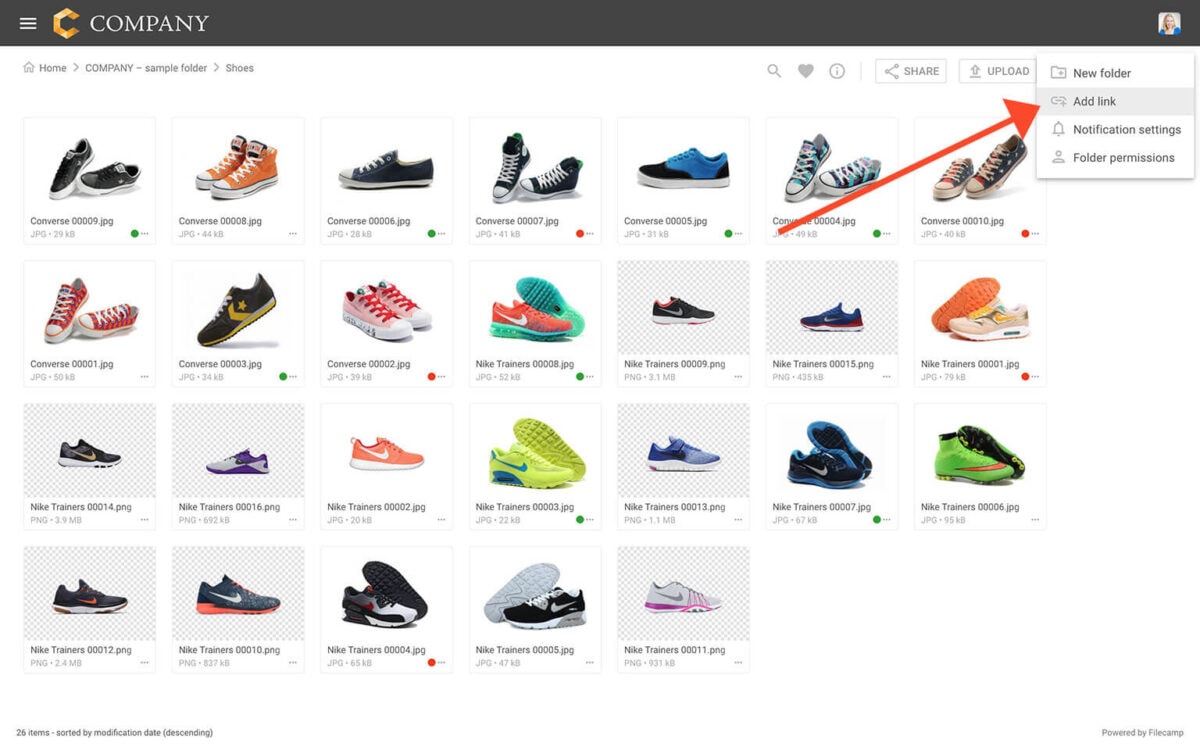
Add link
Add link Create LINK files that point to a Filecamp item or a web address. Add link Account Owners, Administrators, and users with Editor access to a folder can create LINK files in that folder. To create a link file, click the Extra options icon in the Toolbar. Then select the Add link: A new LINK file is added to the folder, and its settings open in the sidebar on the right. You can edit the Name and Description and…
Language settings
…click on the globe icon and select your preferred language from the drop-down menu. The page will automatically reload, and Filecamp will be displayed in your selected language. Notice: Filecamp’s UI language is user-based and does not apply globally. This way, each user can select a different language when working with Filecamp. Related articles User Edit My Profile Forgot password Notifications Messages Remember me Log out Admin Users Supported languages English French Spanish German Dutch Italian Danish Polish Portuguese Chinese…