
How to Show Hidden Files on a Mac
Some files and folders on your Mac are hidden by default. These are usually system files or settings created automatically by macOS and applications.
Show hidden files in Finder
The easiest way to display hidden files is with a keyboard shortcut:
- Open Finder.
- Navigate to the folder you want to inspect.
- Press Command + Shift + . (period).
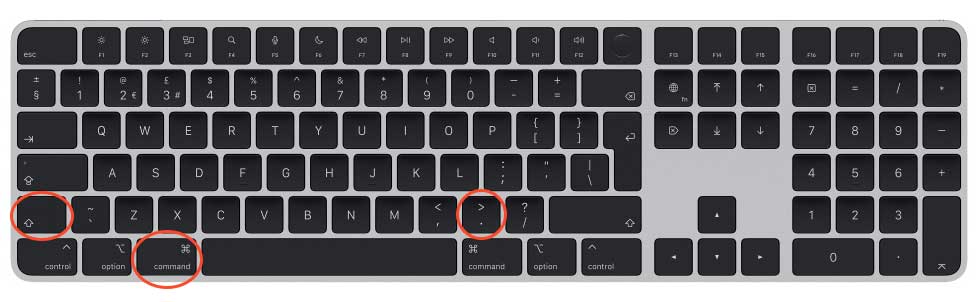
Hidden files and folders will now appear slightly faded.
To hide them again, press Command + Shift + . once more.
What are hidden files?
Many hidden files begin with a period, such as:
.DS_Store.config.htaccess
The period tells macOS not to display the file during normal browsing.
One of the most common examples is .DS_Store. macOS creates this file automatically to save information about how a folder is displayed, including icon positions, sorting, and other view settings.
Why does a folder sometimes contain more files than Finder shows?
Finder normally excludes hidden files from view and from the visible file count. However, browsers and other applications may detect them when you select or upload an entire folder.
This can result in a browser reporting more files than you can see inside the folder. It does not necessarily mean that any of your documents, images, or other visible files are missing.
Filecamp automatically ignores common hidden macOS system files when folders are uploaded.
Should I delete hidden files?
Usually, no. Most hidden files are harmless and may be required by macOS or an application.
A .DS_Store file can generally be deleted safely, but macOS may recreate it the next time you open the folder. Avoid deleting other hidden files unless you know exactly what they are used for.
When you have finished, press Command + Shift + . again to return Finder to its normal view.
What are hidden files?
Hidden files are files that macOS and applications keep out of sight during normal browsing. They usually store settings or other technical information and often have names beginning with a period, such as .DS_Store.
Be careful when deleting hidden files
Many hidden files are used by macOS or installed applications. Do not delete a hidden file unless you know what it does. If you only wanted to inspect the files, press Command + Shift + . again when finished to hide them.