

DAM for photographers
Top 12 Digital Asset Management Software for Photographers
Photographers mean two different things by digital asset management.
Updated October 2026. Prices were read on each vendor’s own page on 4 October 2026. We make Filecamp, number 11 on this list.
One is a catalogue for your own archive: a program on your computer that helps you cull a shoot, add keywords and find one frame among a hundred thousand. Your files stay on your own disks. Adobe Bridge, Lightroom Classic, Capture One, Photo Mechanic, ACDSee, IMatch, digiKam and Mylio do that.
The other is a library in the cloud for finished work: a place where clients, colleagues and partners view, download and comment without you sending anything. PhotoShelter and SmugMug do that for a photographer who sells to clients. Filecamp and Pics.io do it for a studio or a team.
Most working photographers end up with one of each. This list covers both, says which is which, and gives each tool’s published price where we could read one.
| Tool | What it is, and where it runs | Published price |
|---|---|---|
| 1. Adobe Bridge | File browser and organiser. Desktop. | Free |
| 2. Adobe Lightroom Classic | Photo editor with a catalogue. Desktop. | $11.99 a month |
| 3. Capture One Pro | Raw editor with catalogues and tethering. Mac, Windows. | No US dollar price shown to us |
| 4. Photo Mechanic | Fast browser for ingest, culling and keywords. macOS, Windows. | $14.99 a month, $149 a year, or $299 once |
| 5. ACDSee Photo Studio | Organiser and editor. Windows; a separate Mac edition. | $69.99 to $179.99 once; Mac $54.95 |
| 6. IMatch | Catalogue for enthusiasts and professionals. Windows. | $145 once |
| 7. digiKam | Open-source photo manager. Linux, Windows, macOS. | Free |
| 8. Mylio | Library synced across your own devices. Mac, Windows, iOS, Android. | $20 a month, billed yearly |
| 9. PhotoShelter | Storage, client galleries and sales. Web. | $10, $25 or $45 a month, billed yearly |
| 10. SmugMug | Galleries, client selection and sales. Web. | $20 to $37 a month, billed yearly |
| 11. Filecamp | Shared library for a studio, its team and clients. Web. | $29, $59 or $89 a month, unlimited users |
| 12. Pics.io | Team library on your own cloud storage. Web. | $100 a month for one user; $250 for ten |
Three well-known names are missing on purpose. MediaValet, Bynder (which now includes Webdam) and Acquia DAM (built on Widen technology) publish no prices and sell by quote. They are enterprise systems, not tools for a photographer or a small studio.
For your own archive

1. Adobe Bridge – free browser and organiser
Adobe’s free asset manager for previewing and organising creative files. You add labels, ratings and keywords, group files into collections, and rename or export in batches.
Price: Free.
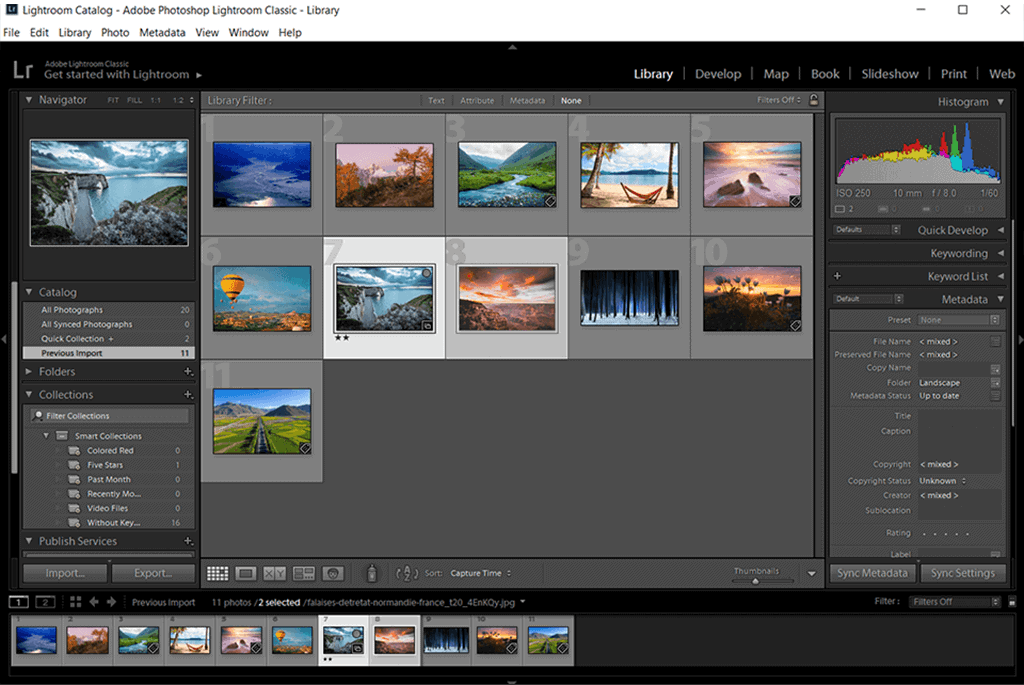
2. Adobe Lightroom Classic – photo editor with a catalogue
Adobe’s desktop photo editor with a catalogue. Your originals stay on your own hard drive, and backing them up is your job.
Price: $11.99 a month in the Lightroom plan with 1 TB, or $19.99 with Photoshop, on a yearly plan billed monthly.
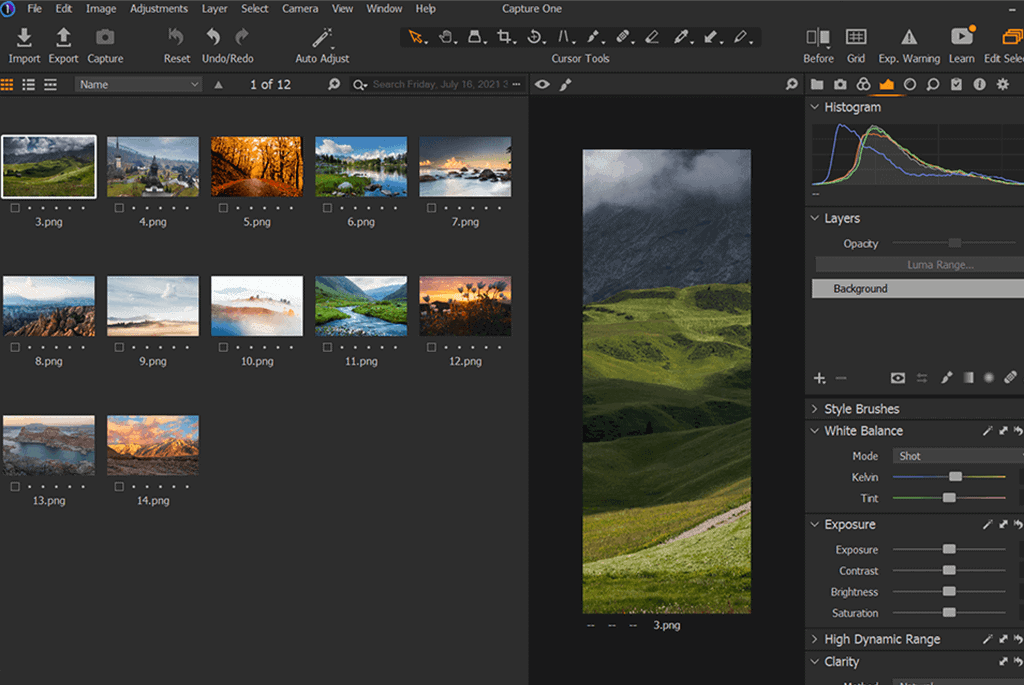
3. Capture One Pro – raw editor with tethering
Desktop raw editor for professional work, with sessions, catalogues, smart folders and tethered shooting. Sold as a subscription or as a one-time licence.
Price: Capture One’s site showed us no price in US dollars on 4 October 2026, so we give no figure; see captureone.com.
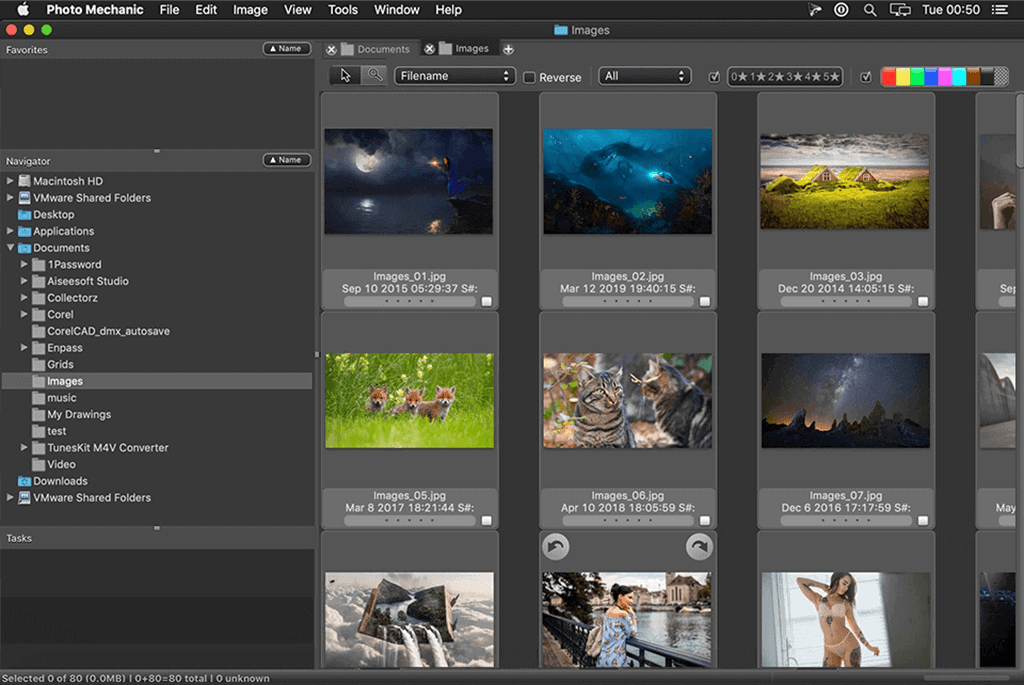
4. Photo Mechanic – fast ingest and culling
A fast browser for the hour after a shoot: ingest, cull, rate and keyword. Photo Mechanic Plus adds a database that catalogues images across drives.
Price: $14.99 a month, $149 a year or $299 once; Plus is $24.99, $249 or $399.
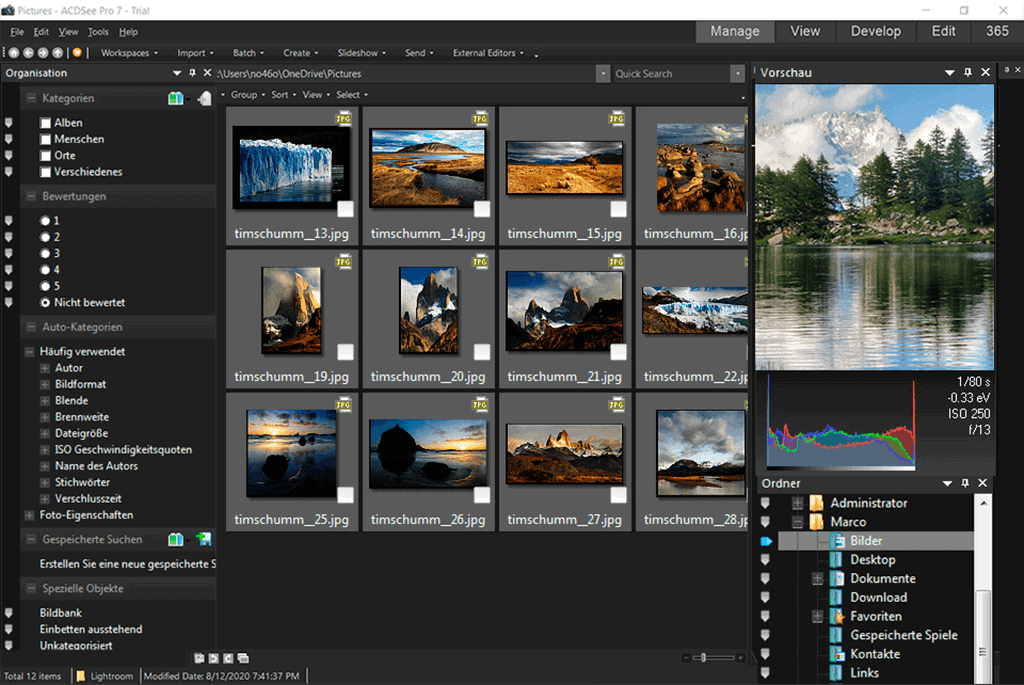
5. ACDSee Photo Studio – organiser and editor for Windows
Organiser and editor for Windows, with keywords, categories, ratings, colour labels and face recognition. The Mac edition is a separate product.
Price: One-time licences: Home $69.99, Professional $119.99, Ultimate $179.99. The Mac edition is $54.95.
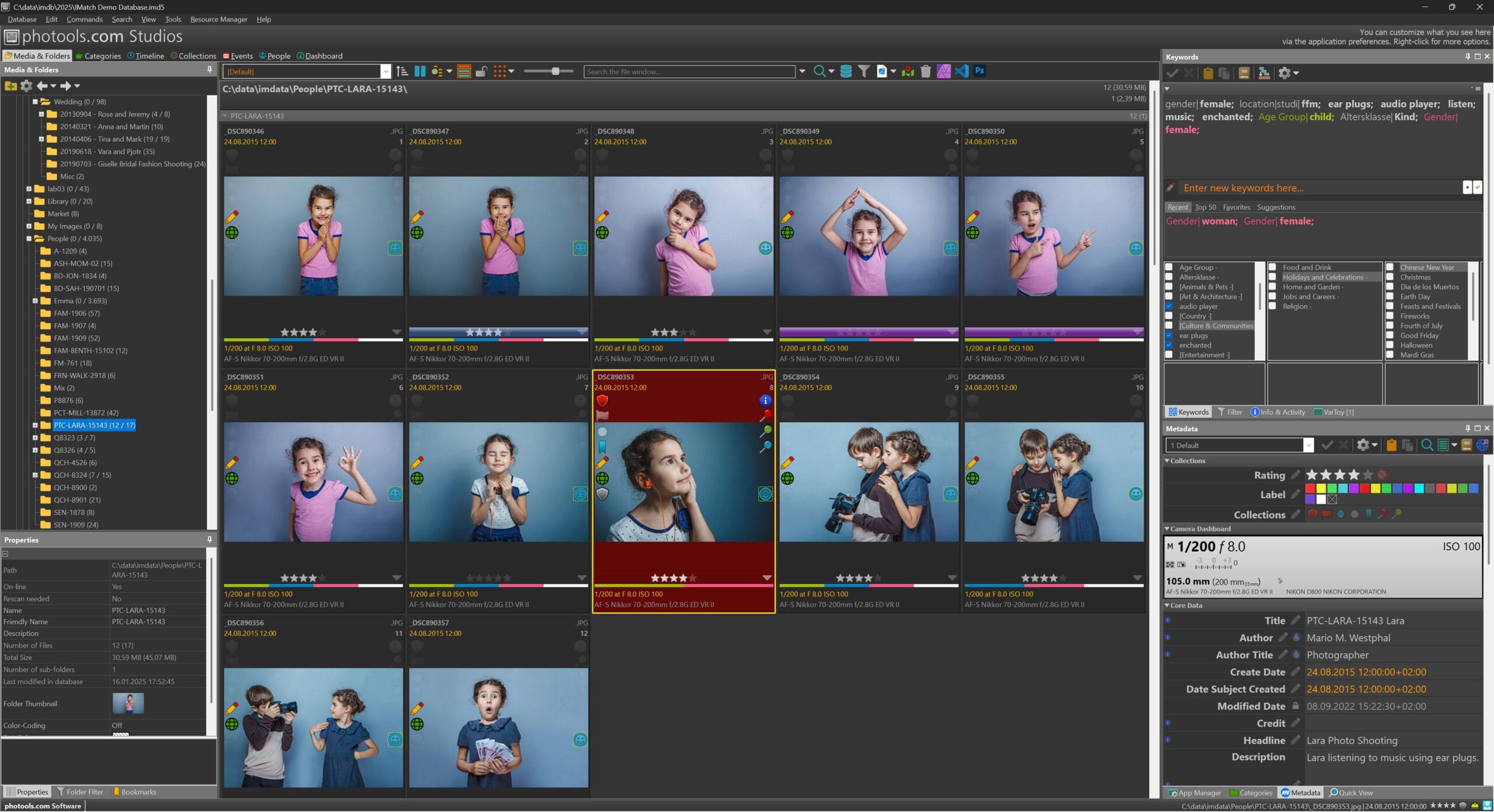
6. IMatch – catalogue for Windows
A digital asset management system for Windows, made for enthusiast and professional photographers. Keywords with a thesaurus, categories, collections and face recognition; it manages your files where they are, without moving them.
Price: $145 once, no subscription.
7. digiKam – free and open source
Open-source photo management for Linux, Windows and macOS. Albums, tags, ratings, labels and face recognition. Photos and metadata stay on your own device.
Price: Free.
8. Mylio – one library across your own devices
A media library that keeps photos on your own devices and drives and syncs between them; a cloud copy is optional. Face recognition works offline.
Price: $20 a month billed yearly for one person, or $25 month to month.
For delivering and selling to clients
9. PhotoShelter – storage, client galleries and sales
A web service for storing, delivering and selling photos: public, password-protected and private galleries, a client proofing tool, download permissions and watermarks.
Price: $10 a month with 4 GB, $25 with 100 GB or $45 with 500 GB, billed yearly.
10. SmugMug – galleries, client selection and sales
A web platform to store, share and sell photos, with a website builder: password-protected galleries, photo selection for clients, and watermarks.
Price: $20, $23.50 or $37 a month, billed yearly. Storing raw files costs extra.
For a studio or team that shares with clients
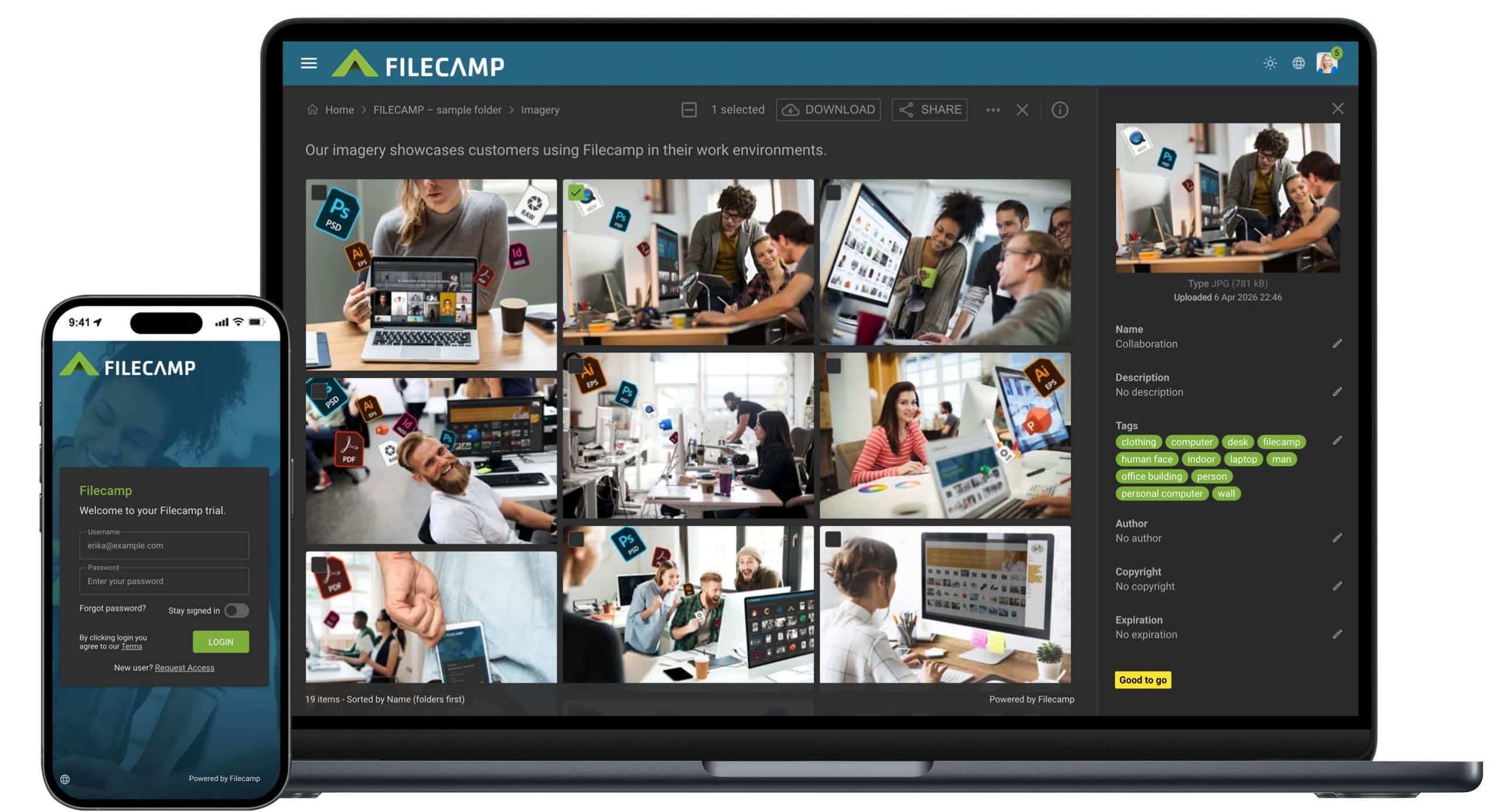
11. Filecamp – shared library for a studio and its clients
This one is ours. Filecamp is a shared library in the browser: you upload finished and selected work, and clients, colleagues and partners view, download and comment on pages that carry your own logo. More on organising photos with Filecamp.
What it does for photographers:
- shows previews of camera raw files (NEF, CR2, CR3, ARW, DNG, RAF and others), TIFF, PSD and video, so a client can look without the software;
- reads captions, keywords, author and copyright from your files on upload (IPTC and XMP), so the library is searchable without retyping;
- never alters your files: the original a client downloads is the file you uploaded, with the metadata you put in it;
- shares a folder by link, for viewing only or with download, with an expiry date; a request-files link lets an art director send you references;
- on the Professional plan, lets a client click on an image and leave a retouch note on the exact spot;
- has unlimited users on every plan, so every client and assistant can have a login.
Price: $29 a month with 20 GB, $59 with 50 GB, $89 with 100 GB. Look closely at storage: another 100 GB is $45 a month and 1 TB is $300. Filecamp is the place for delivered and selected work, not for every raw file you have ever shot.
What Filecamp is not: a raw editor, a catalogue of your local disks, or a shop. It has no tethering, no watermarks, no print or licence sales, no face recognition and no Lightroom plug-in.
12. Pics.io – team library on your own cloud storage
A team library in the browser that sits on your own Google Drive or Amazon S3, or on Pics.io’s storage: visual search, face recognition, collections and version control.
Price: $100 a month for one user and 100 GB; $250 for ten users and 1 TB; $800 for fifty.
Delivering a shoot with Filecamp, step by step
- Export your selects and drag the folder into the browser.
- Check the previews. Your keywords, captions and copyright came in with the files.
- Share the folder with a link: viewing only while the client chooses, download once the job is approved. Give the link an expiry date.
- For retouch rounds, switch on commenting for that folder (Professional). The client clicks on the image and writes the note.
- Upload the retouched file as a new version. The earlier one stays.
- Mark the finals with a label such as “Approved” (your own label names come with Advanced and Professional) and send the download link.
Questions photographers ask
Do I need a DAM if I work alone? Not a cloud one. If the job is finding your own pictures, a desktop catalogue does it, and Bridge and digiKam are free.
How is a DAM different from Lightroom? Lightroom Classic edits and catalogues files on your own disk. A cloud library shares finished files with other people. They do different jobs, and many photographers use both.
How is it different from Dropbox or Google Drive? Those are built around folders and syncing. A library is built for finished files that other people need: found by keyword and caption, on pages that carry your logo, with access set per folder.
What does it cost? Desktop catalogues run from free to $399 once, or $12 to $25 a month. Delivery services for photographers are $10 to $45 a month. Team libraries with a published price start at $29 a month. The enterprise systems only quote. For team libraries, see what digital asset management tools cost.
How do I protect my copyright? Put your name and copyright notice in the file’s metadata before you upload. Filecamp reads those fields, shows them and makes them searchable, and it never alters the file, so they are still there when a client downloads the original. It does not add watermarks; PhotoShelter and SmugMug do.
Can I sell prints or licences? Not with Filecamp. PhotoShelter and SmugMug are built for that.
Share this Post