

Digital asset management
How to Build and Manage Your Own Stock Image Library
Your company may already have hundreds of stock images sitting on individual computers, in download folders, or buried in old projects. Organizing them into a searchable stock image library makes them easier to find, reuse, and share, while helping reduce unnecessary stock purchases.
Most companies don't have a shortage of images. They have a shortage of findable images.
A designer downloads a photo from Adobe Stock for a campaign. Another employee buys something similar from Shutterstock a few months later. Someone else has a folder full of perfectly usable stock photos on their laptop.
Nobody knows what the company already has. So everyone keeps searching, downloading, and sometimes paying for new images. A centralized stock image library solves that problem.
Instead of treating each stock image as a one-time download, you can turn it into a reusable company asset that your marketing team, designers, agencies, and other colleagues can find and use again.
In this guide, we'll show you how to build and maintain your own searchable stock image library using a Digital Asset Management (DAM) system such as Filecamp.
Table of contents
- What is a stock image library?
- Why create your own stock image library?
- 1. Bring your existing stock images together
- 2. Organize images by how people search for them
- 3. Keep the original stock image ID
- 4. Save licensing and source information with the image
- 5. Add tags people will actually search for
- 6. Let AI handle some of the tagging
- 7. Use Labels for approval and status
- 8. Make your own library the first place people search
- 9. Don't create duplicates every time an image is reused
- 10. Control who can access your stock images
- 11. Use expiration dates where appropriate
- 12. Share approved images without opening the whole library
- 13. Keep one master instead of dozens of versions
- 14. Maintain the library without making it a full-time job
- A simple stock image workflow
- The best stock image may be one you already have
What is a stock image library?

A stock image library is a central collection of photos, illustrations, vectors, backgrounds, and other visual assets your company has licensed or is otherwise allowed to use.
It might include images from:
- Adobe Stock
- Shutterstock
- Getty Images
- iStock
- Unsplash
- Pexels
- other paid or free image sources
P.S. If you're looking for more images without adding to your stock photo budget, we've also rounded up the best free stock photo sites for creative teams.
***
But simply putting all those files into one big folder doesn't create a useful stock image library.
A good library should make it easy to answer questions like:
- Do we already have an image of this?
- Where did this image come from?
- What can we use it for?
- Is this image approved?
- Is there a better version?
- Can our agency use it?
- Who originally downloaded it?
Most importantly, people should be able to find the right image in seconds.
Why create your own stock image library?
Imagine someone on your marketing team needs a photo of people working together in a modern office.
They open Adobe Stock or Shutterstock, search through hundreds of images, select one, download it, and add it to the campaign.
Six months later, another colleague needs almost exactly the same image.
Unless they know the first image exists, they will probably start the whole process again.
Search. Compare. Download. Maybe purchase.
And the original image remains buried inside an old campaign folder.
Multiply that across several employees, agencies, campaigns, and years, and your company may already have a surprisingly valuable collection of stock imagery that nobody is really using.
A better workflow is simple:
Search your own image library first. Search stock websites second.
You will still need new stock images. But you avoid unnecessarily recreating work you've already done.
1. Bring your existing stock images together
Start by collecting the stock images your organization already has.
Look in places such as:
- shared drives
- Dropbox or Google Drive
- marketing folders
- old campaigns
- designers' computers
- Downloads folders
- agency deliveries
- stock provider download histories
Don't make the initial cleanup too complicated.
The important first step is simply getting useful images into one central location.
In Filecamp, for example, you could create a main folder called:
Stock Image Library
You can then add broad subfolders such as:
- Business & Workplace
- People
- Technology
- Nature & Sustainability
- Travel
- Food
- Lifestyle
- Backgrounds & Textures
- Seasonal
The exact structure depends on your company.
But avoid building a folder hierarchy with six or seven levels. The deeper the structure becomes, the harder it is for people to know where an image belongs.
Use folders for broad organization. Use metadata and tags for everything else.
2. Organize images by how people search for them

It can be tempting to organize everything like this:
Adobe Stock > Shutterstock > Getty Images > Unsplash
That tells you where the images came from.
But it doesn't necessarily help anyone find them.
Someone looking for an image is much more likely to think:
“I need a photo of a team having a meeting.”
than:
“I need that Shutterstock image we downloaded last February.”
Organize your library around the subjects and use cases people actually search for.
The source is still important, but it belongs in the image's metadata rather than being the main way you organize the entire library.
3. Keep the original stock image ID
This sounds like a small detail, but it can save a surprising amount of time later. Stock providers often include a unique asset ID in the filename.
For example:
AdobeStock_482917365.jpeg
Don't automatically remove it.
That number can help you find the original image again if you later need to:
- verify where it came from
- check the license
- locate the original stock listing
- download another file format
- find a higher-resolution version
- identify the photographer or creator
If you prefer descriptive filenames, keep the stock ID in the filename:
team-meeting-office_AdobeStock_482917365.jpeg
Or preserve it in the image metadata. The important thing is that the connection to the original source isn't lost.
4. Save licensing and source information with the image
One of the biggest problems with old stock images is that nobody remembers where they came from.
The file is there.
The license information isn't.
Ideally, each stock image should include information such as:
- stock provider
- asset ID
- photographer or creator
- license type
- date licensed or downloaded
- copyright information
- relevant usage restrictions
- internal notes
You don't need an enormous metadata system.
Consistency is more important than complexity.
Filecamp allows you to store searchable metadata such as descriptions, keywords, author information, and copyright information with your assets.
It can also extract existing XMP metadata embedded in uploaded files.
For example, you might add:
Source: Adobe Stock
Asset ID: 482917365
License: Standard License
Downloaded: August 12, 2026
Notes: Approved for regular marketing use
This means the information stays with the asset instead of living in someone's inbox or memory.
Remember: licensed doesn't necessarily mean owned
There's another important distinction. Buying or downloading a stock image usually doesn't mean your company owns the copyright. You are normally purchasing or receiving a license to use the image under certain conditions.
Even “royalty-free” doesn't mean copyright-free or restriction-free.
Different providers and license types may have rules covering things such as:
- print quantities
- merchandise
- templates
- resale
- editorial use
- external users
- agencies and contractors
Free stock websites have license terms too. So don't assume that an image can be used for anything simply because someone downloaded it.
When in doubt, check the original provider's license.
5. Add tags people will actually search for
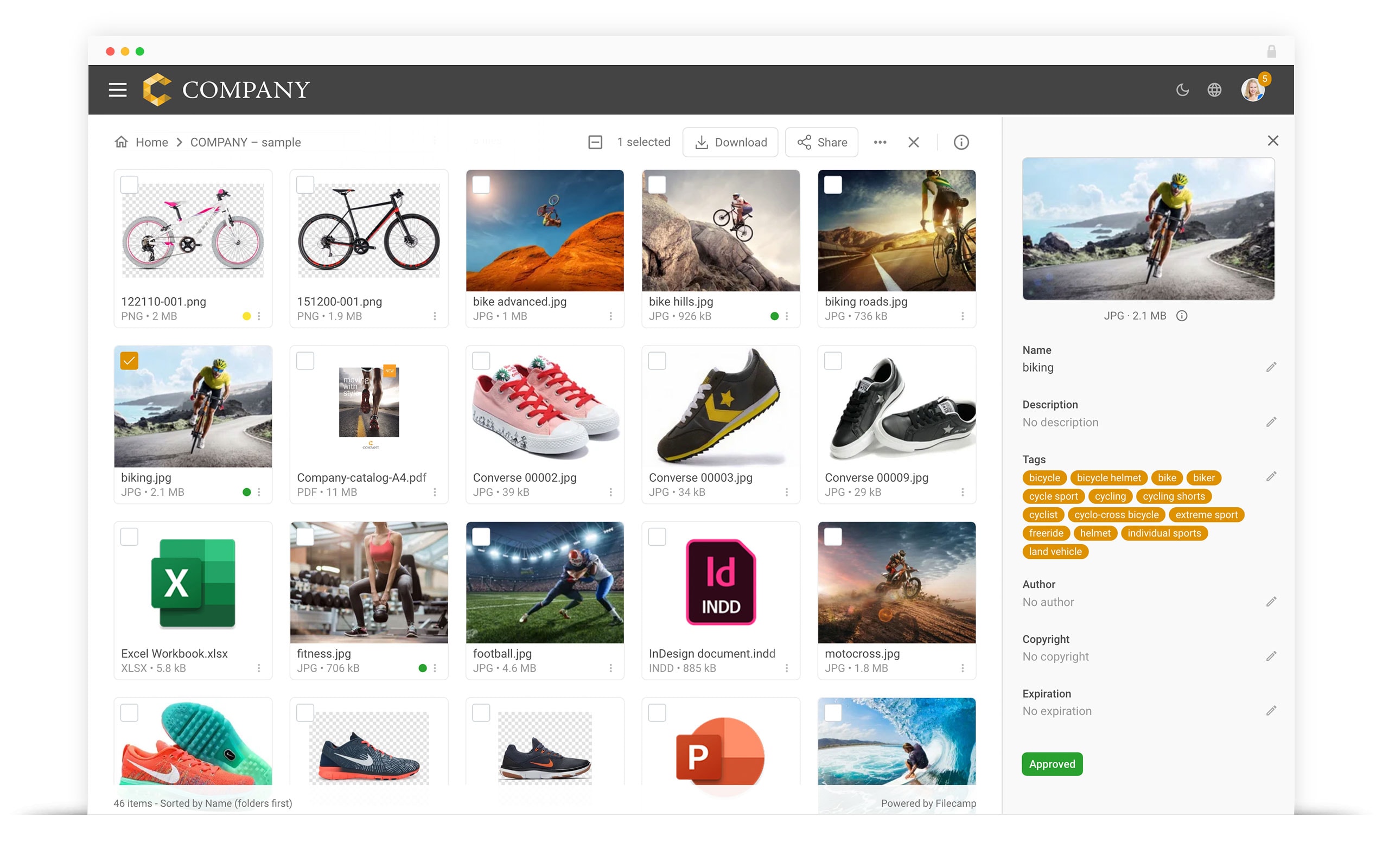
Folders tell you roughly where an image belongs.
Tags help you find the exact image you need.
Imagine a stock photo showing four people sitting around a table with a laptop.
Useful tags might include:
people, team, meeting, office, laptop, business, collaboration, workplace, horizontal
You might also add more conceptual terms such as:
teamwork, productivity, innovation, recruitment
Think about the words someone might type six months from now.
That's more useful than trying to describe every visual detail.
Filecamp makes tags searchable and suggests existing tags as you type, helping teams avoid creating endless variations such as:
office, offices, workplace, work place
A consistent tag vocabulary makes a large image library much easier to search.
6. Let AI handle some of the tagging
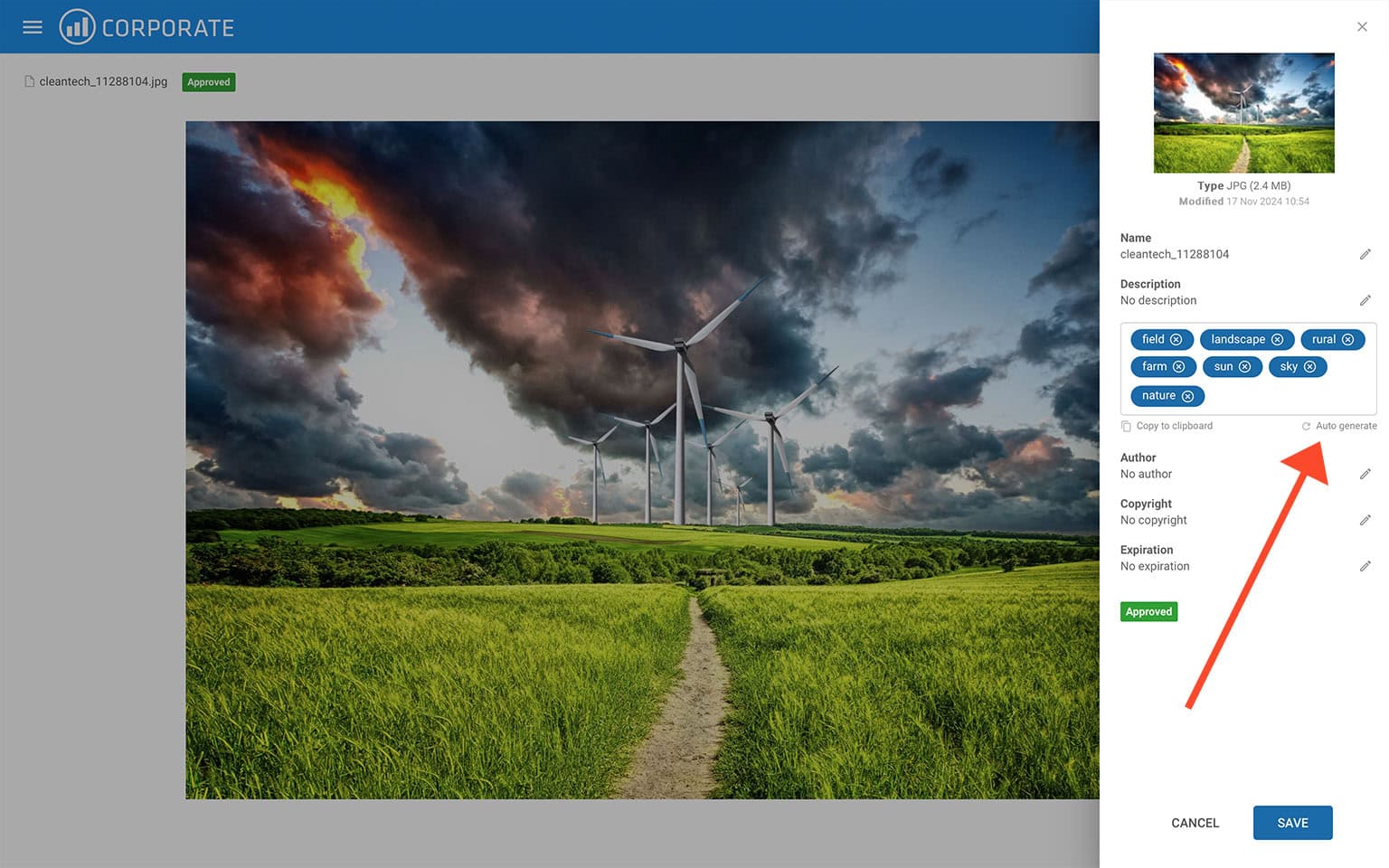
Tagging 20 images manually isn't difficult. Tagging 2,000 is. This is a good use case for AI.
Filecamp can analyze images and automatically suggest descriptive tags based on what appears in them.
For example, AI might identify:
person, computer, office, table, window, business
That gives you a useful starting point.
But AI shouldn't necessarily have the final word.
It may understand what is visible in the image, but it won't automatically understand your company's business context.
It probably doesn't know that the same image is:
recruitment, approved, HR, careers campaign
A good workflow is therefore:
Let AI describe what it sees. Let your team add what the image means to your organization.
Filecamp's Tag Manager can then help you clean up, rename, or merge tags as the library grows.
7. Use Labels for approval and status
Tags describe an image. Labels can describe its status.
For example, you might create Labels such as:
- Approved
- License Check
- Restricted
- Do Not Use
Someone browsing the library can then immediately see whether an image is ready to use or needs further checking. This is much clearer than hiding an important warning inside a long description.
Filecamp Labels can also be used when filtering search results.
Just keep the system simple. If you create too many Labels, users stop understanding what they mean.
8. Make your own library the first place people search
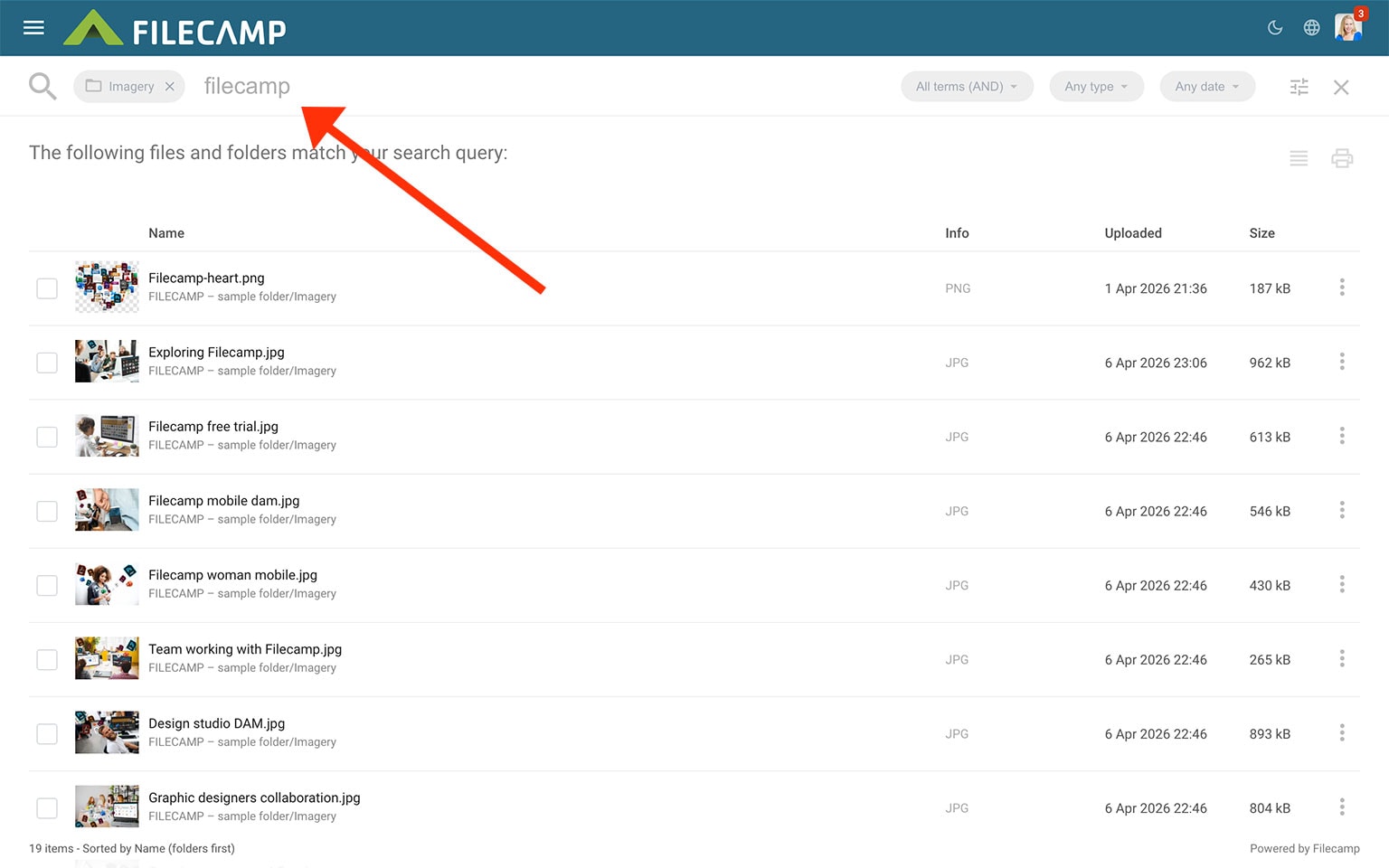
This is probably the most important step. A beautiful stock library is useless if everyone still goes directly to Shutterstock.
Encourage one simple habit:
Before looking for a new stock image, search the company library.
In Filecamp, users can search across filenames, descriptions, tags, keywords, folders, and other metadata. Advanced Search makes it possible to narrow results further by things such as folder, file type, Label, and date.
So instead of browsing thousands of external images, someone might start by searching:
team office laptop
or:
summer beach family
If an existing image works, you're done.
If it doesn't, then go shopping.
9. Don't create duplicates every time an image is reused
One stock image might be relevant to several projects.
That doesn't mean you need several copies.
Imagine an image being considered for:
- your new website
- a recruitment campaign
- a presentation
- a social media campaign
Duplicating the image into four different project folders creates unnecessary clutter.
Filecamp Collections offer a better approach.
A Collection lets you group assets from different folders without duplicating the original files.
You could create Collections such as:
- New Website Shortlist
- Recruitment Images
- 2027 Campaign Ideas
- Presentation Images
The original image remains in the stock library while the Collection acts as a curated selection.
A useful rule is:
Folders organize your permanent library. Collections organize temporary selections.
10. Control who can access your stock images
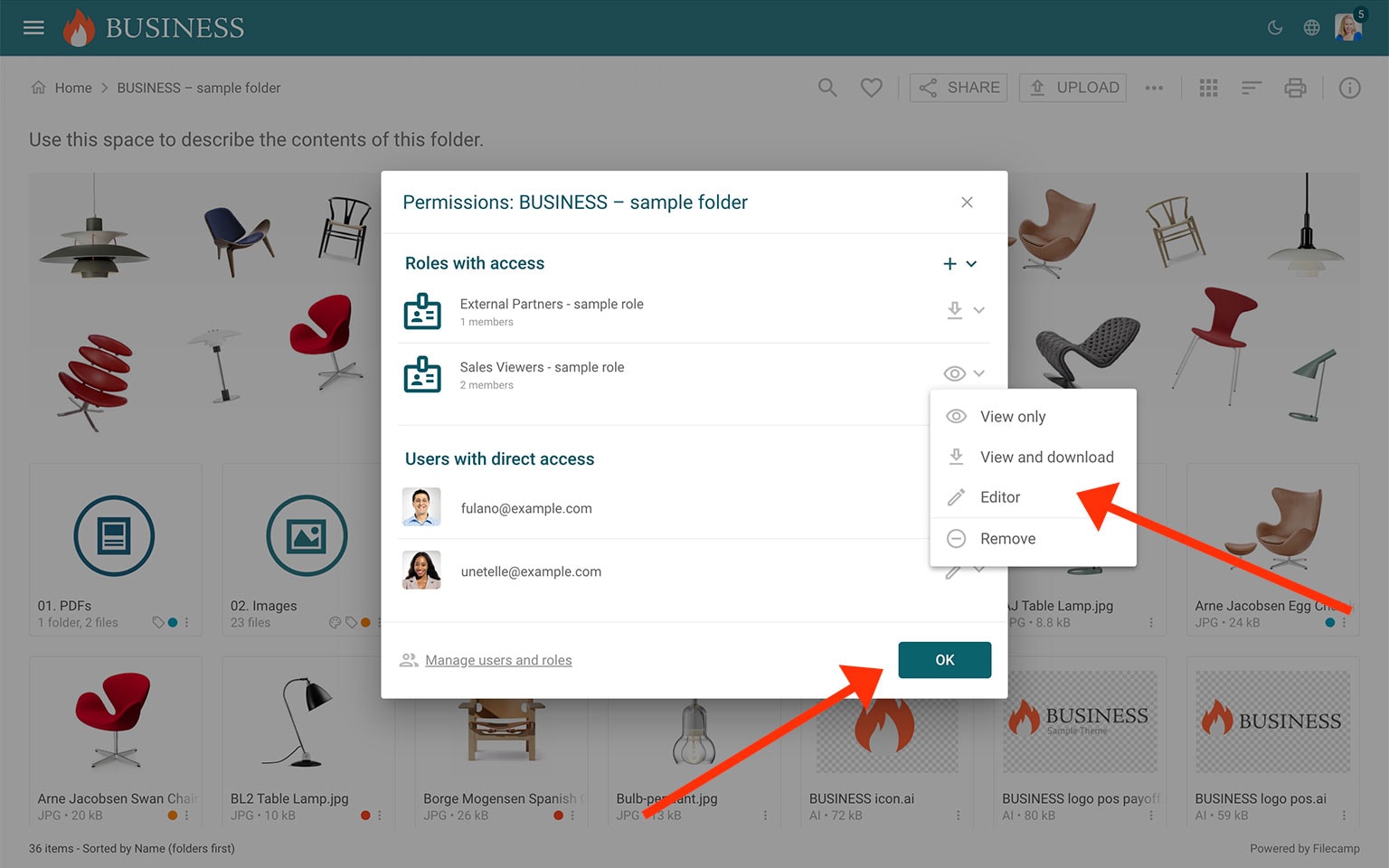
Putting everything in one library doesn't mean everyone should automatically have access to everything. Some imagery may only be intended for certain teams, brands, regions, agencies, or projects. Filecamp allows you to control folder access using Roles and direct folder access.
For example:
Your internal marketing team might have access to the entire stock image library. An external agency might only have access to a folder containing assets approved for its current campaign. This also makes it easier to maintain one central library without copying files into separate systems for every external partner.
But remember that Filecamp controls access to the file.
It doesn't change the stock provider's license.
Always make sure that sharing an image with an external agency, contractor, or partner is permitted under the relevant license.
11. Use expiration dates where appropriate
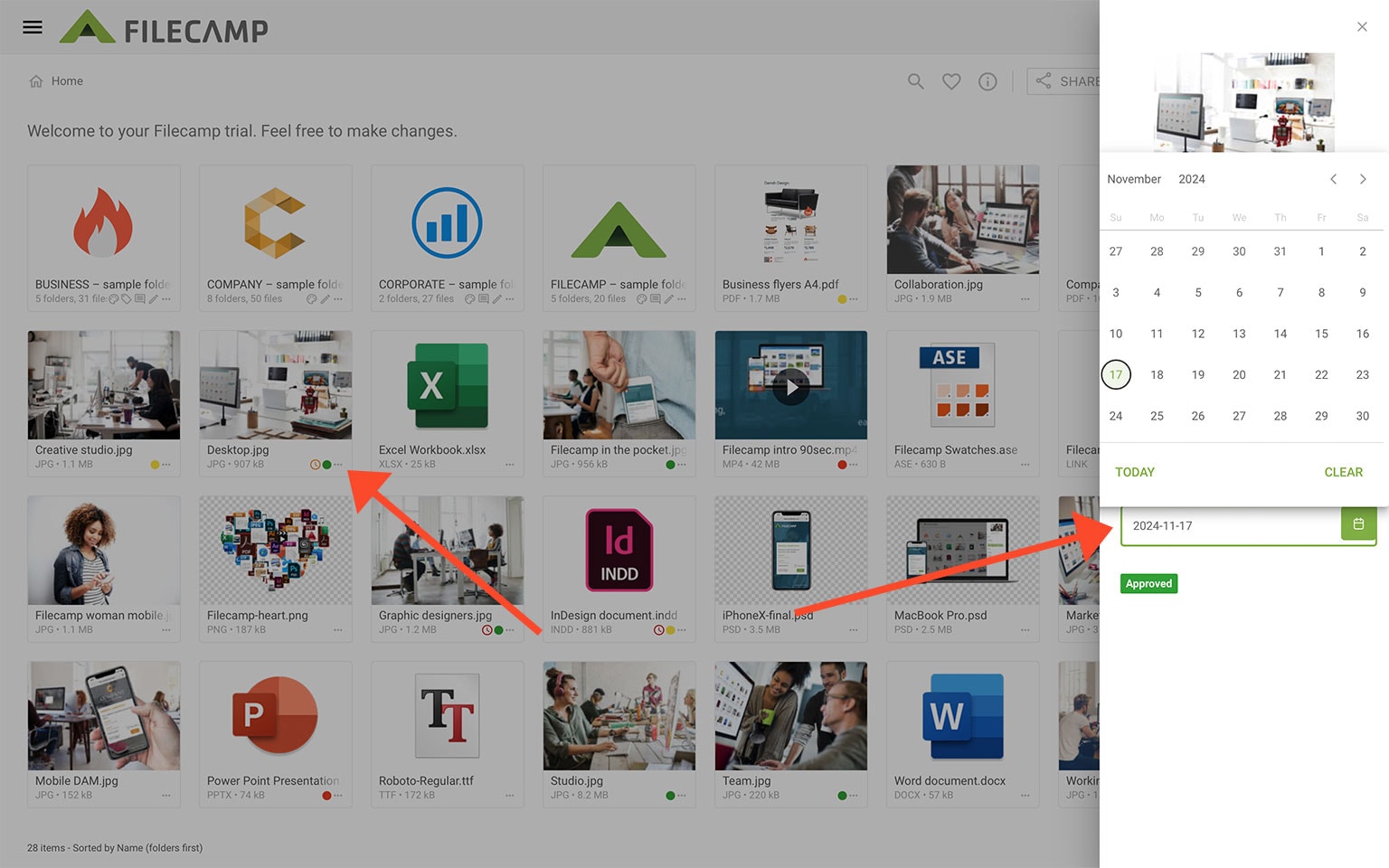
Some image usage rights may have time limits. Other images simply become outdated.
Perhaps an image:
- belongs to an old brand identity
- contains an outdated product
- was licensed for a limited period
- shouldn't be used after a specific campaign
- contains people whose usage approval has expired
Instead of relying on somebody remembering this, add an expiration date. Filecamp allows expiration dates to be assigned to assets and makes it possible to search for expired files. This can turn your stock image library into more than storage.
It becomes part of your content governance process.
12. Share approved images without opening the whole library
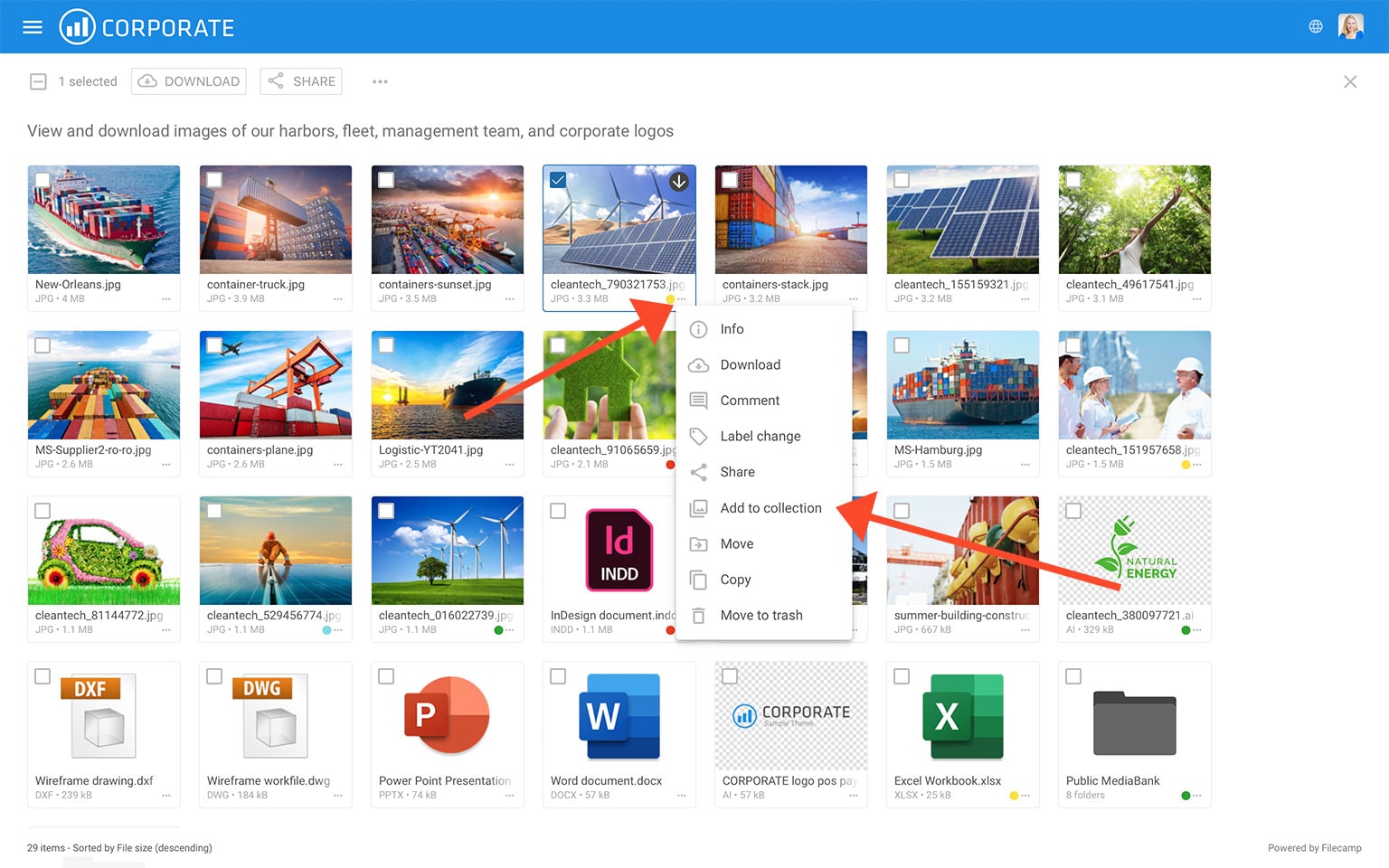
Sometimes an agency, freelancer, colleague, or client only needs a specific group of images. They don't need permanent access to your entire DAM. Filecamp lets you share folders, files, and Collections using shared links.
Depending on the workflow, a recipient can be given permission to view or download the assets, and shared links can also expire automatically.
For example, you might create a Collection called:
Approved images for Spring Campaign
and send that directly to your agency. The agency receives exactly what it needs. Your stock library remains protected.
13. Keep one master instead of dozens of versions
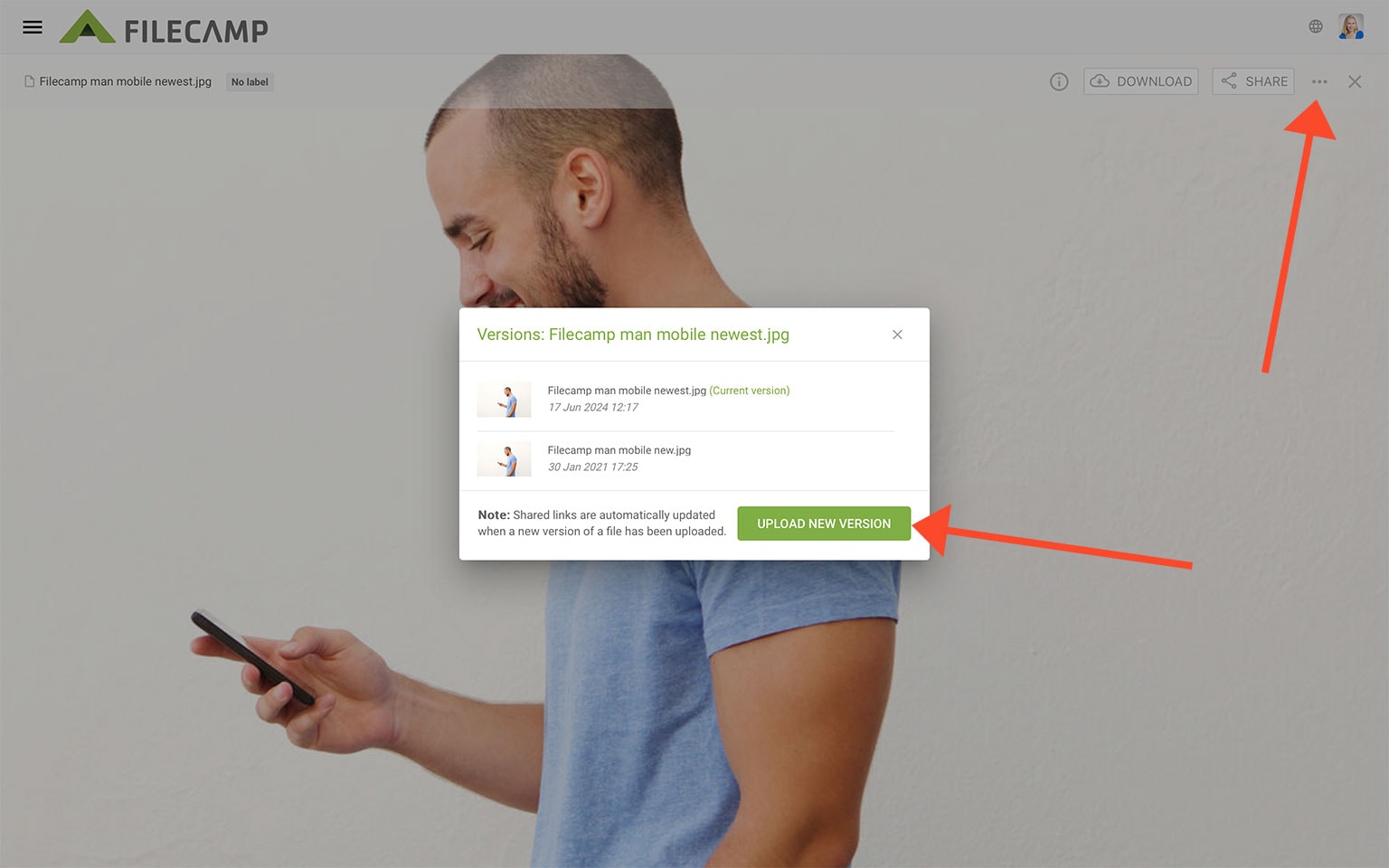
Another common problem is duplication:
office-photo.jpg, office-photo-large.jpg, office-photo-small.jpg, office-photo-web.jpg, office-photo-final.jpg, office-photo-final2.jpg
Before long, nobody knows which version should be used.
A DAM makes it easier to keep a central master asset rather than maintaining separate versions across multiple folders.
With Filecamp, users can preview images directly in the browser and download the version they need when required.
This reduces unnecessary copies while keeping the best available original in one controlled location.
14. Maintain the library without making it a full-time job
Your stock image library doesn't need to be perfect. It needs to stay useful.
Every few months, review things such as:
- newly uploaded stock assets
- missing license information
- inconsistent tags
- duplicate images
- expired assets
- images marked Restricted or License Check
- unused temporary files
- outdated imagery
Don't try to create the world's most sophisticated metadata taxonomy. If maintaining your system becomes too complicated, people will stop doing it.
A good stock image library should make people's jobs easier, not create another administrative task.
A simple stock image workflow
Let's put everything together.
Your designer downloads:
AdobeStock_482917365.jpeg
Instead of leaving it in the Downloads folder, they upload it to:
Stock Image Library > People & Workplace
The stock ID is preserved.
The source and license information are added to the metadata.
Filecamp's Auto Tags identify things such as:
people, office, laptop, table
The designer adds:
teamwork, recruitment, careers
The image receives an Approved Label.
Six months later, someone in HR needs a photo for a careers page.
They search Filecamp for:
team office laptop
The existing image appears.
They check the information attached to it and download it.
Done.
Nobody searches three stock websites.
Nobody asks the designer where the old image went.
Nobody unnecessarily purchases another almost identical photo.
That's the value of a stock image library.
The best stock image may be one you already have
Stock image websites make it incredibly easy to find new images.
That's useful.
But it also means companies can develop a habit of constantly acquiring new content while forgetting what they already have.
Your goal shouldn't be to stop buying stock images.
You will always need fresh imagery.
The goal is to make your existing collection the first place people look.
Bring your images together.
Preserve their source and licensing information.
Add useful metadata and tags.
Use AI to handle some of the repetitive work.
Mark approved and restricted content clearly.
Make everything searchable.
Then give the right people easy access to the images they need.
Filecamp brings these tools together in one place with folders, metadata, tags, AI-powered Auto Tags, Labels, powerful search, Collections, Roles, expiration dates, and sharing.
Over time, something that used to be a collection of forgotten downloads becomes a useful visual resource your entire organization can reuse.
Share this Post