
Share folder link
Share a folder with anyone by sending them a link – no login required.
Open the folder you want to share and click Share in the toolbar.
Under Access, choose View only, View & Download, or Request files. Under Expiration, choose when the link should expire, or select Never expires.
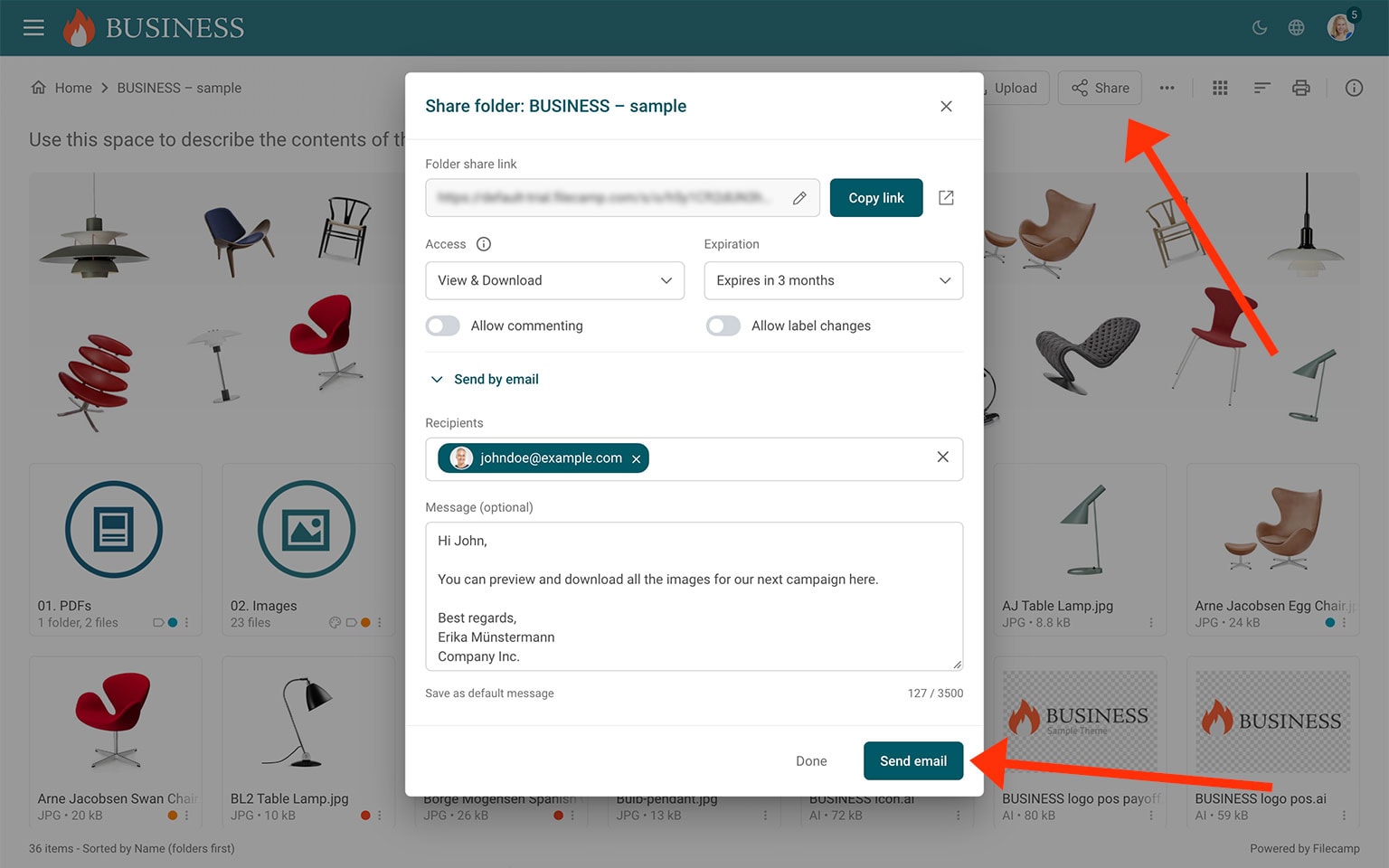
For View only and View & Download links, you can also enable:
- Allow commenting – let recipients comment on files.
- Allow label changes – let recipients change file labels.
These options are available when your plan supports them and the corresponding features are enabled under Admin > General. Label changes also require a Labelset assigned to the folder.
For Request files links, you can enable:
- Notify me on new uploads – receive an email notification when someone uploads files through the link.
Share the link
You have two ways to share the link:
- Copy link – copy and paste the link into an email, message, or website.
- Send by email – click to expand this section. Enter recipients’ email addresses, pressing Enter after each address. Add an optional message, then click Send email.
To preview the shared page, click the Open in new window icon beside the link.
Access options
View only
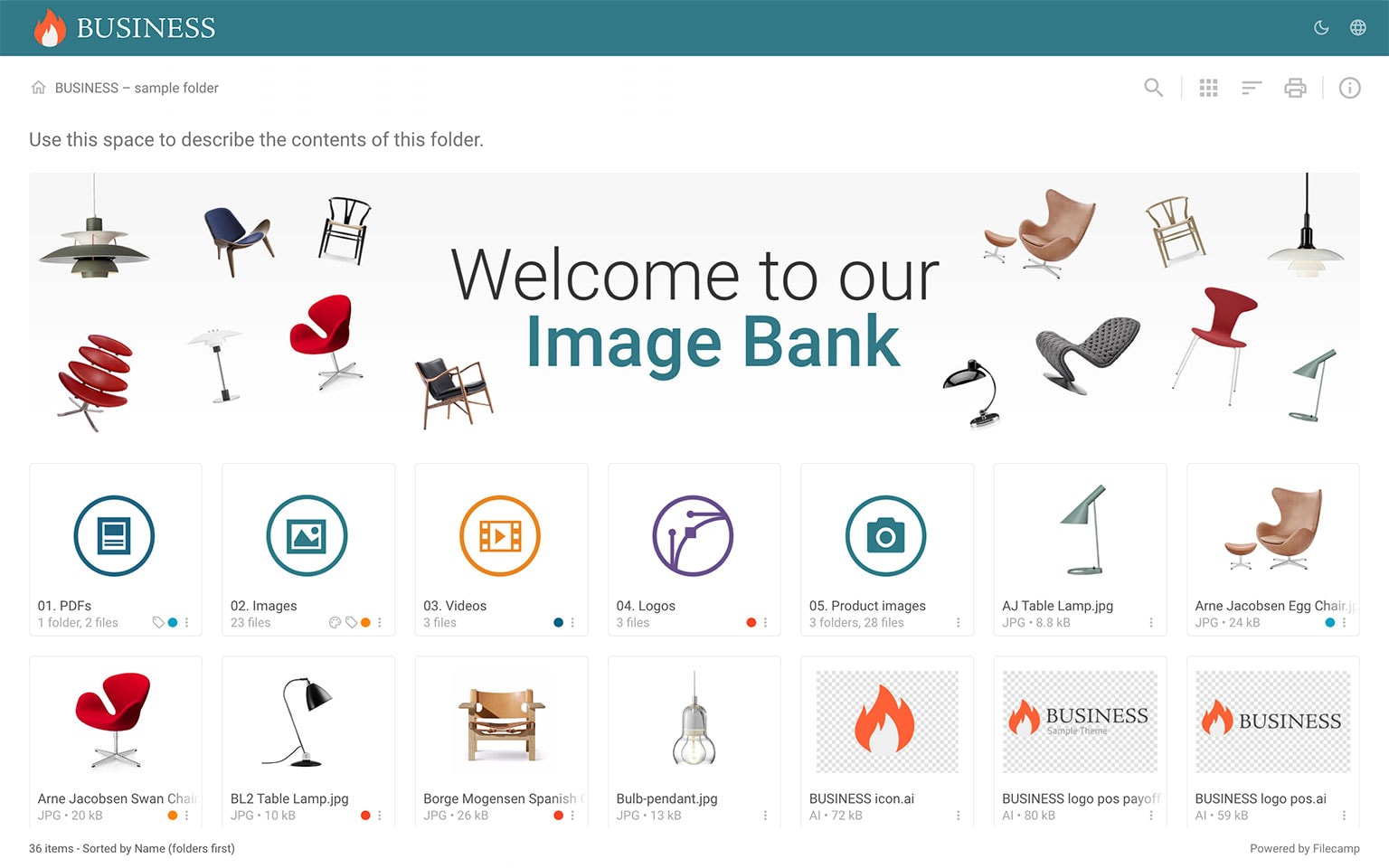
Let recipients preview files in the folder and its subfolders without providing download options.
View & Download
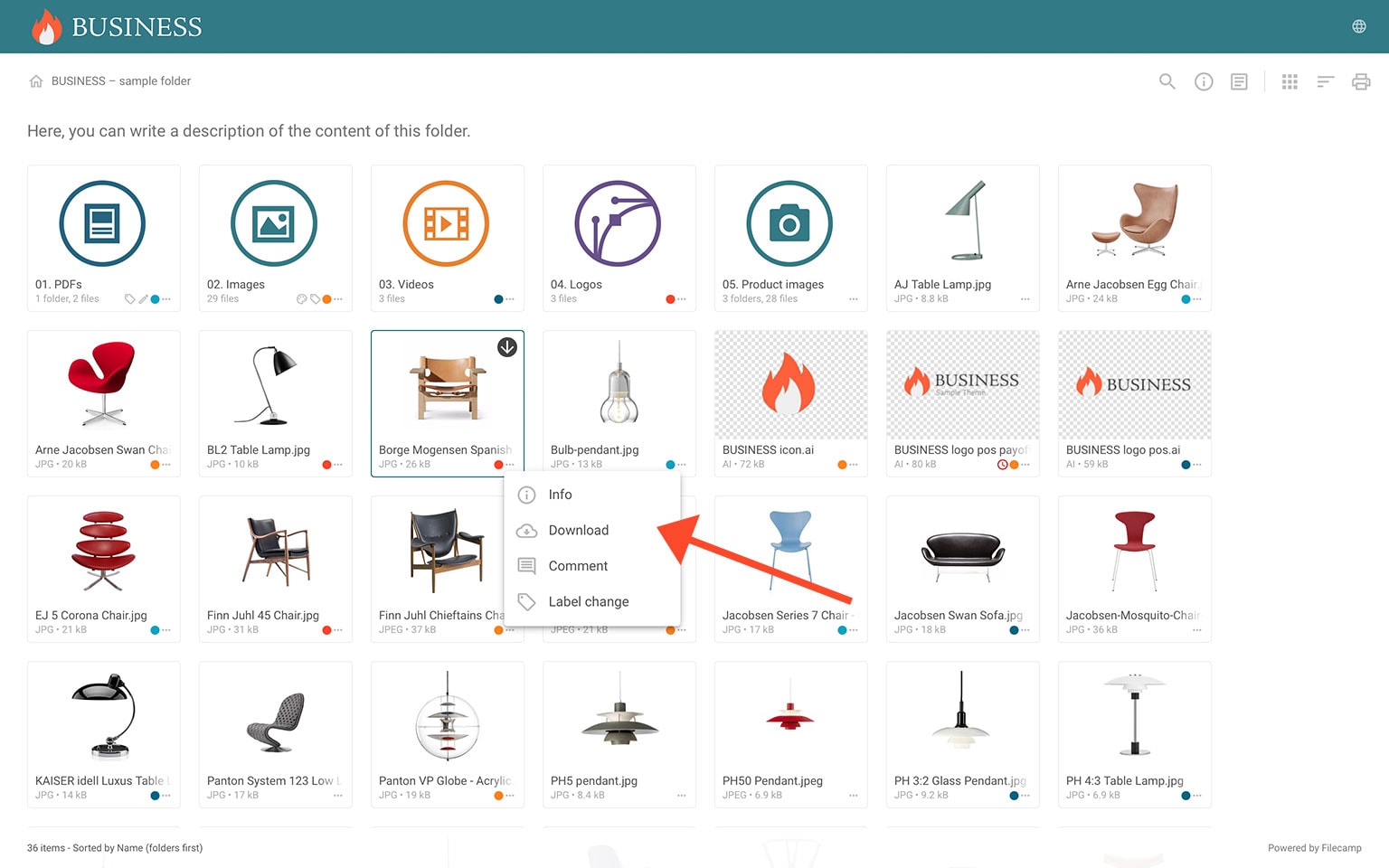
Let recipients preview and download files in the folder and its subfolders.
Request files

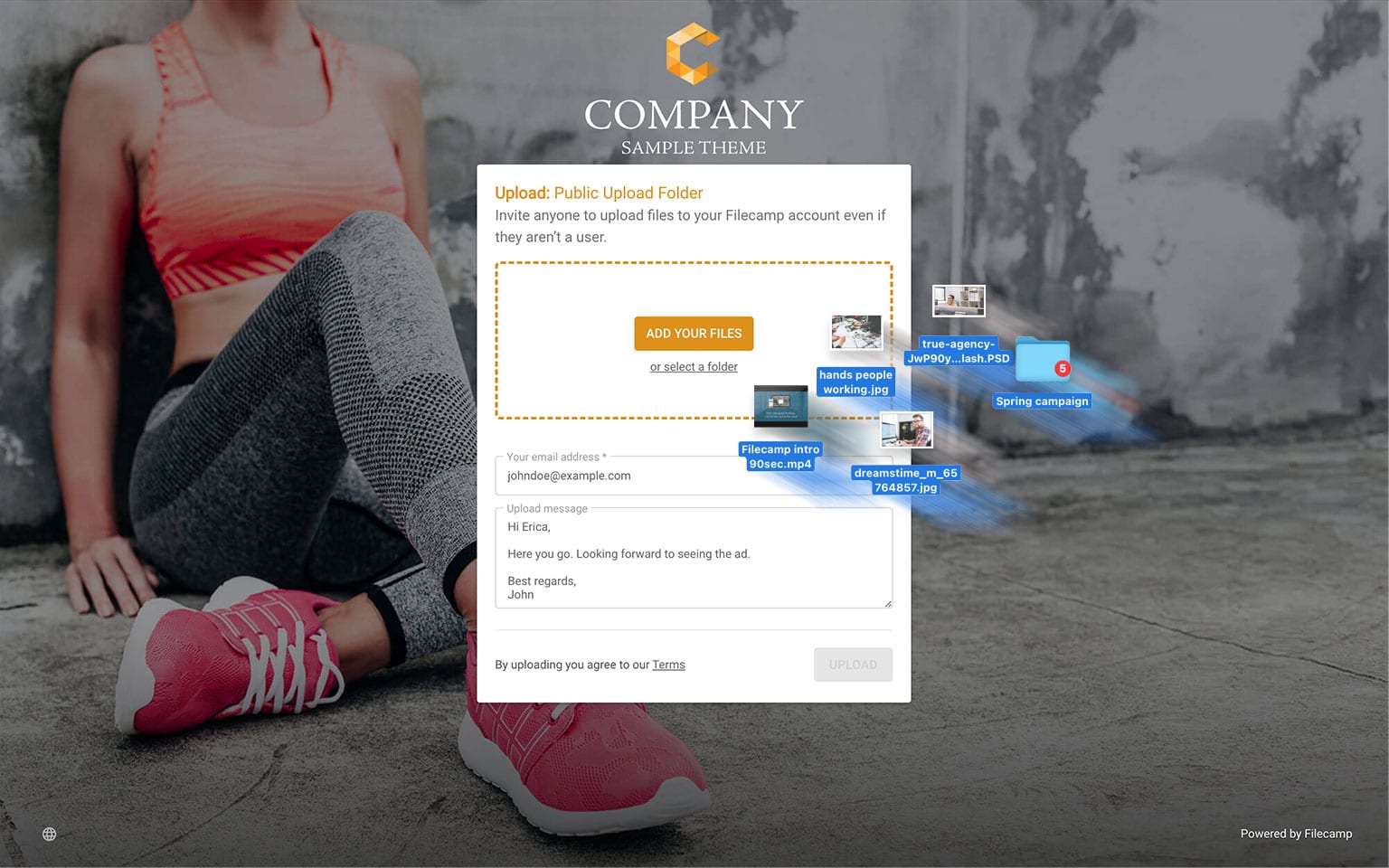
Let recipients upload files to your Filecamp account through a branded upload page without logging in. Read more.
Customize the link
Click the pencil icon next to the share link to replace the automatically generated text with the folder name or other text of your choice. For example:
Default folder share URL:
https://files.company.com/s/o/z68FV3rkltUKyWoI
Vanity folder share URL:
https://files.company.com/s/o/imagebank
VIDEO
SHARE FOLDER LINKS
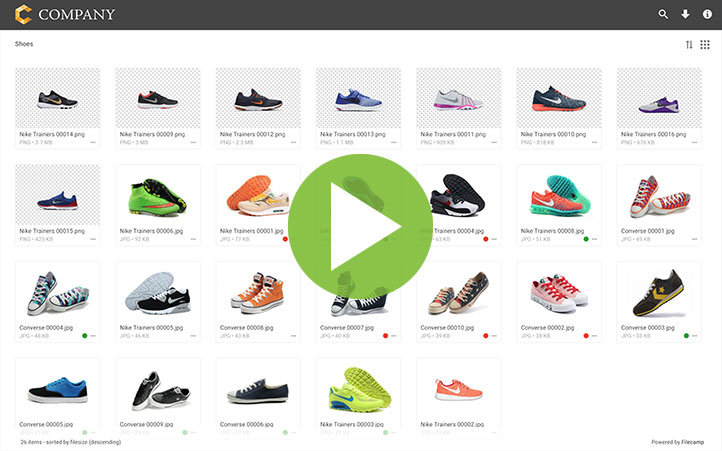
How to share a folder through a shared link, and what the recipients see.