
Analytics
See how your files are used, who’s active, and what’s being shared. Analytics helps you follow activity over time and understand which content gets the most attention.
Navigate to Admin > Analytics.
Use the five tabs; Overview, Content, Users, Sharing, and Location, to explore different aspects of your account’s activity.
Filter your analytics
Use the filters at the top of the page to choose which activity to display:
- Period: Choose 7 days, 30 days, 90 days, 365 days, or Custom to select your own date range.
- All folders: Focus on a specific folder or view activity across all folders.
- Source: Choose All, Signed in, or Links & pages to view all activity or focus on how people access your content.
Overview
The Overview tab gives you a summary of downloads, views, uploads, active users, link visits, and storage.
Use the activity chart to follow changes over time. The Most downloaded files list shows which files are getting the most attention.
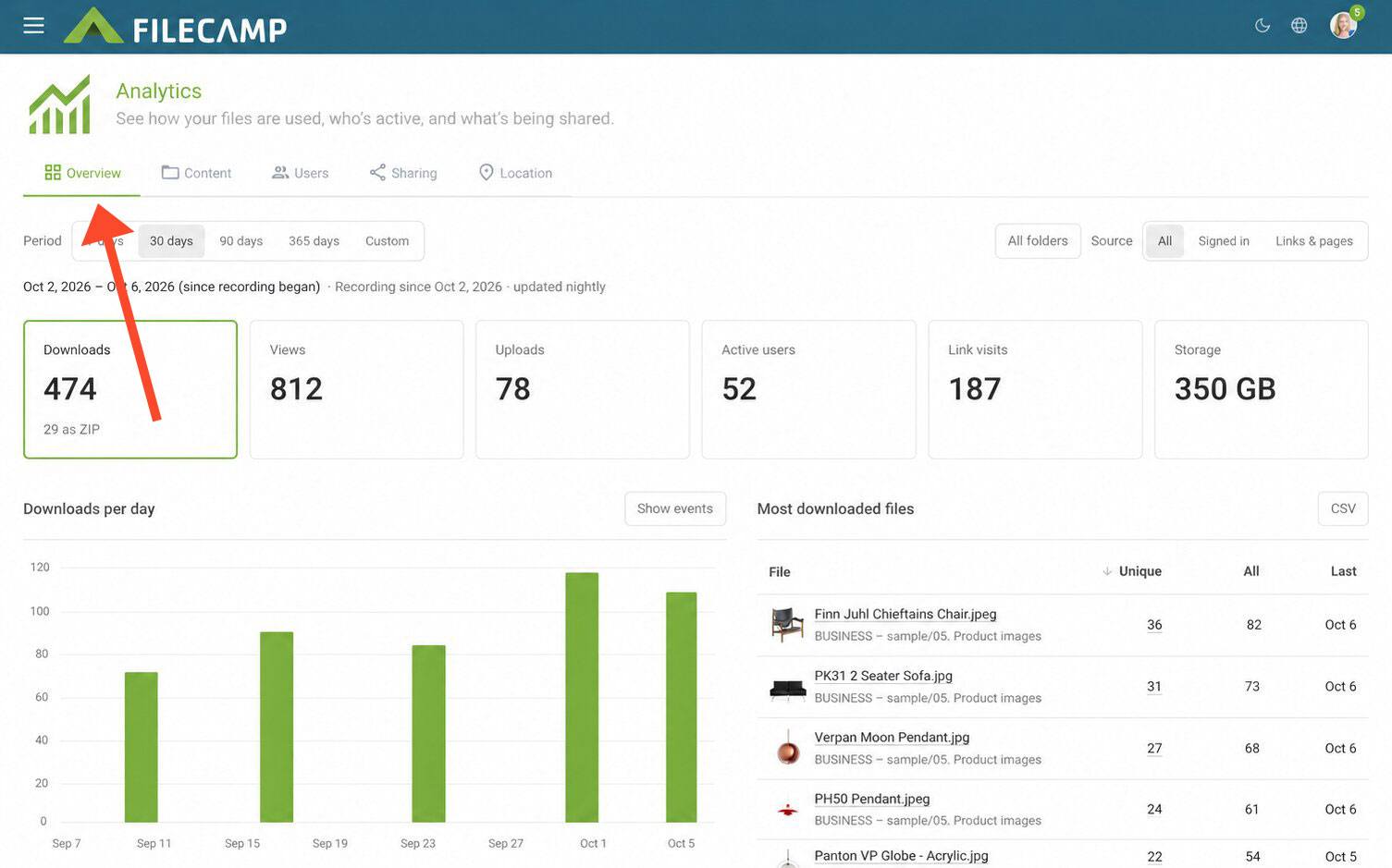
This is a useful starting point for reviewing overall activity and spotting changes in how your account is used.
Content
The Content tab helps you understand which folders attract the most activity.
The Folder activity table shows:
- Downloads: Download activity for files in each folder.
- Views: File views associated with each folder.
- Opens: How often each folder has been opened.
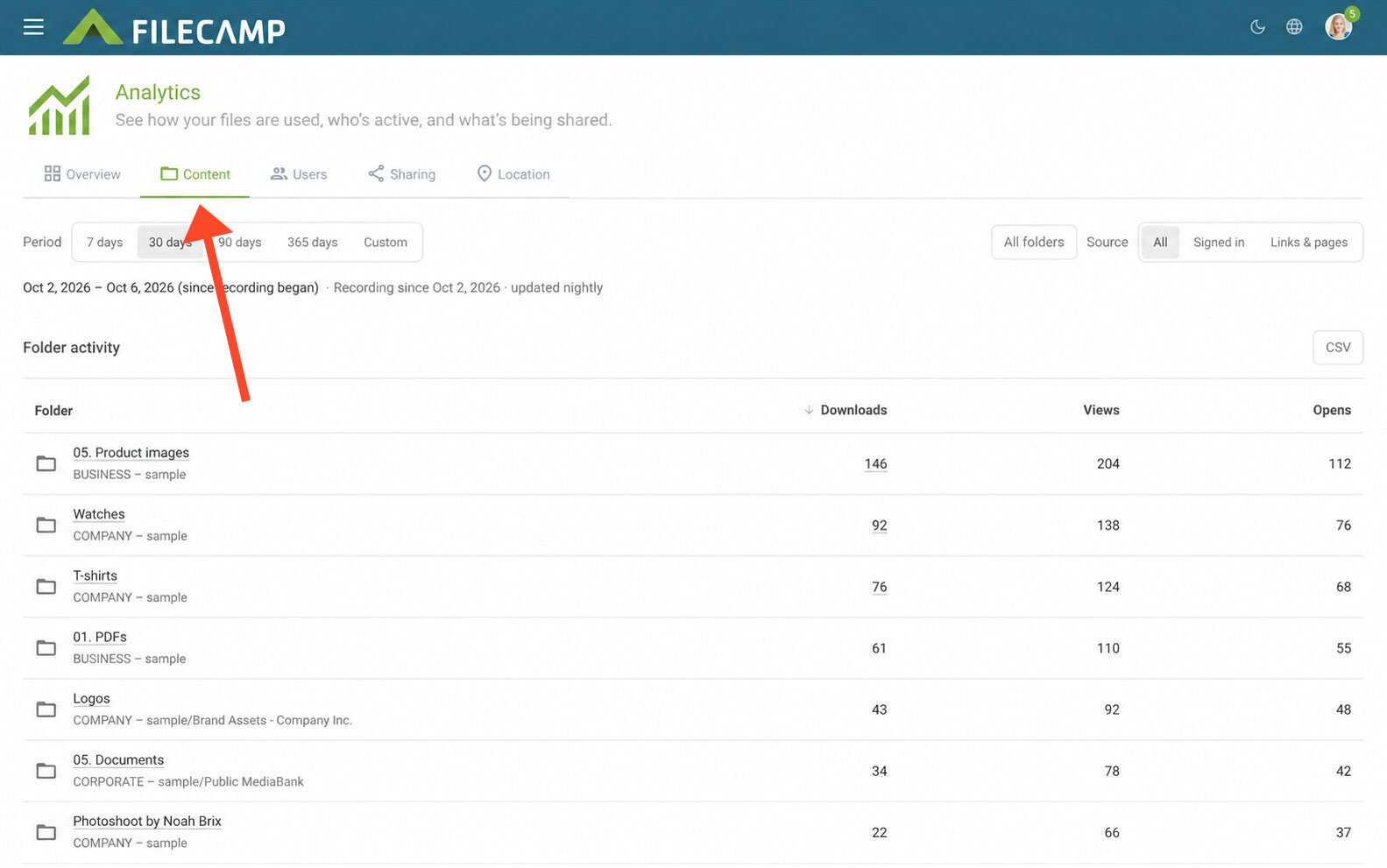
Use this information to compare activity across projects, brands, or asset categories and see where users spend their time.
Inactive files
Find files with no recorded downloads or views in the last 30, 90, 180, or 365 days. The list shows each file’s size, upload date, and last recorded activity, along with the total number and size of inactive files.
Enable Ignore ZIP downloads to exclude downloads made as part of a ZIP archive when identifying inactive files.
Tip: Use this list to identify content that may need archiving, updating, or removing.
Notice: Only activity since recording began is included. Files used before that date may still appear as inactive.
ZIP downloads
Review ZIP downloads, including the archive name, who downloaded it, the number of files, archive size, and download date and time.
File types
Compare downloads and views by file type, such as JPG, PDF, or MP4. The table also shows the number of files for each type.
Click CSV next to a report to download it for further analysis.
Users
The Users tab shows who is using your Filecamp account and how they interact with your content.
The summary includes user counts, users active during the selected period, and users who have never signed in.
The table shows each user’s visits, downloads, views, uploads, and searches, along with their last activity and last sign-in.
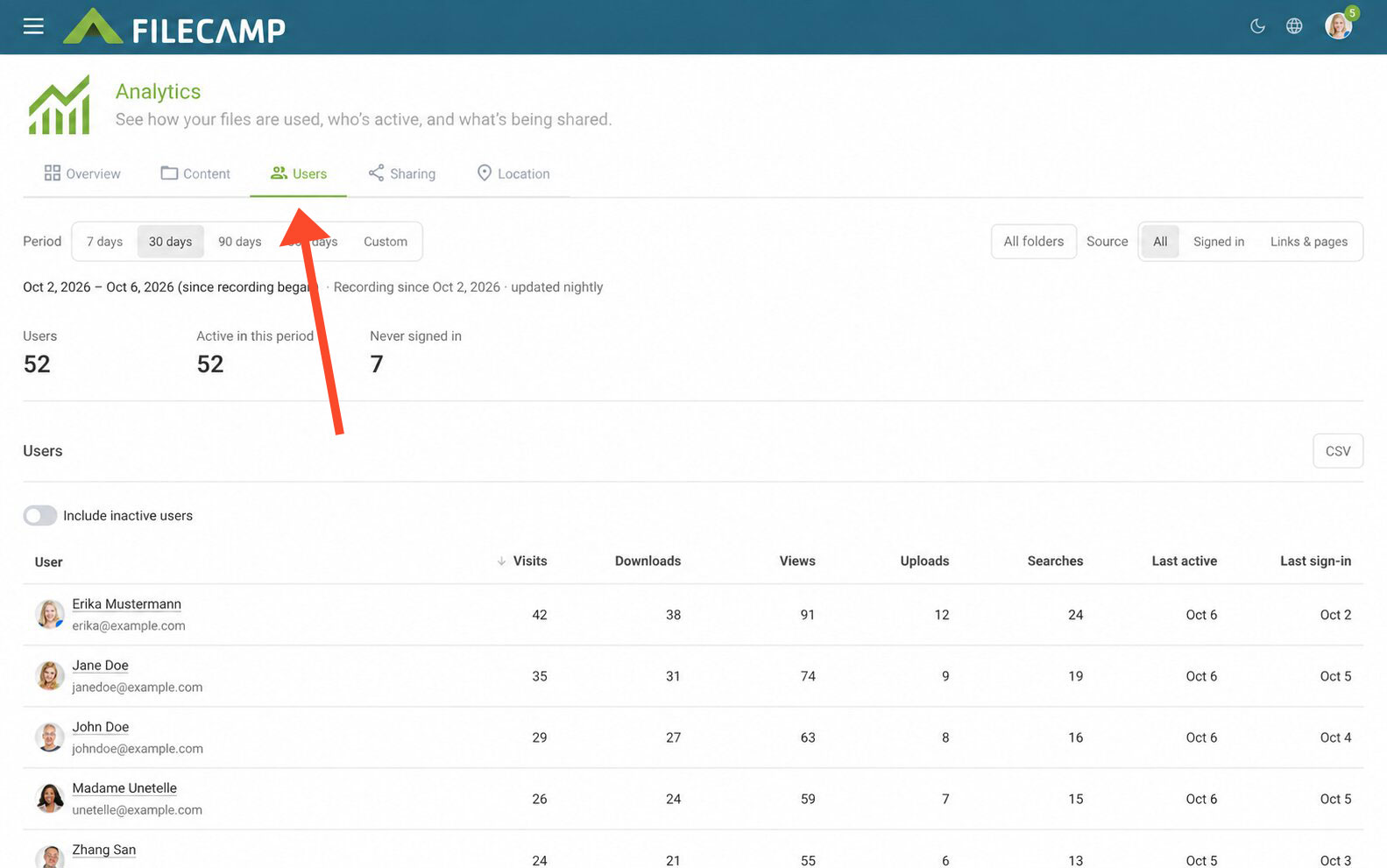
Enable Include inactive users to also display users with no activity during the selected period.
Tip: Reviewing inactive users and users who have never signed in can help you identify people who may need a reminder or help getting started.
Sharing
The Sharing tab shows how your shared links are being used.
The summary displays links created, link visits, and downloads through links. The Links by visits table provides a breakdown for each link, including visits, visitors, downloads, views, creation date, and latest activity.
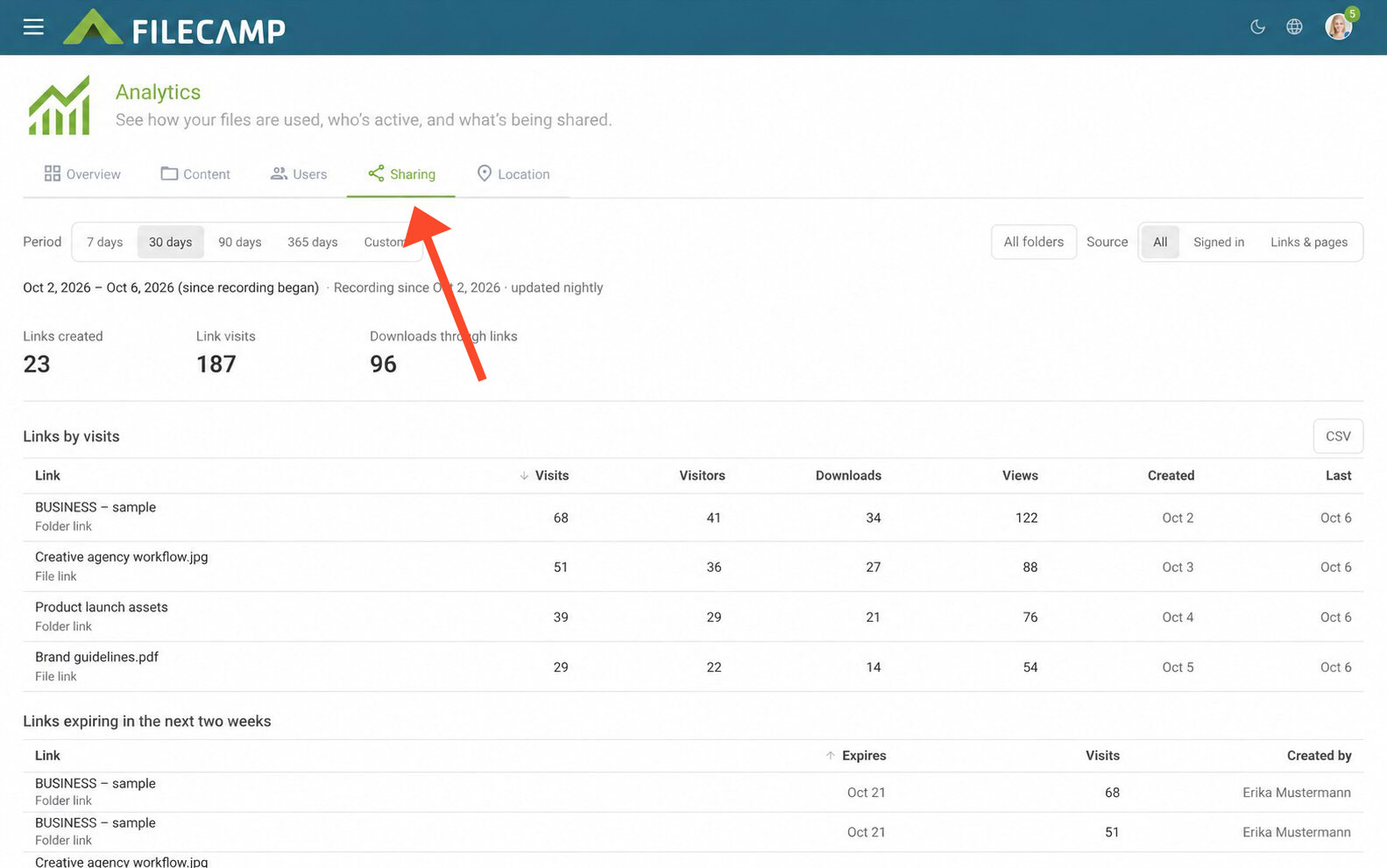
The Links expiring in the next two weeks section helps you keep track of upcoming expirations.
Tip: Review links that are still receiving visits before they expire. You can manage your shared links in Admin > Shares.
Location
The Location tab shows where activity comes from.
Switch between Country, Region, and City to view activity at different geographic levels. The table shows visits, downloads, views, and uploads for each location.
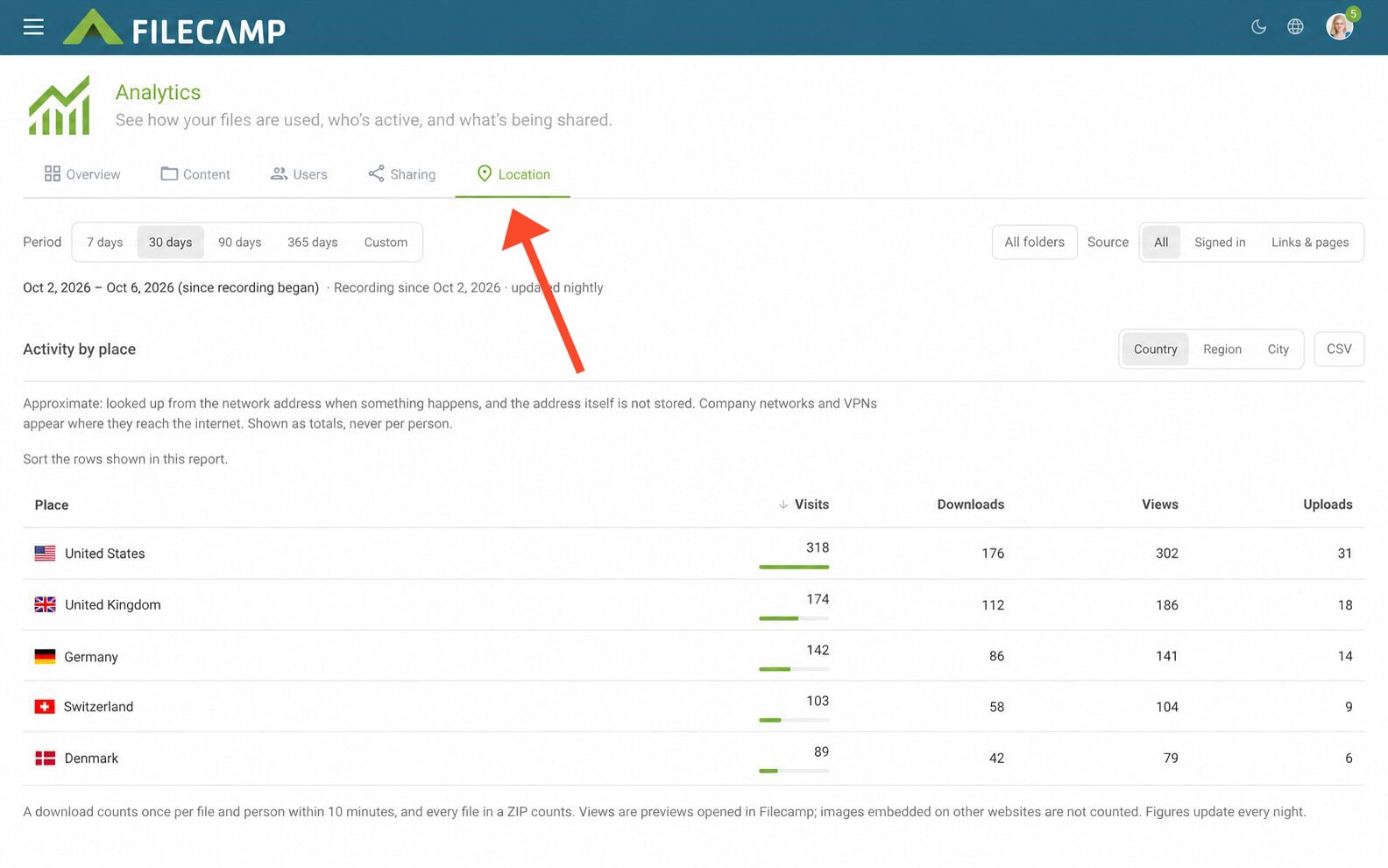
Notice: Locations are approximate and are determined from the network address when activity occurs. The address itself is not stored. Company networks and VPNs may show the location where they connect to the internet rather than the user’s actual location. Location figures are shown as totals, never per person.
Download reports
Click CSV next to a report to download it as a CSV file.
CSV files can be opened in spreadsheet programs such as Microsoft Excel or Google Sheets for further analysis or reporting.
How activity is counted
- Downloads: A download counts once per file and person within a 10-minute period. Each file included in a ZIP download counts.
- Views: Views count previews opened in Filecamp. Views of images embedded on other websites are not counted.
- Updates: Figures update every night, so today’s activity may not appear until the following day.