
Themes
Make Filecamp your own with custom colors, logos, and login pages. Advanced and Professional plans let you create multiple themes within the same account.
Add / edit Theme
Go to Admin >  Themes.
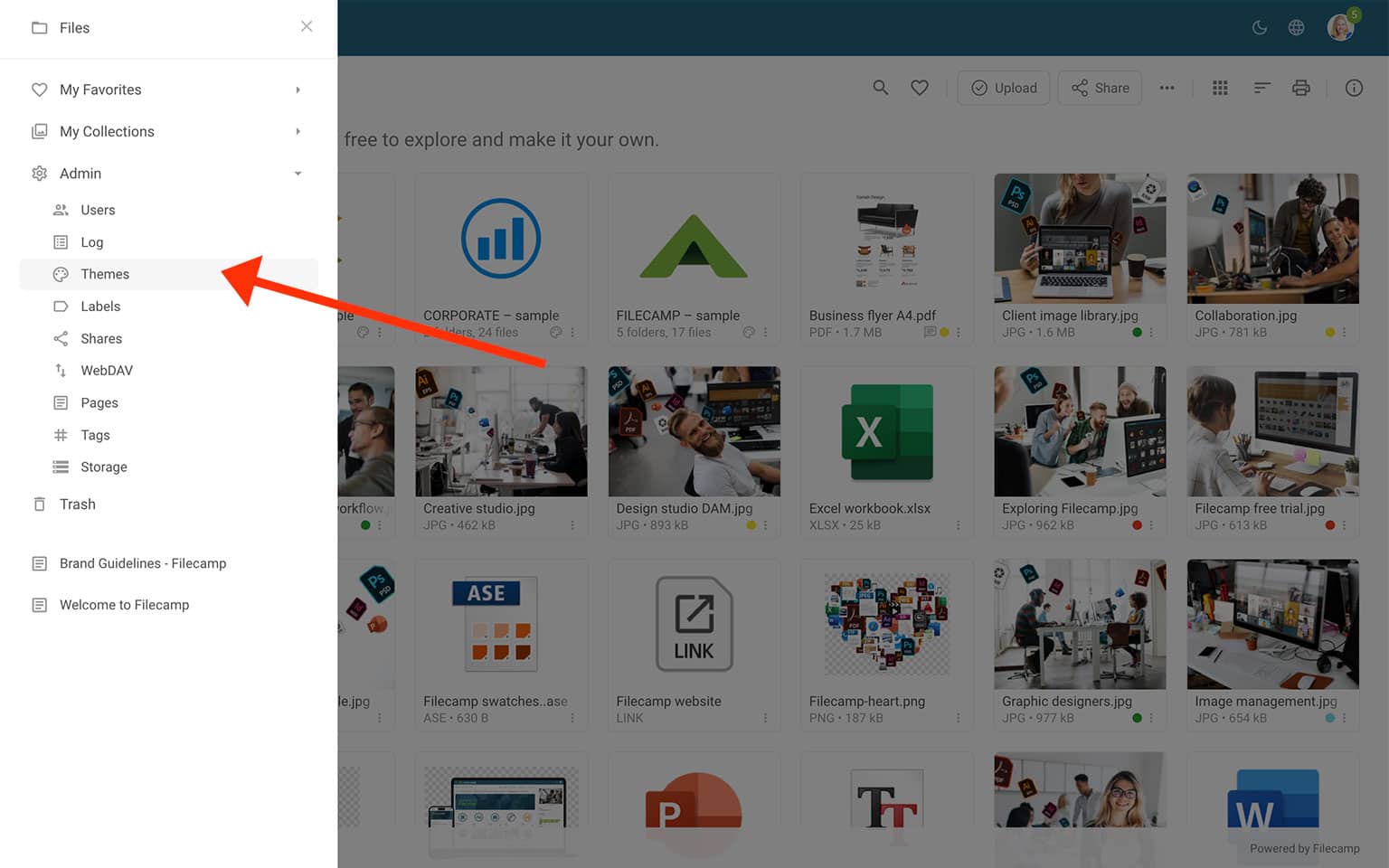
Click an existing theme to edit it, or click Add theme to create a new one.
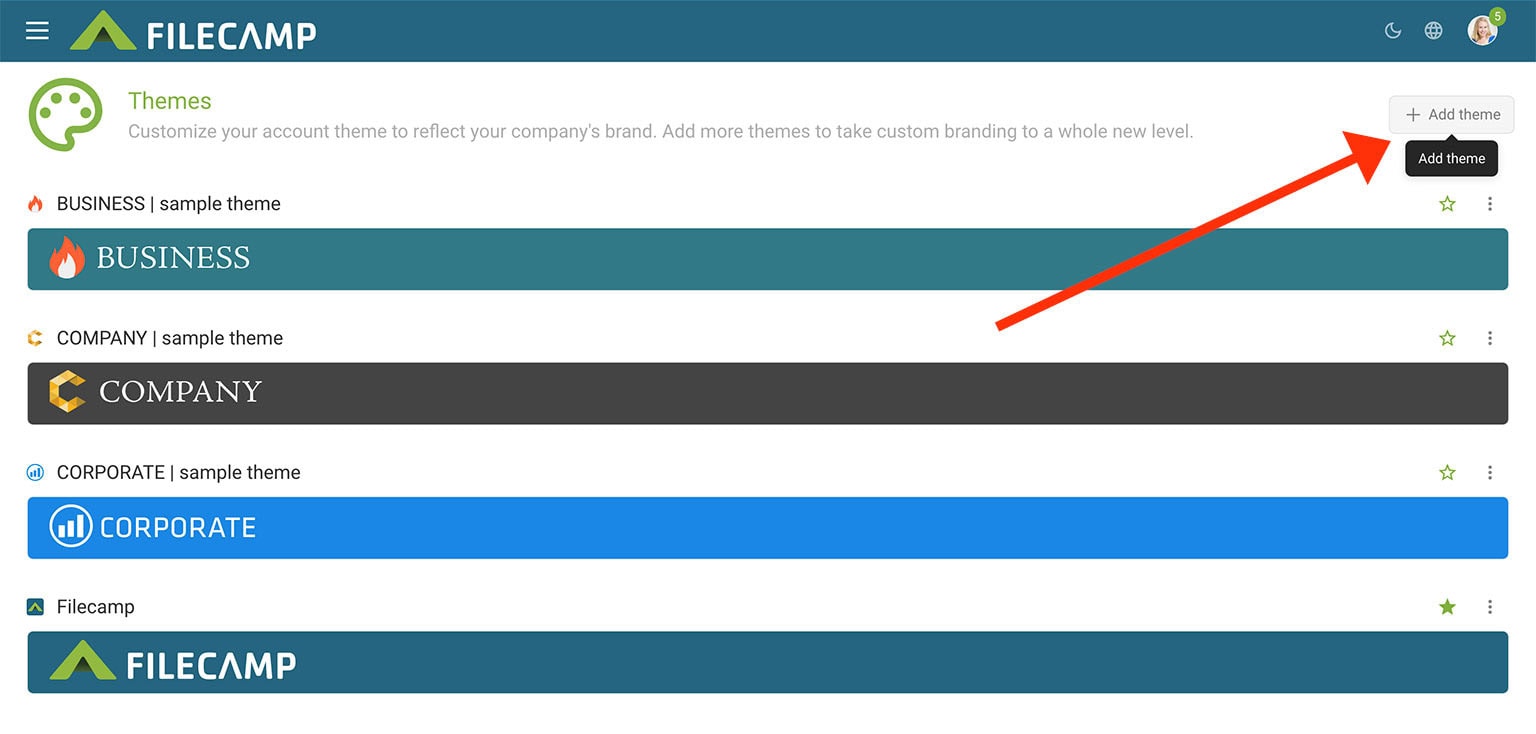
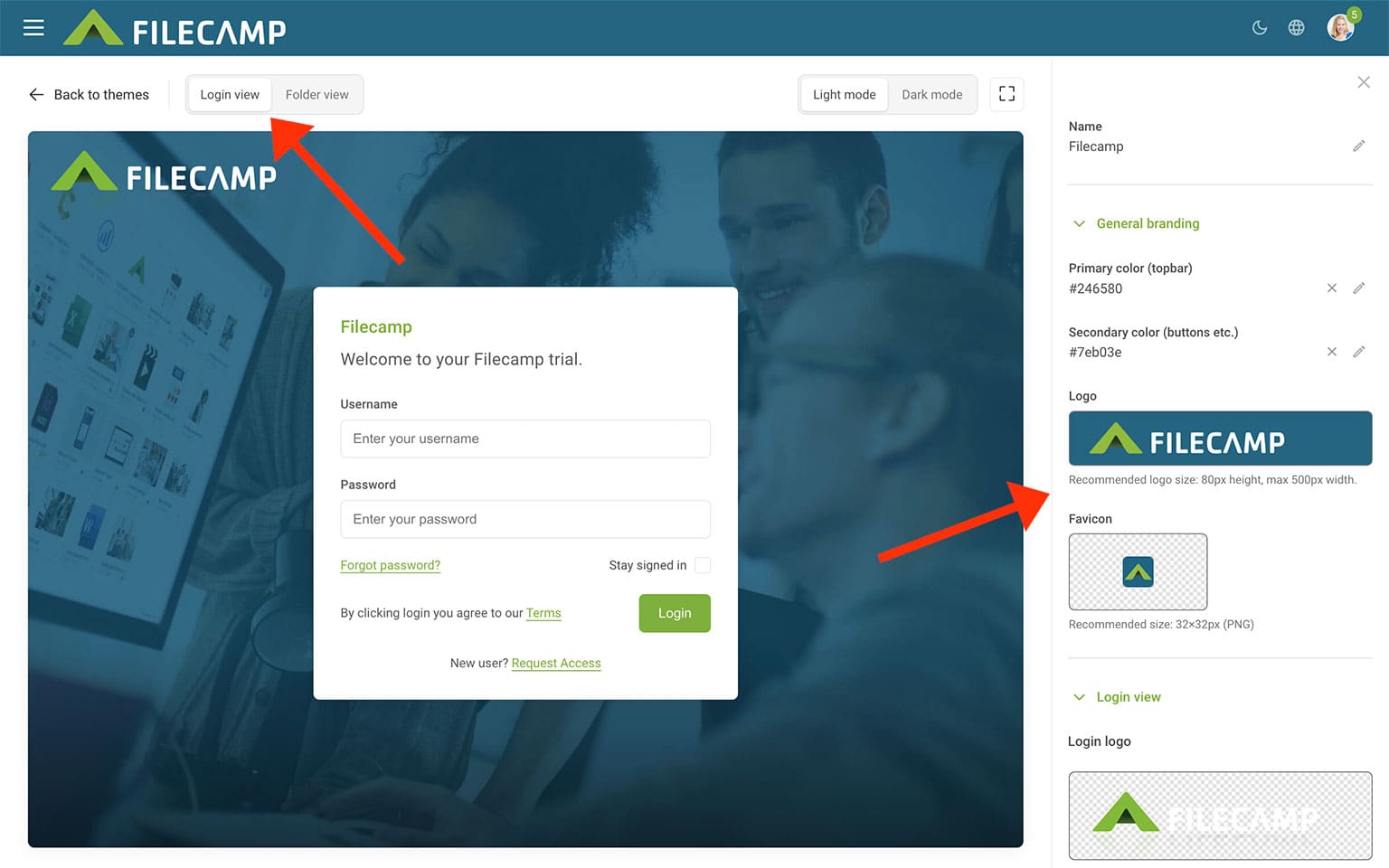
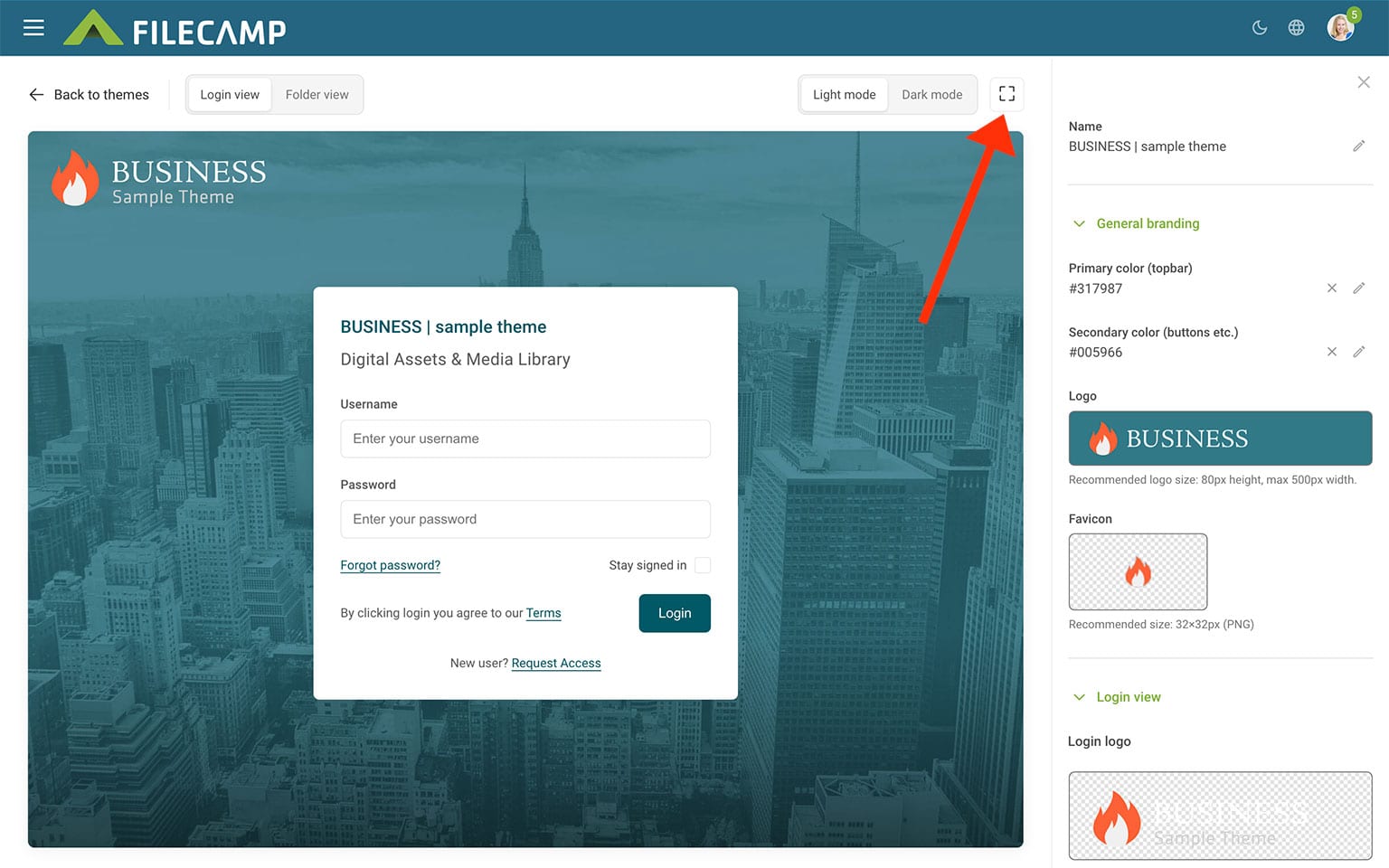
Use the settings on the right to customize your theme and preview its appearance alongside your changes. Switch between Login view and Folder view to see how your branding looks on the login page and inside a folder.
Login view / General branding
Customize your general branding and login page using the settings below.
- Name: Enter a name for the theme. It appears on the login page and in the browser tab title.
- Primary color (topbar): Use the color picker or enter a HEX value to set the background color of the top bar.
- Secondary color (buttons, etc.): Use the color picker or enter a HEX value to set the color of buttons and similar elements.
- Logo: Click the image field to upload your company logo. For best results, use a PNG or JPG file with no extra space around the logo. Recommended height: 80 px. Maximum width: 500 px. Use a transparent PNG for a colored header background. The logo appears in the header and is also used on the login page unless you upload a separate login logo.
- Favicon: Click the image field to upload a favicon. For best results, use a 32 × 32 px PNG file.
- Login logo: Click the image field to upload a separate logo for the top of your login page. Use a PNG or JPG file with some space around the logo. Recommended image width: 500–600 px. Use a transparent PNG to let the background image or color show through.
- Login logo background color: Use the color picker or enter a HEX value to set the background color behind your login logo. You can also adjust the transparency.
- Retina login logo: For a sharper logo on Retina displays, upload an image at twice its intended display size and enable this option. For example, upload a 600 px wide image to display it at 300 px wide.
- Center align header image: Enable this option to center your login logo. By default, it is left-aligned.
- Login background image: Click the image field to upload a background image. We recommend a well-compressed 2000 × 1200 px JPG image.
- Login body background color: Use the color picker or enter a HEX value to set the login page background color. This is mainly useful for themes without a background image.
- Login background tiles: Enable this option to repeat your background image as a pattern.
- Login description: Enter a short welcome message to display in the login box.
- Terms: Enter your custom terms or download agreement. These appear on the login page and all download pages.
- Allow Access Requests: Enable this option to let new users request an account directly from your login page (Professional plan only). You can add custom fields to collect additional information from applicants. Read more.
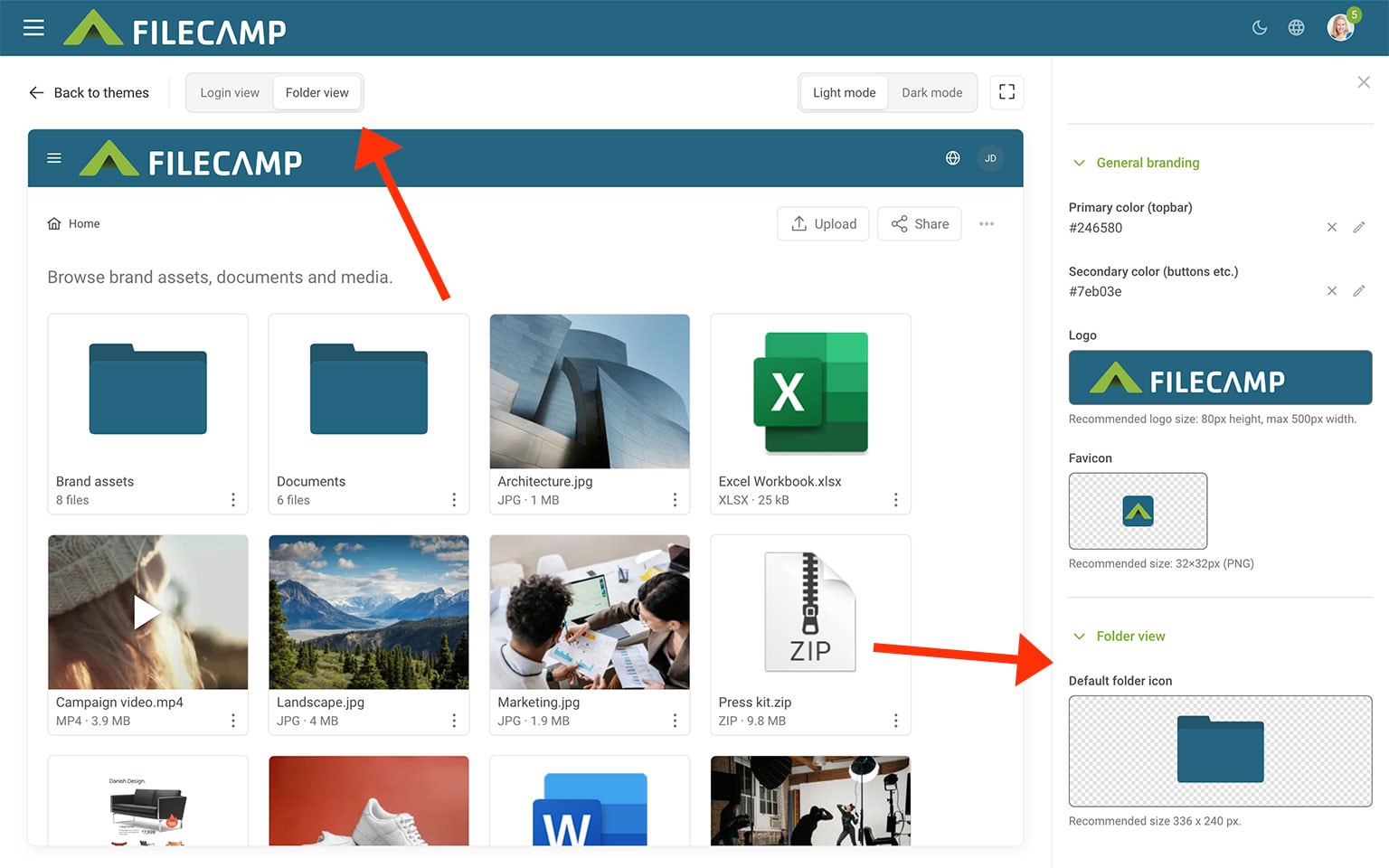
Folder view / General branding
Customize your general branding and folder appearance using the settings below.
- Name: Enter a name for the theme. It appears on the login page and in the browser tab title.
- Primary color (topbar): Use the color picker or enter a HEX value to set the background color of the top bar.
- Secondary color (buttons, etc.): Use the color picker or enter a HEX value to set the color of buttons and similar elements.
- Logo: Click the image field to upload your company logo. For best results, use a PNG or JPG file with no extra space around the logo. Recommended height: 80 px. Maximum width: 500 px. Use a transparent PNG for a colored header background. The logo appears in the header and is also used on the login page unless you upload a separate login logo.
- Favicon: Click the image field to upload a favicon. For best results, use a 32 × 32 px PNG file.
- Default folder icon: Change the default folder icon color or upload a custom icon. Recommended image size: 336 × 240 px. Use a transparent background for the best results.
Preview your theme
Use the controls above the preview to check your theme’s appearance:
- Login view: Preview your login page, including its logo, background, and welcome message.
- Folder view: Preview your branding with sample files and folders.
- Light mode / Dark mode: Check how your theme looks in both modes.
- Expand icon: Open a larger preview to get a better impression of the layout, background image cropping, and logo size.
Previewing both modes helps you check that your logos, colors, and images work well with light and dark backgrounds.
Copy theme
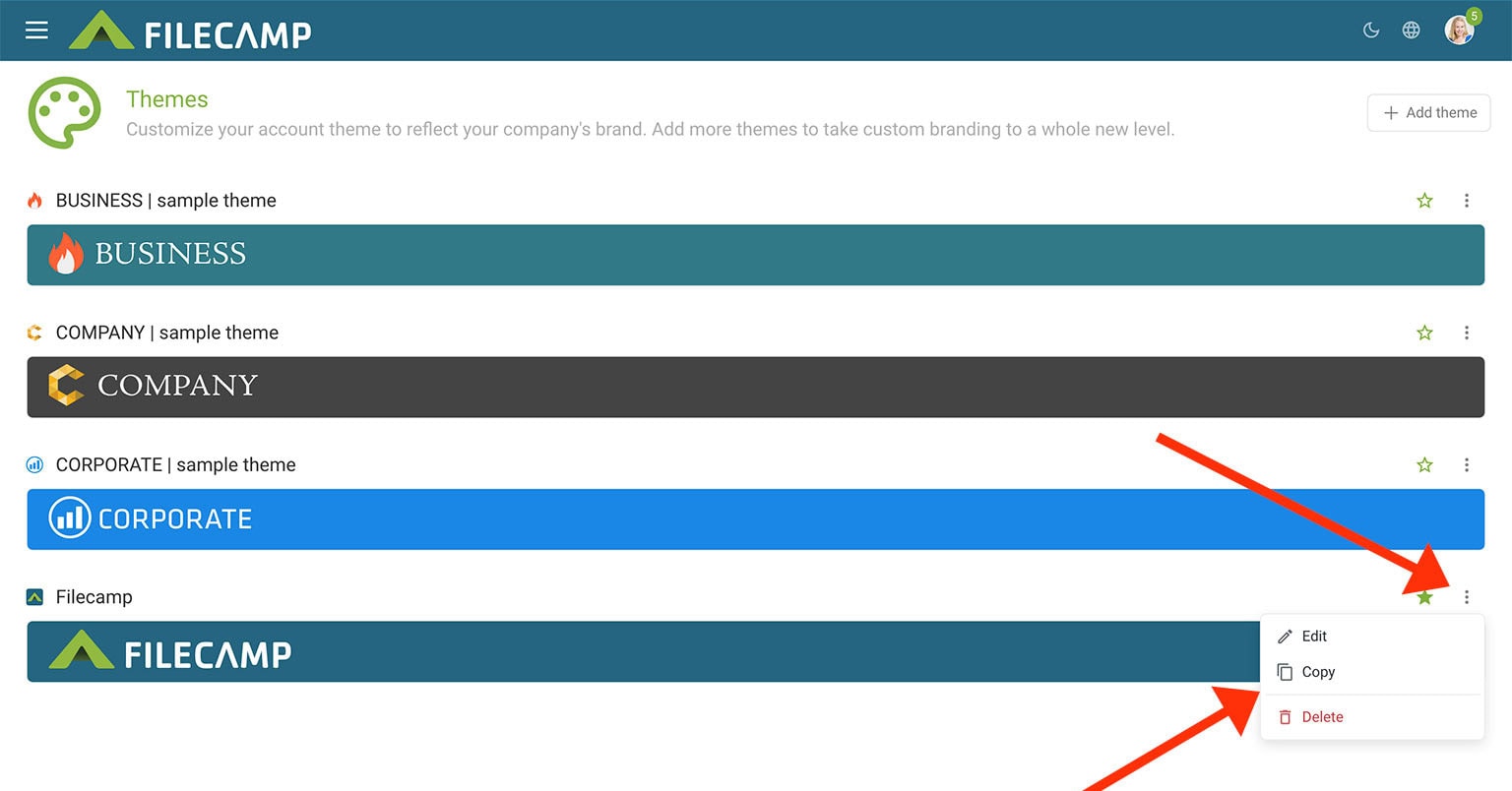
Go to Admin > Themes, open the three-dot menu  next to a theme, and select Copy to use it as a template.
Delete theme
Go to Admin > Themes, open the three-dot menu next to a theme, and select Delete. This action cannot be undone.
Default theme
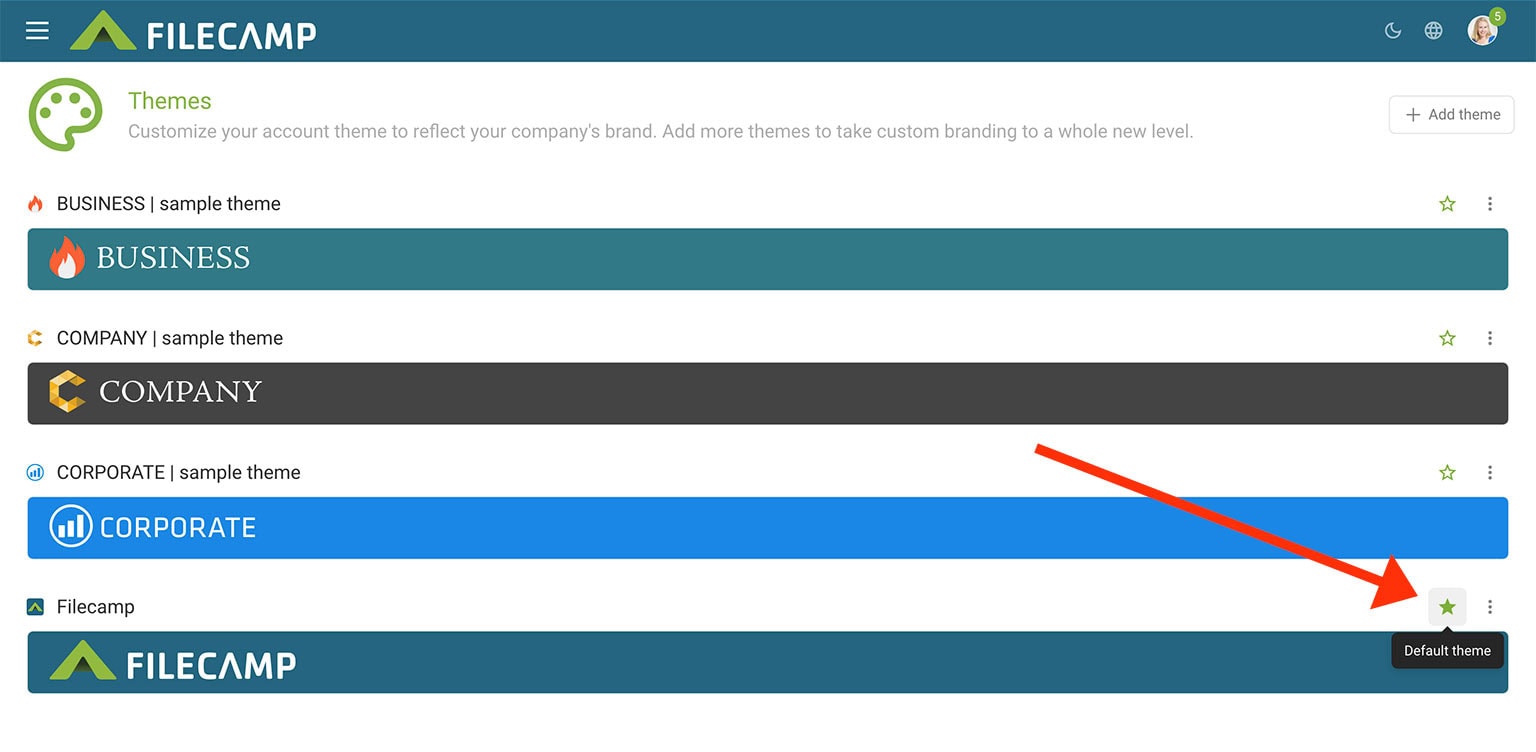
If your account has multiple themes, choose one as the default. It applies wherever no other theme has been assigned or inherited from a parent folder.
There are two ways to change your default theme:
Method 1: From Themes
Go to Admin > Themes. A filled star  marks your current default theme. Click the outlined star
  next to another theme to make it the default.
Method 2: From the theme editor
Go to Admin > Themes and open a theme. Click Make default at the top of the Infobar on the right to set it as your default theme. A filled star marks your current default theme.
Method 3: From the root folder
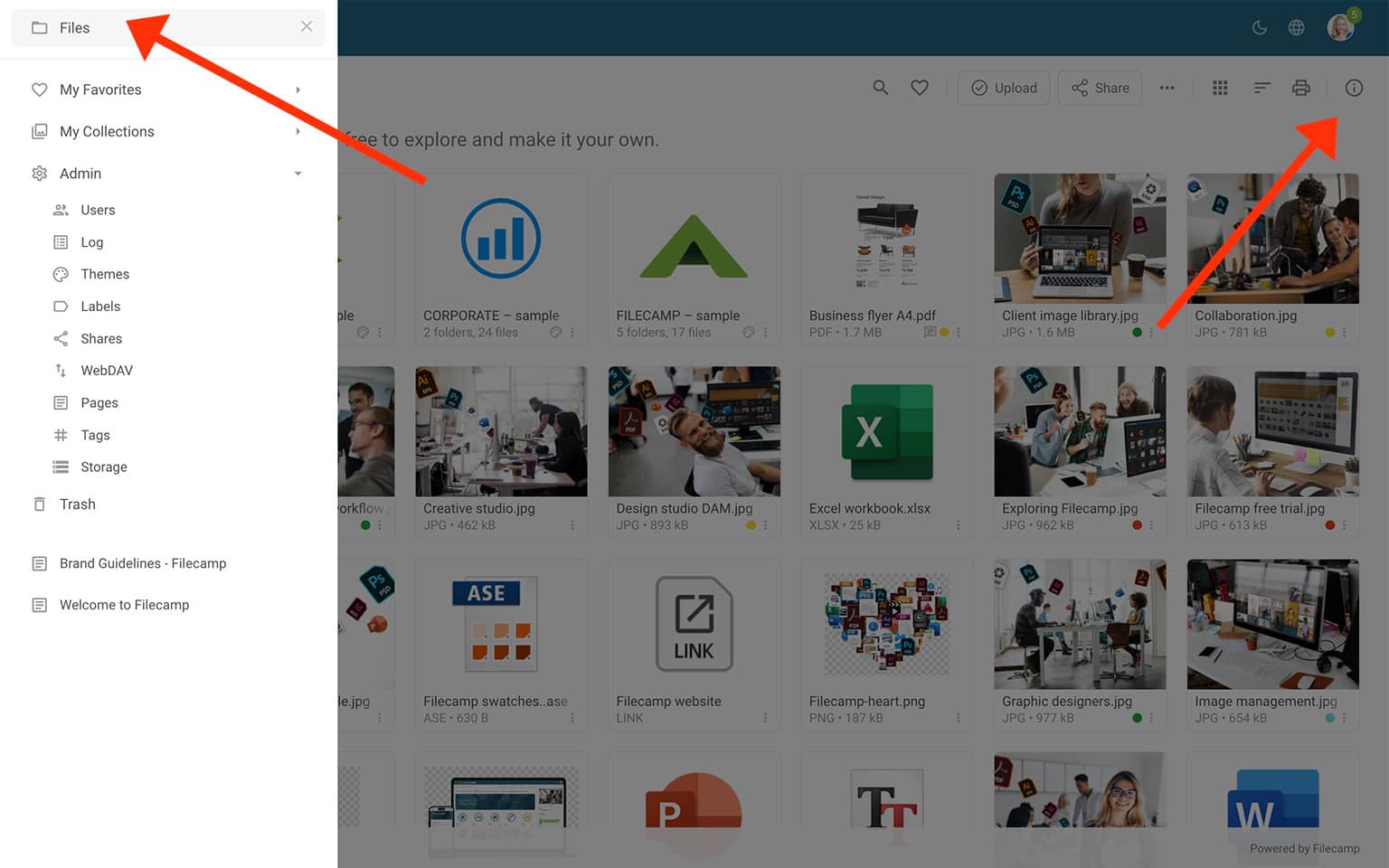
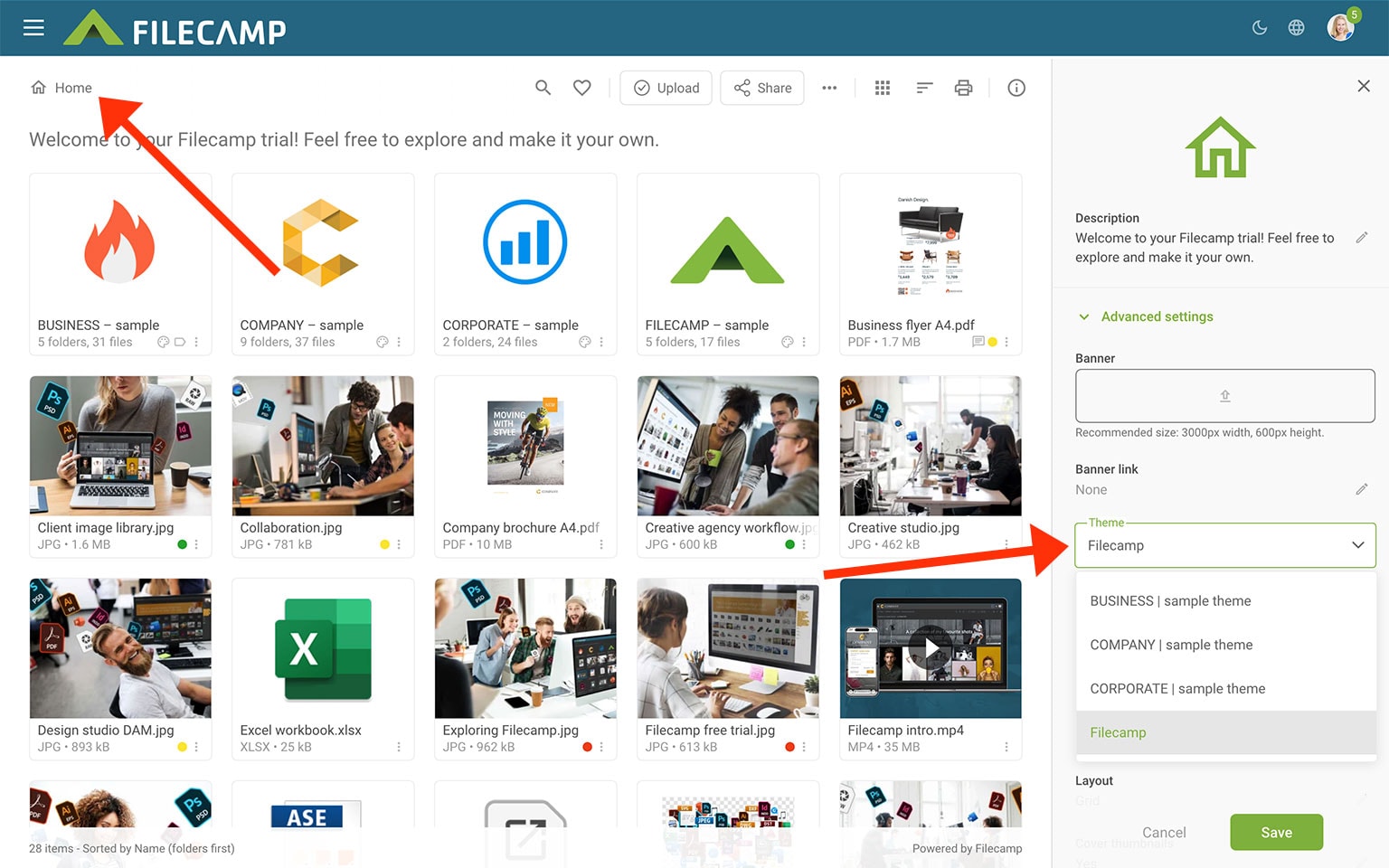
Go to Files (the root folder) and click the Info  icon. Under Advanced settings, select a theme from the Theme drop-down menu, then click Save.
Select your preferred default theme from the Theme drop-down menu, then click Save.
Assign a theme to a specific folder
Give individual folders their own branding to create a customized experience for different teams, clients, or brands.
Assign a theme to a folder
Open the folder you want to customize, then click the Info icon. Select a theme from the Theme drop-down menu, then click Save.
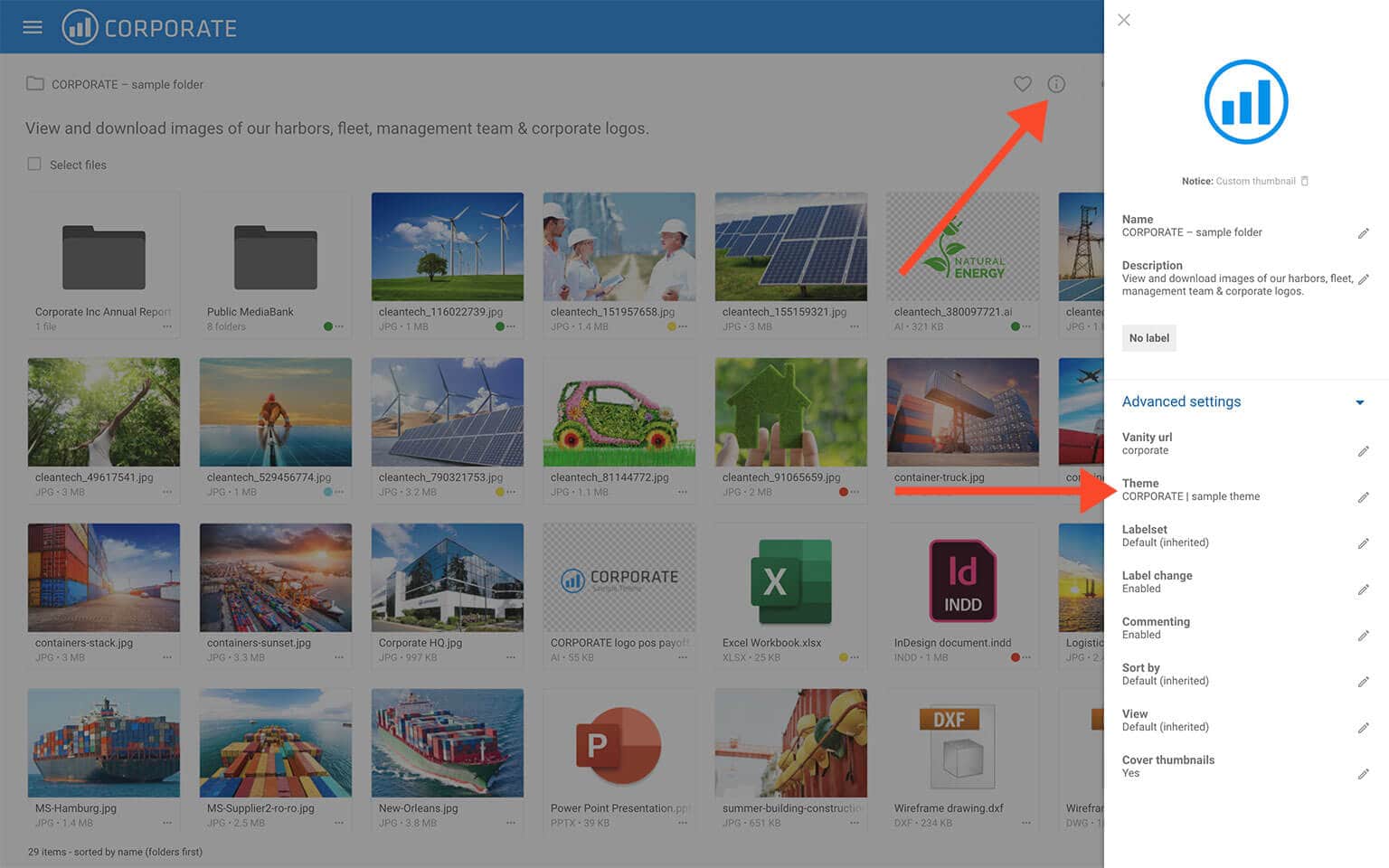
The selected theme’s top bar, login page, and colors will apply to this folder and its subfolders.
Reopen the folder or refresh your browser to see the changes.
This article reviews the following topics:
VIDEO
CUSTOM BRANDING
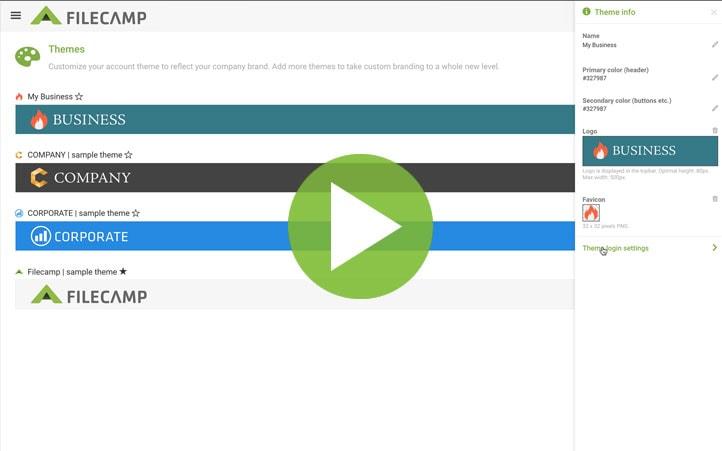
How to style Filecamp with your own colors, logo, and background image.