
Version control
Keep earlier versions of a file, compare changes, and restore the version you need.
Open versions
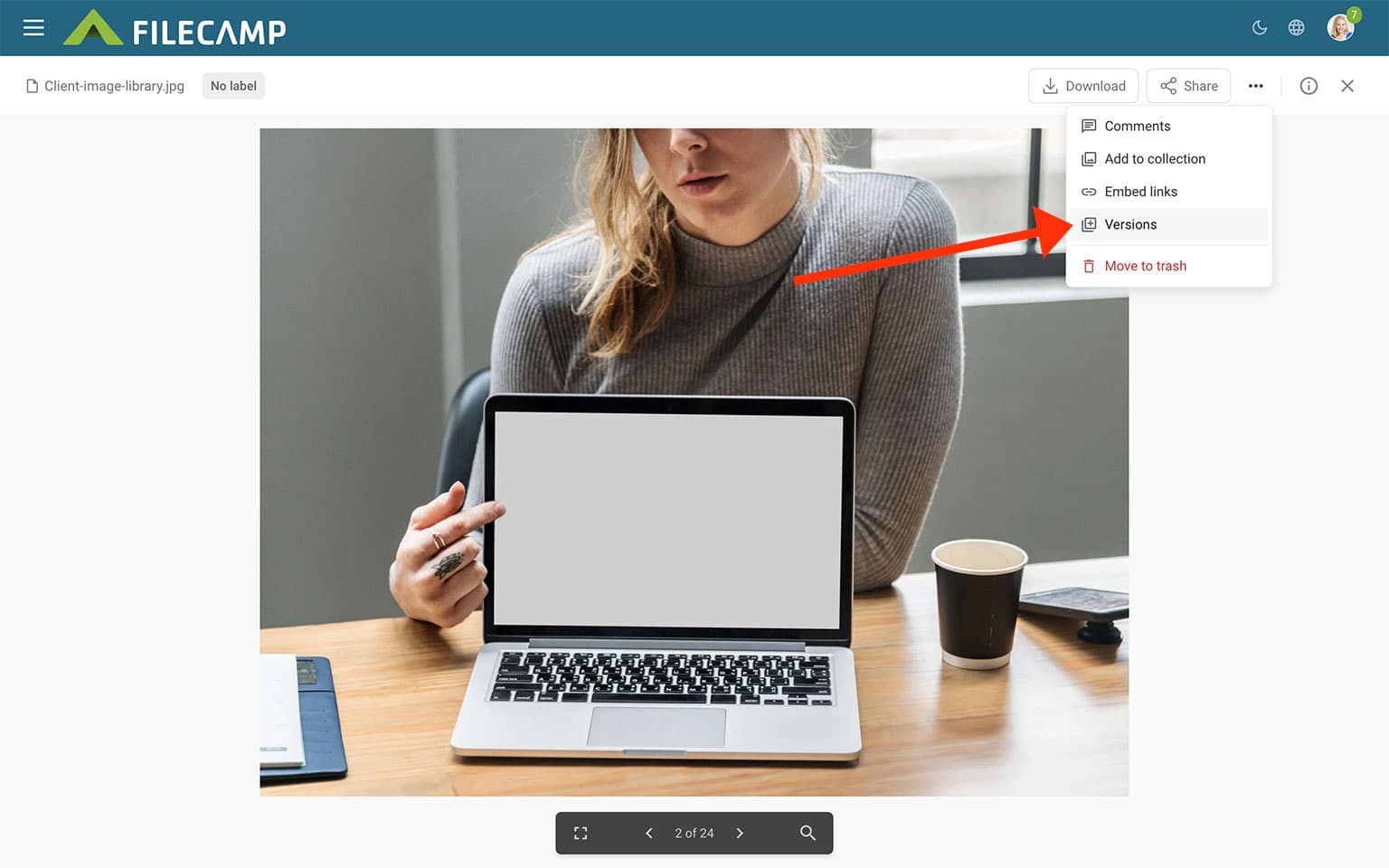
- Open the file you want to work with.
- Click the three-dot menu in the upper-right corner.
- Select Versions.
The Versions panel opens on the right. It shows the current version and every earlier version, including the version number, filename, upload date, uploader, file type, size, and dimensions when available. The active version is marked Current.
Upload a new version
- Open the Versions panel.
- Click Upload new version.
- Select the updated file and complete the upload.
The uploaded file becomes the current version, while the earlier versions remain in the version history.
Manage an existing version
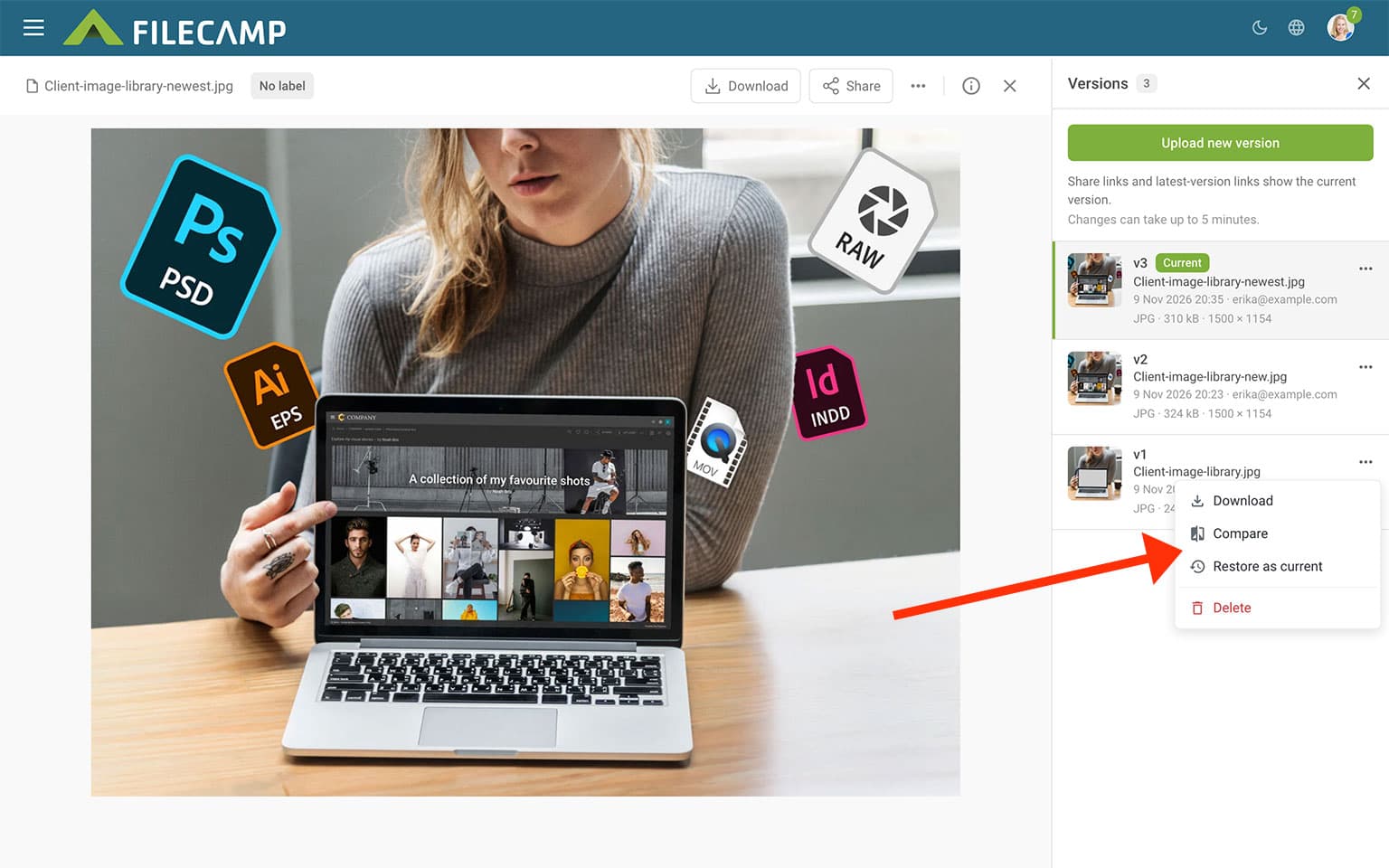
In the Versions panel, click the three-dot menu next to a version to see the actions available for it:
- Download saves that version to your device.
- Compare opens two versions side by side.
- Restore as current makes the selected version the current version.
- Delete removes the selected version from the version history.
The actions shown can vary depending on whether you select the current version or an earlier version.
Compare two versions
- Click the three-dot menu next to the version you want to review.
- Select Compare.
- Use the Left and Right menus to choose the two versions you want to view.
Filecamp displays the versions side by side. Comparing versions does not change the current version. From the Compare panel, you can also download or restore the earlier version you opened.

Notice: You can only compare versions of image files.
Restore an earlier version
To make an earlier version current, open its three-dot menu and select Restore as current. You can also restore it from the Compare panel by clicking Restore vX, where vX is the version number.
The selected version becomes the current version shown by Filecamp and by links that point to the latest version.
Delete a version
Open the version's three-dot menu and select Delete. Because this removes the version from the file's history, make sure it is no longer needed before deleting it.
Notice: Share links and latest-version links always show the current version. After you upload or restore a version, allow up to five minutes for the change to appear in those links.