
Domain
Change your Filecamp subdomain or use a custom domain name.
Log in as an Account Owner, open the main menu, and go to Admin > Domain.
Change your subdomain
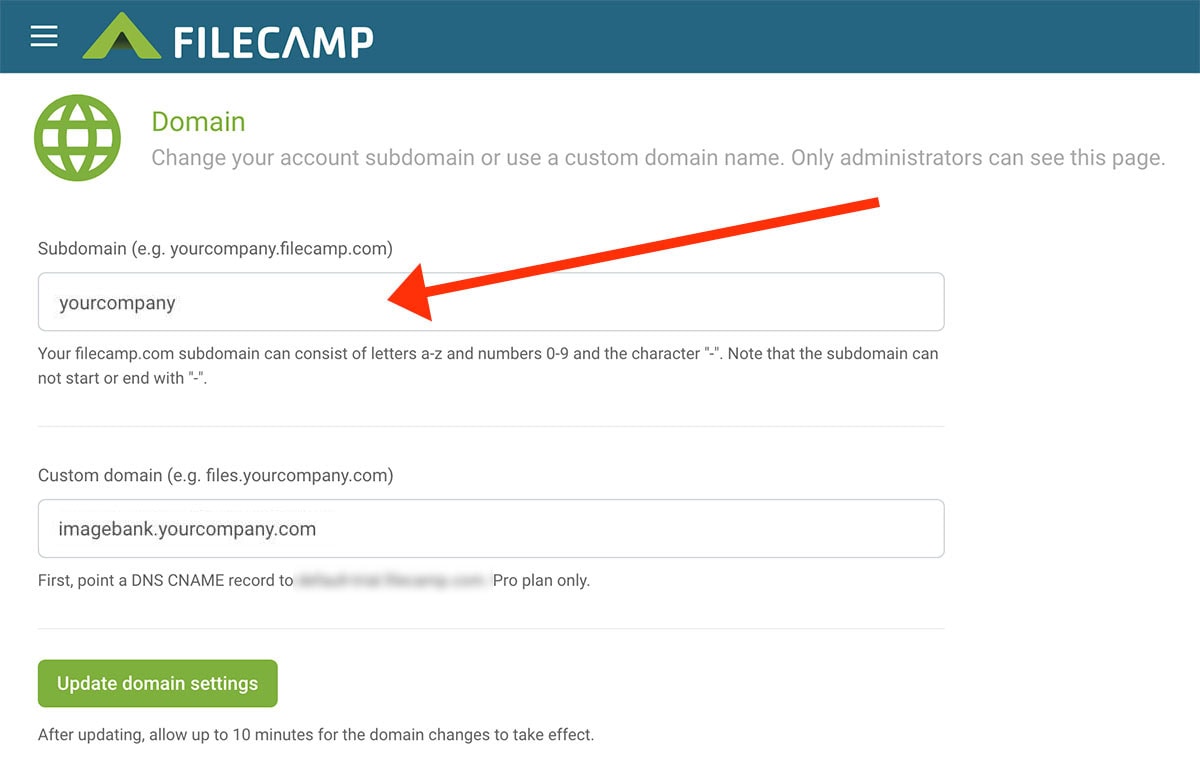
Your Filecamp subdomain is your account’s default address, such as yourcompany.filecamp.com.
- In the Subdomain field, enter your preferred name without the .filecamp.com ending.
- Use only lowercase letters (a–z), numbers (0–9), and hyphens (-). The name cannot start or end with a hyphen.
- Click Update domain settings.
- Log out and allow up to 10 minutes for the change to take effect before logging in at your new address.
Warning: Shared links using your previous Filecamp subdomain will no longer work after you change it. Update any links you have distributed.
Use a custom domain
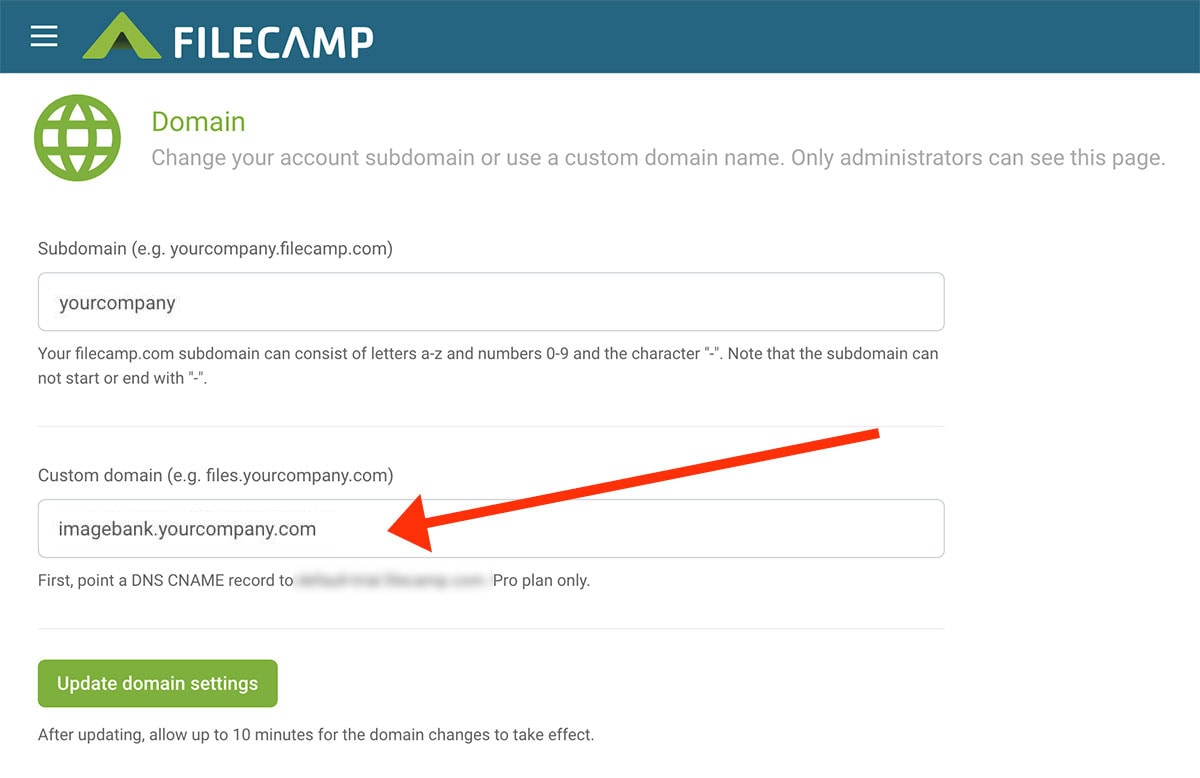
On the Pro plan, you can use your own domain, such as imagebank.yourcompany.com, to give your Filecamp a branded address.
- Create a CNAME record with your DNS provider, following the instructions below.
- Enter your chosen address in the Custom domain field, without https://.
- Click Update domain settings.
- Allow up to 10 minutes for Filecamp to apply the change, then log in at your custom address.
Your custom domain and your Filecamp subdomain will both continue to work.
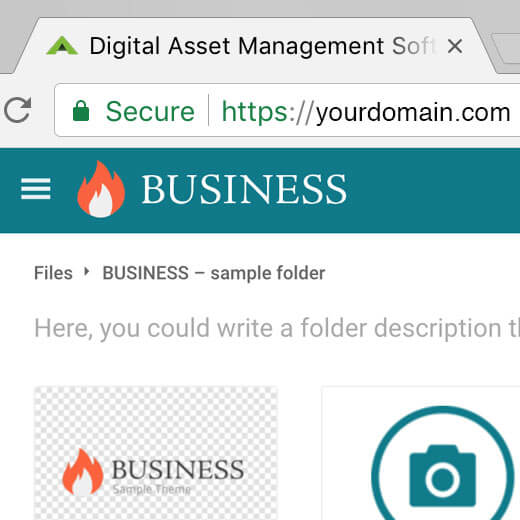
Filecamp automatically issues and installs a free SSL certificate for your custom domain.
Create a CNAME record
Log in to the service that manages your domain’s DNS records. This may be your domain registrar or a separate DNS provider.
- Open the DNS settings and add a new CNAME record.
- In the Name or Host field, enter your chosen subdomain, such as imagebank for imagebank.yourcompany.com.
- In the Target or Value field, enter the address shown below the Custom domain field in Filecamp.
- Save the DNS record, then return to Filecamp to enter and save your custom domain.
Field names vary between DNS providers. Some require the full address in the Name or Host field.
Notice: DNS changes may take longer to propagate than Filecamp’s 10-minute update window.