Edit Collection
You can add or remove files from your Collections at any time, and also edit name, description, and settings for a Collection.
Remove a single file from a Collection
Click on  My Collections from the
  Main menu. Then select the Collection you want to edit.
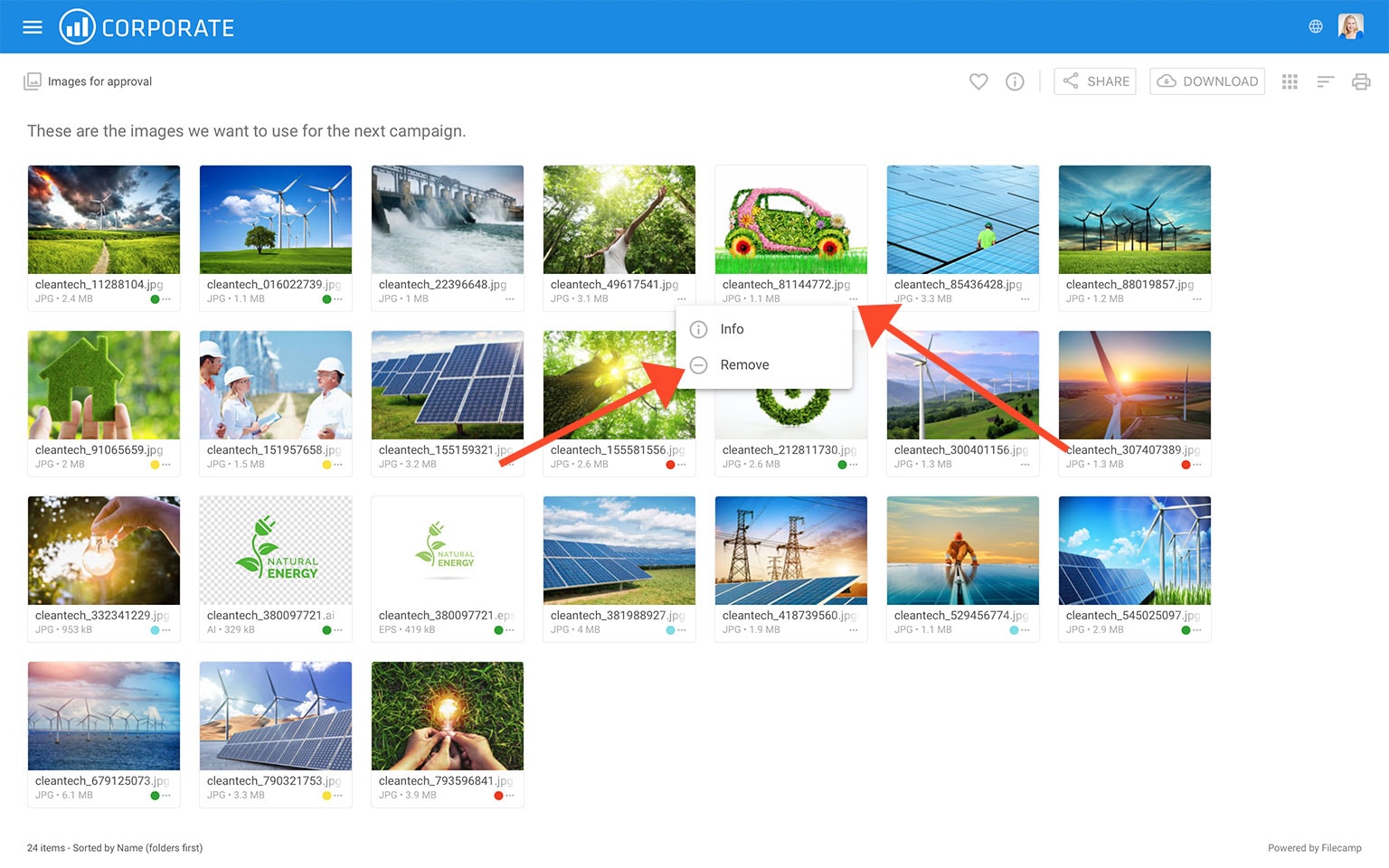
Click the Three Dots Menu  below the file/folder thumbnail, and then choose
  Remove.
Remove multiple files from a Collection
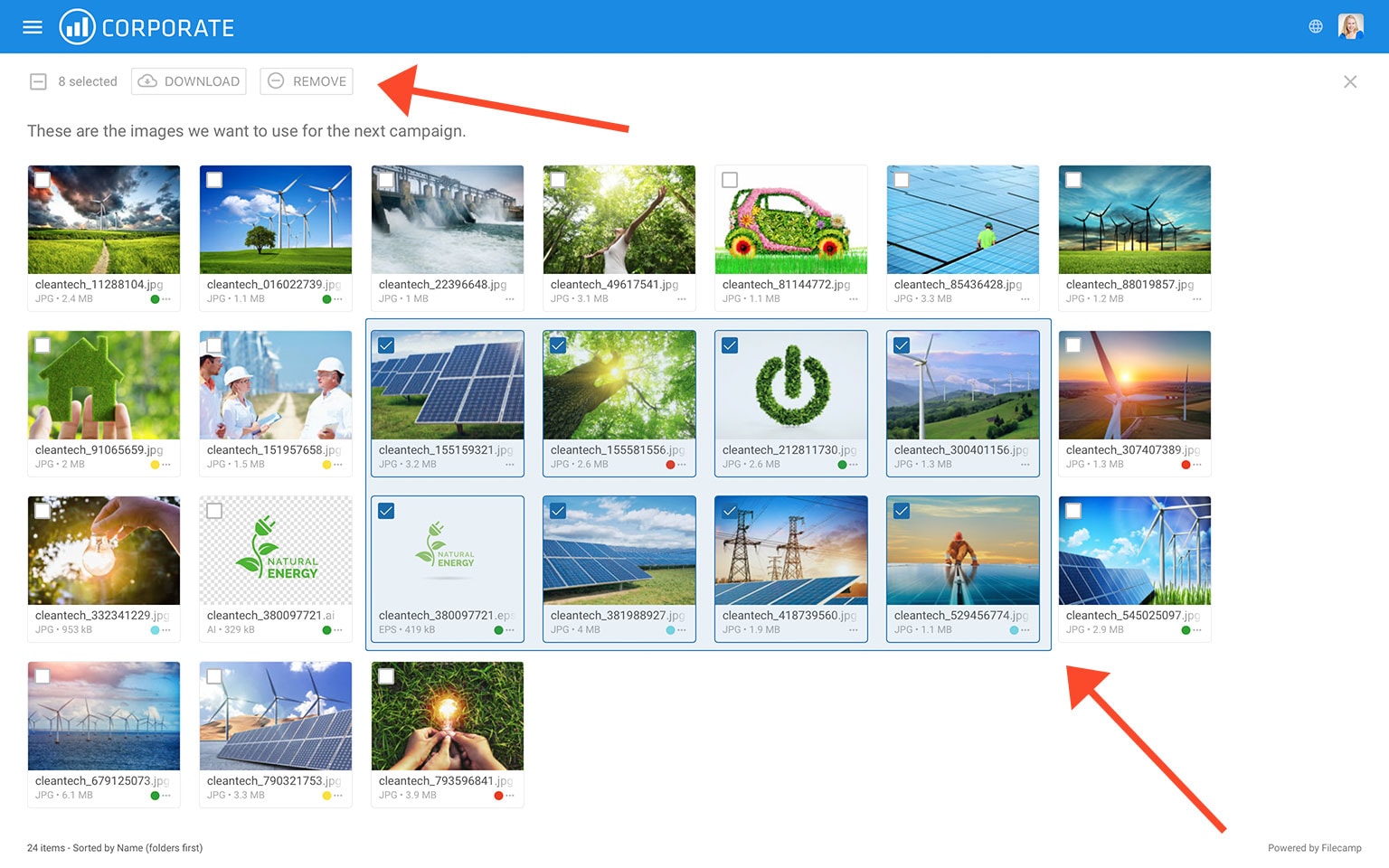
Select all the files you want to remove from the Collection. Then click on the Remove  button in the Bulk Action Bar. The files will then be removed from the Collection.
Notice: When you remove files from a Collection, only references to the files are removed. The original files remains untouched.
Edit Collection settings
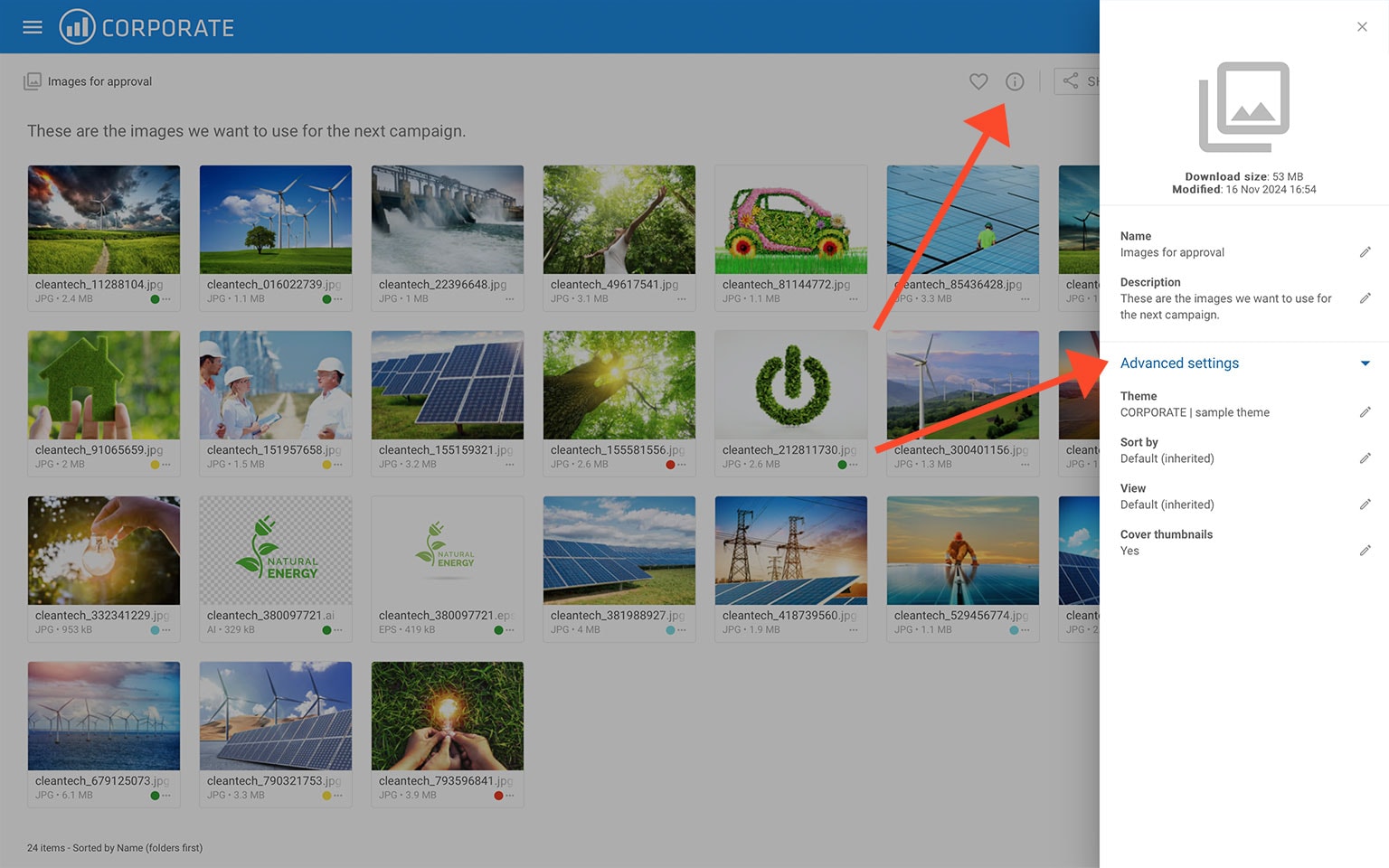
To edit the name and settings of an existing Collection, enter the Collection and click the Info  icon in the Toolbar. You can now edit the following settings in the Infobar:
- Name – Collection name.
- Description – Collection description (will be shown on shared links etc.).
- Banner – click the image field to upload a banner image. We recommend using a well-compressed 3000 × 600 px JPG image. Read more.
- Banner link – enter a URL to make your banner clickable. The URL must start with http:// or https://.
- Theme – allows you choose another Theme for this Collection. Read more.
- Sort by – choose how files and folders are sorted by default. For example, select "Date (newest first)" to show the newest files first.
- Layout – choose Grid, Large grid, List, Large list, or Flexible grid as the default view for this Collection.