
Uploading folders
Upload entire folders directly into Filecamp while keeping your folder structure intact.
Upload (drag and drop)
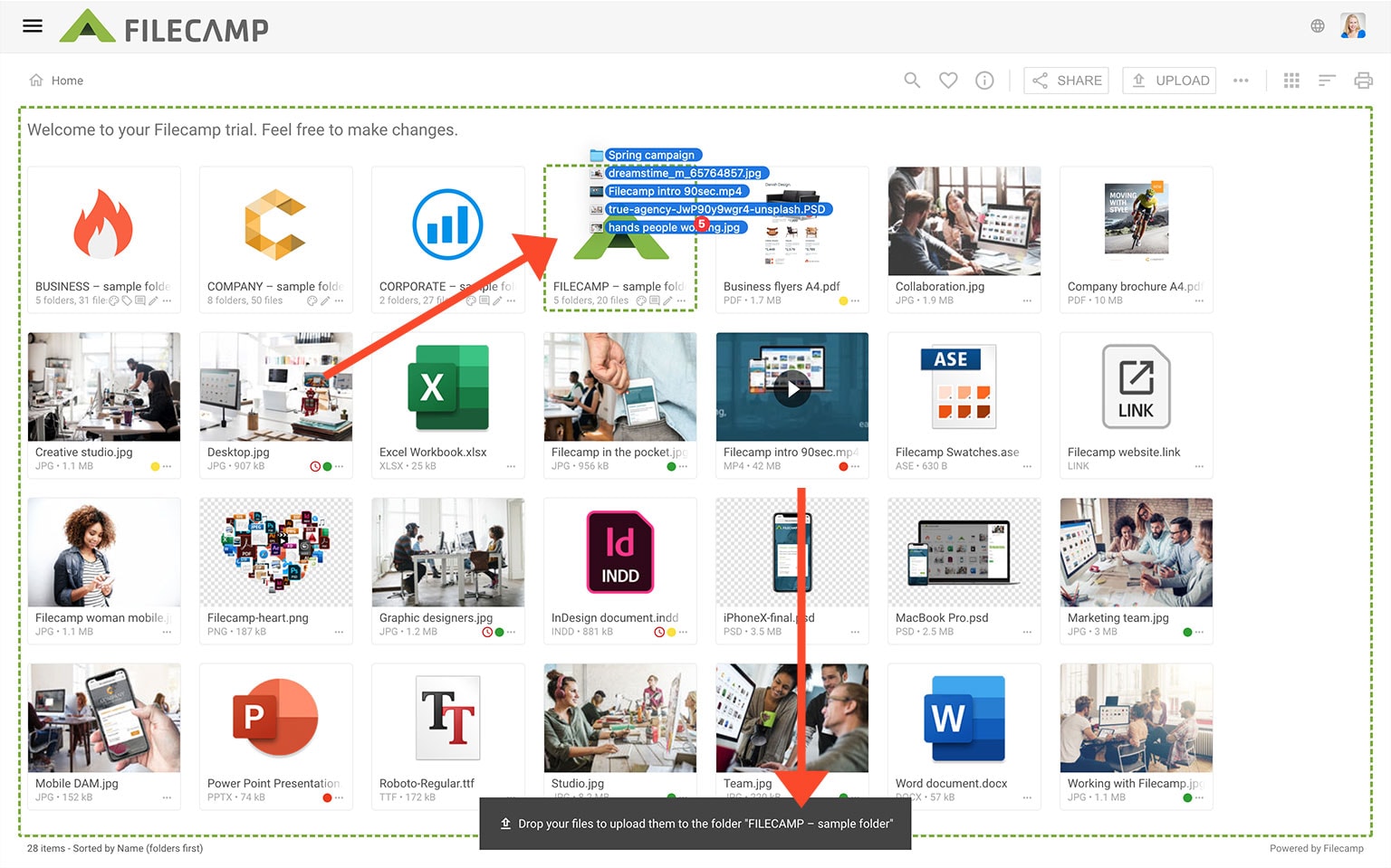
You can drag and drop entire folder structures from your computer directly into Filecamp.
- Navigate to the folder in Filecamp where you want to upload your files and folders.
- Drag and drop your files and folders into the area outlined by the dotted line.
- Once the upload is complete, click OK, GOT IT to confirm.
Upload (using the file browser)
- Navigate to the folder in Filecamp where you want to upload your files and folders.
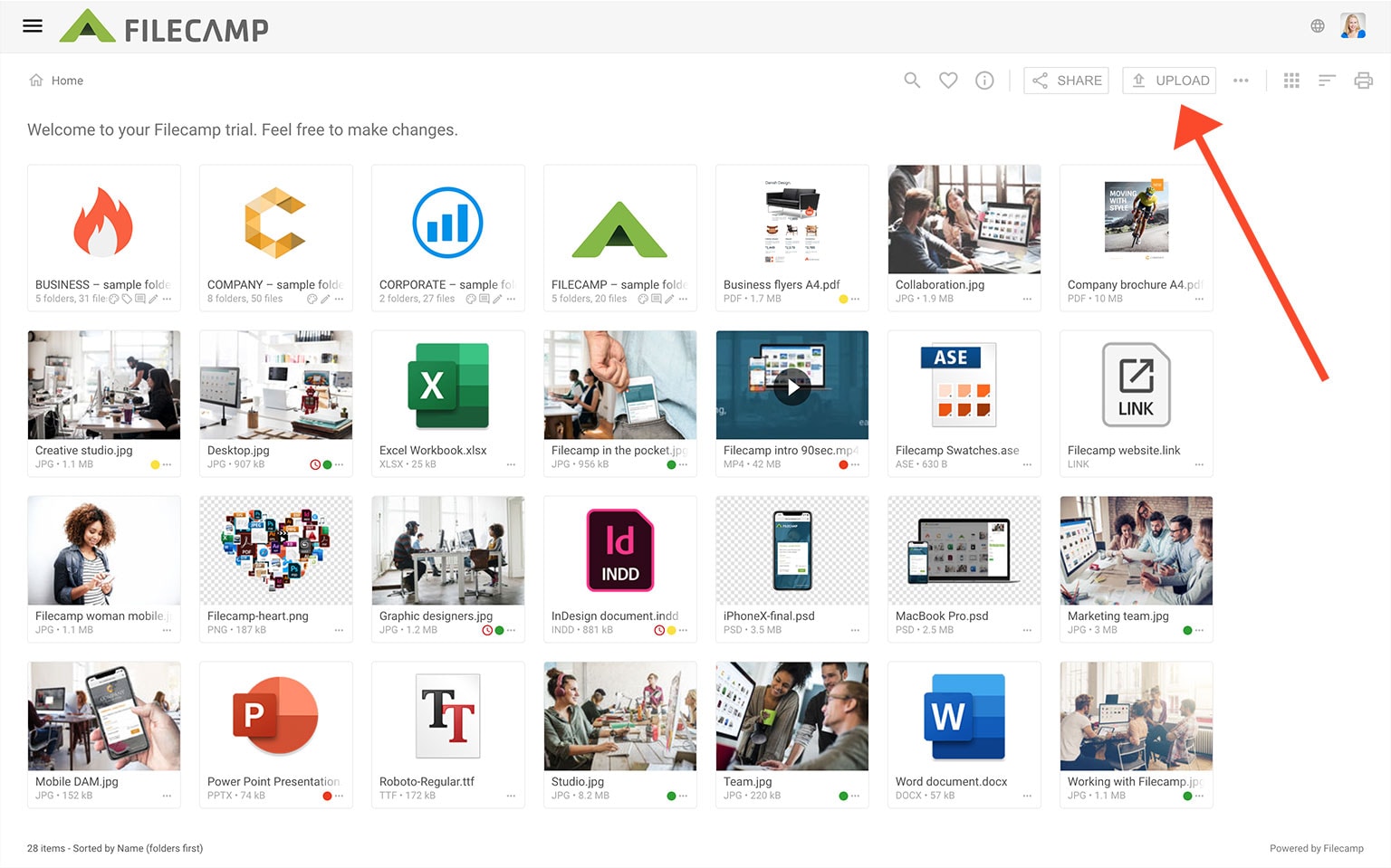
- Click the Upload button in the toolbar.
- Choose Upload Files or Upload Folders.
- Select the files or folder you want to upload.
- Tip: To select multiple files, hold the Command key (Mac) or Ctrl key (Windows) while clicking the files.
- Click Upload to start the upload.
- Once the upload is complete, click OK, GOT IT to confirm.
Notice: Keep your computer awake and your Filecamp browser tab open until the upload is complete. For large uploads, you may need to temporarily adjust your computer’s power or sleep settings to prevent it from going to sleep.
For large uploads or complex folder structures, you can also use WebDAV.