
Edit folder
Edit a folder’s name, appearance, layout, and advanced settings.
Editing a folder
To edit the name and settings of an existing folder, enter the folder and click the Info  icon in the Toolbar.
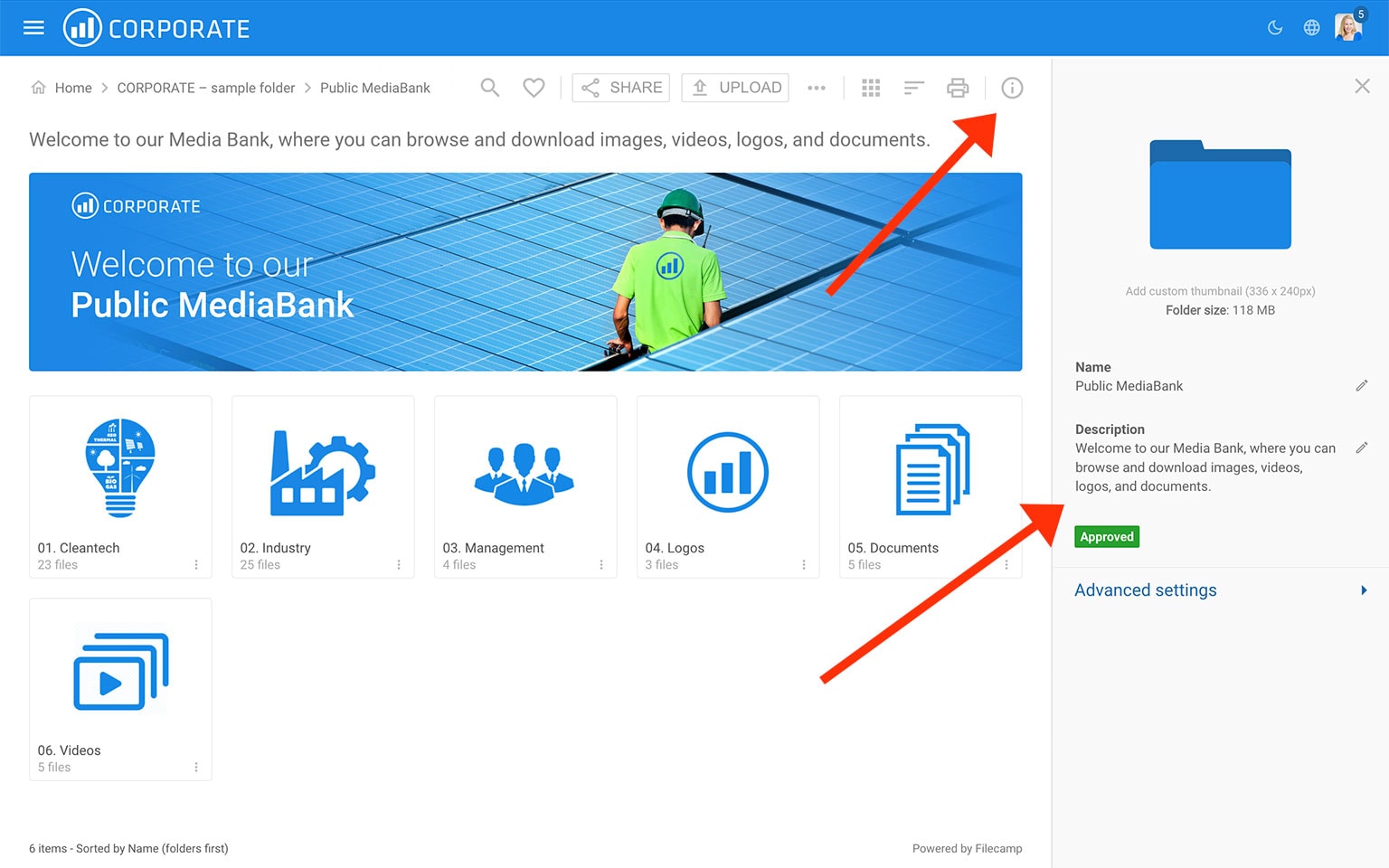
In the Infobar , you can view and edit the settings for the folder.
- Custom Thumbnail – click the folder icon to replace the default folder icon with your own image. Read more.
- Name – change the folder name.
- Description – add or edit the folder description.
Advanced settings
- Banner – click the image field to upload a banner image. We recommend using a well-compressed 3000 × 600 px JPG image. Read more.
- Banner link – enter a URL to make your banner clickable. The URL must start with http:// or https://.
- Vanity URL – replace the default folder URL with a custom URL using a name of your choice. For example:
- Default folder URL:
https://files.company.com/hdDj9MIrkgoDSHPv - Custom folder vanity URL:
https://files.company.com/imagebank
- Default folder URL:
- Theme – choose a different Theme if you do not want to use the default Theme. Read more.
- Page – select a Page to display whenever someone opens the folder.
- Labelset – choose a different Labelset if you do not want to use the Labelset inherited from a parent folder. This option is only available when Labels are enabled under Admin > General. Read more.
- Sort by – choose how files and folders are sorted by default. For example, select "Date (newest first)" to show the newest files first.
- Layout – choose Grid, Large grid, List, Large list, or Flexible grid as the default view for this folder and its subfolders.
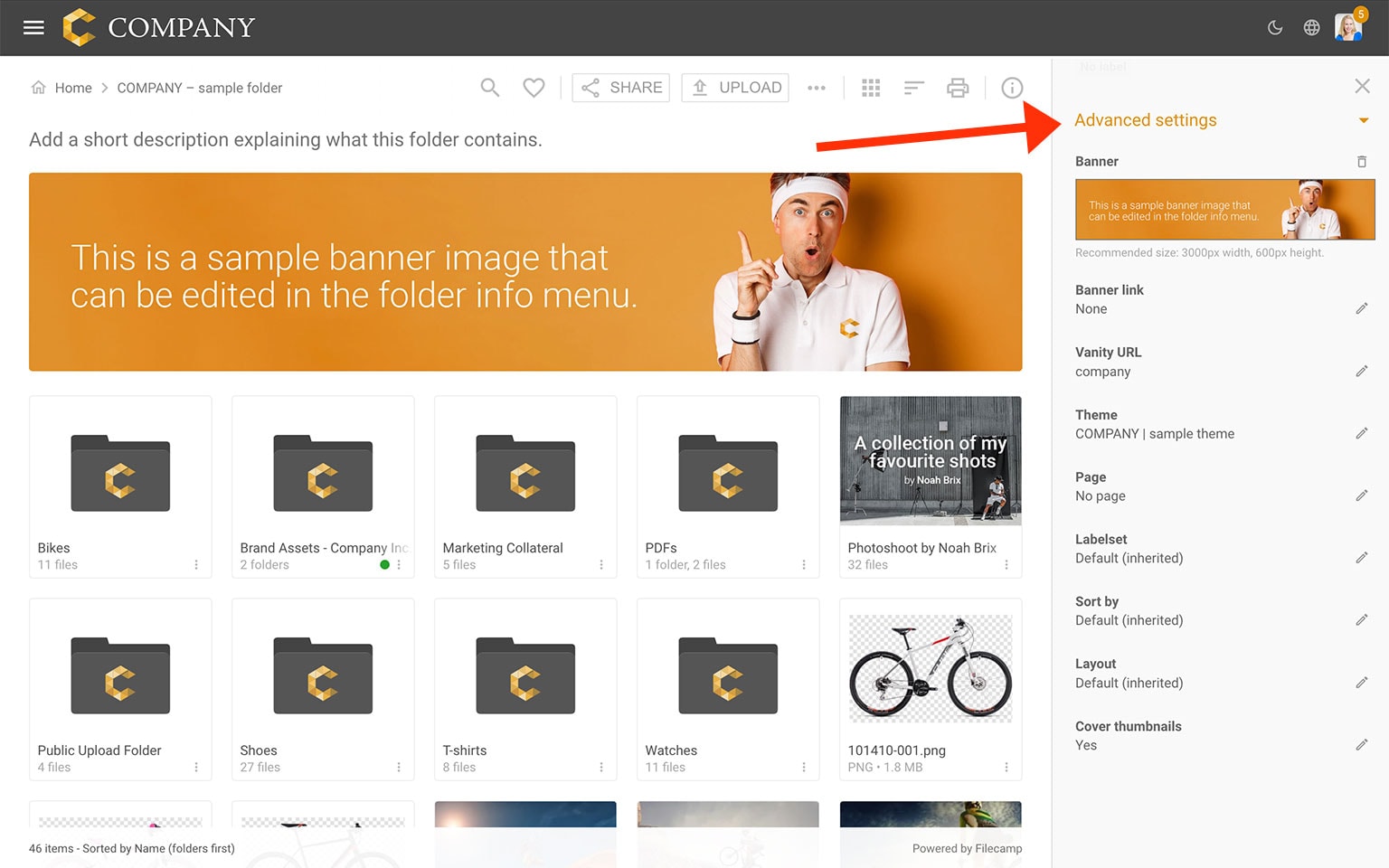
Notice: Only Account Owners and Administrators can view and edit the Advanced folder settings.
Notice: You may need to re-enter the folder or refresh your browser to see changes made to the folder settings.
Tip: Commenting and Labels can be enabled or disabled account-wide under Admin > General. What individual users can do in a folder is controlled through Permission sets.