
Edit files
Edit file names, descriptions and metadata at any time.
Editing a single file
To edit a single file's name, description, or metadata, click on the Three Dots Menu  and select Info
  .
.
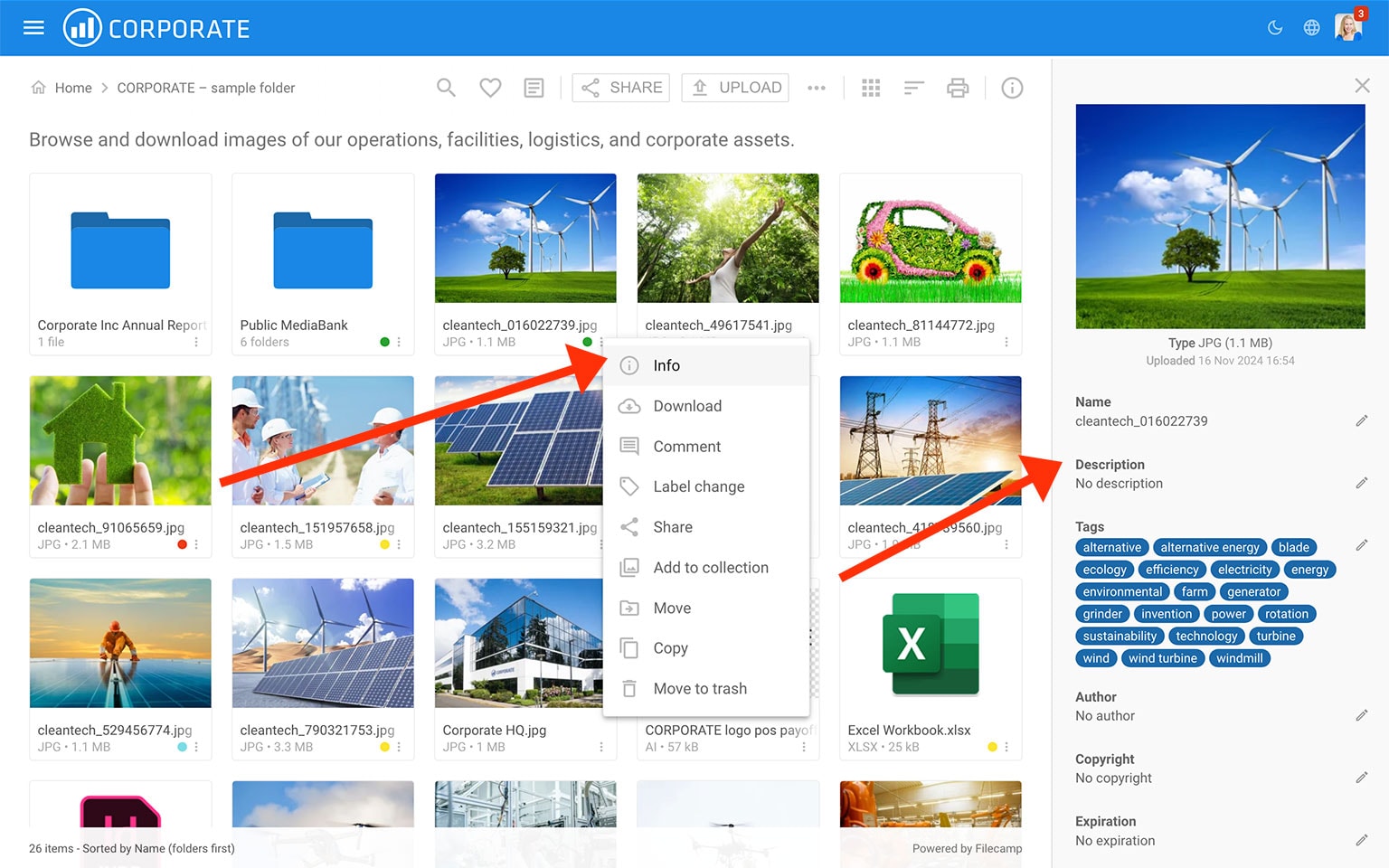
You can also double-click on the file to view a larger preview and click the Info icon in the Toolbar.
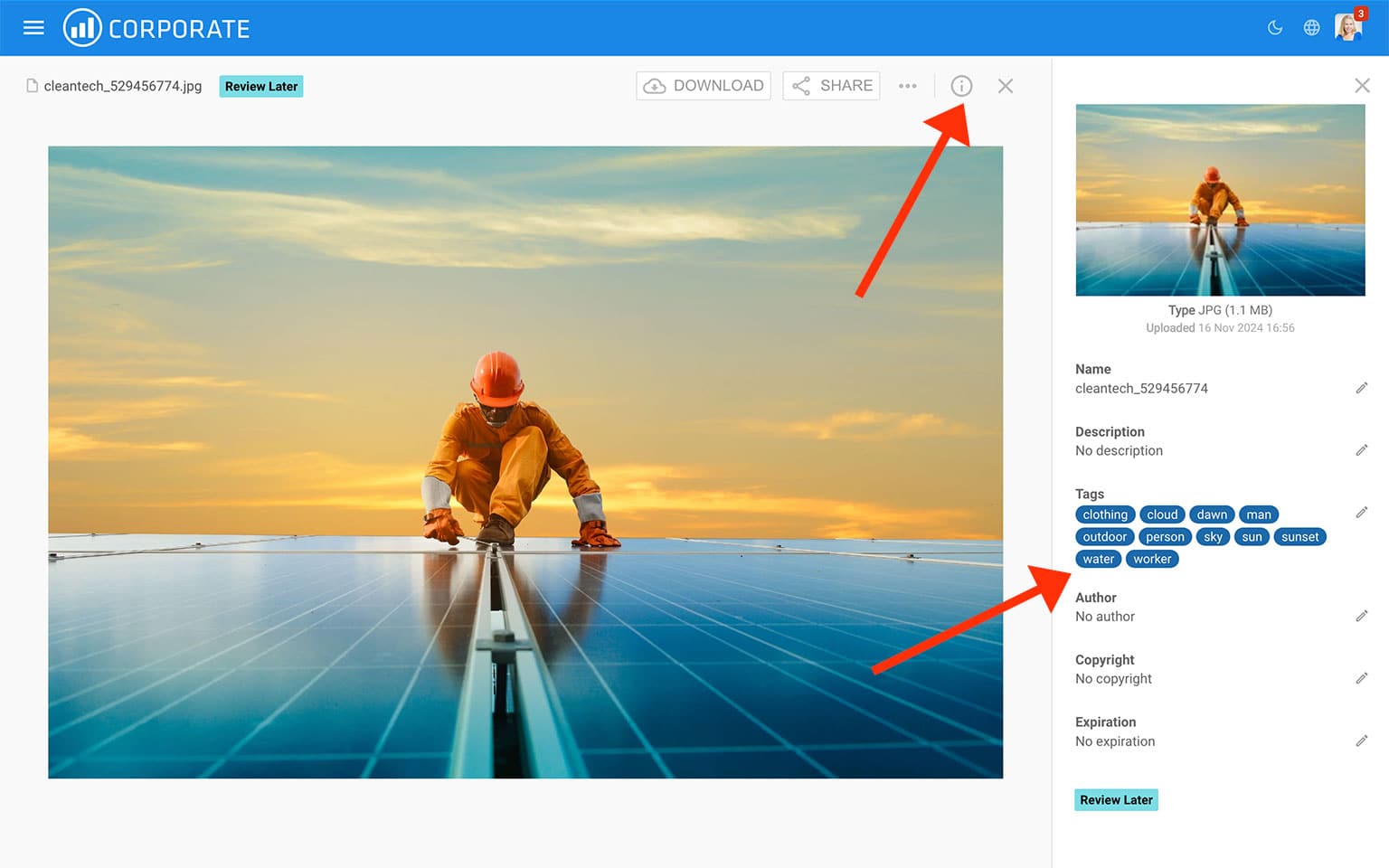
In the Infobar you can view and edit the following settings for this file:
- Name – file's name.
- Description – file's description.
- Tags – add tags/keywords that describe the file (remember to press enter after each keyword). Tags make it easier to find specific assets later on. Read more about Metadata.
- Author – add an author name if this makes sense for your workflow.
- Copyright – add a copyright note if there are any specific restrictions regarding this file's usage.
- Expiration – choose an expiration date if you want this item to expire. Read more.
File usage
Account Owners and Administrators can see activity for a specific file by opening its Infobar and expanding the Usage section.
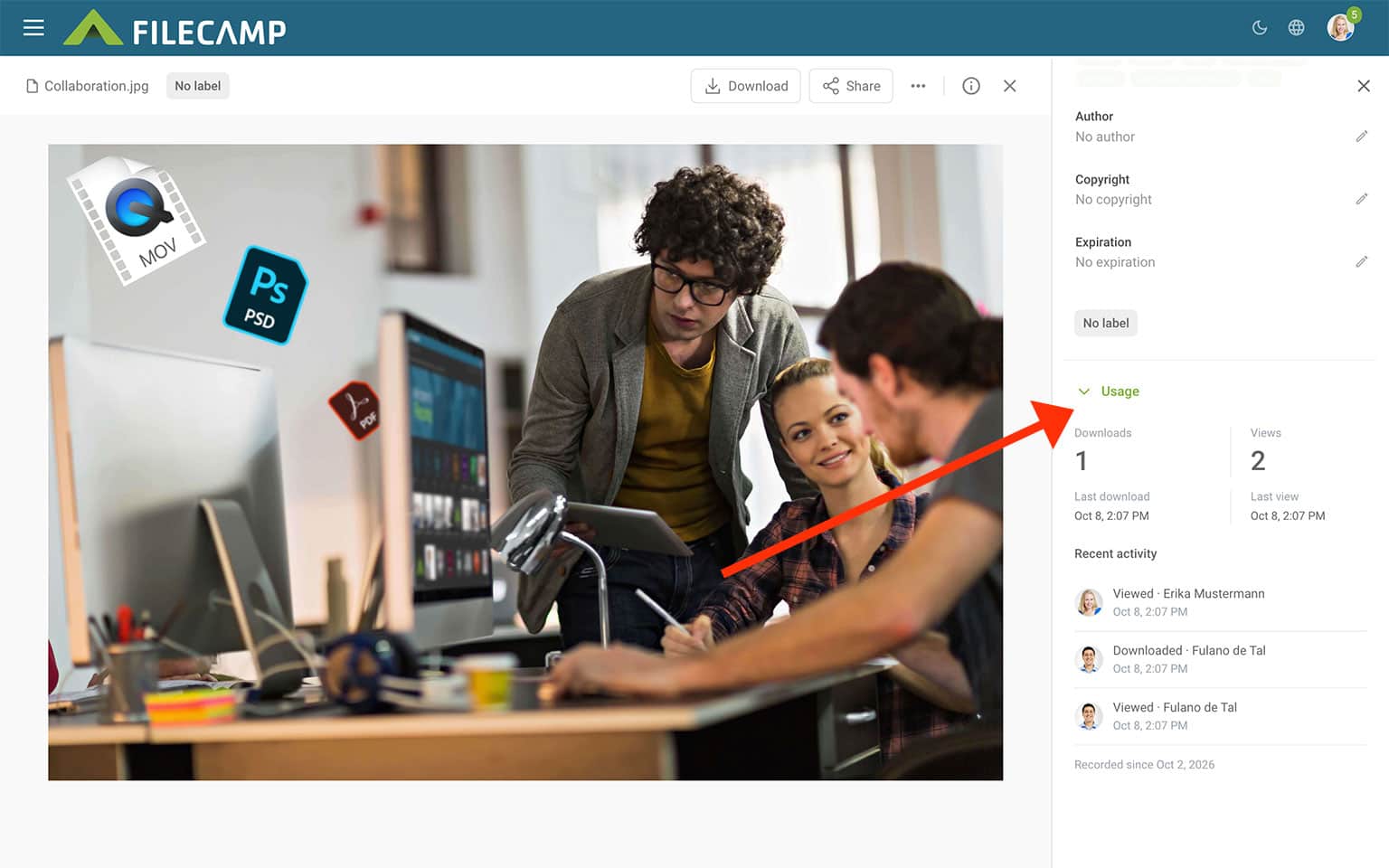
Here you can see:
- Downloads and Views – the number of recorded downloads and views.
- Last download and Last view – when the file was most recently downloaded or viewed.
- Recent activity – recent views and downloads, including the user and time of each action.
The Recorded since date shows when usage tracking began. Activity before this date is not included.
Want a broader overview? Go to Admin > Analytics to explore activity across your Filecamp account, including popular files, user activity, and search trends. Read more about Analytics.
Edit multiple files
Drag your cursor to select the files you want to edit, then select the Edit Multiple Files  option in the Bulk Action Bar.
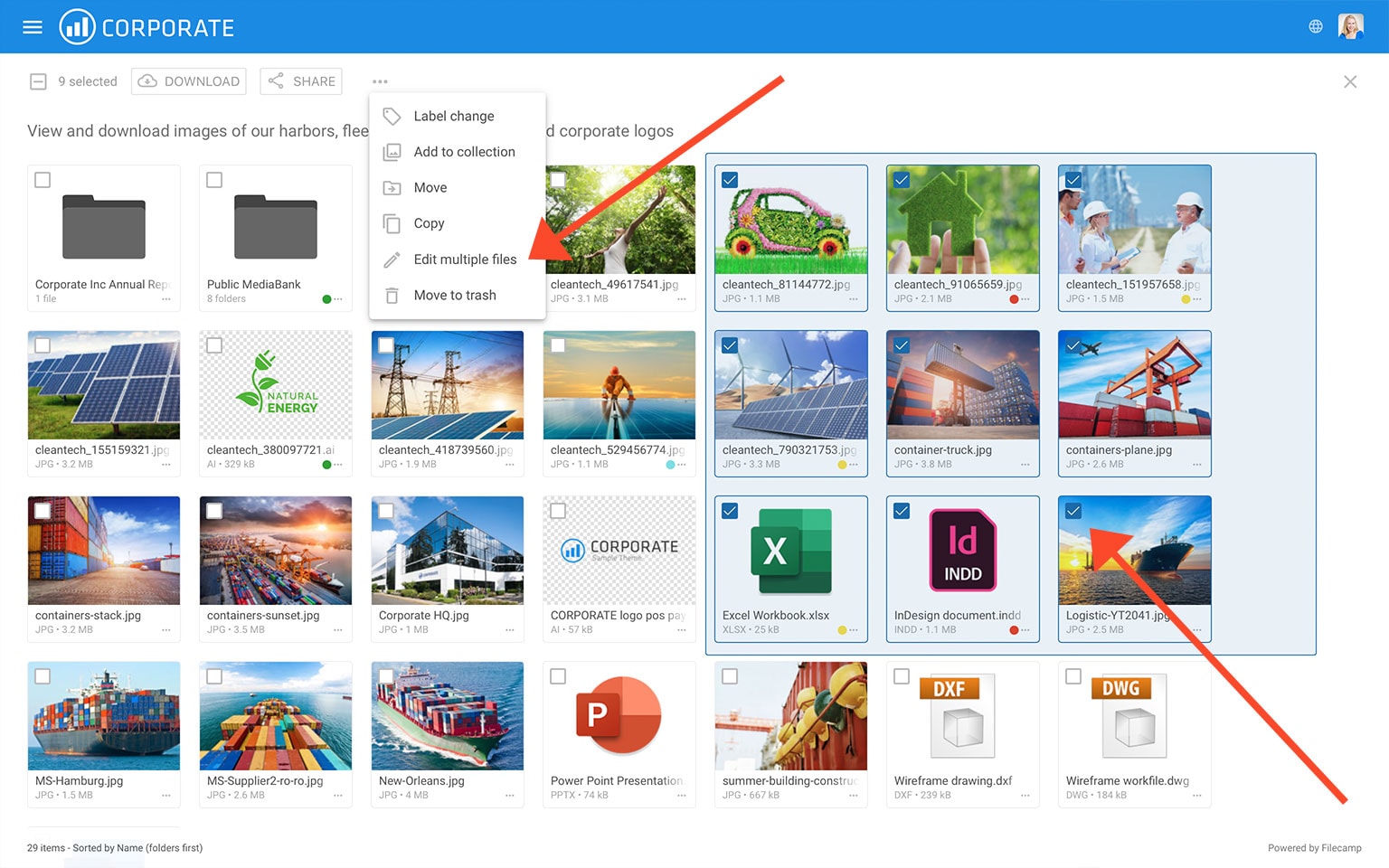
A pop-up window will show where you can edit the following settings for the files you have selected:
- Description – files' description.
- Author – add an author name for the selected files. Read more about Metadata.
- Copyright – add a copyright note for the selected files. Read more about Metadata.
- Expiration – choose an expiration date for the selected files. Read more.
- Tags – add tags/keywords that describe the selected files (remember to press enter after each keyword). Read more about Metadata.
- Auto tag selected images – check this checkbox if you want to have the selected images tagged automatically using artificial intelligence. (Pro plan only). Read more about Auto-tagging.
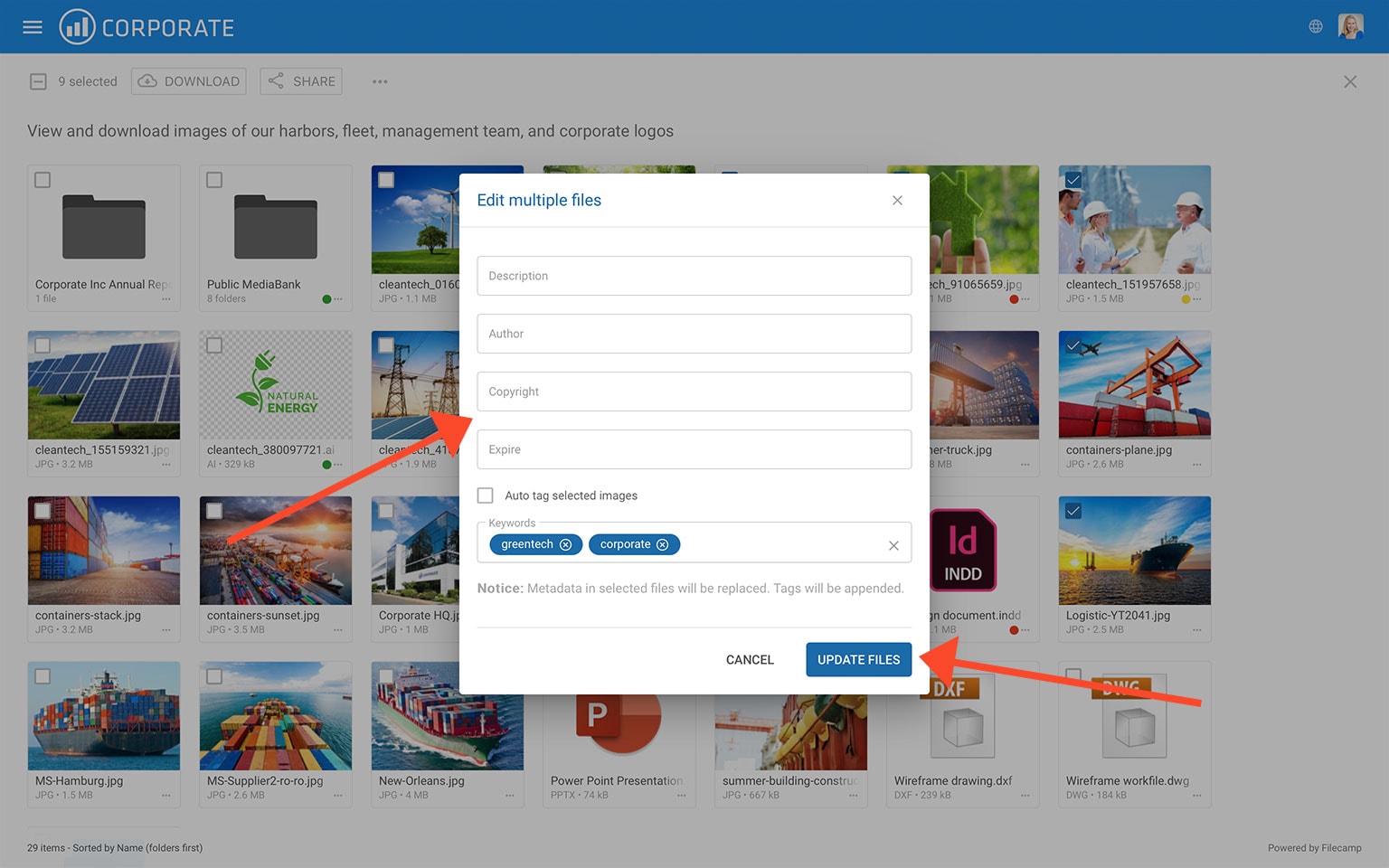
Simply make the desired changes and click UPDATE FILES to save the changes.