
Storage
Monitor your account’s storage usage and available space.
Monitoring Storage
Open the Main menu  in the top-left corner and navigate to Admin > Storage.
The progress bar shows how much storage you have used compared with your total storage limit.
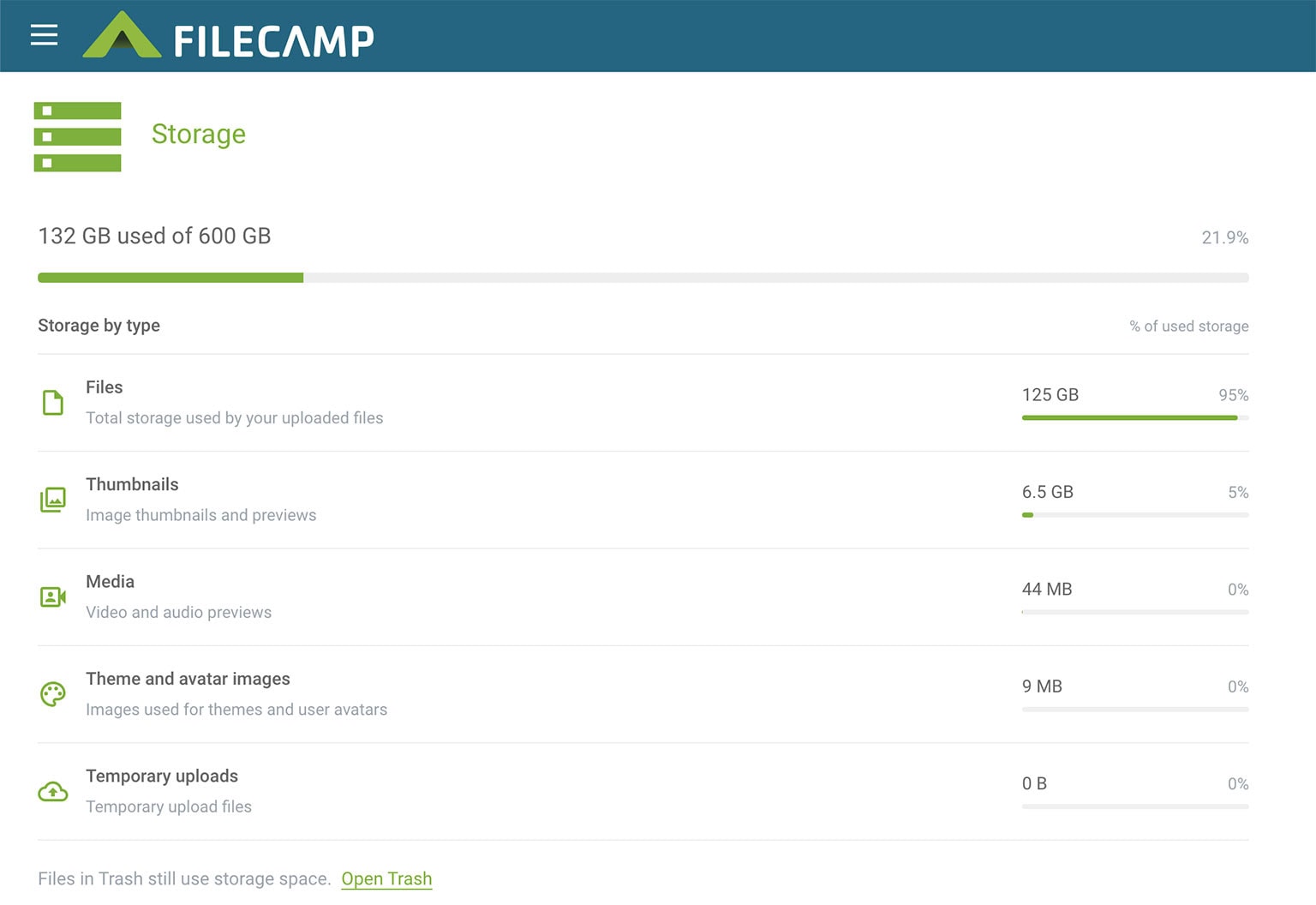
Storage by type
Below the progress bar, your used storage is divided into these categories:
- Files – your uploaded files.
- Thumbnails – image thumbnails and previews.
- Media – video and audio previews.
- Theme and avatar images – images used for themes and user avatars.
- Temporary uploads – temporary upload files.
Each category shows the amount of storage it uses and its percentage of your used storage, rather than your total storage limit.
Important: All categories listed above count toward your total storage usage. In addition to your uploaded files, this includes thumbnails, image previews, video and audio previews, theme and avatar images, and temporary upload files. Automatically generated files are managed by Filecamp and cannot be manually deleted or excluded from storage calculations.
Files in Trash
Files in Trash still use storage space. Click Open Trash to review and permanently delete files you no longer need.