
Two-factor authentication (2FA)
Protect your Filecamp login with passkeys or an authenticator app. Set it up for yourself, or require it for selected Roles or everyone in your account.
Two-factor authentication (2FA) is a form of multi-factor authentication (MFA) that helps protect your account if someone learns your password.
For users
Protect your login with a passkey or an authenticator app. Set it up in My Profile and save your recovery codes in case you lose access to your device.
Your security settings
Click your avatar in the top-right corner and select My Profile, then open the Security tab.
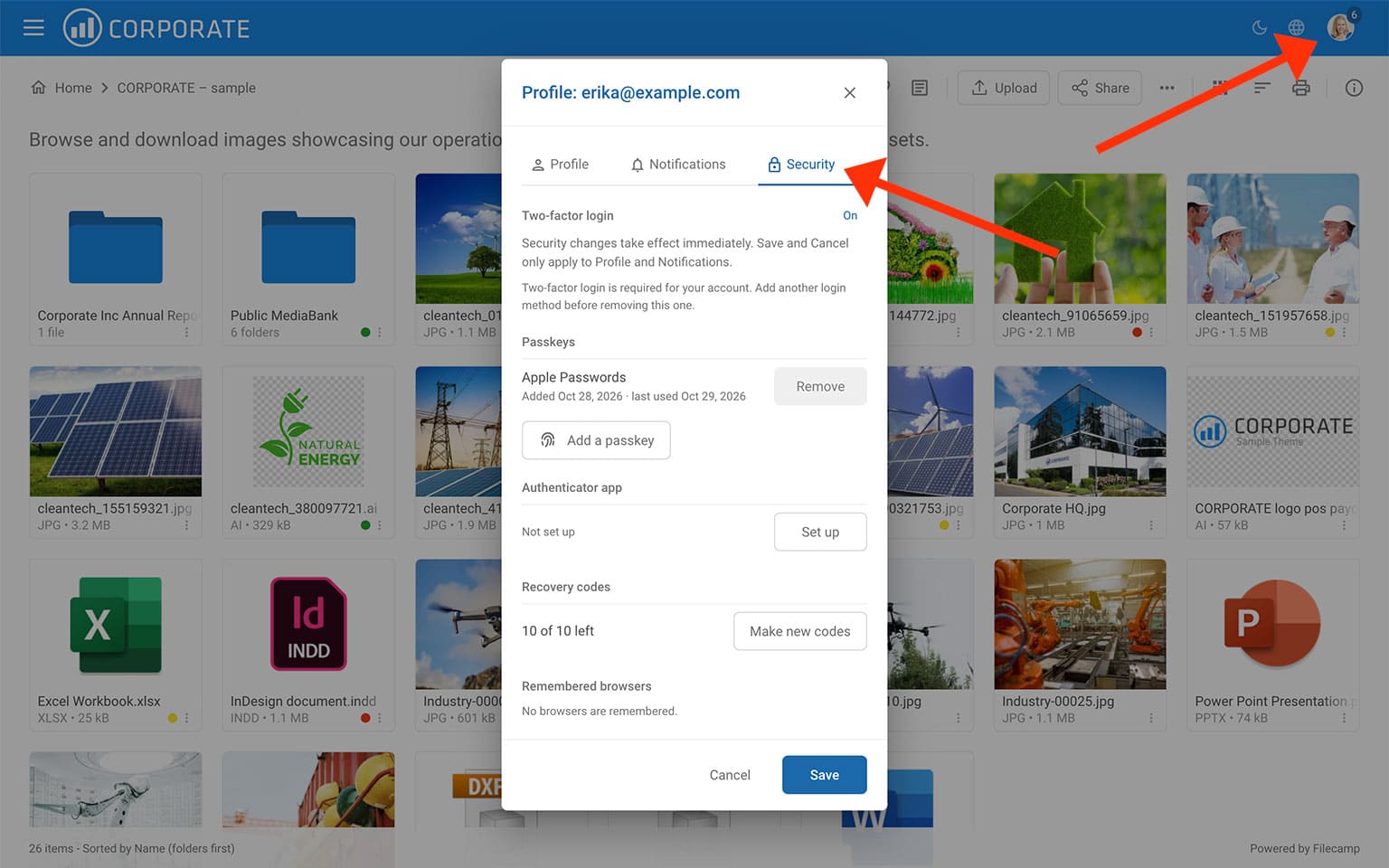
Here you can view your two-factor login status and manage passkeys, your authenticator app, recovery codes, and remembered browsers.
To turn on two-factor login, add a passkey or set up an authenticator app using the steps below. You can use both.
Important: Changes on the Security tab take effect immediately. The profile window’s Save and Cancel buttons only apply to the Profile and Notifications tabs.
Passkeys
Passkeys let you verify your identity using Touch ID, Windows Hello (face, fingerprint, or PIN), or your phone.
Add a passkey
- Open My Profile > Security.
- Under Passkeys, click Add a passkey.
- Follow your browser’s instructions to create the passkey.
- If this is your first authentication method, save your recovery codes to complete setup.
Your passkeys appear in the Security tab, along with when each was added and last used. Click Remove to remove a passkey you no longer need.
Log in with a passkey
After entering your username and password, follow your browser’s prompt to verify your identity with your passkey.
Once you have used a passkey in a browser, the login page can show Welcome back and a button such as Log in with Touch ID. Click it to log in without entering your password. You can also select a passkey from your browser’s suggestions when clicking the username field.
Click Use your password instead to return to password login, or Not you? to switch users. Password login still requires the second verification step unless the browser is remembered.
If you log in with an authenticator code on a compatible computer, Filecamp may offer to add a passkey for next time. Your authenticator app will continue to work.
Notice: A passkey works on the address where it was created. If you use both a Filecamp address and a custom domain, add a passkey on each address or use your authenticator app. The Security tab shows which address each passkey works on.
Authenticator app
An authenticator app generates a 6-digit verification code. You can use an app such as Microsoft Authenticator, Google Authenticator, or 1Password.
Set up an authenticator app
- Open My Profile > Security.
- Next to Authenticator app, click Set up.
- Scan the QR code with your authenticator app. If you cannot scan it, click Can’t scan the code? and enter the setup key in your app. Use Copy key to copy it.
- Enter the 6-digit code shown in your app and click Confirm.
- If this is your first authentication method, save your recovery codes to complete setup.
Log in with an authenticator app
Enter your username and password, then enter the 6-digit code from your authenticator app when prompted.
If a code does not work, check that your phone’s date and time are set automatically.
After five incorrect codes, you must start again by entering your password. Filecamp also sends you a security email. Too many attempts will temporarily block further attempts for 15 minutes.
Recovery codes
When you first set up two-factor login, Filecamp gives you 10 recovery codes. Each code can be used once if you cannot use your passkey or authenticator app.
- Click Copy or Download to save your codes.
- Keep them somewhere safe, such as your password manager, where you can access them if you lose your device.
- Check I’ve saved them, then click Back to security or Finish, depending on the setup flow.
Important: The codes are only displayed when they are generated. Do not share them.
Use a recovery code
At the second verification step during login, choose Use a recovery code and enter an unused code. Filecamp sends you an email when a recovery code is used.
Generate new recovery codes
Go to My Profile > Security and click Make new codes. Save the replacement set.
Important: Generating new codes immediately invalidates all previous recovery codes.
Remembered browsers
When logging in, check Don’t ask again on this browser for 30 days to skip the second verification step on that browser for 30 days.
Only use this option on your own computer, not on a shared or public device.
Under My Profile > Security > Remembered browsers, you can see remembered browsers and when their remembered status expires. Click Remove to require verification again on that browser.
Notice: This is different from Stay signed in, which keeps your login session between visits. A remembered browser skips the second verification step when you need to log in again.
When two-factor login is required
Your administrator may require two-factor login through a Role assigned to you, or an Account Owner may require it for everyone.
If you have not set it up when the requirement takes effect, you are signed out. The next time you log in, Filecamp asks you to Set up two-factor login before continuing.
Choose the suggested option, such as Use Touch ID, or select Use an authenticator app instead. Complete setup, save your recovery codes, and click Finish.
If you belong to several Roles, two-factor login is required if any of those Roles requires it.
Notice: While two-factor login is required, you cannot turn it off or remove your last authentication method. Add another method before removing the existing one.
If you lose your phone or computer
If you cannot use your usual authentication method:
- Use another method. If you have another passkey or an authenticator app available, use it to log in.
- Use a recovery code. Choose Use a recovery code at the second verification step and enter an unused code.
- Ask for a reset. If you cannot use any of your methods or recovery codes, ask an administrator to reset your two-factor login. An Account Owner’s two-factor login can only be reset by another Account Owner.
After regaining access, open My Profile > Security to remove the lost passkey or reconnect your authenticator app. Generate and save new recovery codes if needed.
Changing your password also signs you out of other sessions and clears all remembered browsers.
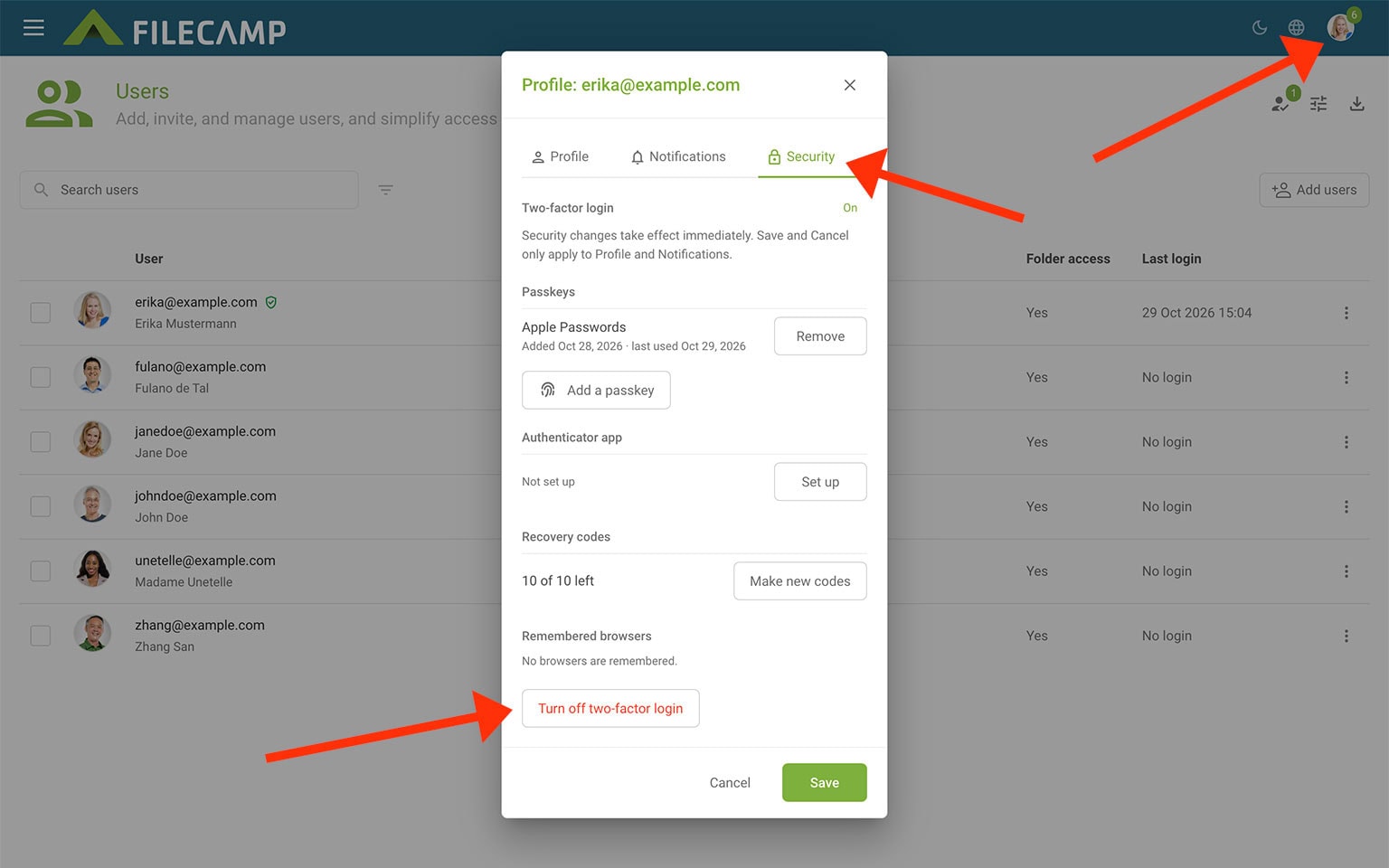
Turn off two-factor login
If two-factor login is not required, you can turn it off from My Profile > Security.
Select Turn off two-factor login and follow the confirmation prompts. This removes your passkeys, authenticator app connection, recovery codes, and remembered browsers. Filecamp sends you a confirmation email.
This option is not shown while two-factor login is required.
For administrators
Require two-factor login for selected Roles or everyone in your account, check users’ setup status, and help restore access when needed.
Require two-factor login for everyone
Account Owners can require two-factor login for all users:
- Go to Admin > General.
- Under Security, enable Require two-factor login for everyone.
- Click Update general settings.
The requirement takes effect when you update the settings. Users who have not set up two-factor login are signed out and must complete setup at their next login.
This includes users with direct folder access who do not belong to a Role.
Require two-factor login for a Role
- Go to Admin > Users > User settings > Roles.
- Select the Role.
- Under Security, enable Require two-factor login.
- Review the confirmation and click Require.
The confirmation shows how many members have not set it up. Those members are signed out immediately and must complete setup the next time they log in.
Only an Account Owner can require two-factor login for the Account Owner Role.
Use Stop requiring to remove the Role’s requirement. Requirements from other Roles or the account-wide setting still apply. Removing a requirement does not turn off a user’s existing two-factor login.
View and filter users by two-factor login status
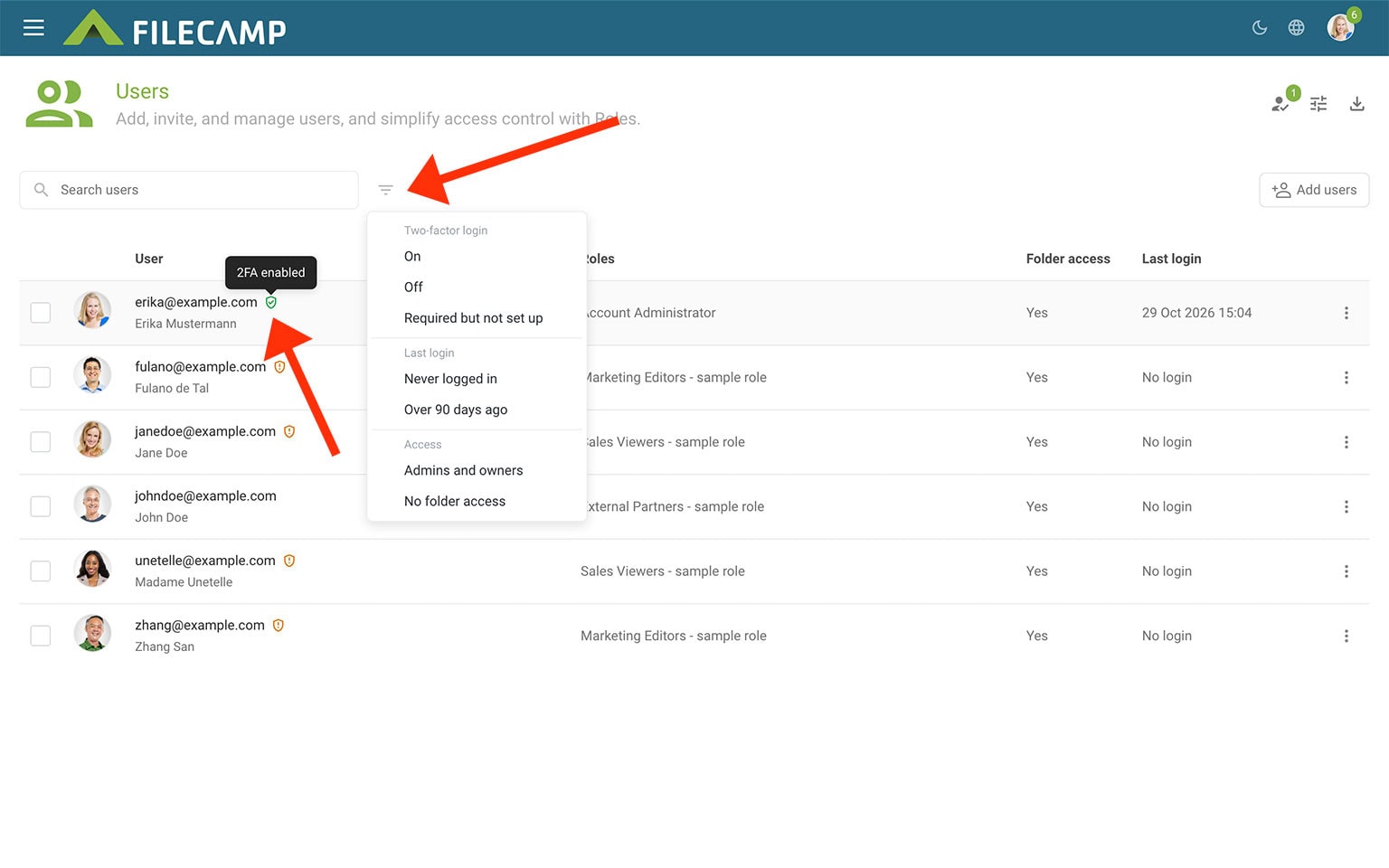
Go to Admin > Users. An icon beside a user’s name indicates their two-factor login status:
- Green shield — two-factor login is enabled.
- Orange shield — two-factor login is required but has not been set up.
Hover over a shield icon to see its status. To filter the user list, select the Filter icon and choose On, Off, or Required but not set up under Two-factor login.
Reset a user’s two-factor login
If a user loses access to their authentication methods and recovery codes, an administrator can reset their setup.
- Go to Admin > Users.
- Open the menu next to the user.
- Choose Reset two-factor login and follow the confirmation prompts.
The user’s passkeys, authenticator app connection, and recovery codes stop working. The user is signed out and receives an email.
If two-factor login is required, the user must set it up again at their next login.
Notice: Administrators cannot reset an Account Owner’s two-factor login. Another Account Owner can do this. Manage your own setup through My Profile > Security.
Security emails and activity log
Filecamp sends a security email when:
- Two-factor login is turned on or off.
- An administrator resets your two-factor login.
- A passkey is added.
- A recovery code is used.
- Someone enters your password correctly but fails the second verification step five times.
If you receive an email about an action you do not recognize, change your password and contact your administrator.
The Log records when two-factor login is turned on, turned off, required, or reset, as well as failed second-step verification attempts.
2FA and WebDAV
Two-factor login does not apply to WebDAV, which uses a separate password for the entire Filecamp account.
On this page:
For users
- Your security settings
- Passkeys
- Authenticator app
- Recovery codes
- Remembered browsers
- When two-factor login is required
- If you lose your phone or computer
- Turn off two-factor login
For administrators