Tags
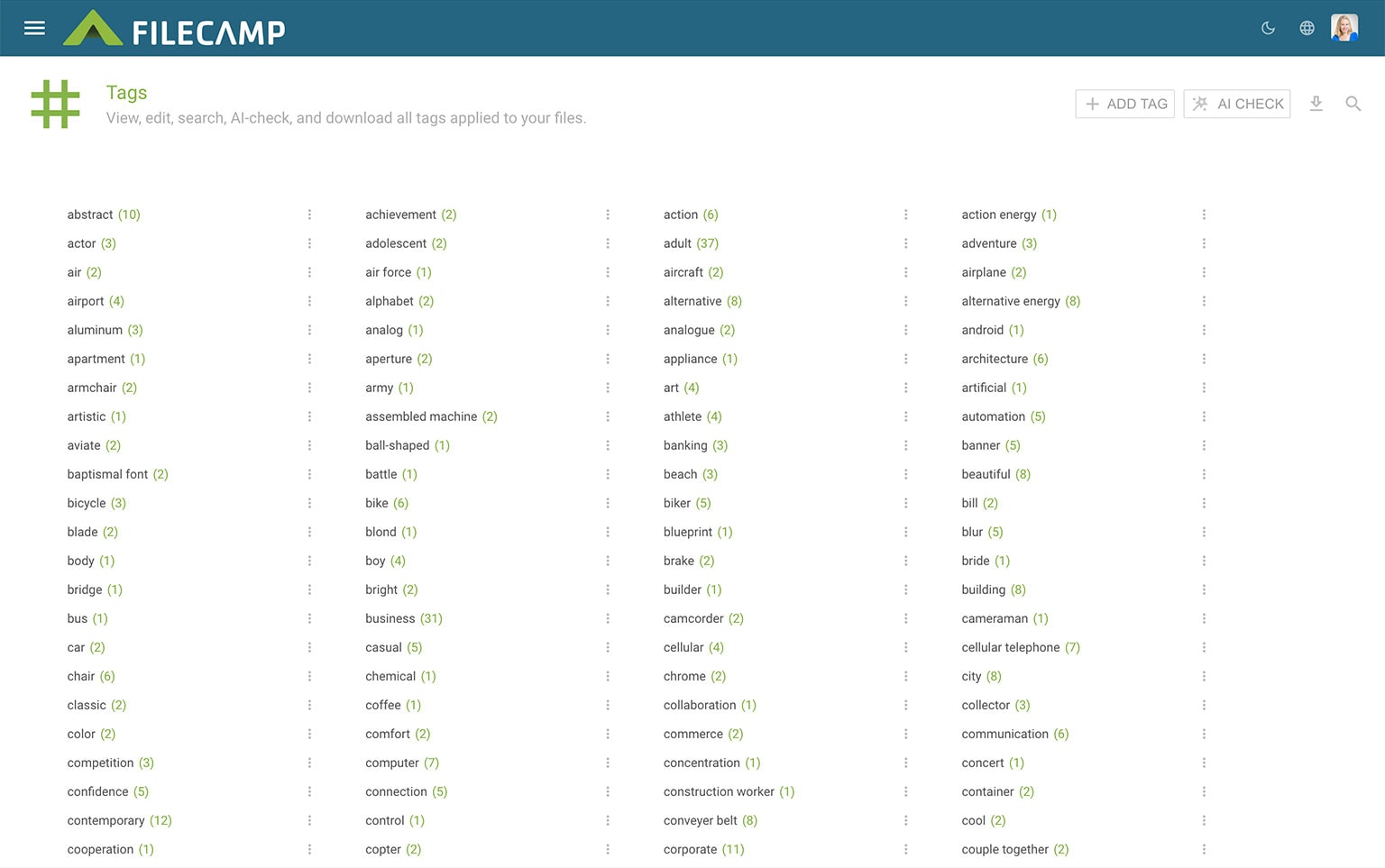
The Tags admin section lets you view, edit, search and validate all tags applied to your files.
View tags
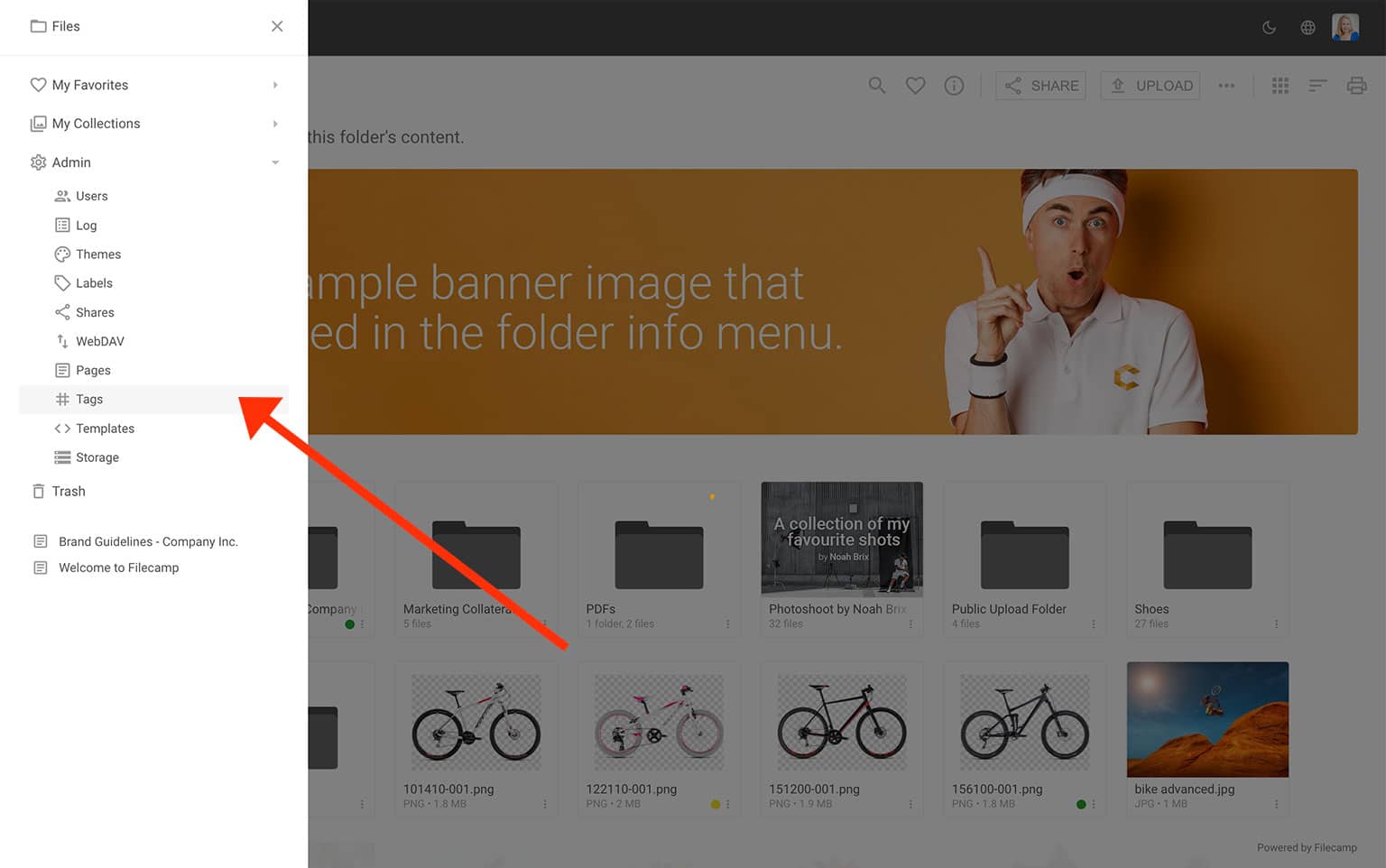
All administrators and users with Tags access can use the Tags section. To see the tags used in your account, open the Main menu and select  Tags.
Tags.
You will see a list of every tag in your account. Each tag shows how many files it is applied to. This includes both manually created tags and AI-generated tags.
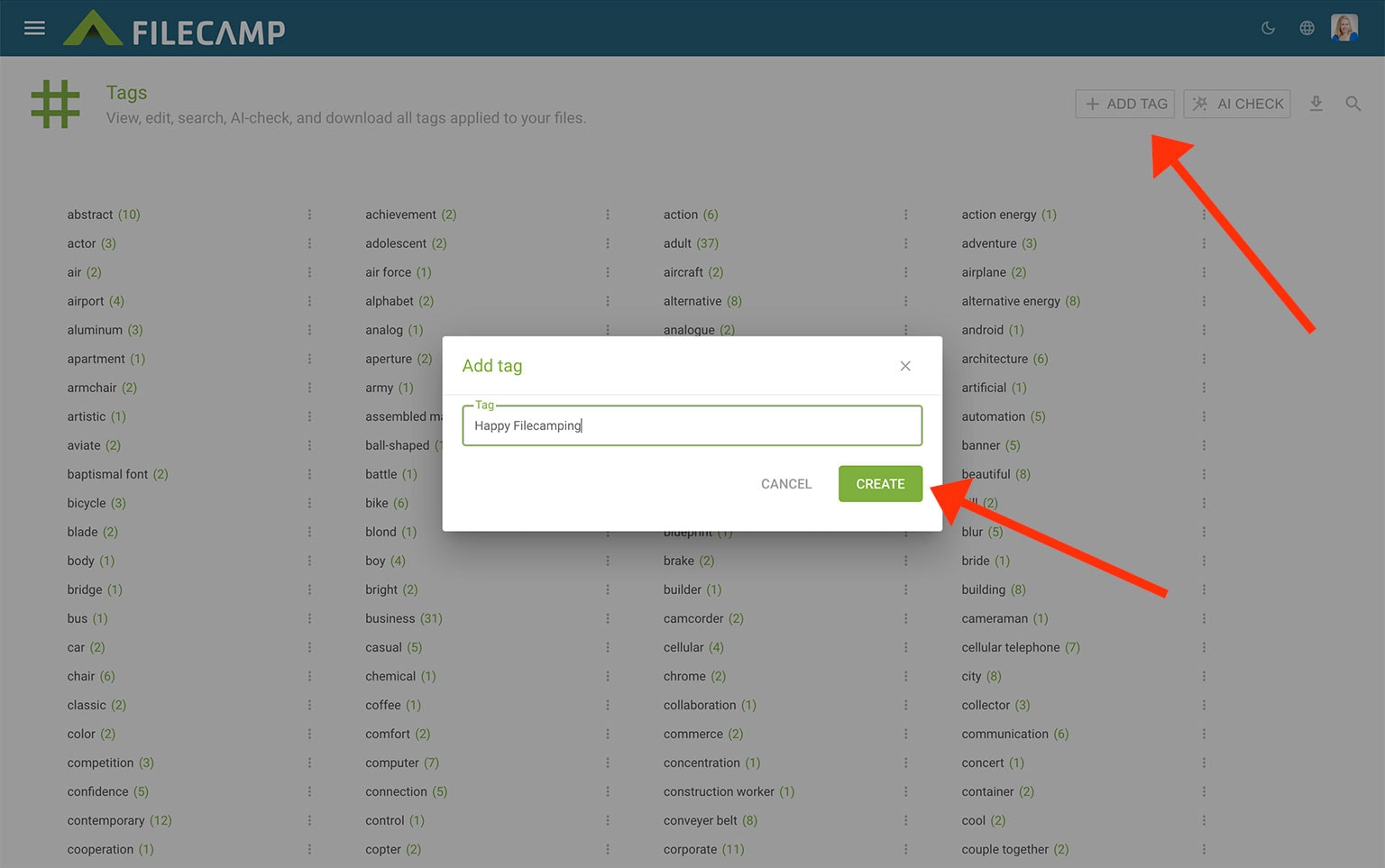
Add tag
Click Add Tag to create a new tag in your account. This does not assign it to any files. It only makes it available for tagging.
AI Review Tags
Click AI Check to analyse all tags in your account. It identifies problems such as:
- Duplicates (for example “airplane” and “aircraft”)
- Spelling variants
- Low-quality or irrelevant AI tags
AI Review can help you clean up and standardise your tag library.
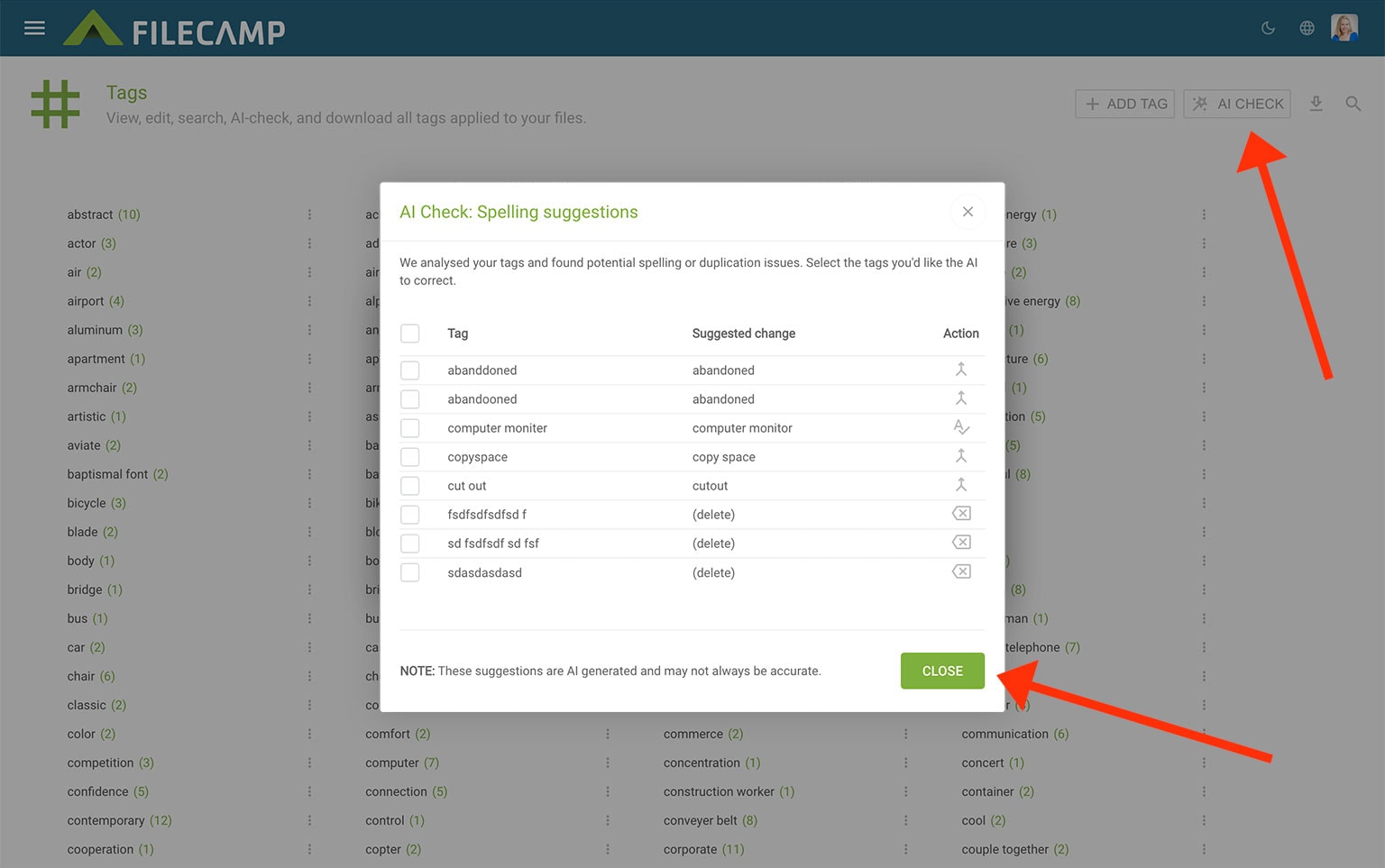
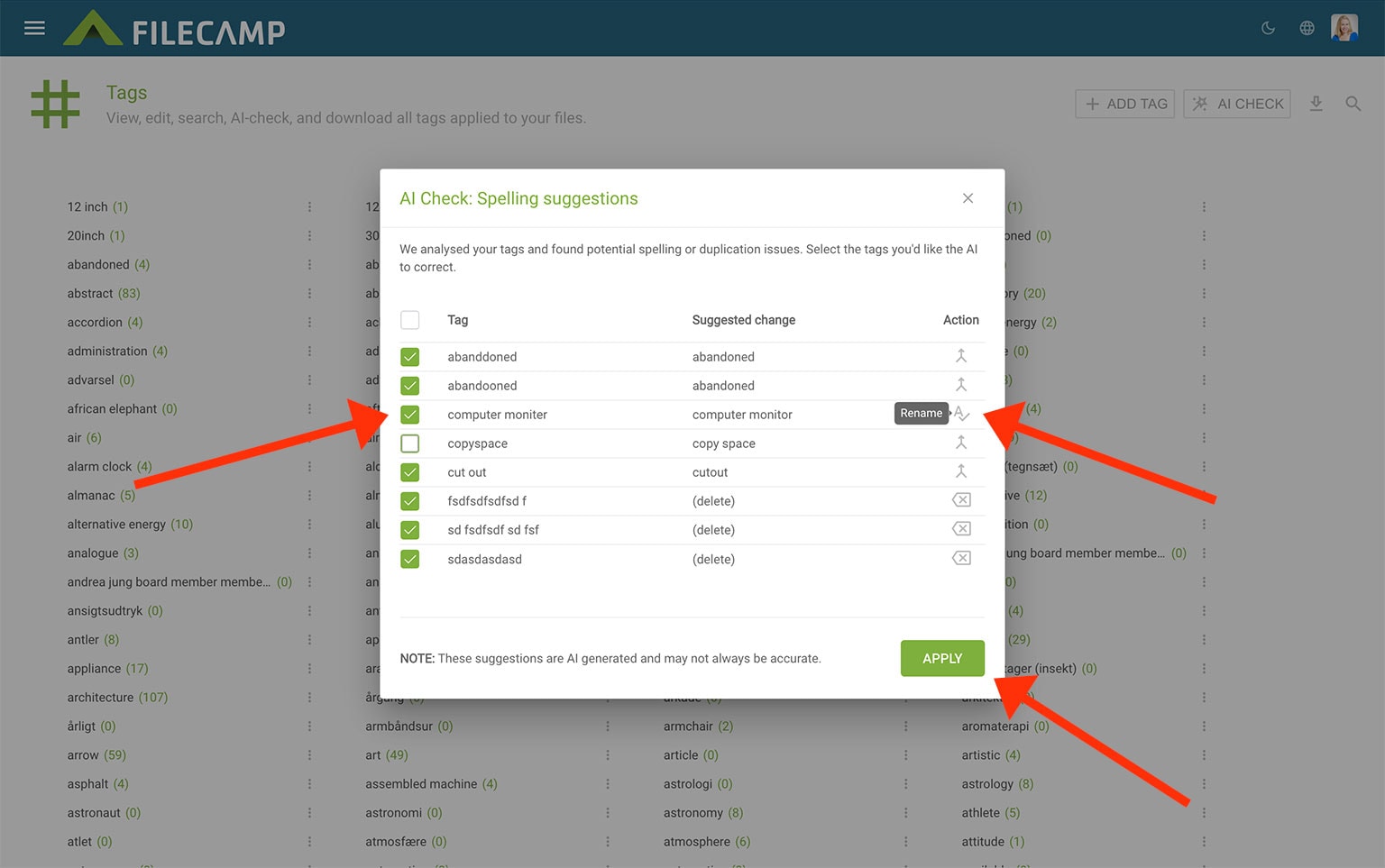
You can also let AI correct your tags. It will suggest tags to merge, rename, or delete. Select the tags you want to update and click APPLY.
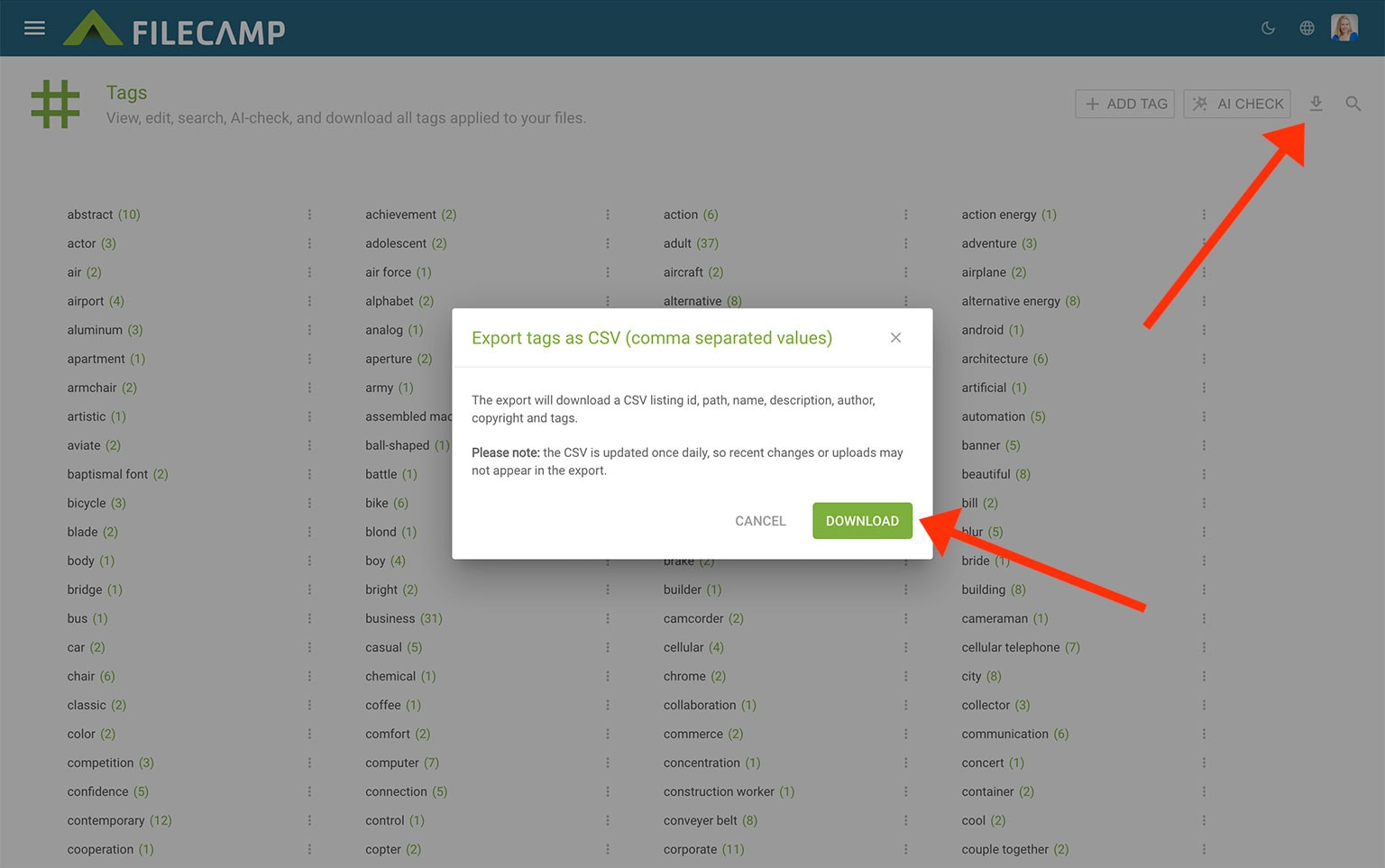
Export tags as CSV
If you want to work with your tags offline in a spreadsheet application such as Microsoft Excel, you can export them as a CSV file. Click on the Download  icon to export the current results.
The export will download a CSV listing all files, including id, path, name, description, author, copyright and tags.
Note: The CSV is updated once per day, so recent changes or uploads may not appear.