Downloading files
Downloading files from Filecamp is easy – and offers some advanced options.
Download single file
There are multiple ways to download files from Filecamp:
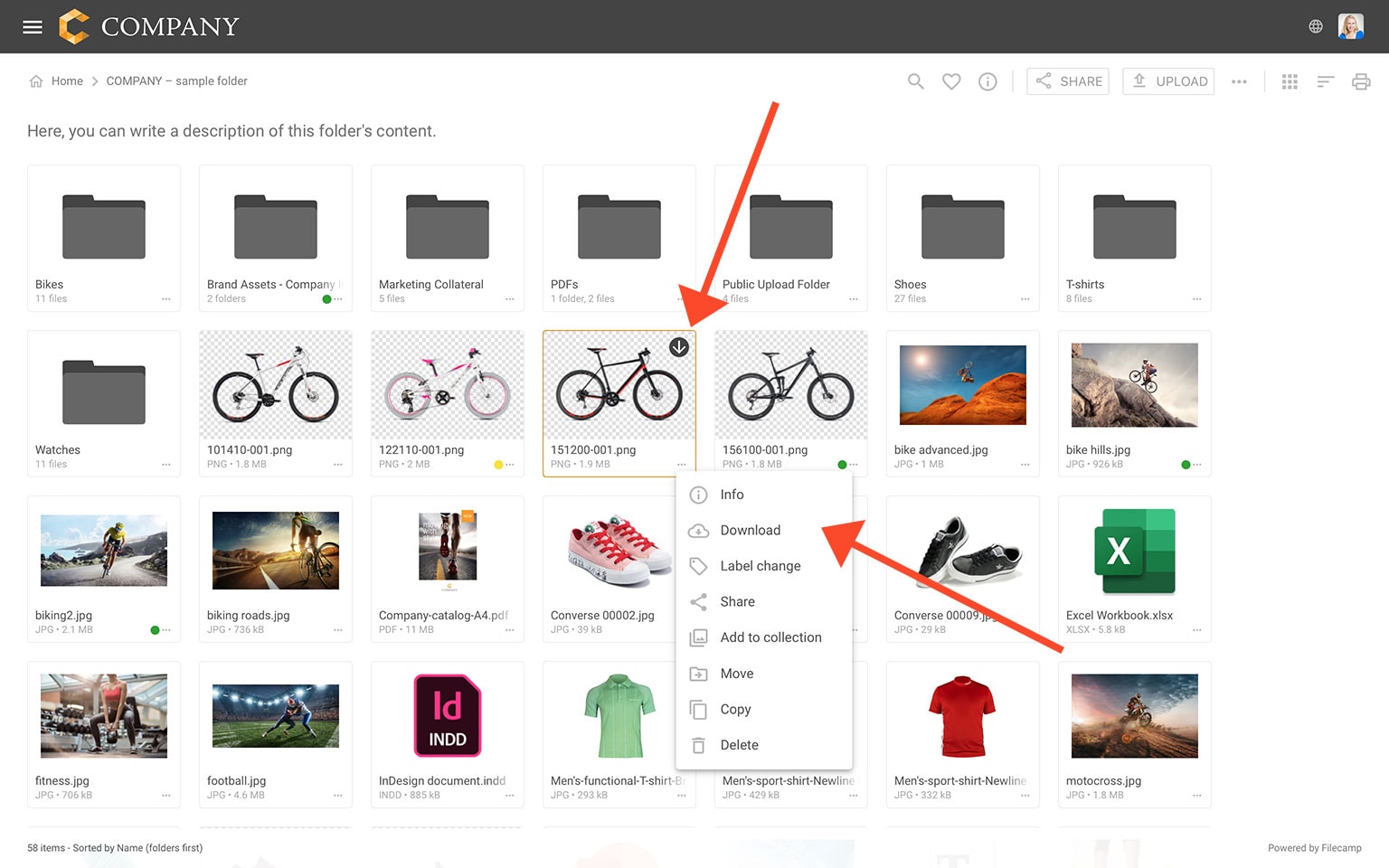
In Gallery view you can move your cursor over the image and click on the Download  icon, or open the Three Dots Menu
  and select DOWNLOAD.
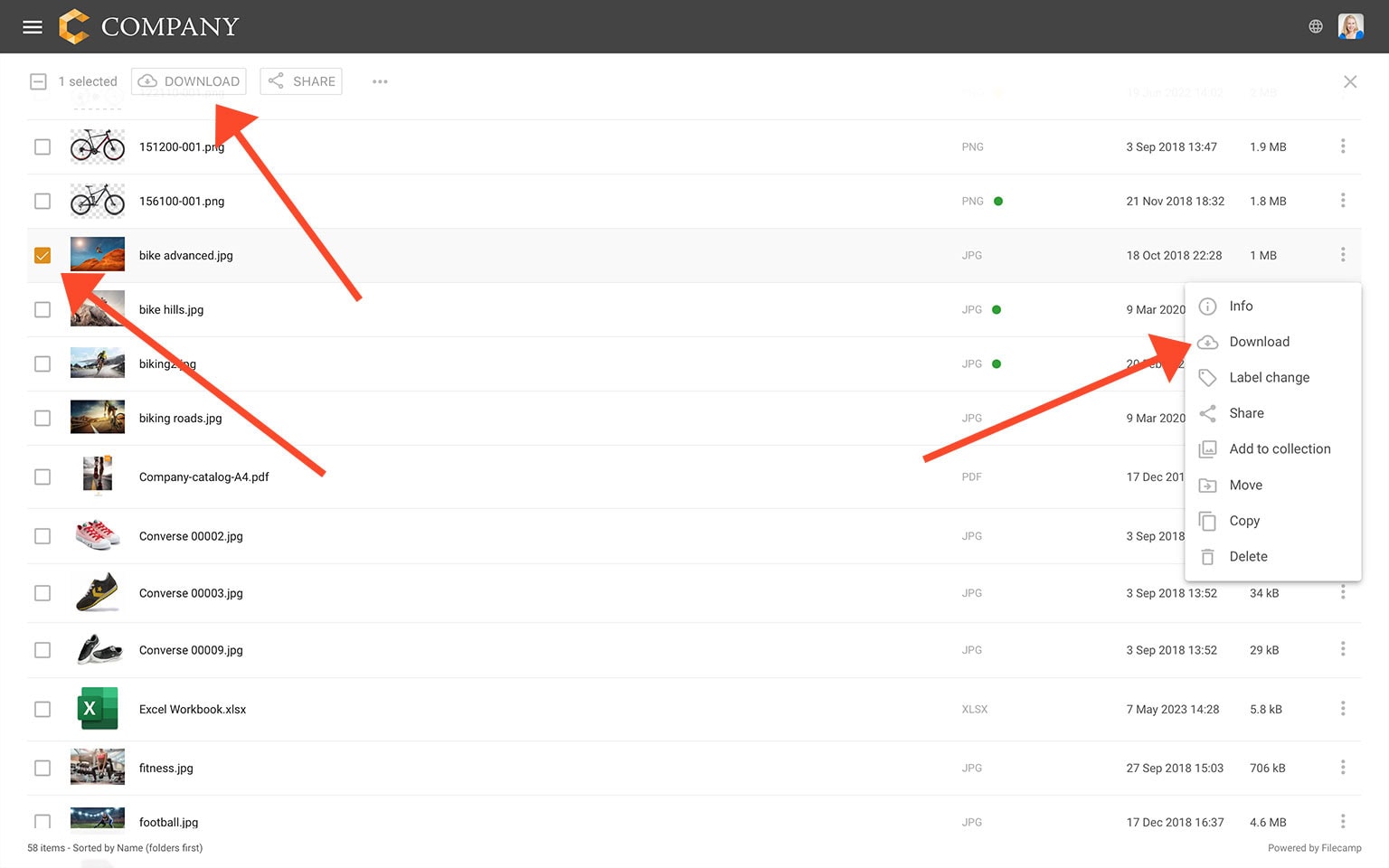
In List view you can click on the Three Dots Menu then Choose Download from the dropdown menu. Or select the files you want to download and select DOWNLOAD  from the Bulk Action Bar.
Download multiple files (desktop only)
You can select multiple files using keyboard shortcuts or by dragging to select.
To select multiple files or folders by dragging:
- Click and hold anywhere on the background of the file overview.
- Drag your cursor to create a selection box around the files or folders you want to select.
To select multiple consecutive files or folders using keyboard shortcuts:
- Select the first item.
- Press and hold Shift.
- Click the last item.
To select multiple non-consecutive files or folders using keyboard shortcuts:
- Press and hold Ctrl (control on Windows) or ⌘ (command on Mac).
- Click to select all the files or folders you want.
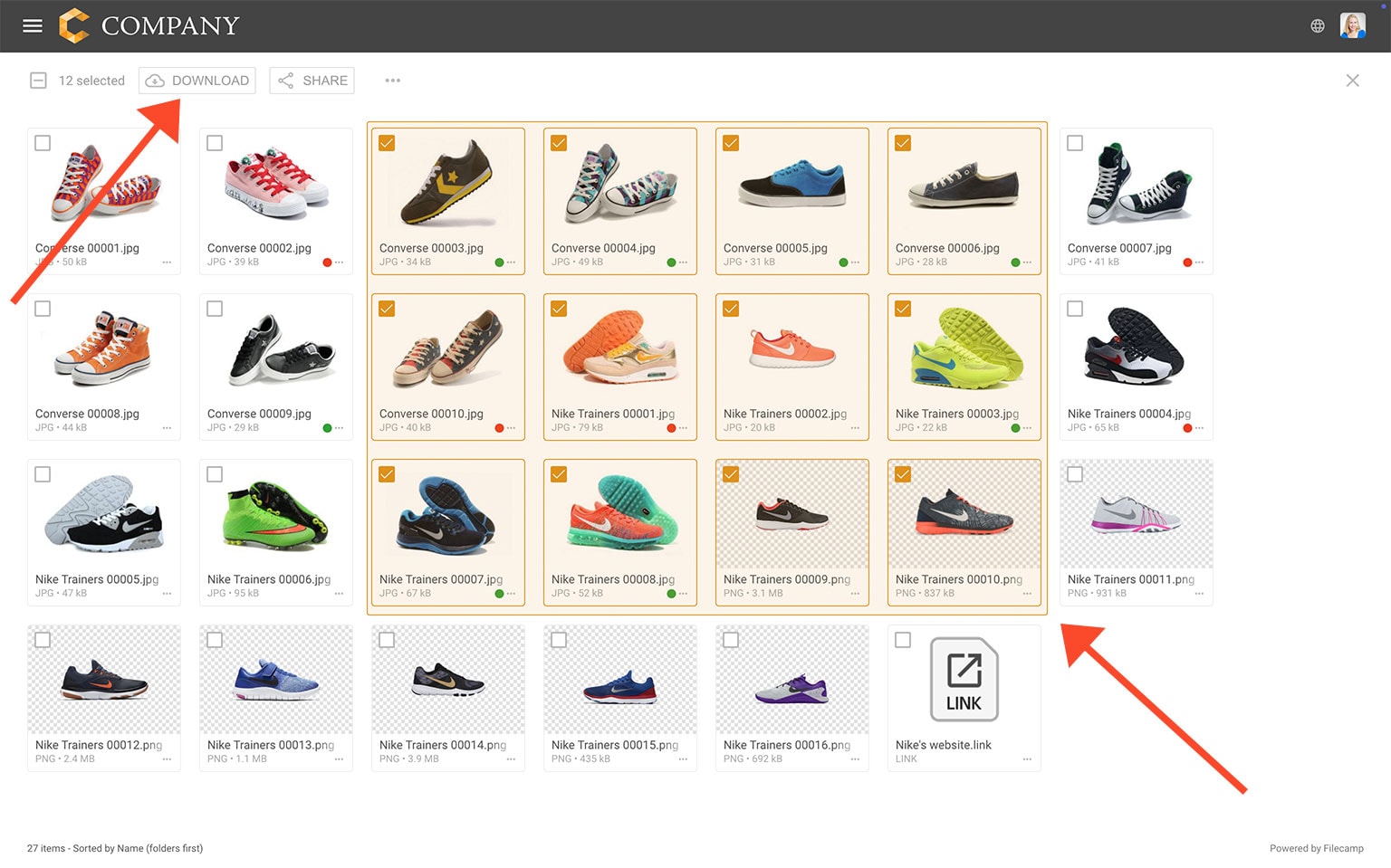
When you have selected the files and folders you want to download click the Download button in the Bulk Action Bar. A .zip archive will then be created and the download process will begin.
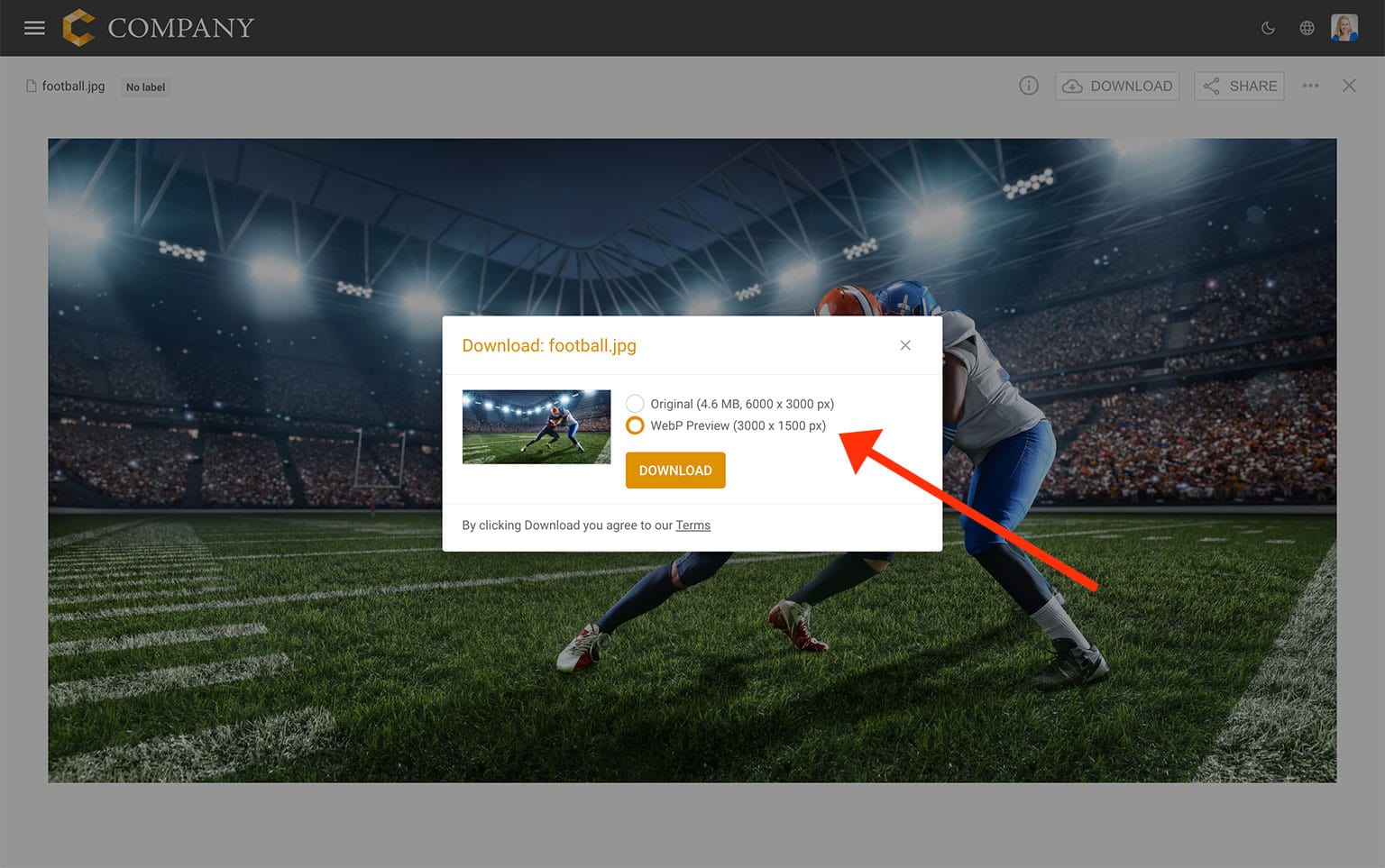
Download optimised image
When downloading an image file, you can choose between the original file and an optimised web-ready version. The optimised version is generated in WebP format and provides a much smaller file size while maintaining high visual quality, making it suitable for most use cases.