
Share file links
Share files with anyone by sending them a link — no login required.
Share file link
Find the file you want to share, then click the Three Dots Menu  and select Share
  .
.
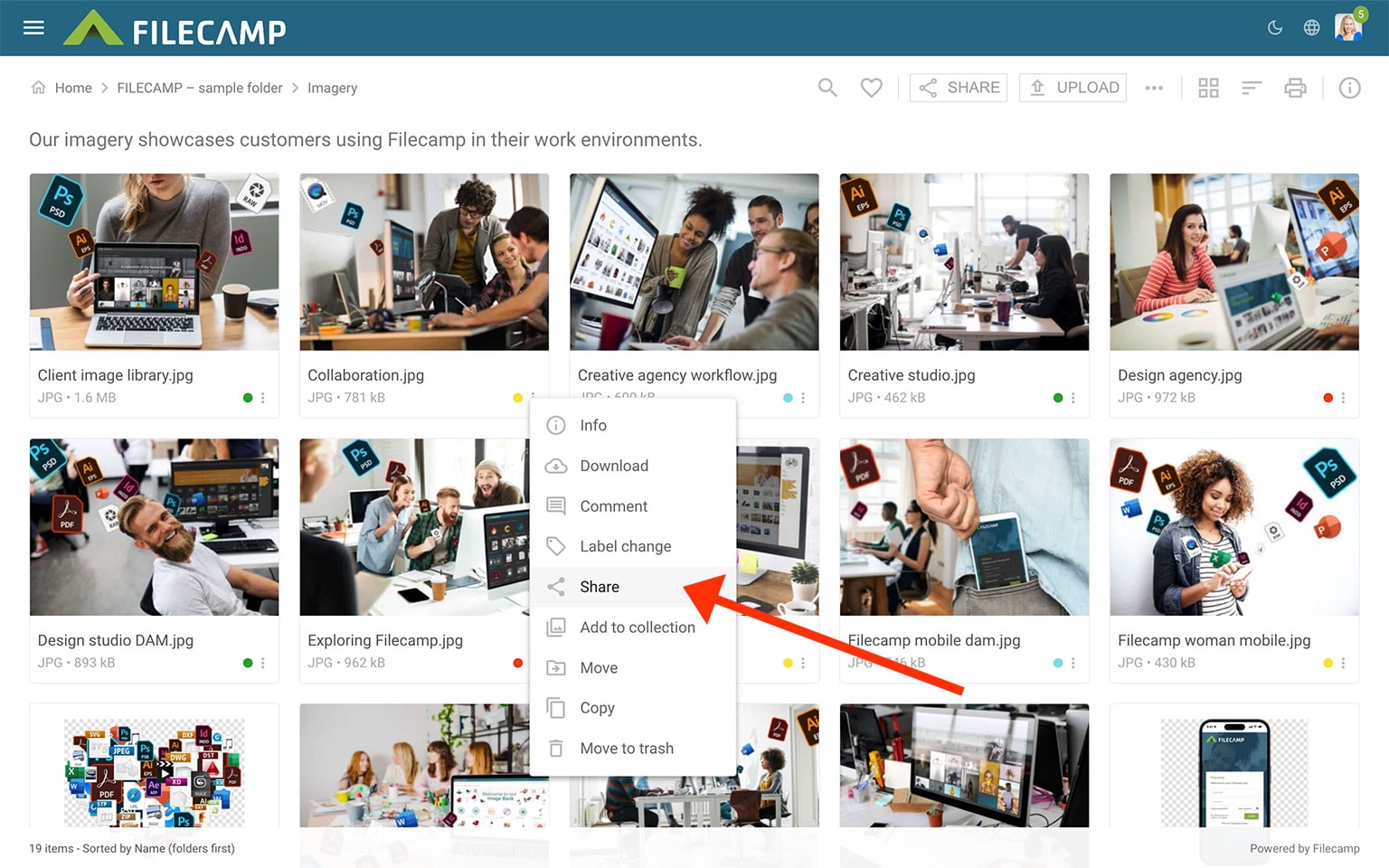
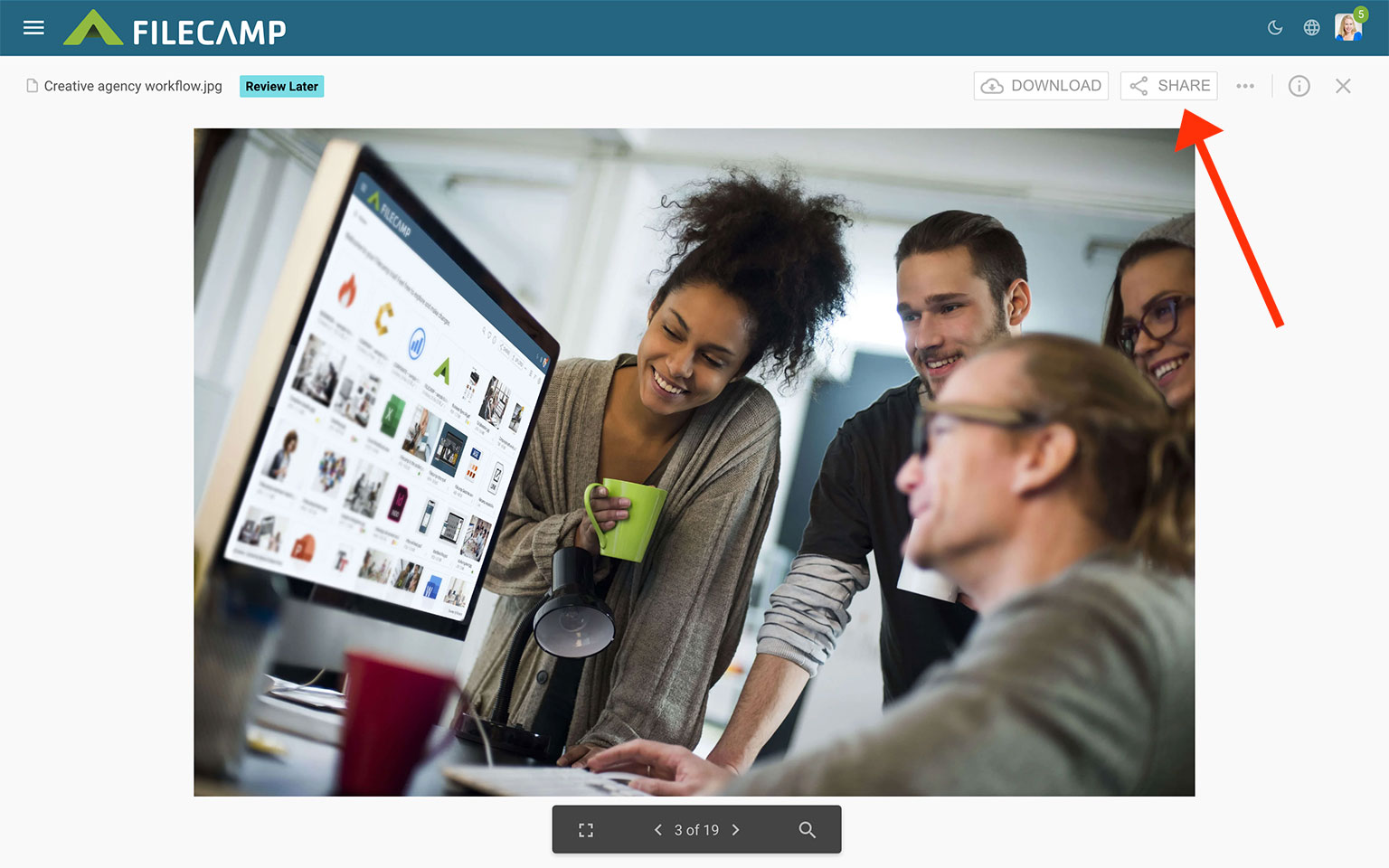
Alternatively, open the file and click the Share button in the Toolbar.
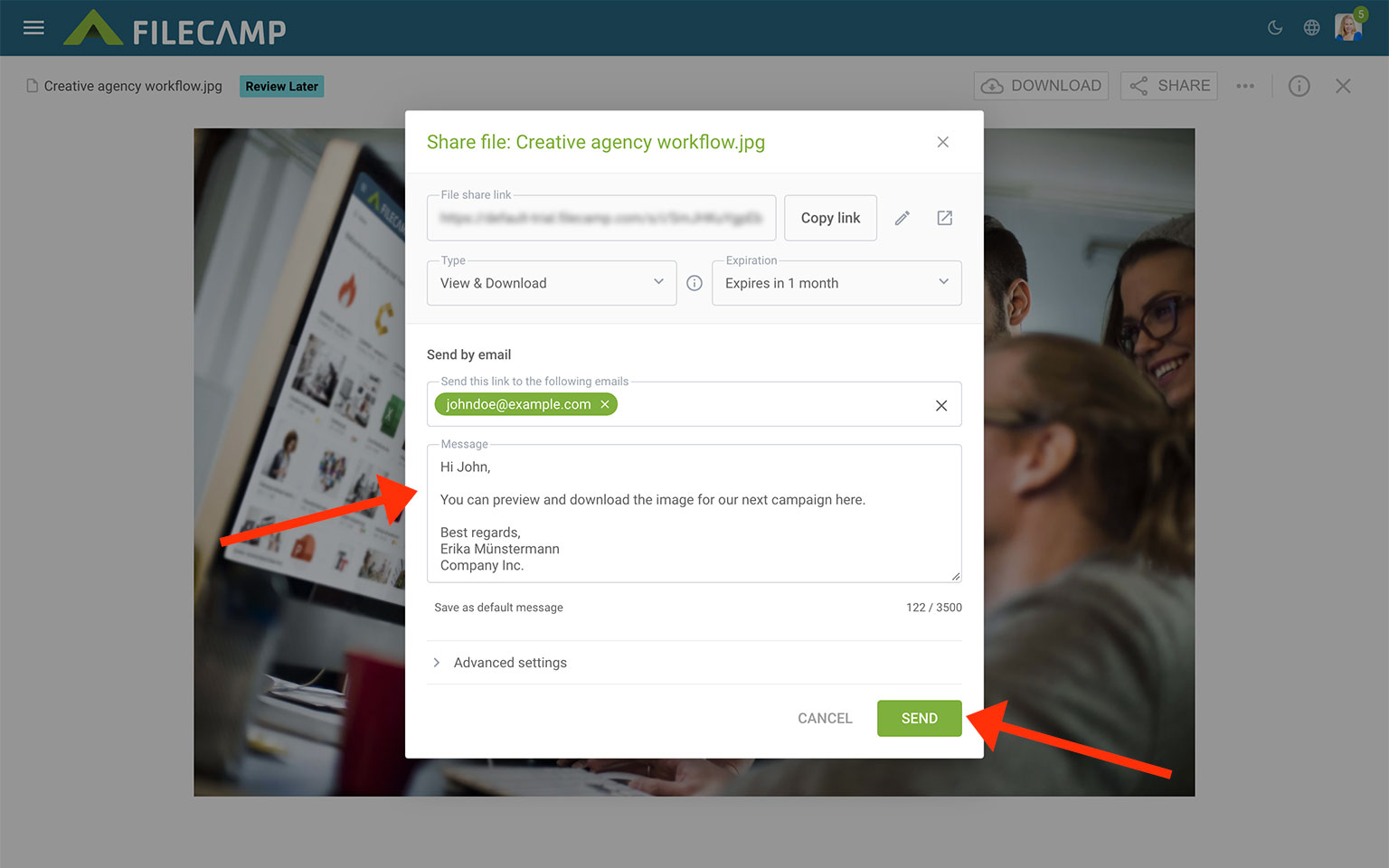
Under Type, choose View only, Download, or View & Download. Under Expiration, choose when the link should expire, or leave it set to Never expires.
You have two options for sharing the link:
- Copy link: Click Copy link and paste the link into an email, a message, your company’s website, or wherever you want to share it.
- Send by email: Enter the recipients’ email addresses, pressing Enter after each address. Add an optional message, then click Send.
To preview the shared page, click the Open in new window  icon.
icon.
Anyone with the link can access the shared page. What they can do depends on the link type and settings you choose.
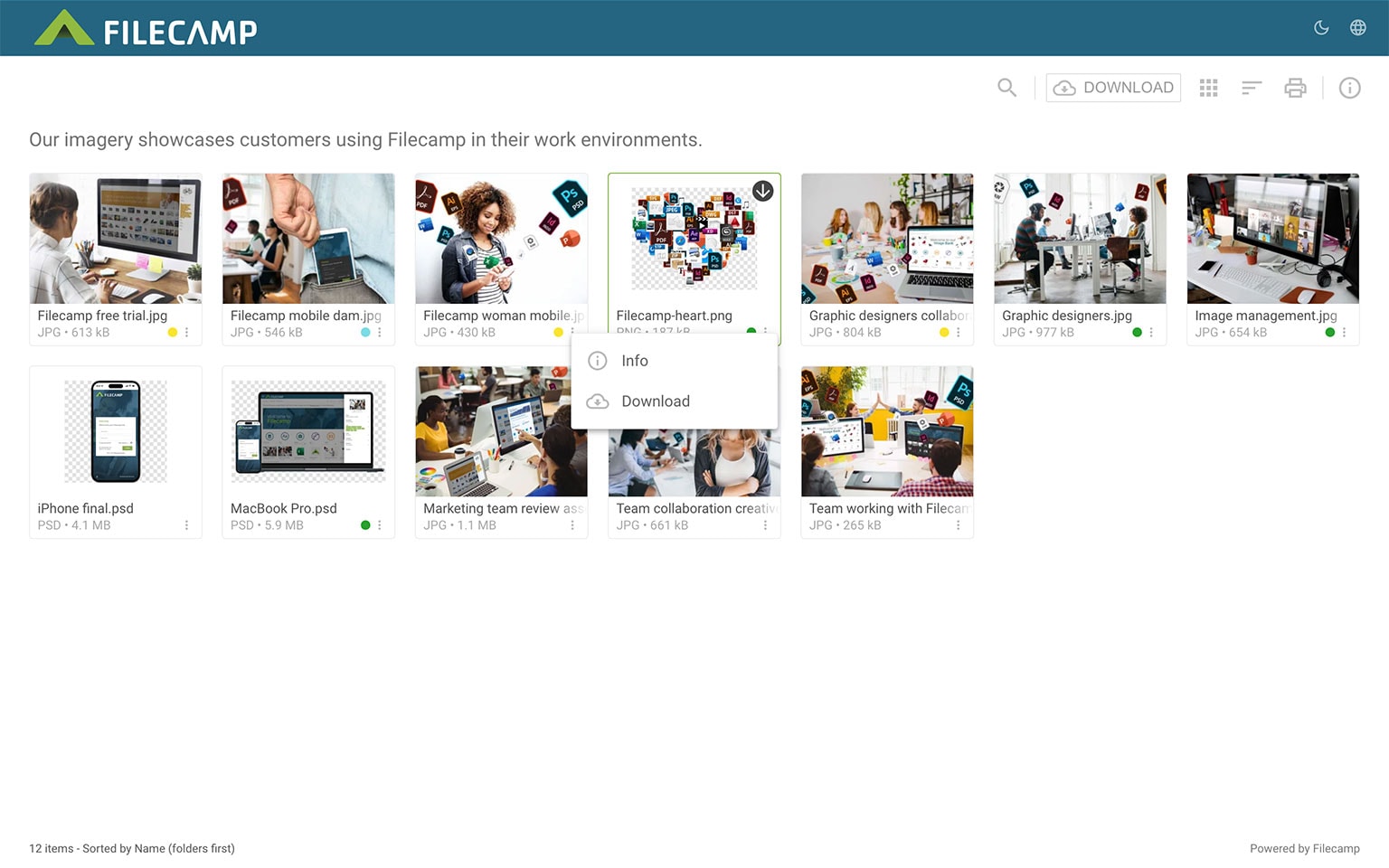
Type: View only

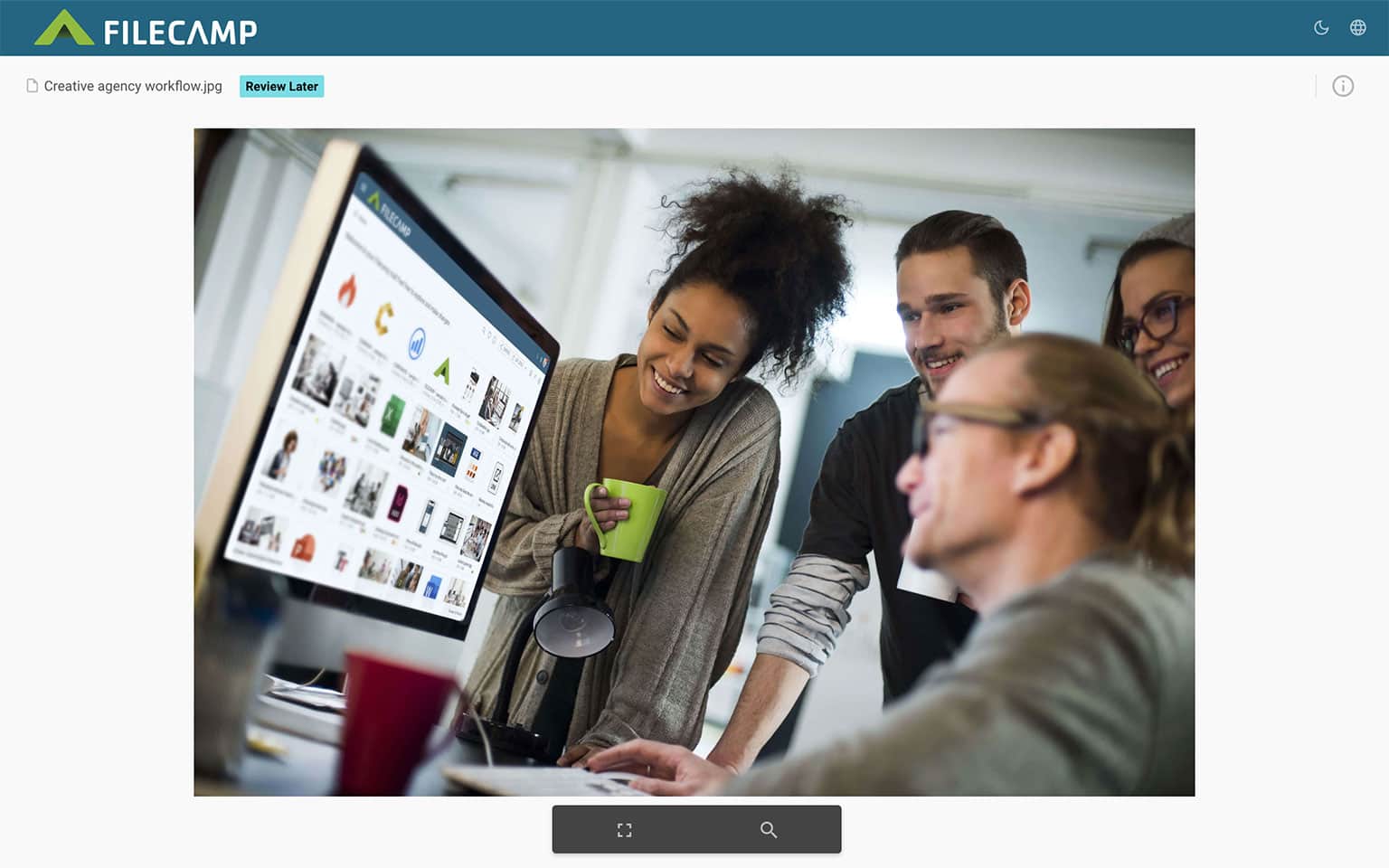
Select View only to send recipients to a branded preview page where they can preview the file without download options.
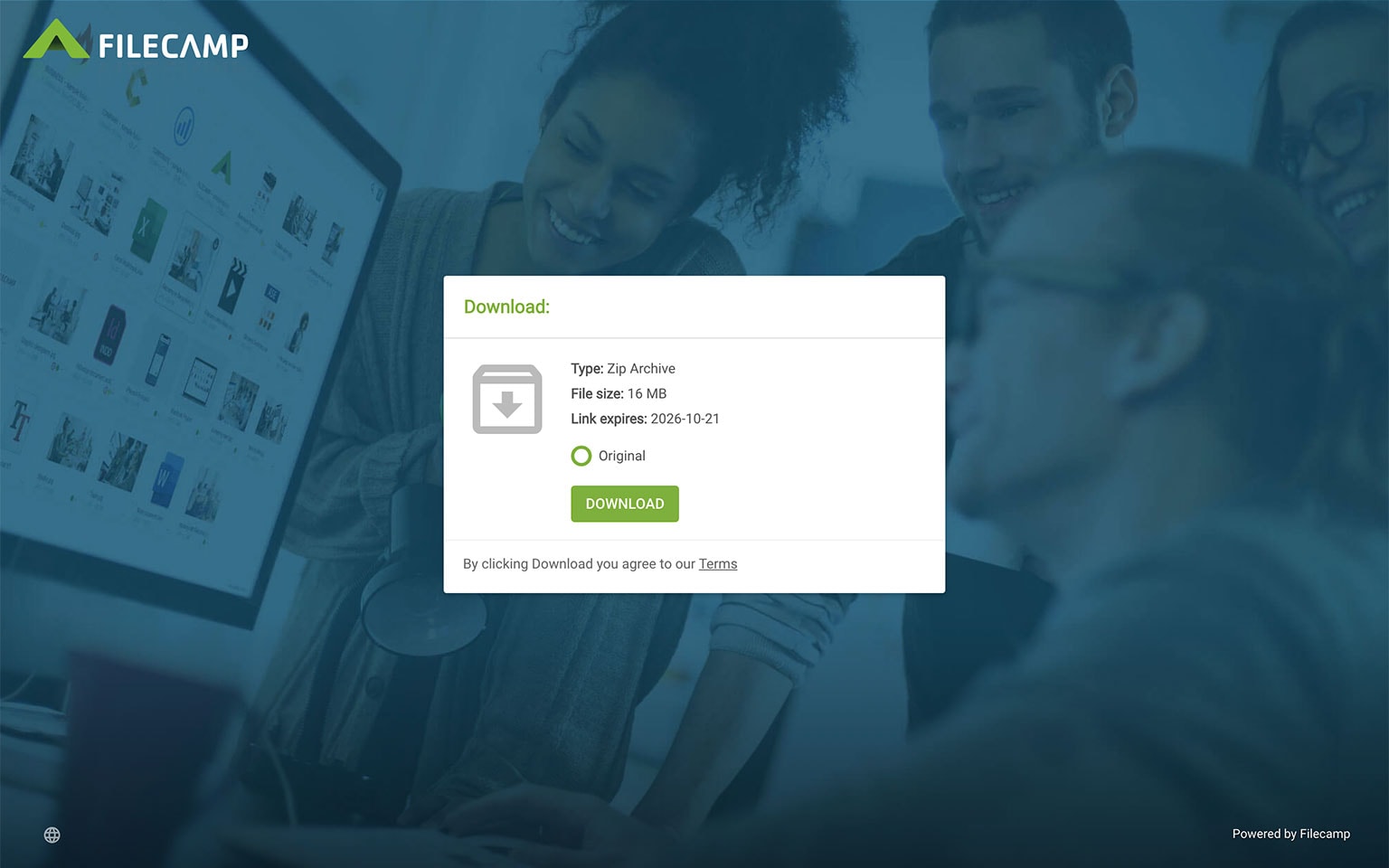
Type: Download
Select Download to send recipients to a branded download page where they can download the file.
Type: View & Download
Select View & Download to send recipients to a branded preview page where they can preview and download the file. You can also allow commenting and label changes under Advanced settings, when available.
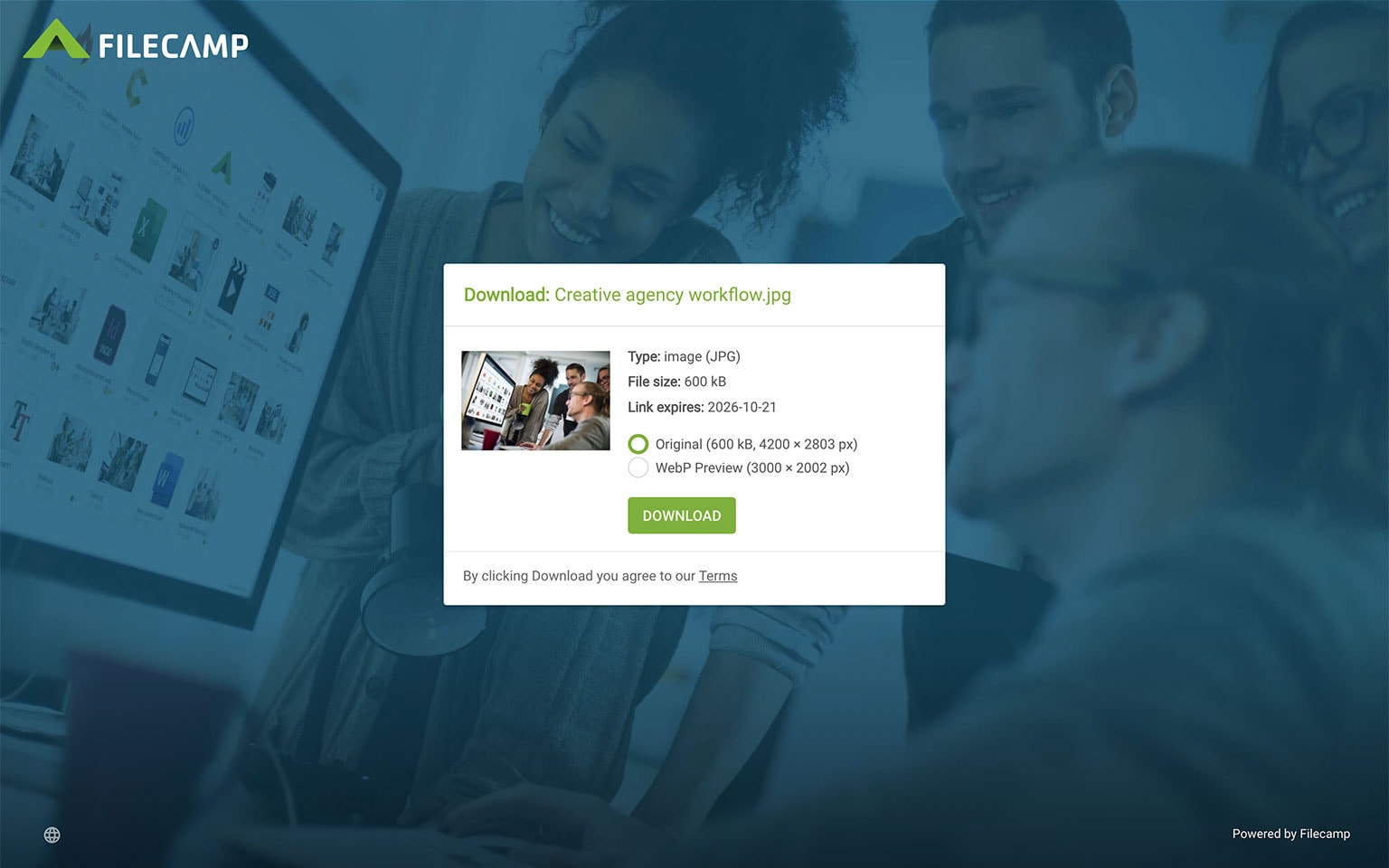
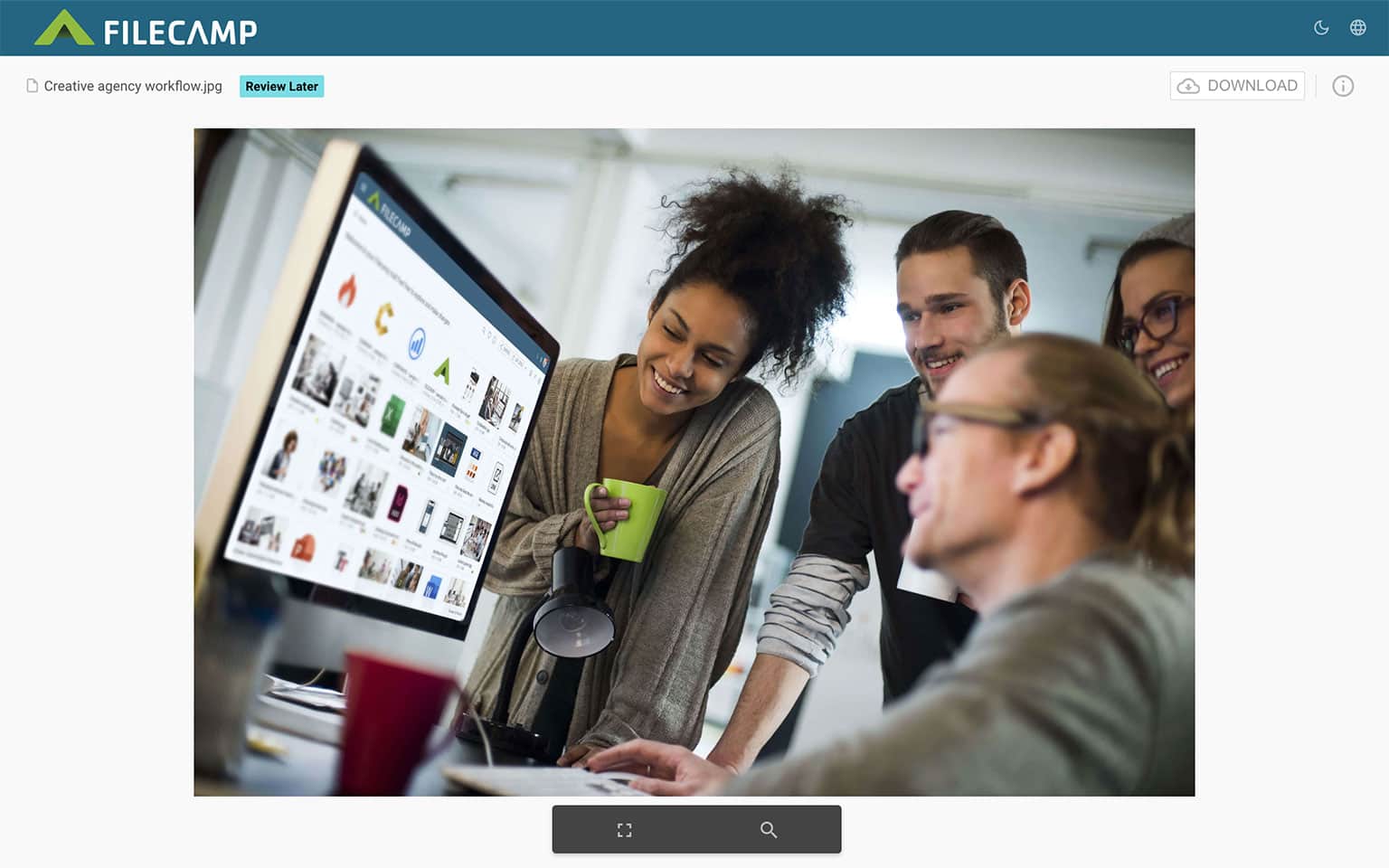
Share multiple assets link
Select the files and folders you want to share, then click the Share button in the Bulk Action Bar.
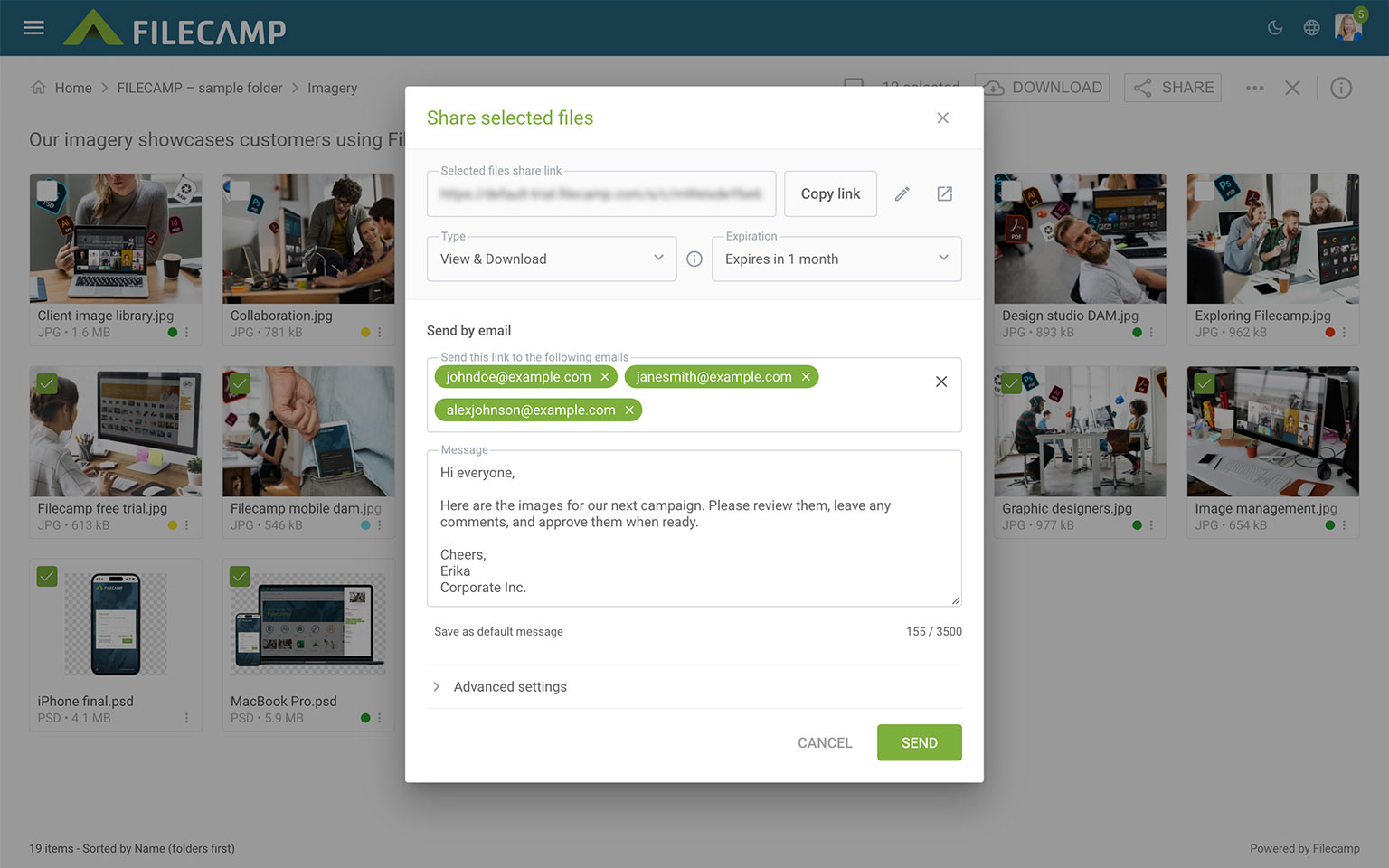
Choose the link’s Type and Expiration. You can also customize the URL using the pencil icon next to the link. Click Copy link to share it yourself, or enter recipients’ email addresses and an optional message, then click Send.
To preview the shared page, click the Open in new window icon.
Type: View only
Select View only to send recipients to a branded preview page where they can preview the shared files without download options.
Type: Download
Select Download to send recipients to a branded download page where they can download the shared files as a ZIP file.
Type: View & Download
Select View & Download to send recipients to a branded preview page where they can preview and download the shared files. You can also allow commenting under Advanced settings, when available.
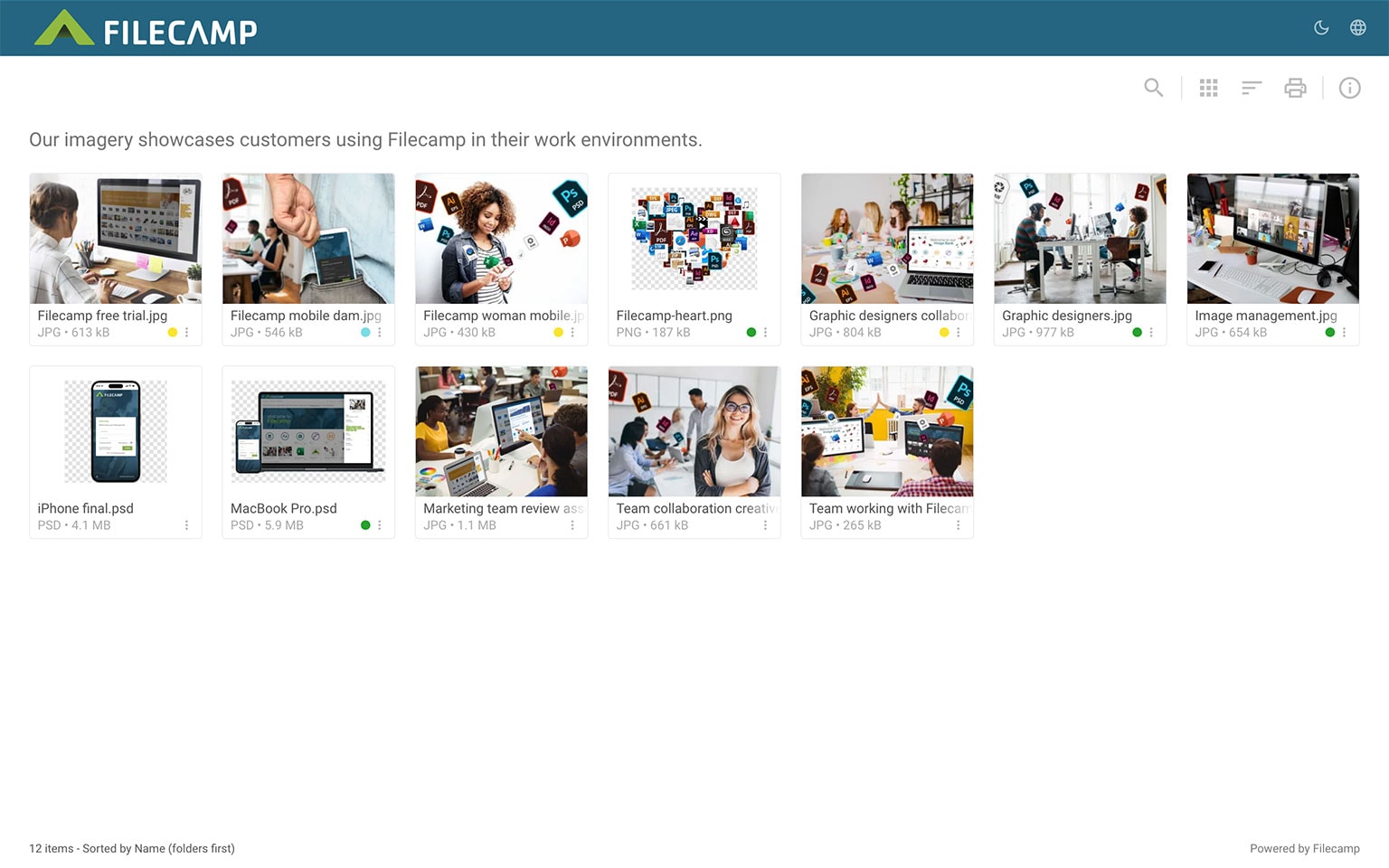
Advanced settings
For View & Download links, expand Advanced settings to see additional options:
- Allow commenting: Let recipients add comments to files through the shared link. This option is available when sharing a single file or multiple assets.
- Allow label changes: Let recipients change the file’s label through the shared link. This option is only available when sharing a single file, not multiple assets.
Notice: You always have two options for dispatching share links: you can email the link directly from the Share window and specify specific link recipients in the "Add email" field. Or you can copy and paste the link into another place (your email application, social media, your company’s website, etc.)
If you only need to specify a handful of link recipients, it's often best to go with the first option. Just enter the email addresses of the recipients, enter a personal message, and click Send.
FEATURE HIGHLIGHT
Vanity URL
With Vanity URLs, you can replace the automatically generated text string in a share URL with the file name or text of your choice. Click the pencil icon next to the share link to edit it.
Here is an example:
Default share file URL: https://files.company.com/s/d/z68FV3rkltUKyWoI
Vanity share file URL: https://files.company.com/s/d/my_cool_file
Notice:
Enable Save as default message to reuse your message as a template for future share emails. The template is saved locally in your browser. This is useful for a standard greeting or email signature.
This article reviews the following topics:
VIDEO
SHARE FILE LINKS
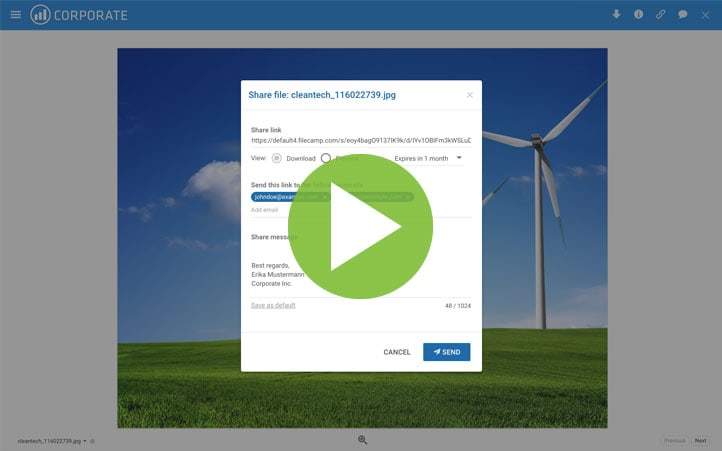
How to share a single file through a shared link, and what the recipients see.
Notice: Advanced settings are only visible when your plan supports the relevant features and they have been enabled under Admin > General. Commenting requires the Professional plan. Read more about plans.
Allow label changes is only available when sharing a single file and requires a Labelset to be assigned to the file’s folder. To let recipients change labels on several files, share the folder containing those files and enable Allow label changes.