Request files link
Invite anyone to upload files to your Filecamp account — no login required.
Request files links are why many teams use Filecamp as an FTP alternative for receiving large files.
Create a Request files link
Users with permission to share files and folders can create a Request files link. Navigate to the folder where you want to receive files, then click the  Share button in the Toolbar.
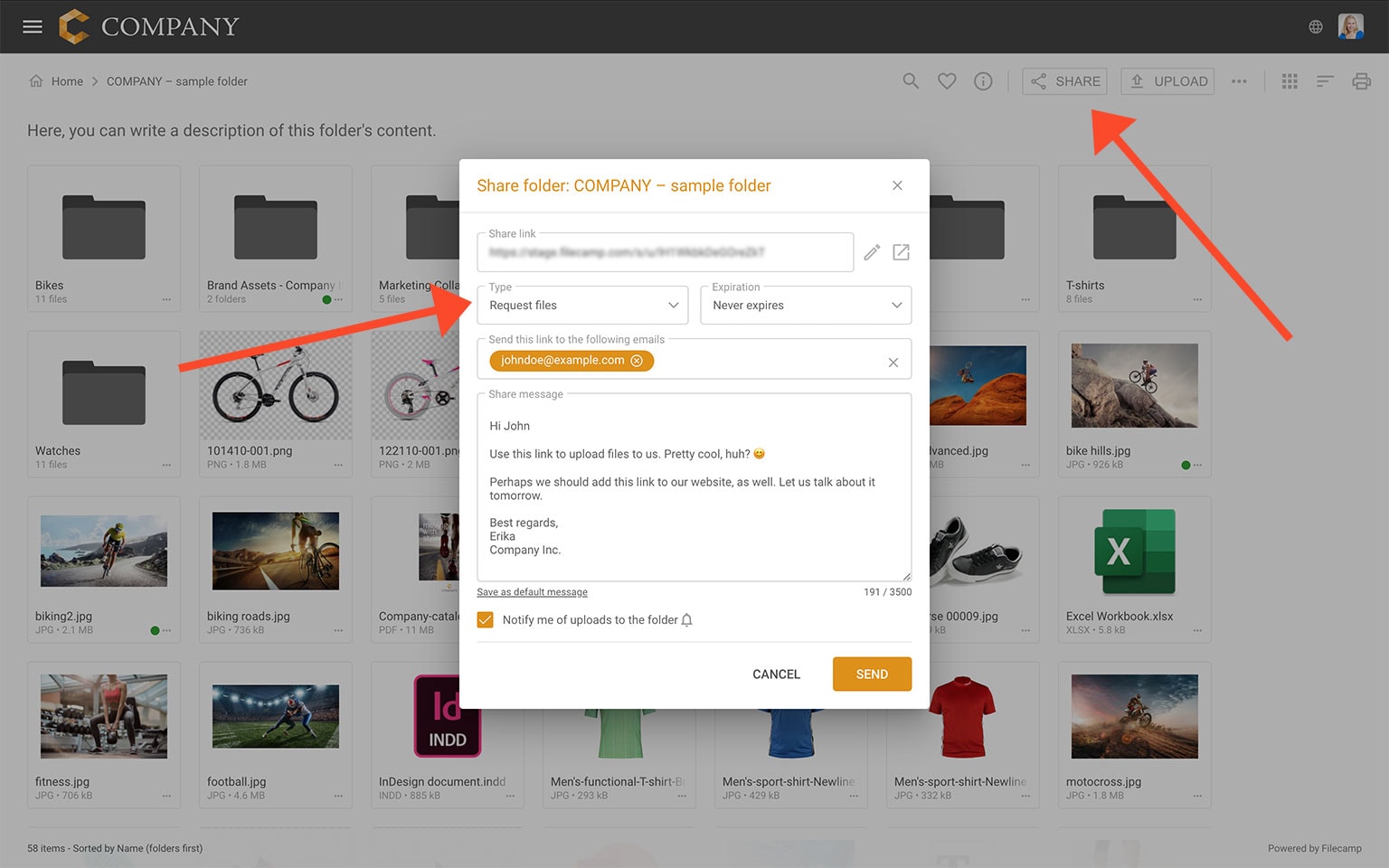
Under Type, select Request files. Under Expiration, choose when the link should expire, or leave it set to Never expires. You can also customize the URL by clicking the pencil icon next to the link.
Share the link
You have two options for sharing the link:
- Copy link: Click Copy link and paste the link into an email, a message, your company’s website, or wherever you want to share it.
- Send by email: Enter the recipients’ email addresses, pressing Enter after each address. Add an optional message, then click Send.
To preview the upload page, click the Open in new window icon.
Advanced settings
Expand Advanced settings and enable Notify me of uploads to the folder to receive email notifications when new files are uploaded to this folder. Read more about notifications.
What recipients see
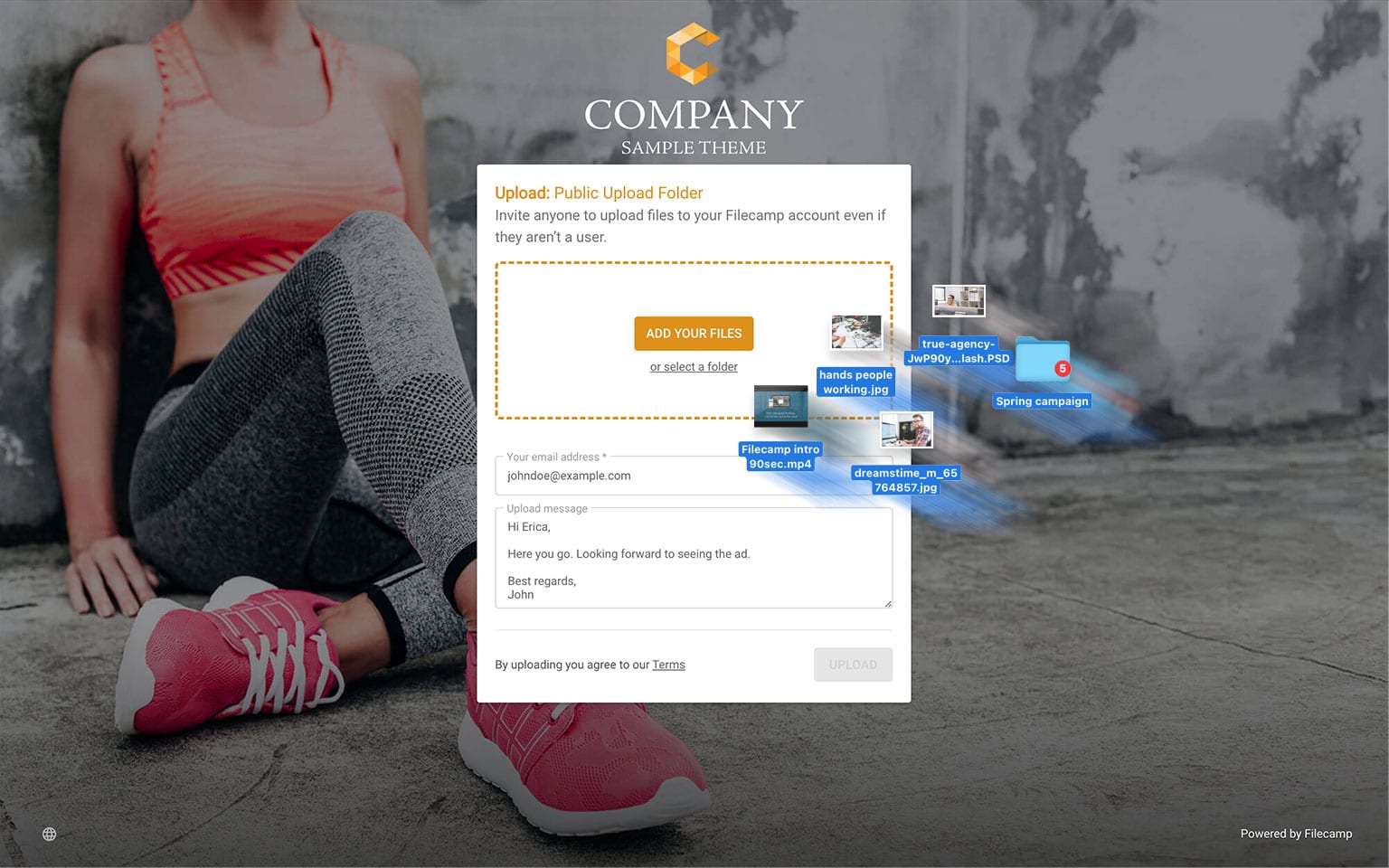
Anyone with the link can open a branded upload page without logging in. They will be prompted to enter their email address and an optional message. This information appears in your Log and in the email notifications sent to Filecamp users who have enabled upload notifications for the folder.
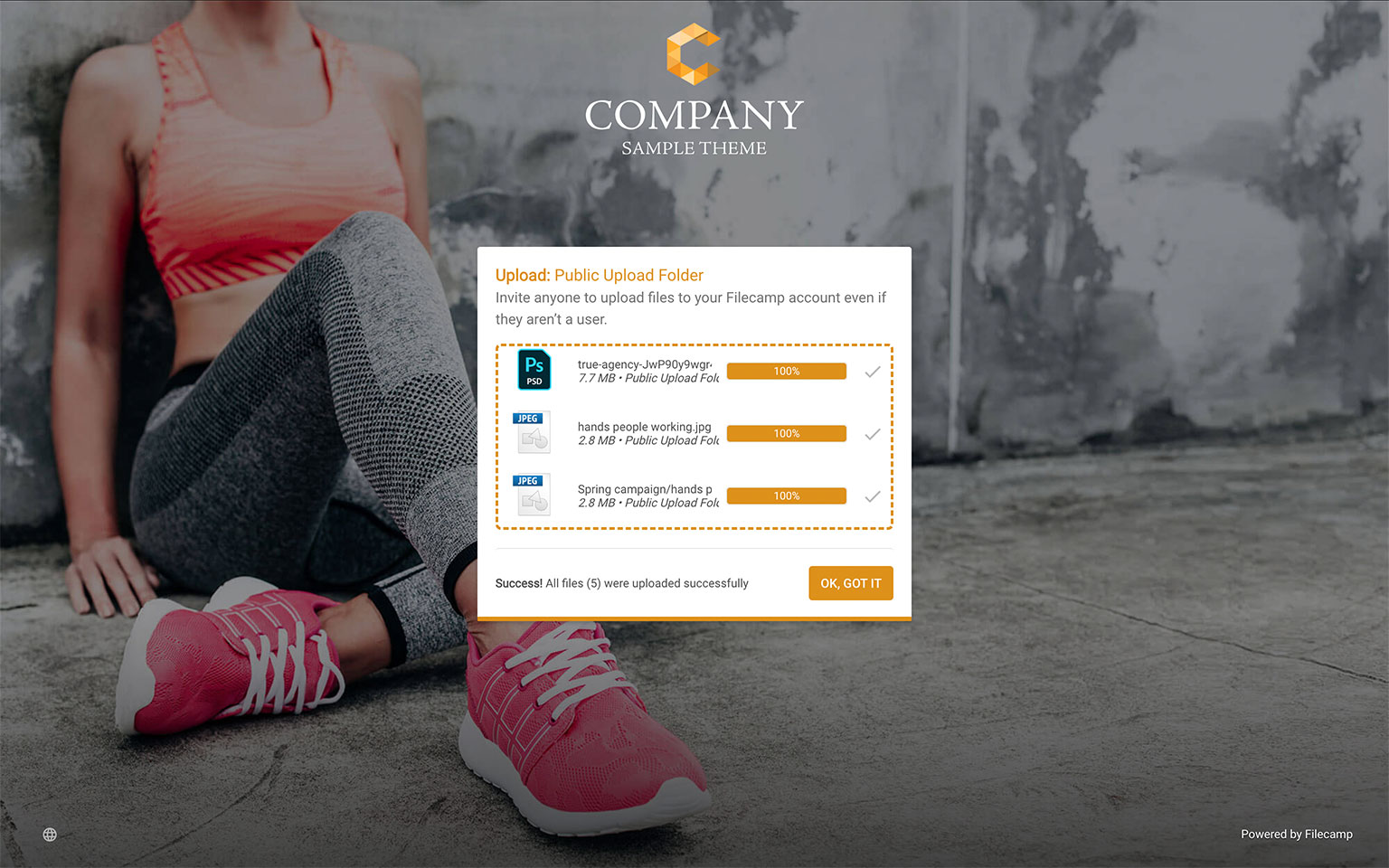
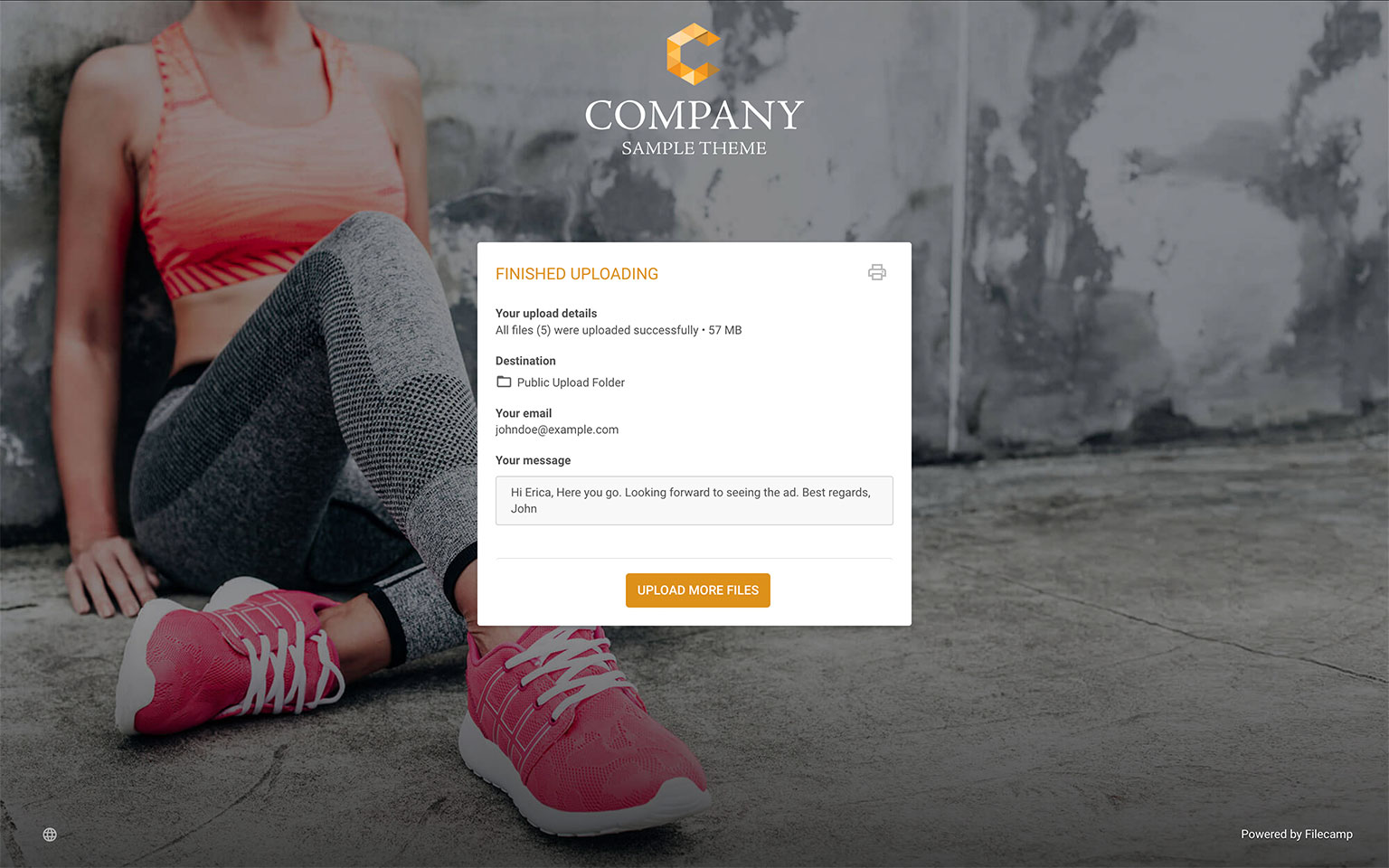
Recipients can follow the upload progress and click OK, GOT IT once the upload is complete. They will then see an upload summary, which they can print as confirmation.
VIDEO
SHARE FOLDER LINKS
How to share a folder through a shared link, and what the recipients see.