
Sorting and viewing options
All users can easily change the way files and folders are presented to them.
Sorting options
To change how items are sorted, click the Sort  icon in the top-right corner.
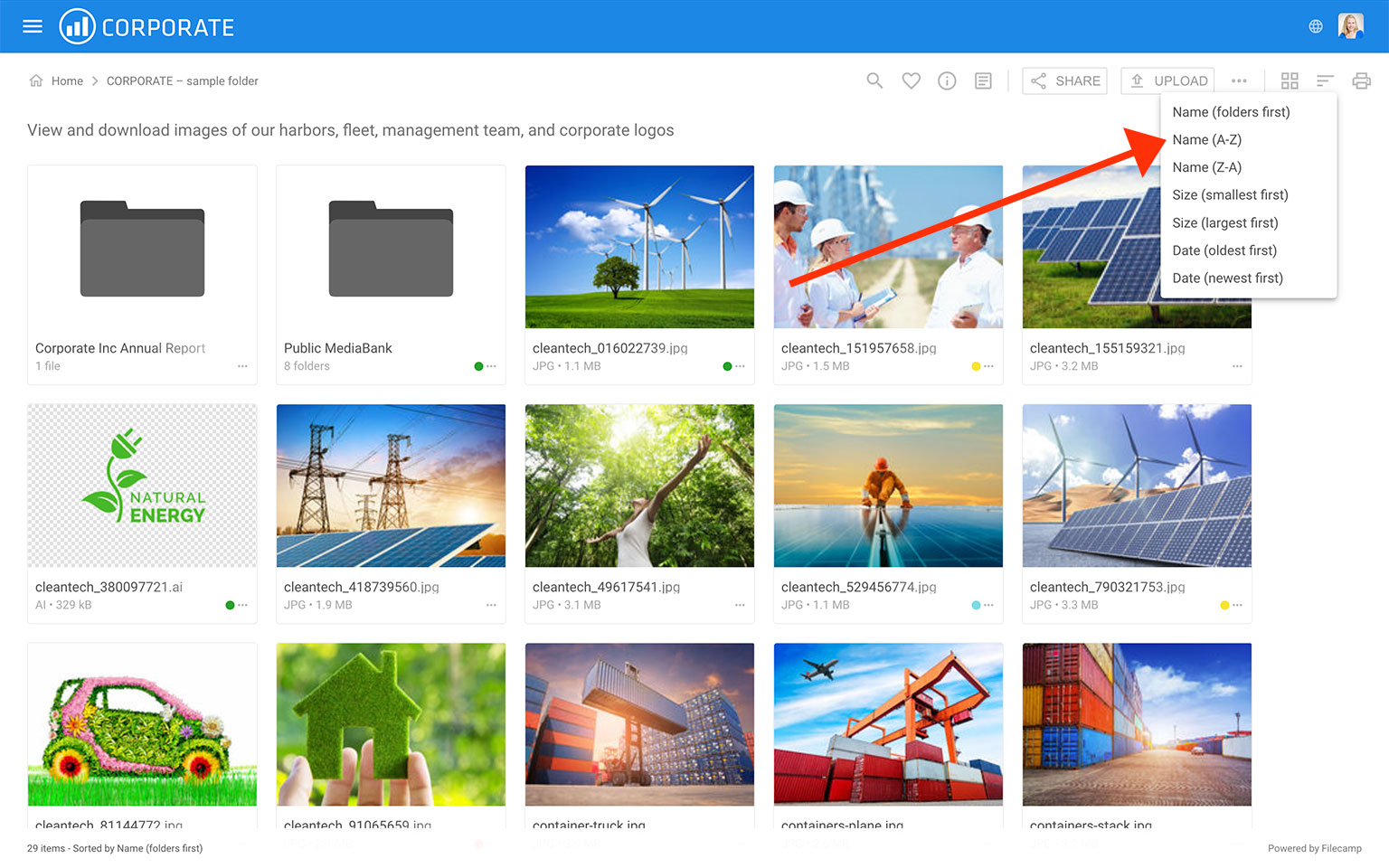
Then select one of the following sorting options:
- Name (folders first) – Sort alphabetically by name, with folders listed before files.
- Name (A–Z) – Sort alphabetically from A to Z.
- Name (Z–A) – Sort alphabetically from Z to A.
- Size (smallest first) – Sort by file size, from smallest to largest.
- Size (largest first) – Sort by file size, from largest to smallest.
- Date (oldest first) – Sort by date, from oldest to newest.
- Date (newest first) – Sort by date, from newest to oldest.
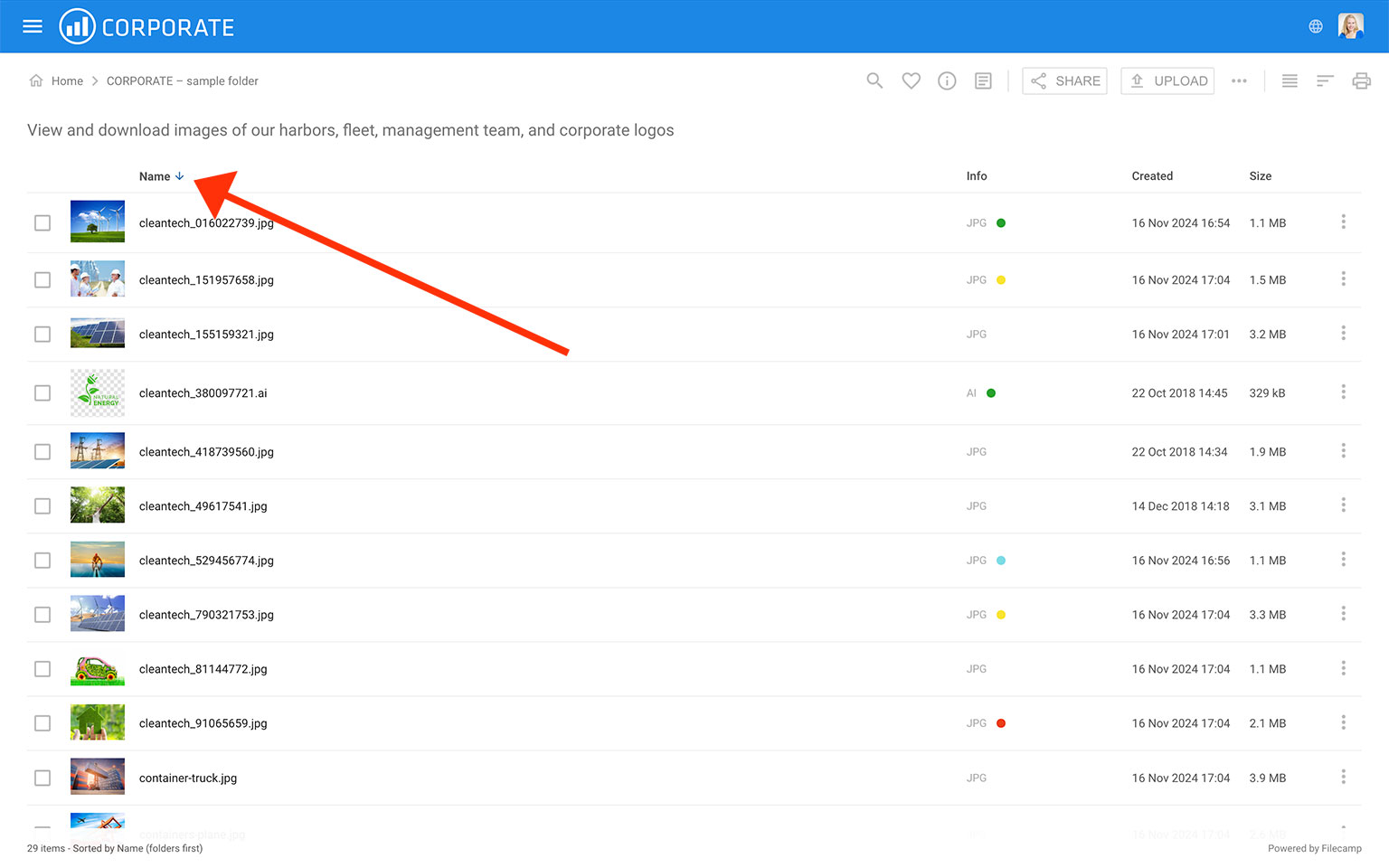
You can also change the sorting order in List View by clicking the column headers to toggle between ascending and descending order.
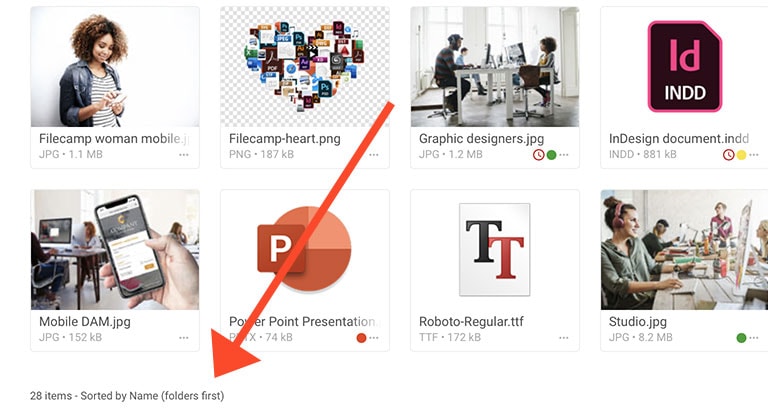
In the bottom-left corner of the main window, you can always see the current sorting view and the total number of items in the folder.
Tip: All files and folders in a folder are sorted alphabetically as default. If you want to set a specific sorting order you could choose to name your folders e.g.
01. folder name
02. folder name
03. folder name
etc.
Layout options
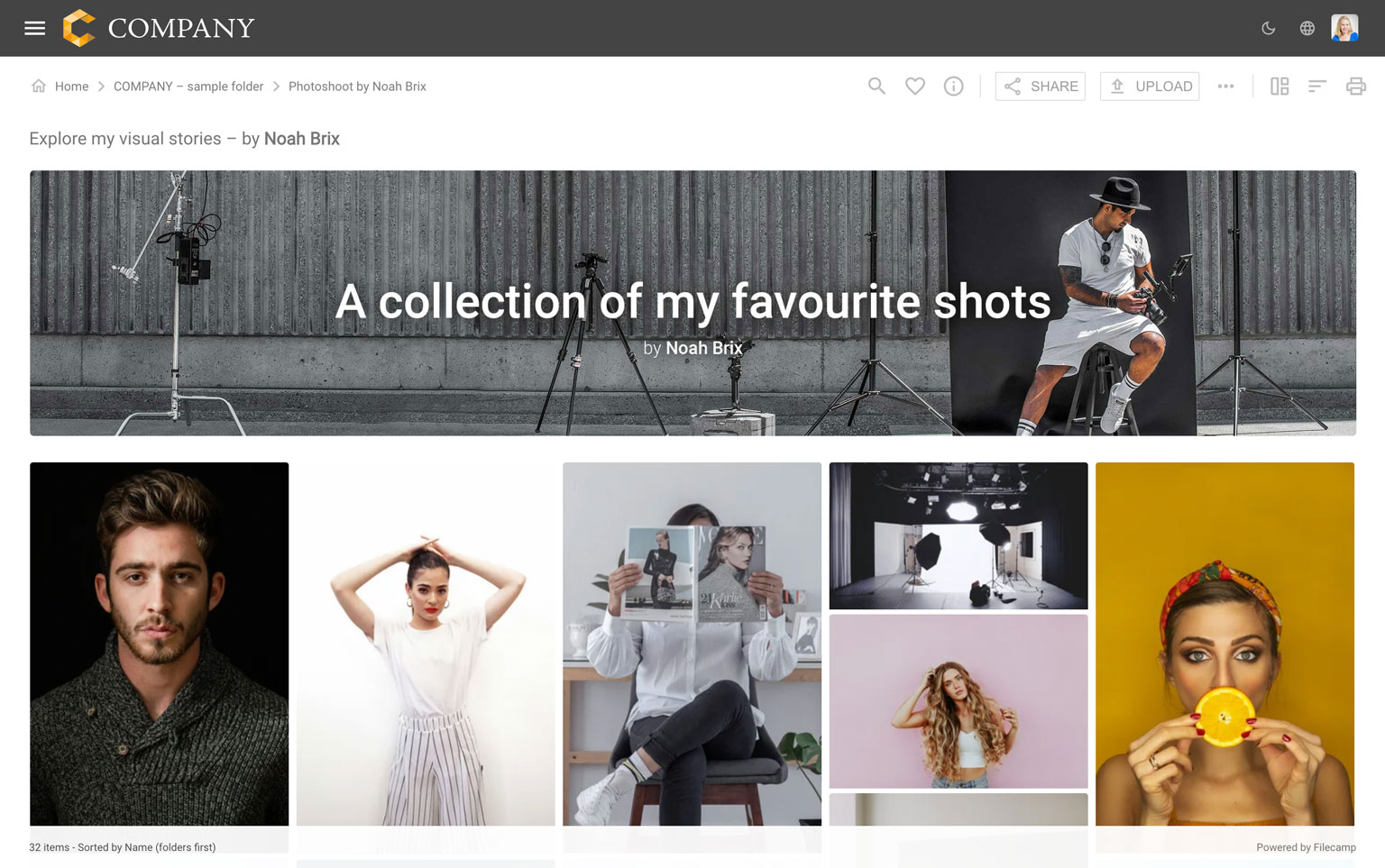
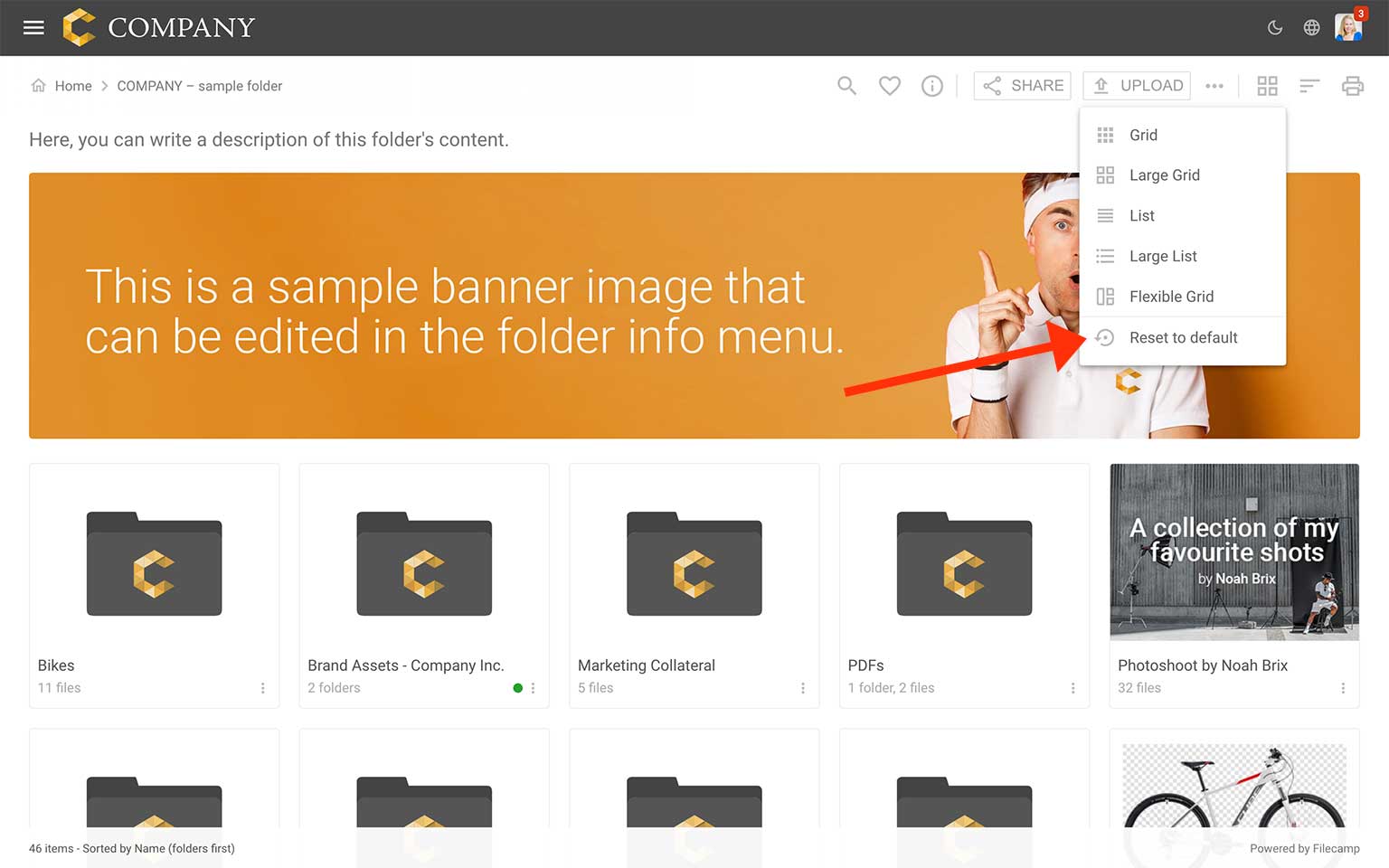
All users can choose between Grid, Large Grid, List, Large List, and Flexible Grid layout from the Change layout menu in the Main Window.
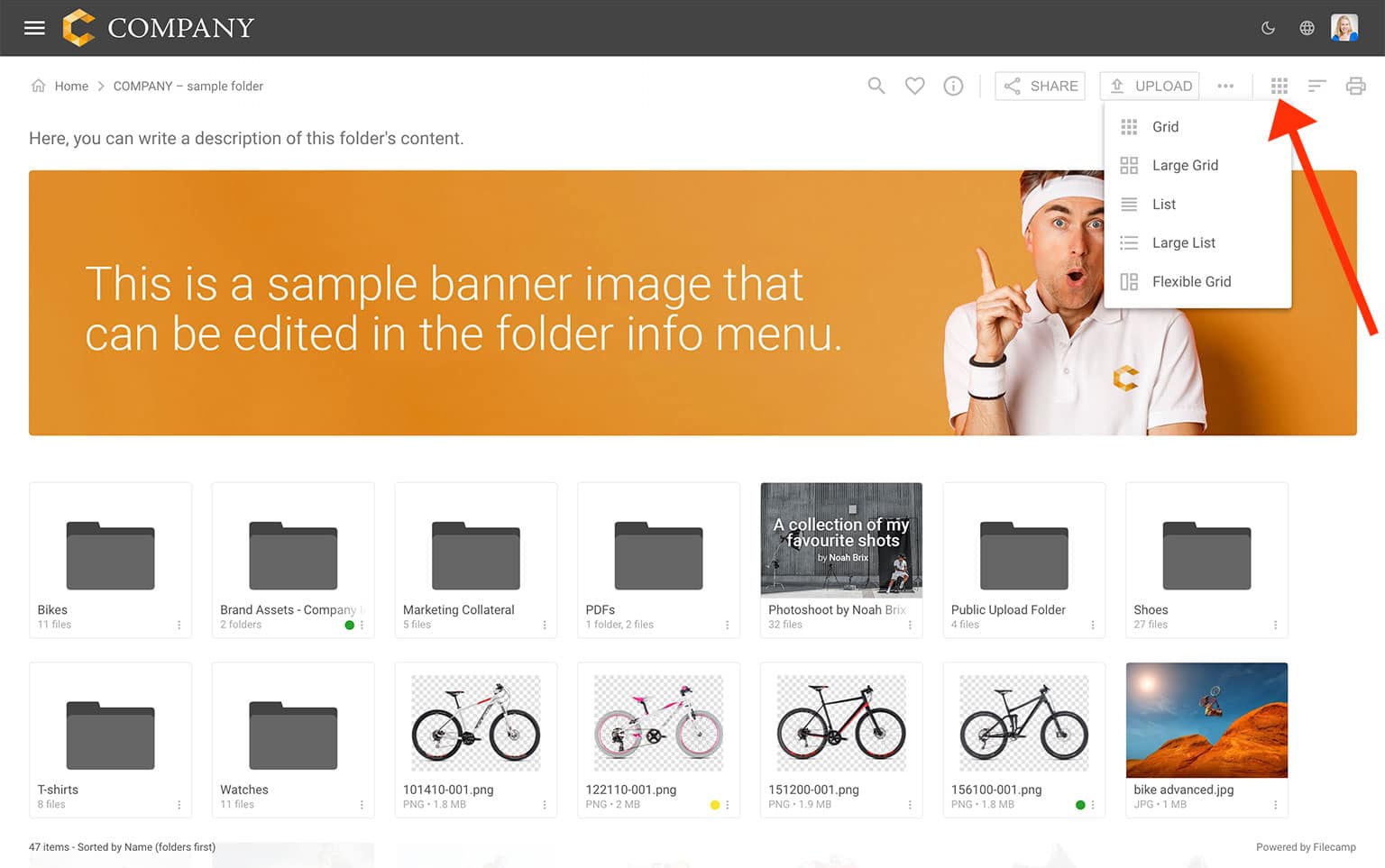
See the differences between the layout options below.
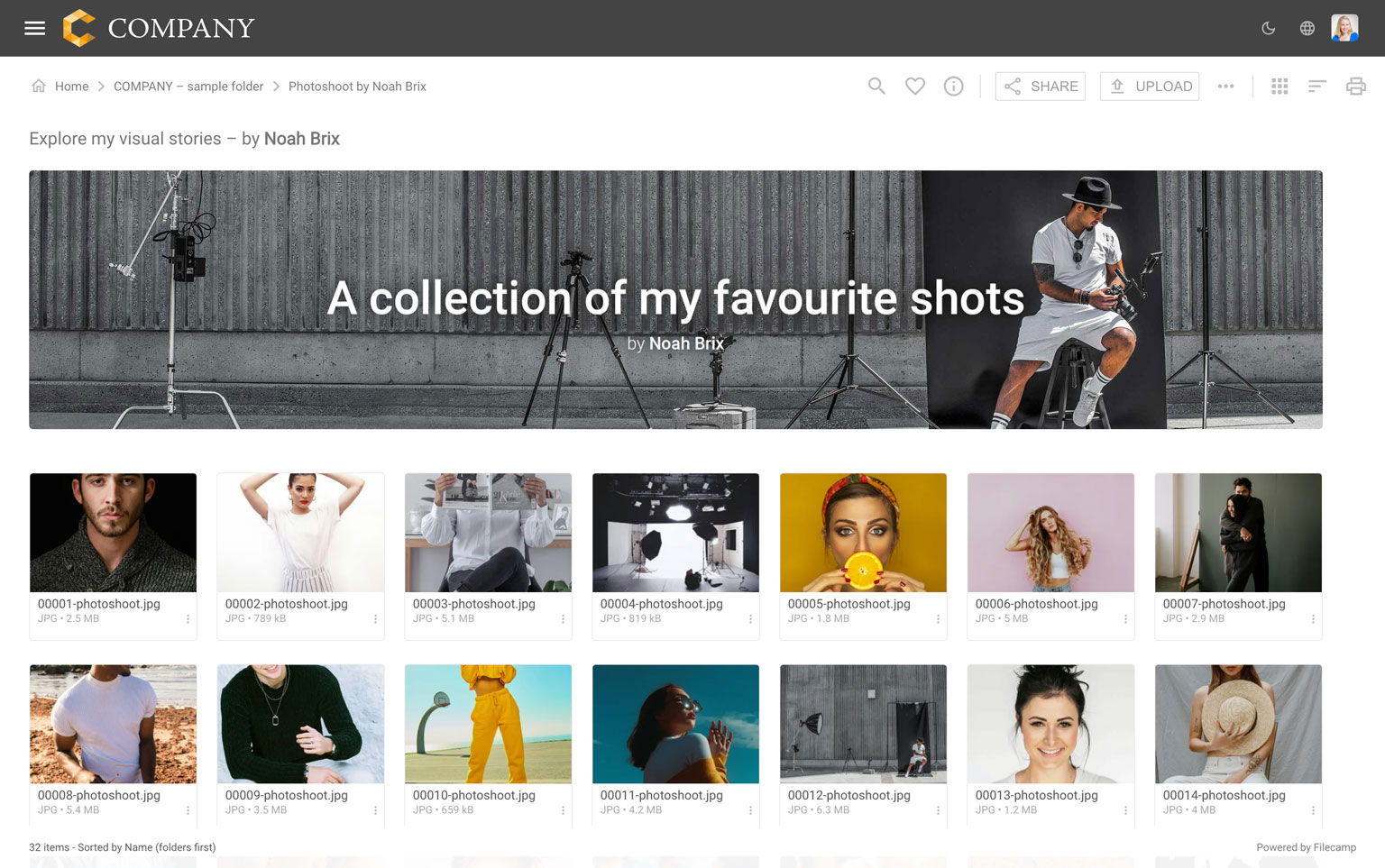
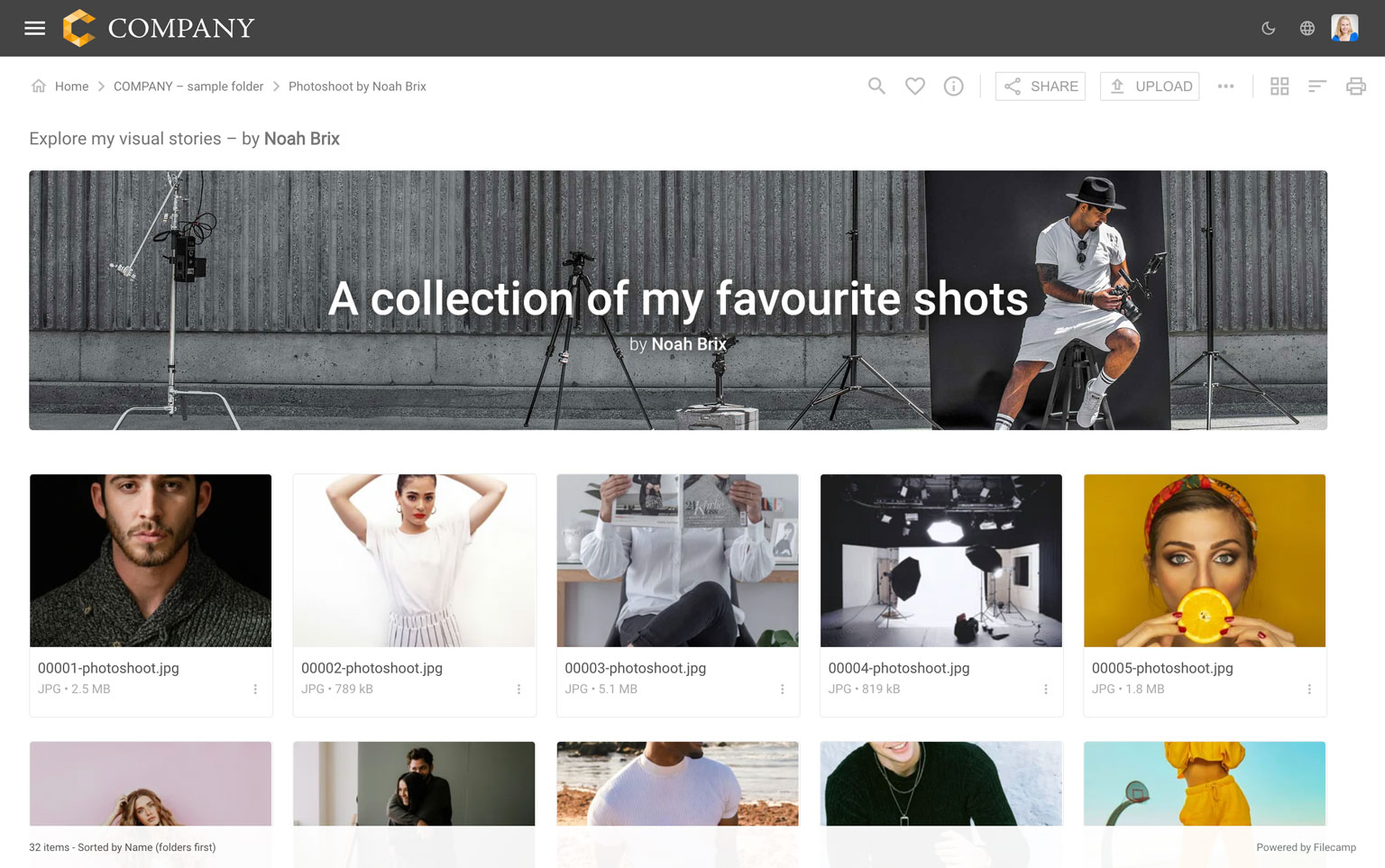
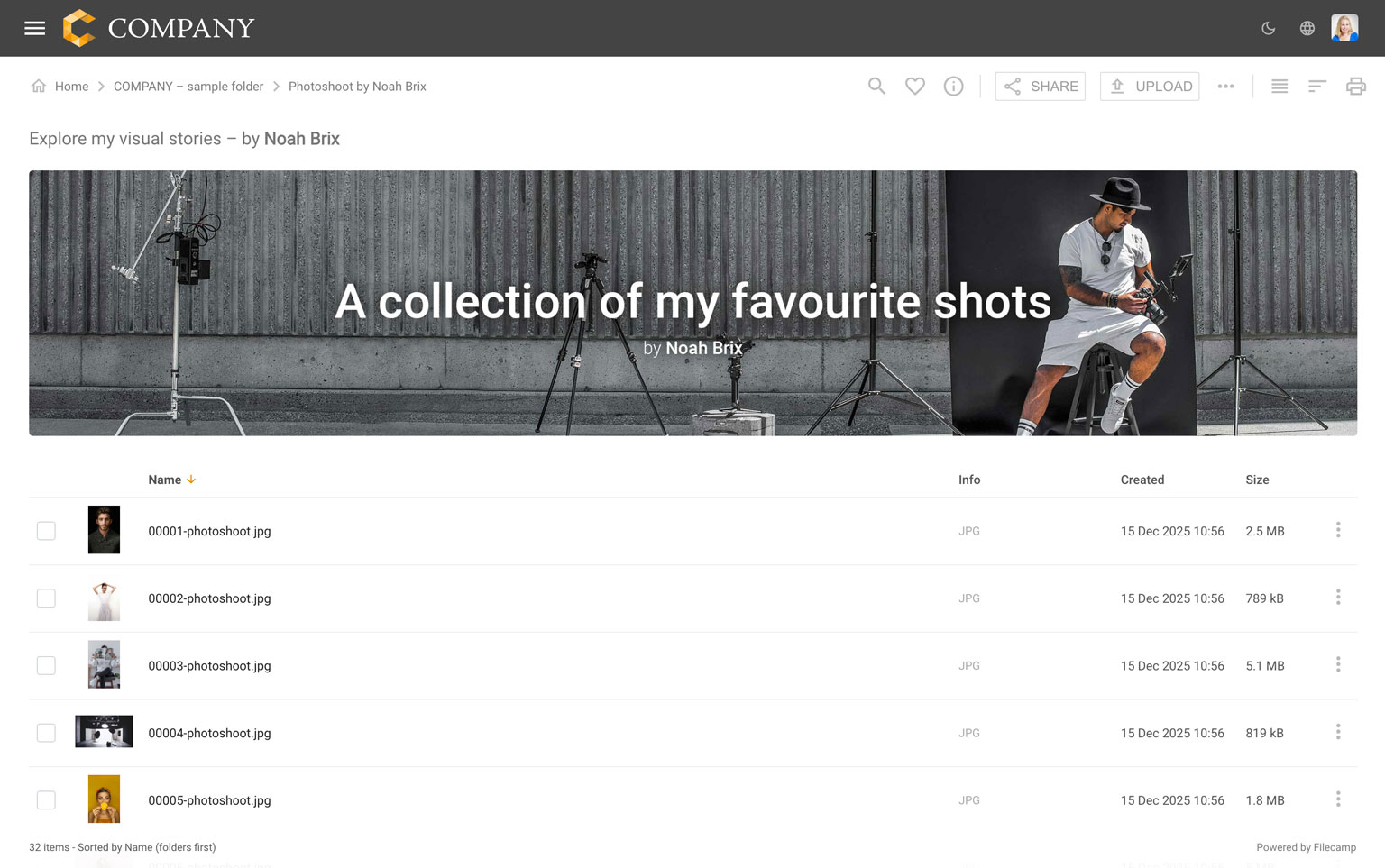
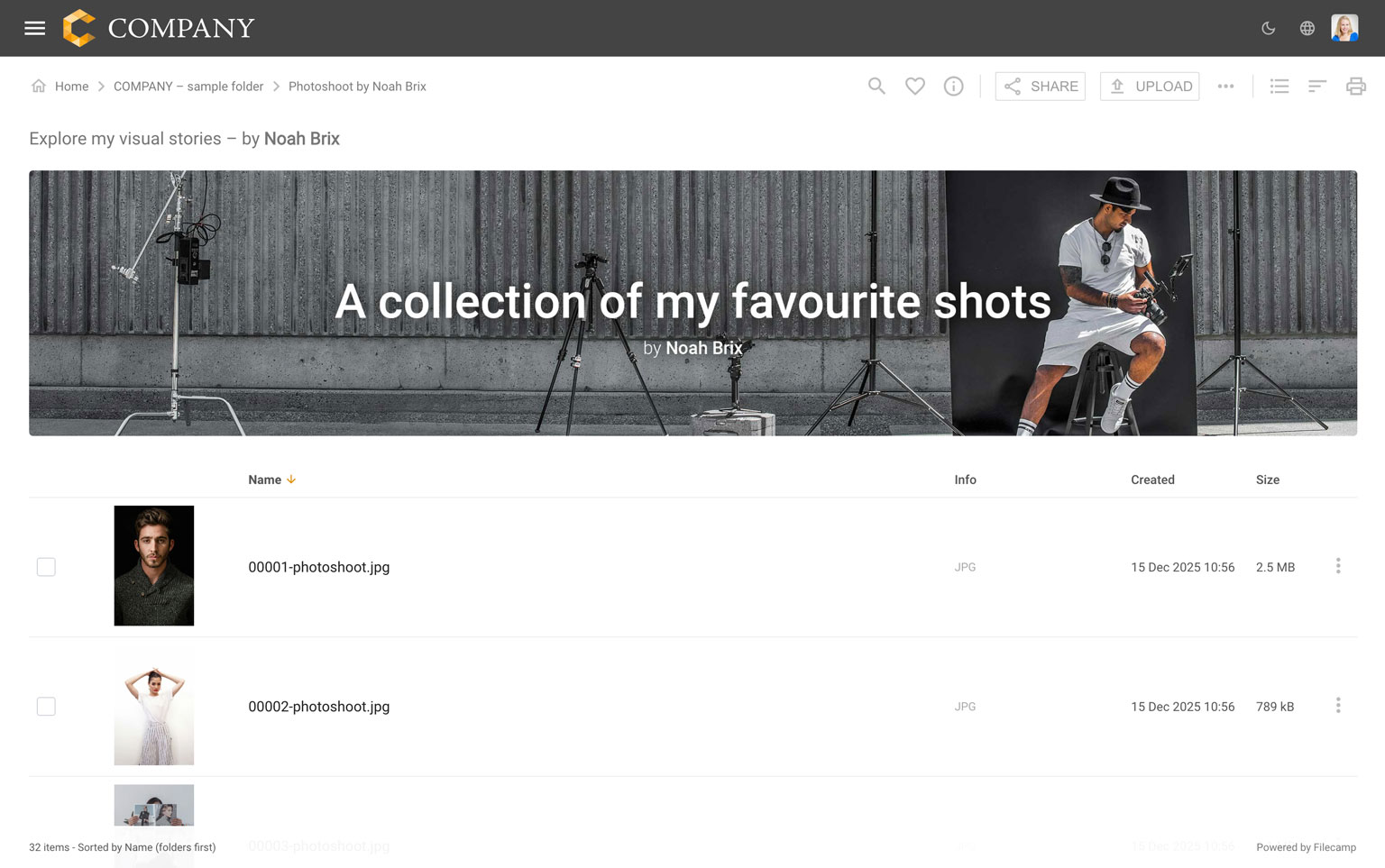
After changing the layout, you can return to the folder’s default layout settings at any time by selecting “Reset to default”.
TIP: You can also press the V key to switch between layout options.
Read more about keyboard shortcuts.
Notice: Account Owners and Administrators can change a folder’s default sort order and default view in the Edit folder menu. For example, you can choose to show the newest files first. Subfolders inherit these settings from their parent folder.
On this page:
AI-powered thumbnails that fit your content.
Filecamp adapts each thumbnail to the image. Photos fill the tile with the main subject in focus, while logos, packshots, and similar content remain fully visible.