
Folder permissions
View and manage who can access a folder. Folder access can be granted through Roles or directly to individual users.
Folder permissions let you control who can access a specific folder and what they can do inside it.
Access can be granted in two ways:
- Roles with access – Roles that give access to this folder.
- Users with direct access – individual users who have been given access to this folder directly.
Account Owners and Administrators are not listed as normal folder permissions, because they always have access to all folders.
Open Folder permissions
To see who can access a folder, open or select the folder and click the Permissions icon in the Toolbar.
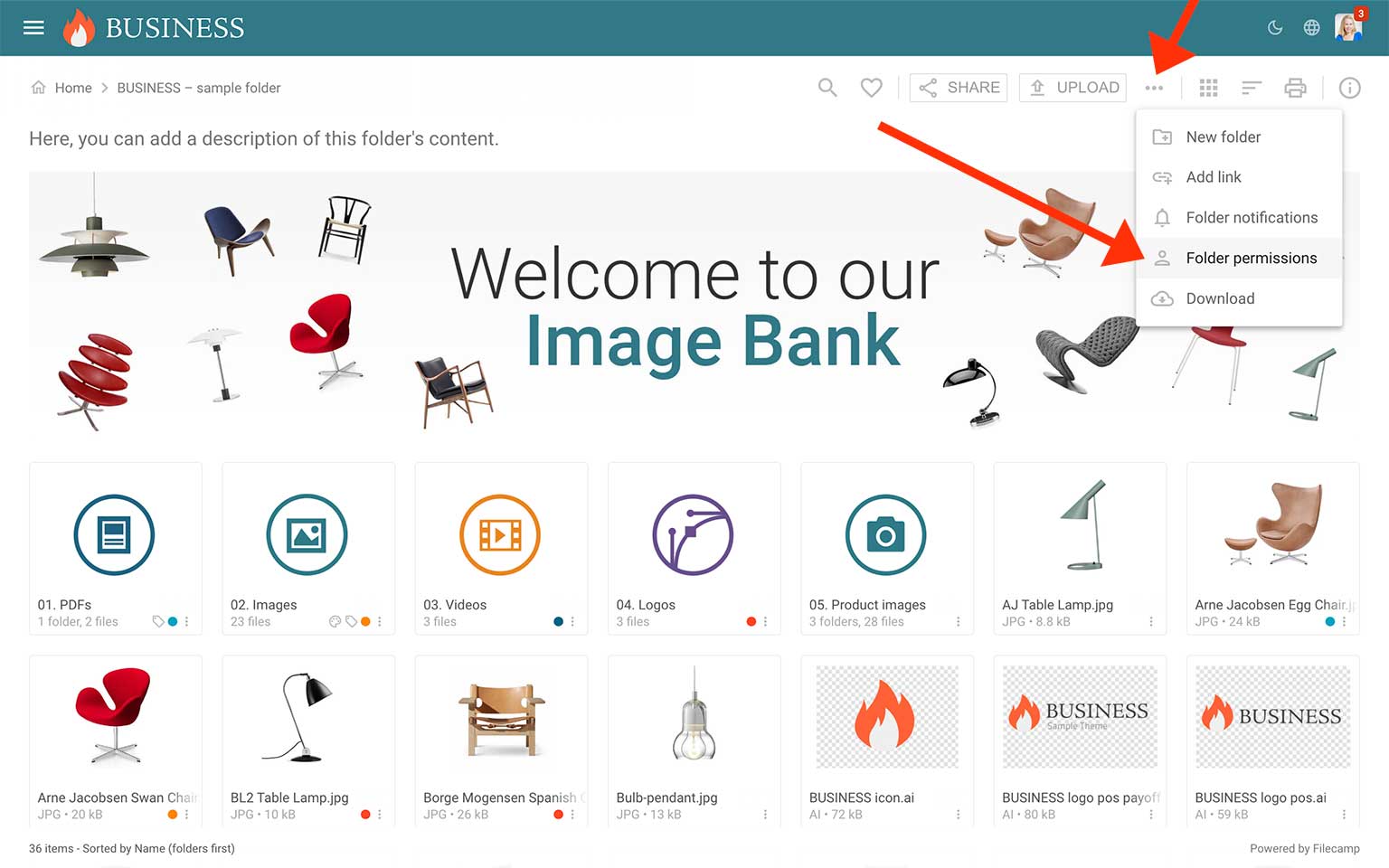
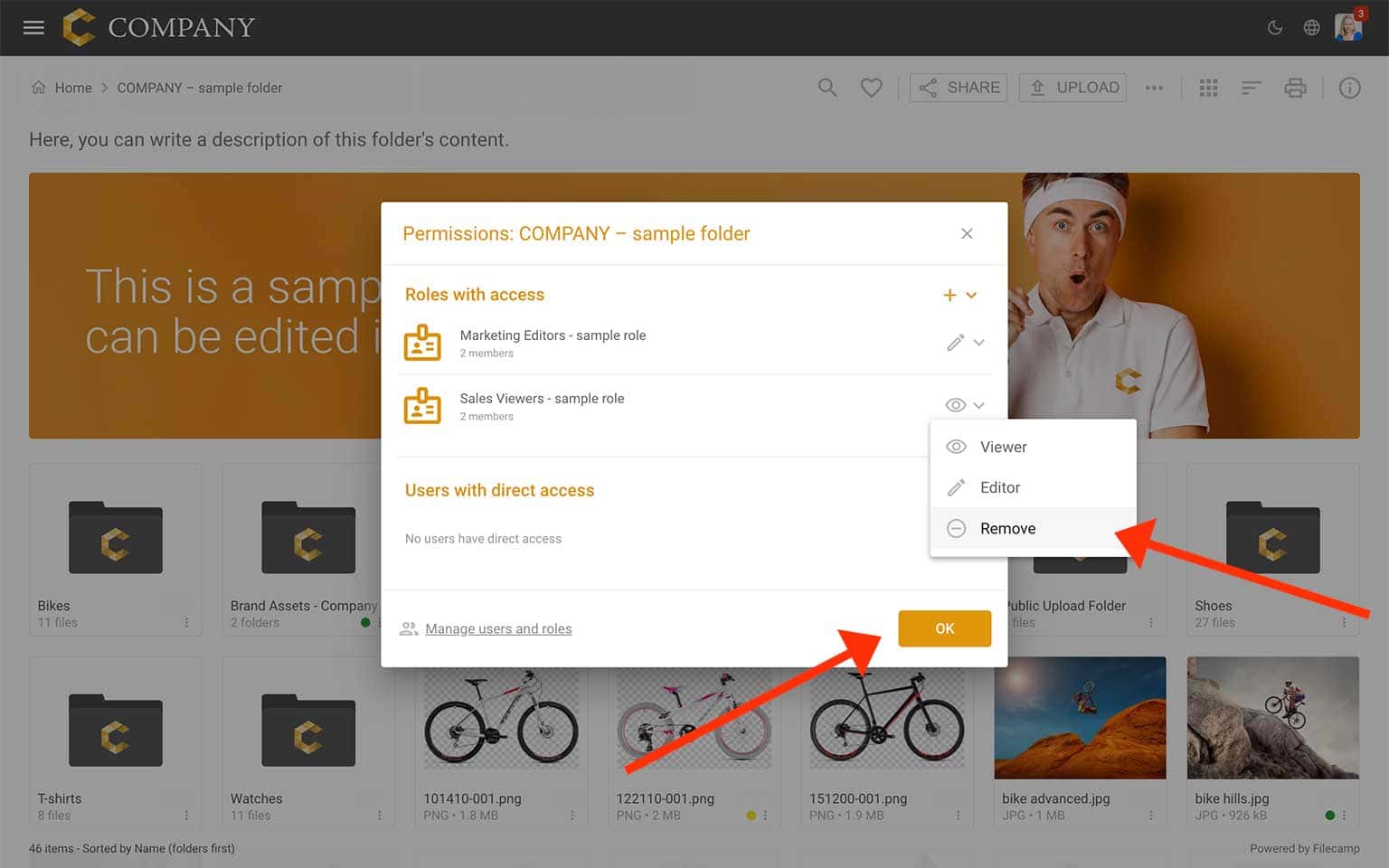
The Folder permissions window shows who has access to the selected folder.
The window is divided into two sections:
- Roles with access
- Users with direct access
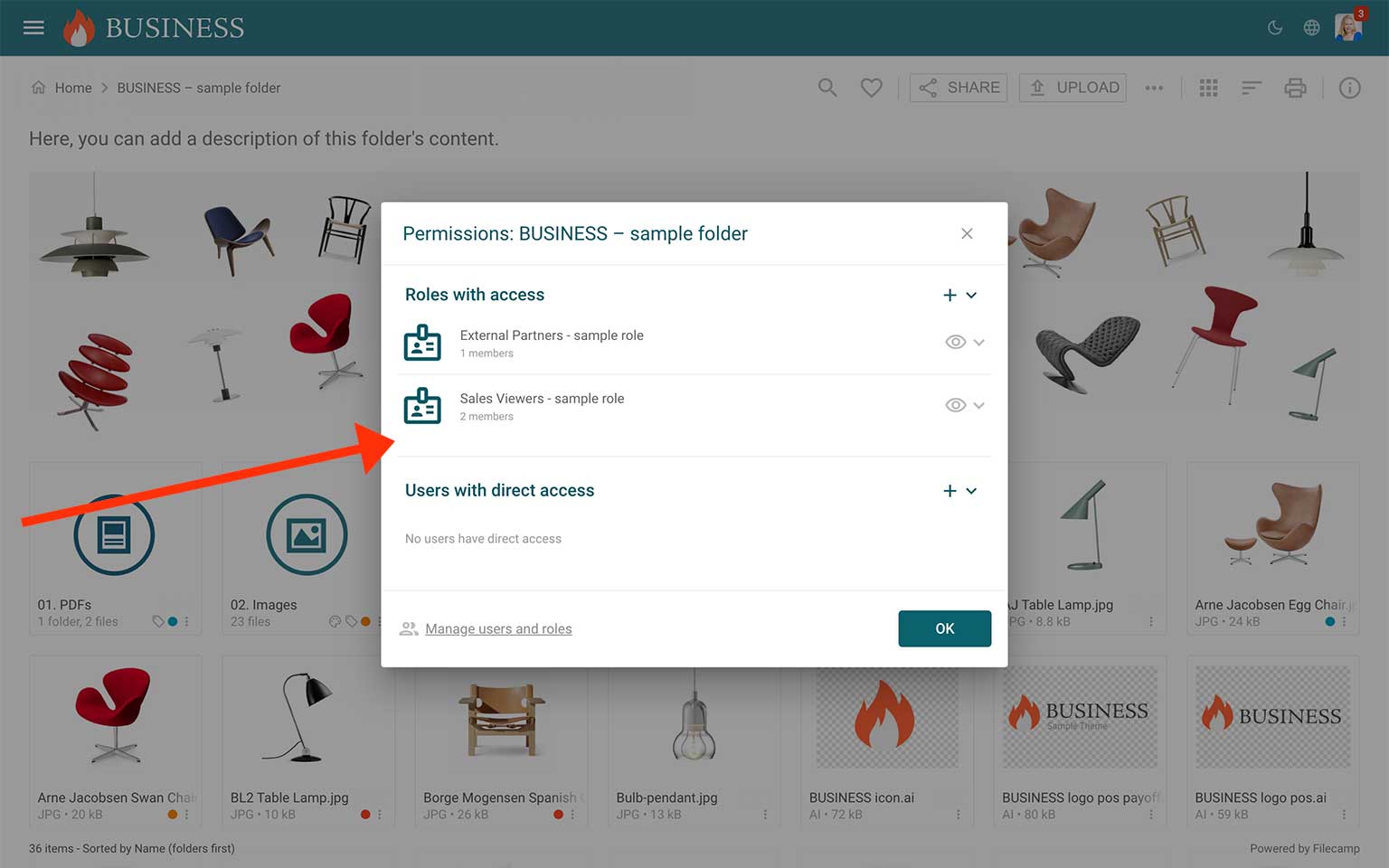
Roles with access
Roles with access shows the Roles that give users access to this folder.
A Role can include multiple users. When a Role has access to a folder, all users assigned to that Role get the same access level.
This is the recommended way to manage access for teams, departments, external partners, or other groups of users.
For each Role, you can see and change whether the Role has Viewer or Editor access.
Tip: If several users need the same folder access, use a Role instead of adding each user directly.
Users with direct access
Users with direct access shows individual users who have been given access to this folder directly.
Direct access is useful for exceptions. For example, if one user needs access to a folder that should not be included in a shared Role.
For each user, you can see and change whether the user has Viewer or Editor access.
Tip: Use direct folder access for exceptions. For example, if one user needs access to a private folder that should not be included in a shared Role.
Viewer access
Viewer access lets users view folders and download files.
Users with Viewer access can:
- View folders and files.
- Preview files.
- Download files.
- Add files to Collections.
- Create view-only or download share links.
- Comment on files, if commenting is enabled on the folder.
Viewer access is best for users who only need to browse, review, or download files without changing anything.
Editor access
Editor access includes everything in Viewer access, plus permission to modify files and folders.
Users with Editor access can:
- Upload files.
- Edit files and file information.
- Create subfolders.
- Change labels, if label change is enabled on the folder.
- Move and copy files.
- Share files and folders.
- Delete files.
Editor access is best for users who need to upload, organize, update, or manage files in a folder.
Change access level
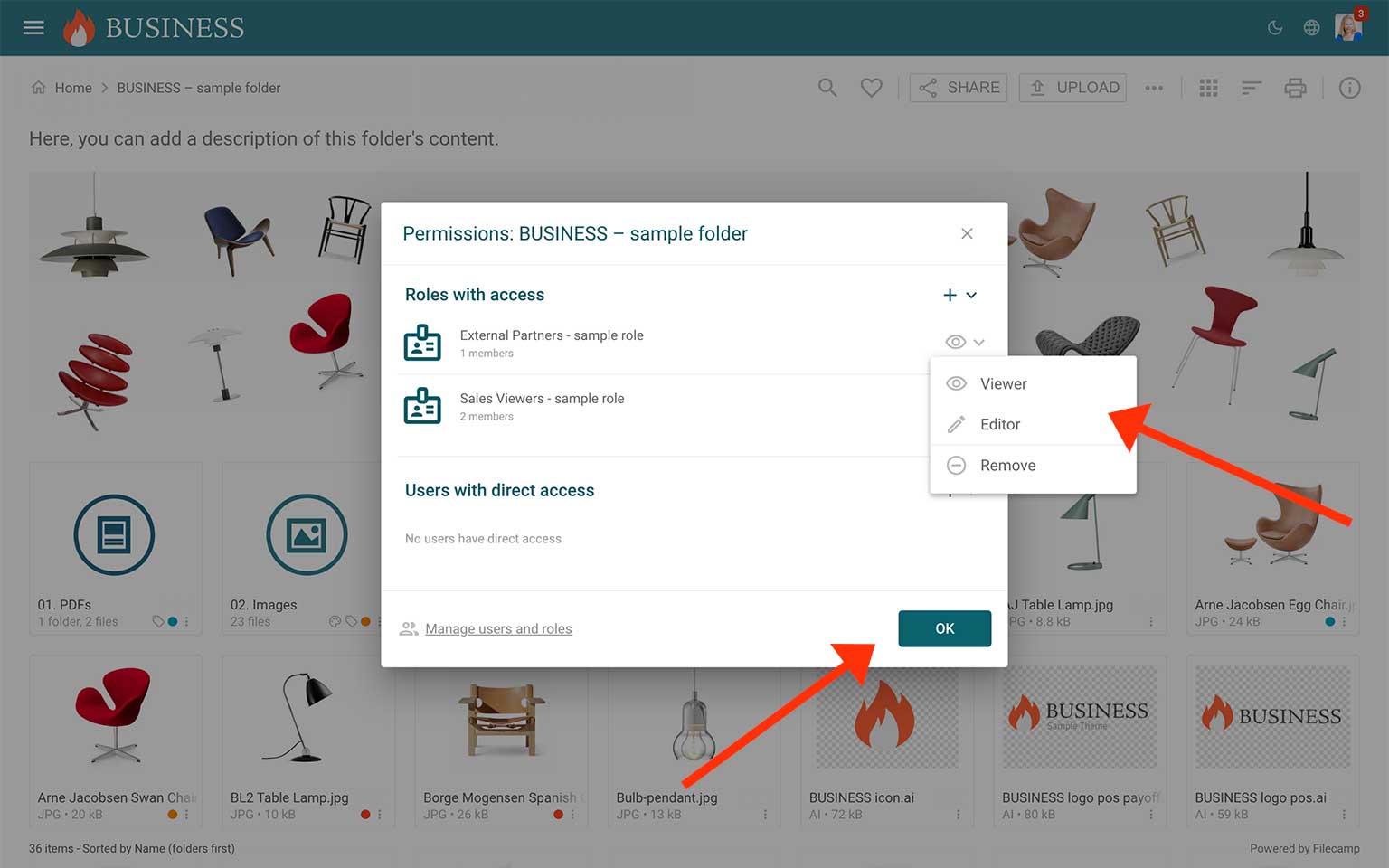
To change access for a Role or user, click the access icon next to the Role or user.
Choose one of the following options:
- Viewer – the Role or user can view and download files.
- Editor – the Role or user can view, download, upload, edit, move, copy, share, label, and delete files.
The change is applied to the selected folder.
If you change access for a Role, the change applies to all users assigned to that Role.
Add access
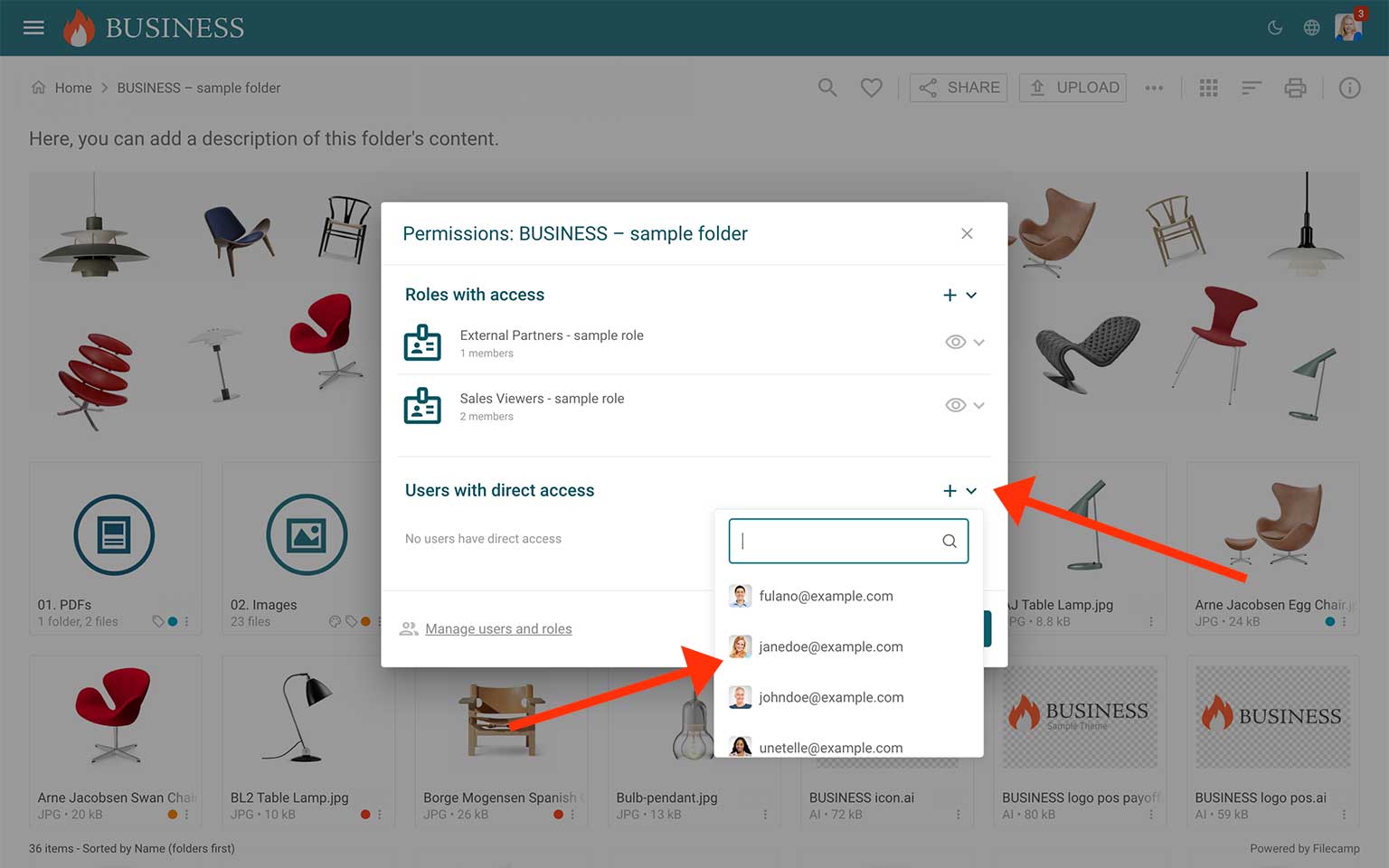
To add access, click the + icon in the Folder permissions window.
You can add access for:
- A Role – recommended when several users need the same access.
- An individual user – useful for one-off exceptions.
After adding access, choose whether the Role or user should have Viewer or Editor access.
Remove access
To remove access, click the access icon next to the Role or user and choose Remove.
If you remove a Role from the folder, users assigned to that Role will no longer get access to this folder through that Role.
If you remove a user from Users with direct access, only that user’s direct access to the folder is removed.
Notice: A user may still have access through another Role, another direct folder permission, or a parent folder.
Manage users and Roles
Click Manage users and roles to open Admin > Users.
From there, you can:
- Add, invite, edit, or delete users.
- Create and edit Roles.
- Assign users to Roles.
- Manage direct folder access for individual users.
Important notes
Account Owners and Administrators: Account Owners and Administrators always have access to all folders. They are not shown as normal folder permissions.
Roles and direct access can work together: A user’s final access is based on all assigned Roles plus any direct folder access they have.
Parent folder access: If access is inherited from a parent folder, it may need to be changed from the parent folder.
No listed access: If no Roles or users are listed in the Folder permissions window, only Account Owners and Administrators can access the folder.