
Edit folder
Edit a folder’s name, appearance, layout, and advanced settings.
Editing a folder
To edit the name and settings of an existing folder, enter the folder and click the Info  icon in the Toolbar.
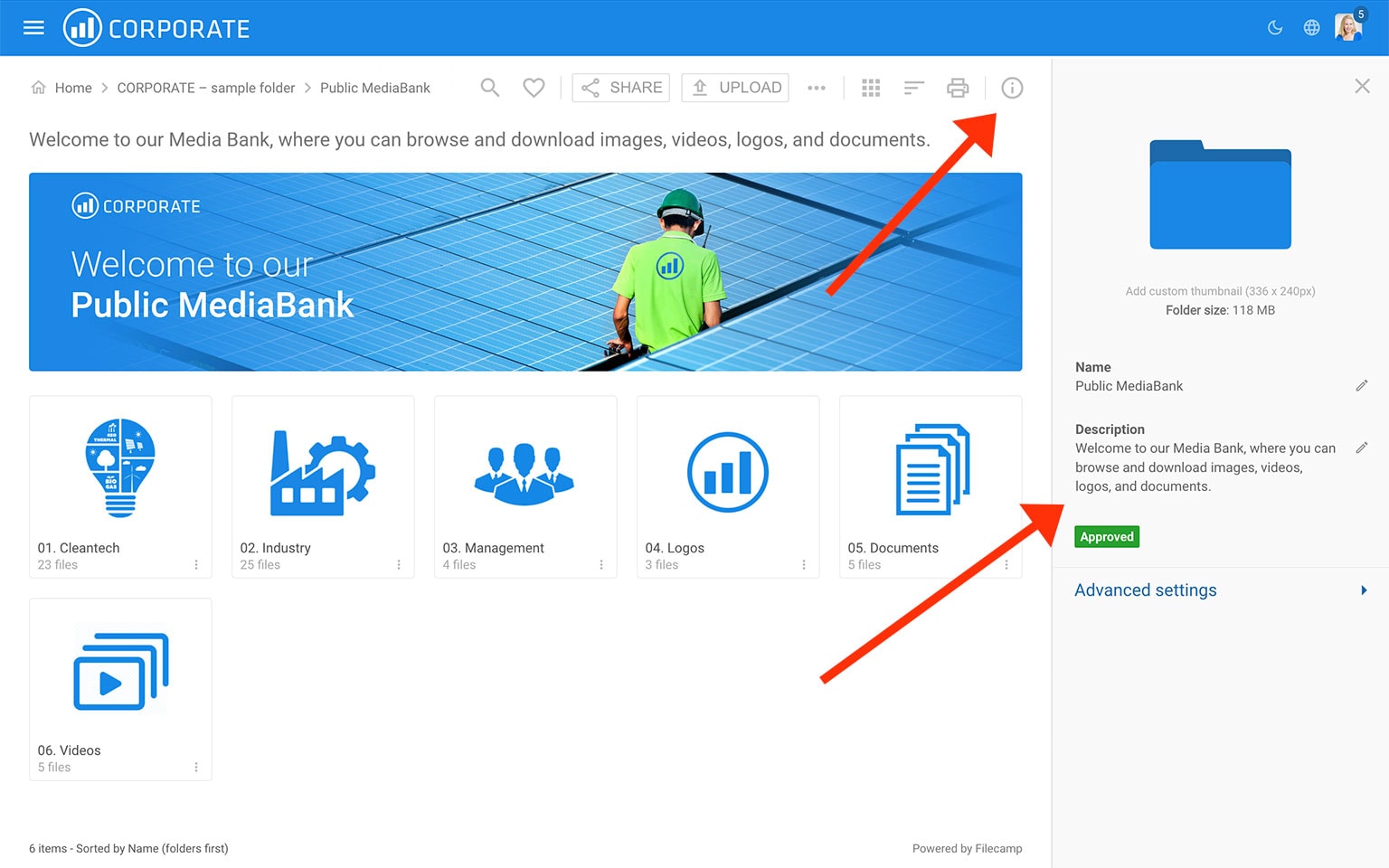
In the Infobar , you can view and edit the settings for the folder.
- Custom Thumbnail – click the folder icon to replace the default folder icon with your own image. Read more.
- Name – change the folder name.
- Description – add or edit the folder description.
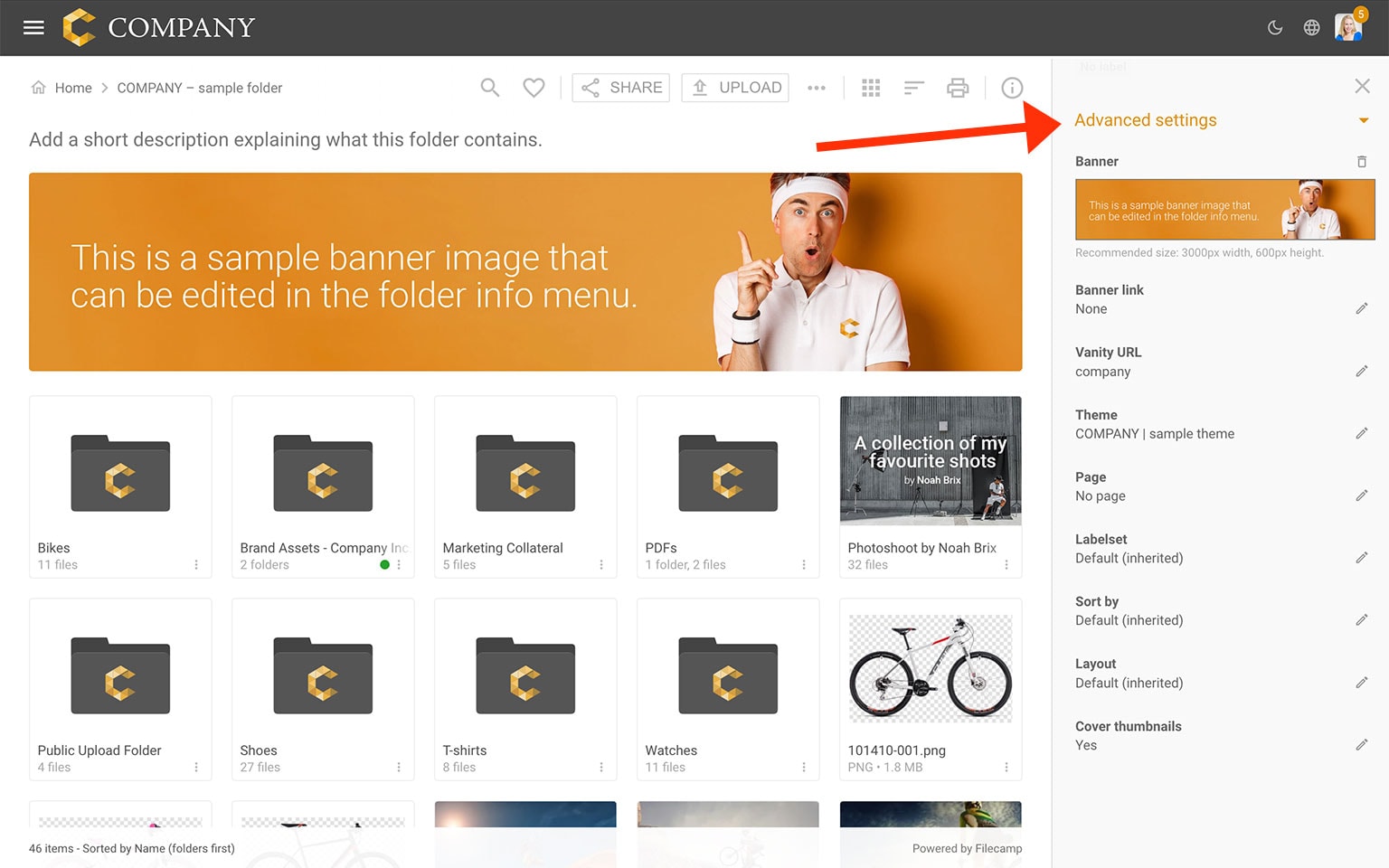
Advanced settings
- Banner – click the image field to upload a banner image. We recommend using a well-compressed 3000 × 600 px .jpg image. Read more.
- Vanity URL – replace the secure and encrypted default folder URL with a name of your own choice. For example:
- Default folder URL:
"https://files.company.com/hdDj9MIrkgoDSHPv" - User-defined folder vanity URL:
"https://files.company.com/imagebank"
- Default folder URL:
- Theme – choose another Theme if you do not want to use the default Theme. Read more.
- Page – select a Page if you want it to appear whenever someone enters the folder.
- Labelset – choose another Labelset if you do not want to use the Labelset inherited from a parent folder. This option is only available when Labels have been enabled under Admin > General. Read more.
- Sort by – choose how files and folders are sorted by default. For example, select "Date (newest first)" if you want the newest files shown first.
- Layout – choose Grid, Large grid, List, Large list, or Flexible grid as the default view for this folder and its subfolders.
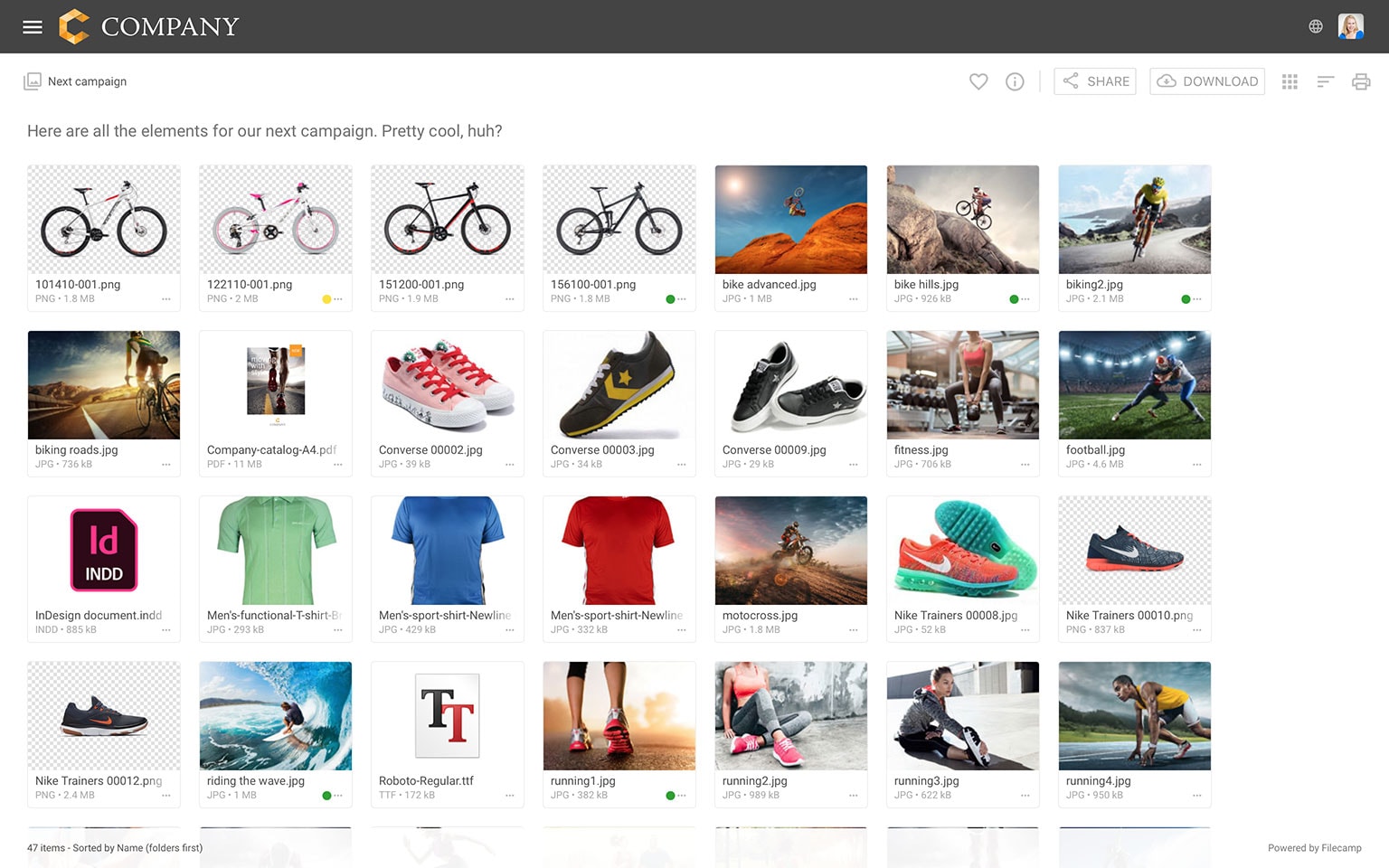
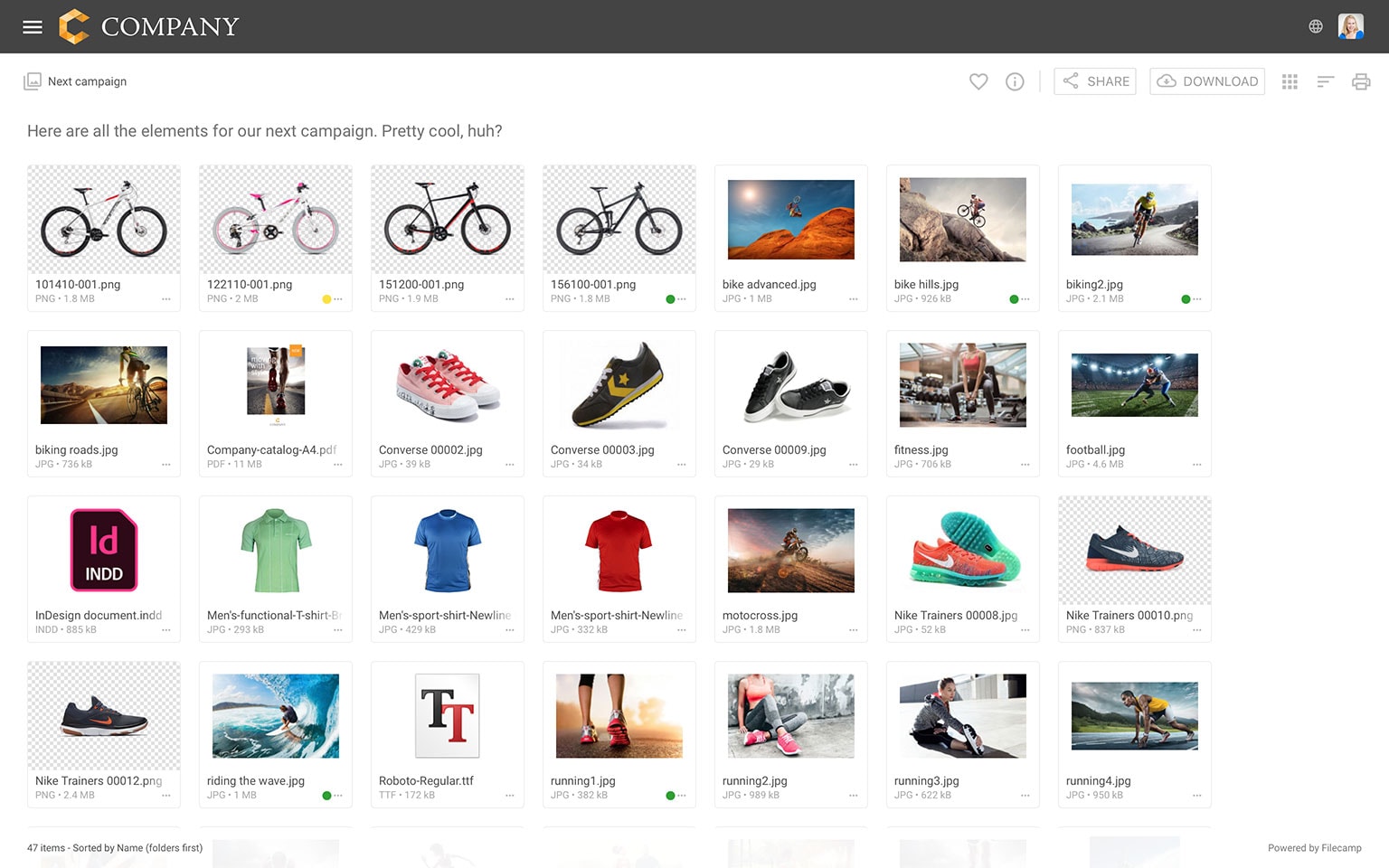
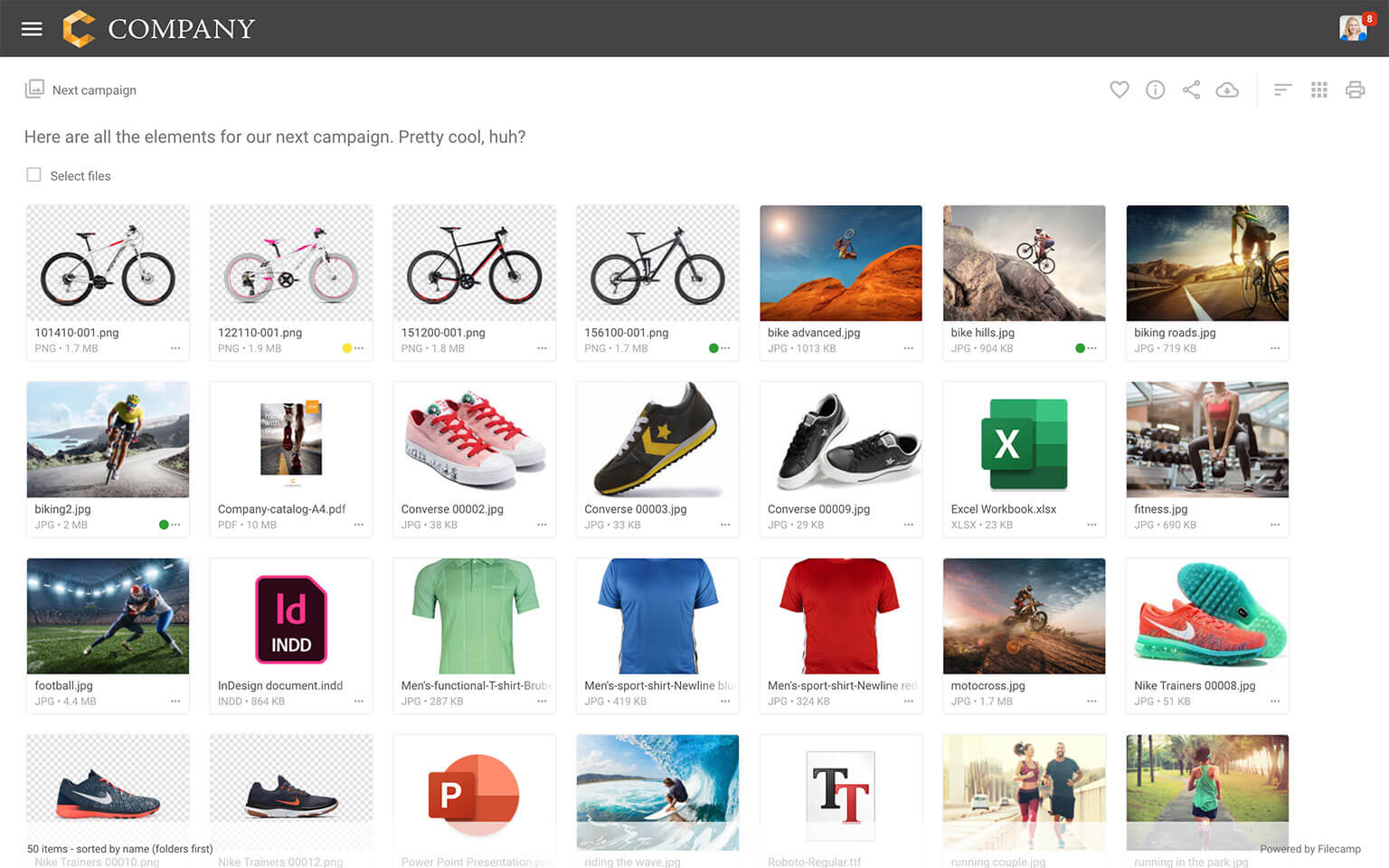
- Cover thumbnails – enable this option if you want thumbnails to fill their frames in Gallery view. Depending on your files, this may look better or worse.
Use the tabs below to compare Gallery view with Cover thumbnails turned on and off.
Notice: Only Account Owners and Administrators can view and edit the Advanced folder settings.
Notice: You may need to re-enter the folder or refresh your browser to see changes made to the folder settings.
Tip: Commenting and Labels are now enabled or disabled account-wide under Admin > General. What individual users can do in a folder is controlled through Permission sets.