
Add link
Create LINK files that point to a Filecamp item or a web address.
Add link
Account Owners, Administrators, and users with permission to create Link files can create Link files in that folder.
To create a link file, click the Extra options  icon in the Toolbar. Then select the Add link:
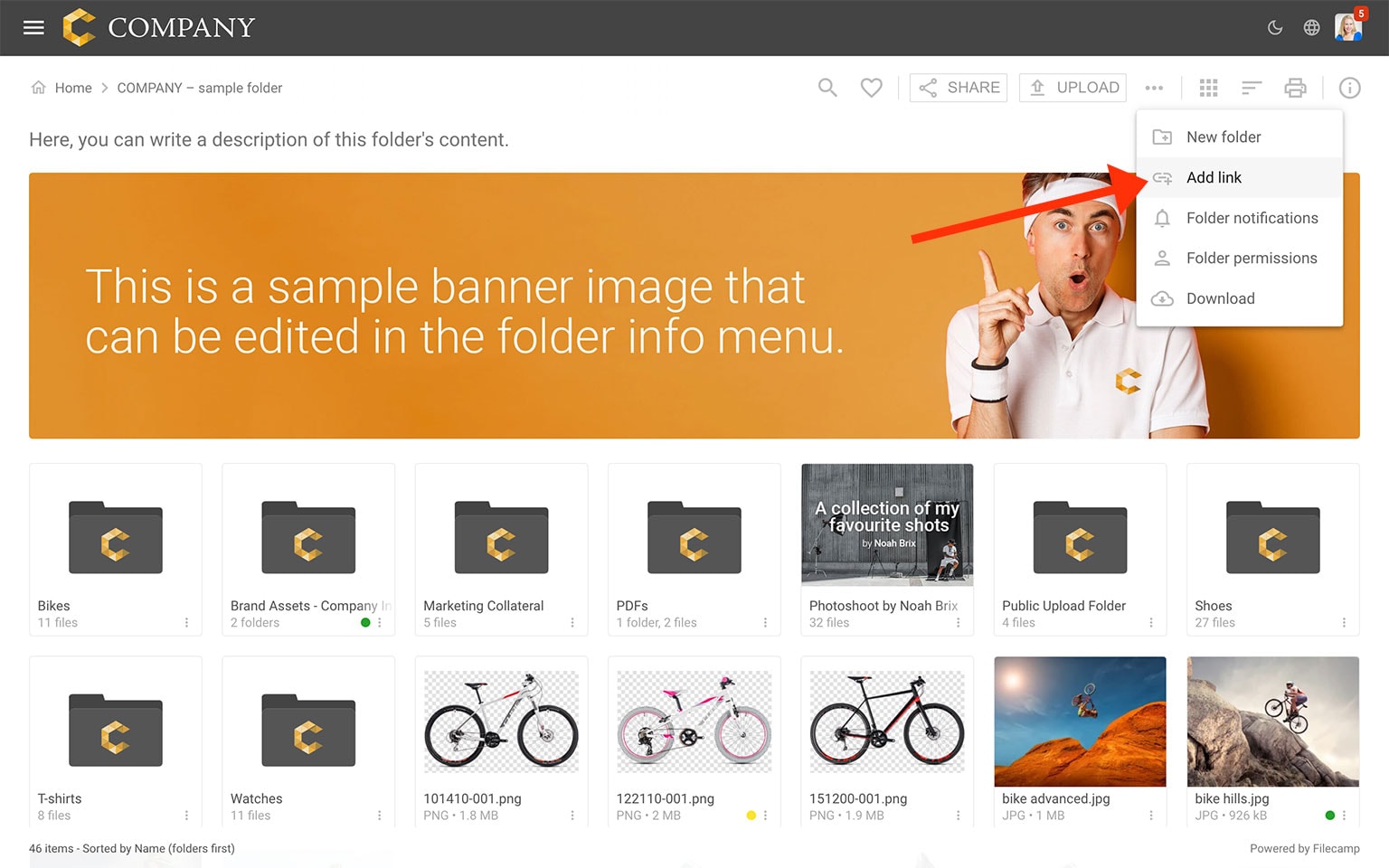
A new LINK file is added to the folder, and its settings open in the sidebar on the right.
You can edit the Name and Description and choose what the LINK file should point to.
Link to a web address
Select Web address under Link to.
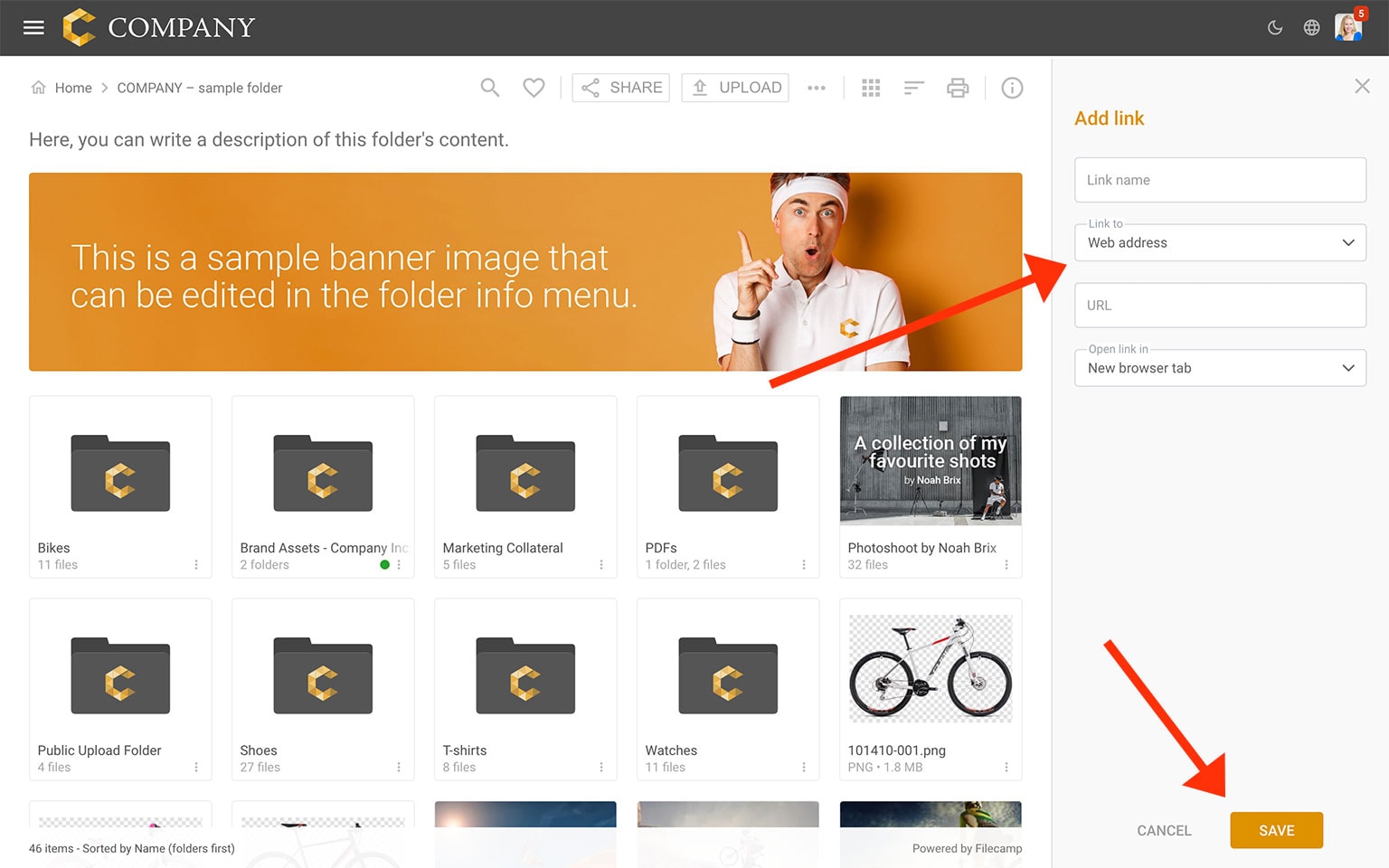
Enter the full URL you want the LINK file to point to.
Then choose how the link should open:
- New browser tab
- Same browser tab
- Pop-up window
Click SAVE when you're done.
Link to a Filecamp item
Select Filecamp item under Link to.
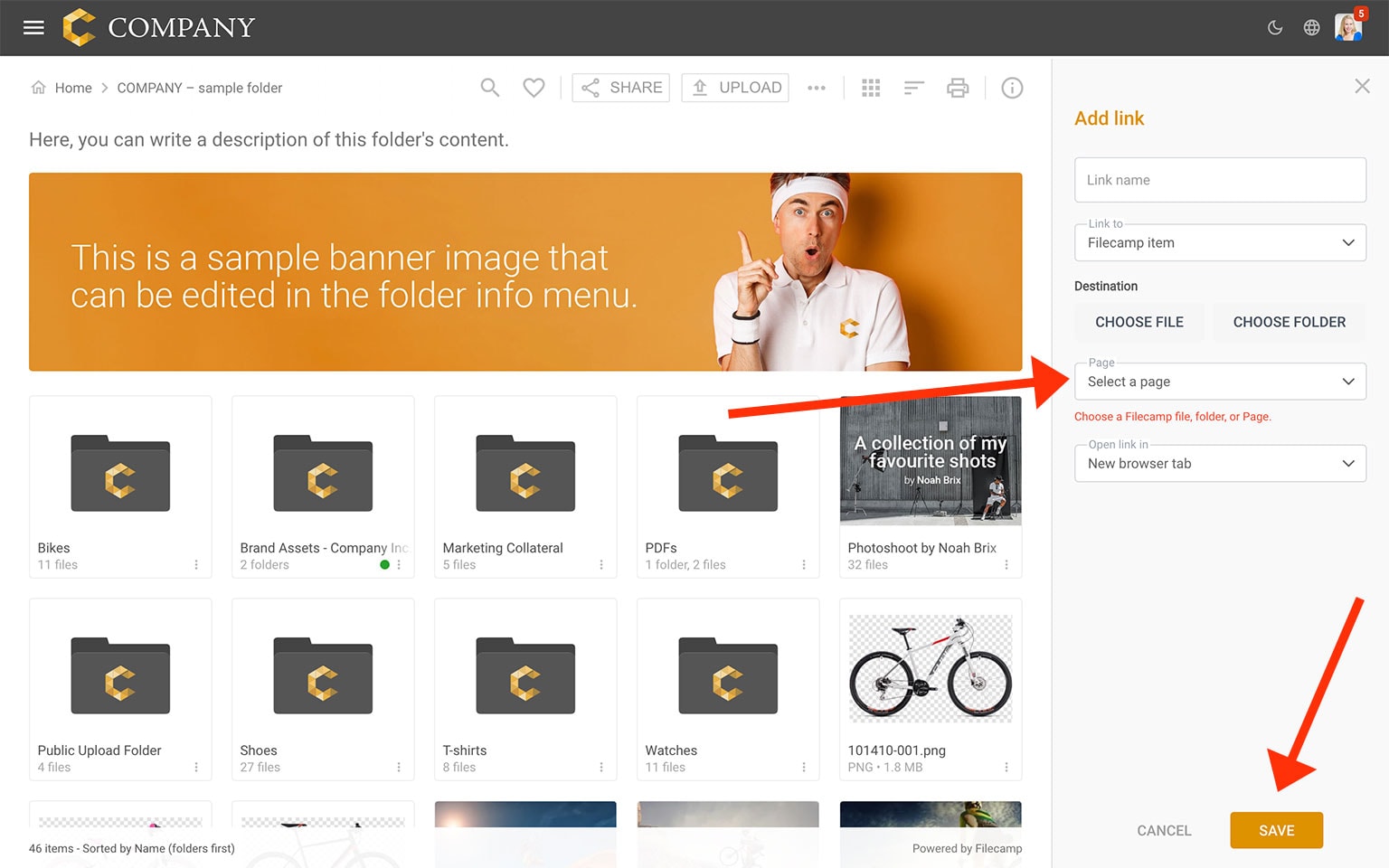
You can link directly to:
- A Filecamp file
- A Filecamp folder
- A Page
Choose the destination and then select how the link should open:
- New browser tab
- Same browser tab
- Pop-up window
Click SAVE when you're done.
This makes LINK files useful as shortcuts to frequently used content within your Filecamp account.
Clicking the LINK file will now open the selected destination.
On this page:
Related articles
Files
- Uploading files
- Downloading files
- Copy or move
- Delete
- Edit files
- Share file links
- Supported file types
- Version control
- Expiration
- Metadata
- Tags
- Auto tags
- Custom thumbnails